> ## Documentation Index
> Fetch the complete documentation index at: https://docs.msportal.ai/llms.txt
> Use this file to discover all available pages before exploring further.
# Manage your profile and email preferences
> Update your own name, timezone, profile picture, and product update email preference.
export const guideLink0_0 = "/msp-guides/account/understand-your-access"
export const guideLink1_0 = "/msp-guides/account/arrange-your-sidebar"
export const guideLink2_0 = "/msp-guides/ticketing/open-a-ticket"
**Audience:** MSP staff managing their own account. These personal controls do not edit another user’s role or the shared navigation defaults. For those tasks, use [Users and roles](/user-guides/settings/users-roles) or [shared navigation settings](/user-guides/getting-started/customizing-the-sidebar).
Open **Settings > User Settings** in your portal (`/settings/user`). Your personal information, sign-in method, access summary, and email preferences appear on this page. Changes to other people's accounts are handled by your MSP.
## Edit your personal information
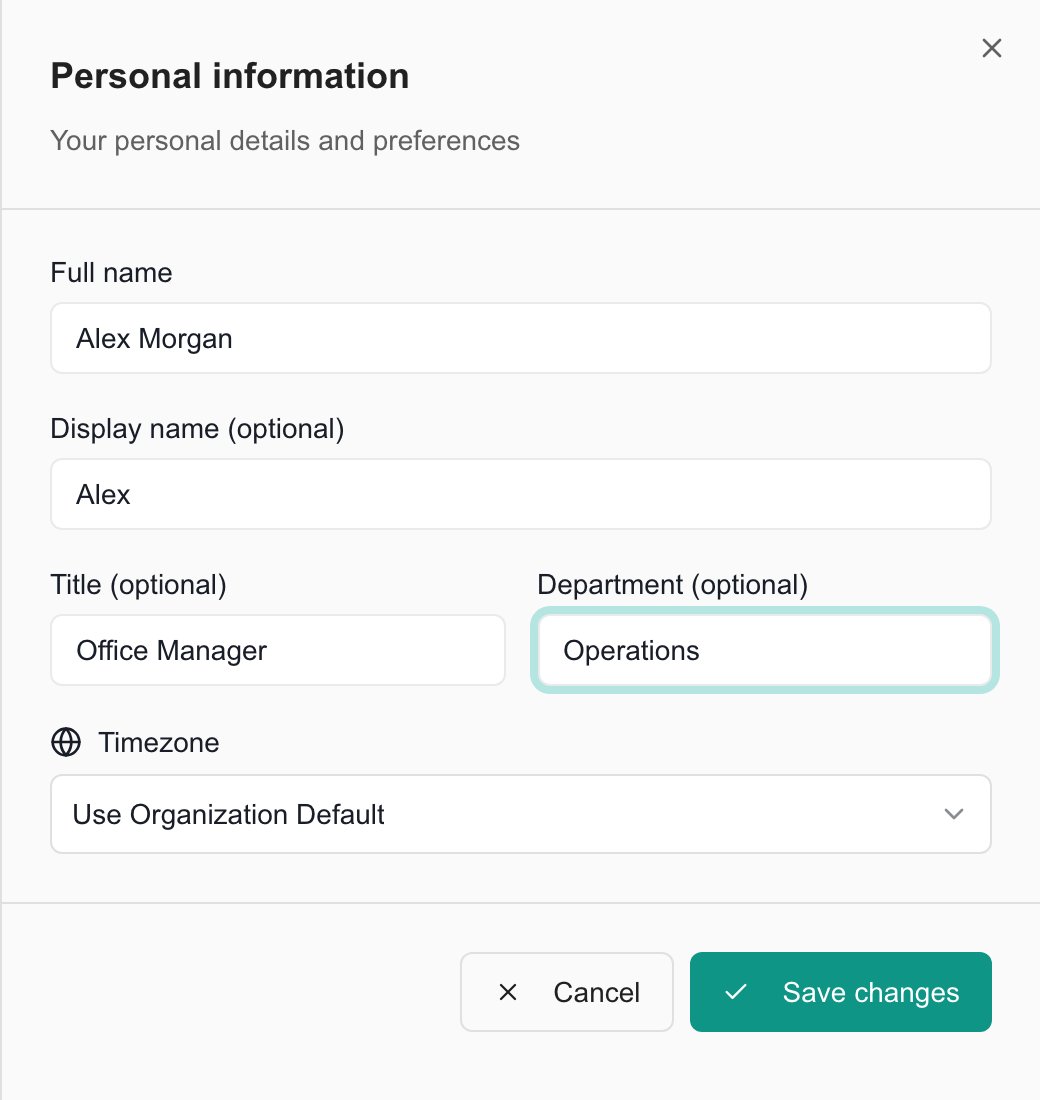
Select **Edit profile** beside your profile summary. The **Personal information** drawer opens.
Enter your **Full name**. You can also set an optional **Display name**, **Title**, and **Department**.
Choose your **Timezone**, or select **Use Organization Default** to follow the organization's timezone. This is your personal preference; it does not change the organization's default.
Select **Save changes** and wait for the success message. **Cancel** or closing the drawer discards unsaved edits.
 ## Change your profile picture
Select **Change Avatar** under your profile picture. Choose a PNG or JPEG image under 5 MB. In **Crop Avatar**, adjust the crop, zoom, and rotation, then select **Save & Apply**. Wait for the successful upload message. The avatar upload saves separately from the Personal information drawer.
## Review how you sign in
Select **Manage sign-in** to move to the **Sign-in method** card on the same page. It shows your sign-in email and the method associated with your account.
If you use Microsoft or Google, **Manage in Microsoft** or **Manage in Google** opens that provider's account security page. Follow your IT provider's process for changes to your work account. The profile editor does not change your sign-in email or password.
## Choose whether to receive product update emails
In **Email Notifications**, switch **Product update emails** on or off. This preference saves immediately; there is no separate Save button. Wait for confirmation before leaving.
## Change your profile picture
Select **Change Avatar** under your profile picture. Choose a PNG or JPEG image under 5 MB. In **Crop Avatar**, adjust the crop, zoom, and rotation, then select **Save & Apply**. Wait for the successful upload message. The avatar upload saves separately from the Personal information drawer.
## Review how you sign in
Select **Manage sign-in** to move to the **Sign-in method** card on the same page. It shows your sign-in email and the method associated with your account.
If you use Microsoft or Google, **Manage in Microsoft** or **Manage in Google** opens that provider's account security page. Follow your IT provider's process for changes to your work account. The profile editor does not change your sign-in email or password.
## Choose whether to receive product update emails
In **Email Notifications**, switch **Product update emails** on or off. This preference saves immediately; there is no separate Save button. Wait for confirmation before leaving.
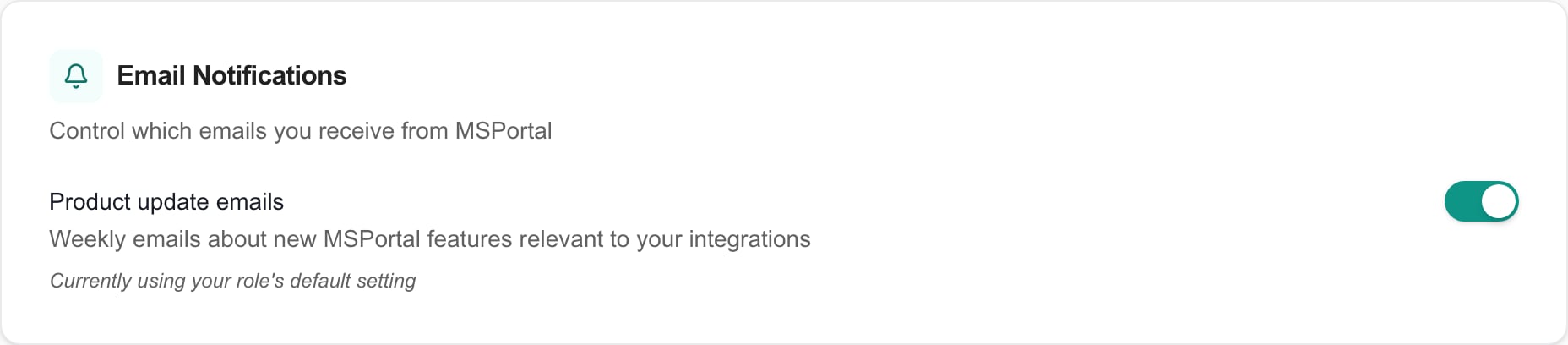 When the card says **Currently using your role's default setting**, your role controls the default. Changing the switch records your own preference.
This switch controls product update emails about MSPortal features. It is not a setting for ticket replies, security messages, or every notification sent by your IT provider.
## FAQs
Open **Settings > User Settings > Edit profile**. Update the fields and select **Save changes**.
No. The personal information editor does not include a sign-in email field. Contact your MSP about a change to the account you use to access the portal.
No. Names and personal preferences do not change your assigned role or company access. Your MSP manages access.
Closing the Personal information drawer or selecting **Cancel** discards unsaved edits. Reopen it, make the changes, and select **Save changes**. If a save fails, check that Full name is filled in and retry; contact your MSP if the error continues.
Check that the file is PNG or JPEG and under 5 MB. Complete the crop and select **Save & Apply**. If uploading fails, retain your original file and contact your MSP with the error message.
No. This preference only controls product update emails. Ask your MSP about ticket and other operational notification settings.
User Settings is presented as read-only during impersonation. Sign in as yourself to update your personal information and preferences.
## Related guides
* Understand your role and company access
* Arrange your personal sidebar
* Open a support ticket
When the card says **Currently using your role's default setting**, your role controls the default. Changing the switch records your own preference.
This switch controls product update emails about MSPortal features. It is not a setting for ticket replies, security messages, or every notification sent by your IT provider.
## FAQs
Open **Settings > User Settings > Edit profile**. Update the fields and select **Save changes**.
No. The personal information editor does not include a sign-in email field. Contact your MSP about a change to the account you use to access the portal.
No. Names and personal preferences do not change your assigned role or company access. Your MSP manages access.
Closing the Personal information drawer or selecting **Cancel** discards unsaved edits. Reopen it, make the changes, and select **Save changes**. If a save fails, check that Full name is filled in and retry; contact your MSP if the error continues.
Check that the file is PNG or JPEG and under 5 MB. Complete the crop and select **Save & Apply**. If uploading fails, retain your original file and contact your MSP with the error message.
No. This preference only controls product update emails. Ask your MSP about ticket and other operational notification settings.
User Settings is presented as read-only during impersonation. Sign in as yourself to update your personal information and preferences.
## Related guides
* Understand your role and company access
* Arrange your personal sidebar
* Open a support ticket