> ## Documentation Index
> Fetch the complete documentation index at: https://docs.msportal.ai/llms.txt
> Use this file to discover all available pages before exploring further.
# Create a ticket with AI assistance
> Start a support request with the AI Assistant on Home, or use AI inside the New Ticket form.
export const guideLink0_0 = "/msp-guides/ticketing/open-a-ticket#start-with-the-home-ai-assistant"
export const guideLink1_0 = "/msp-guides/ticketing/open-a-ticket#use-the-ticket-form-instead"
export const guideLink2_0 = "/msp-guides/ticketing/open-a-ticket#understand-the-result"
export const guideLink3_0 = "/msp-guides/ticketing/open-a-ticket"
export const guideLink4_0 = "/msp-guides/ticketing/follow-up-on-a-ticket"
**Audience:** MSP staff preparing a request or explaining the Company request experience. Select the intended company before preparing a ticket. Your staff role can expose additional actions; it does not prove which controls a Company user can access. Use [ticket template settings](/user-guides/ticketing/create-and-preview-ticket-template) to configure requests.
Start with the **AI Assistant on Home**. Describe the issue or service you need, answer its follow-up questions, and review the prepared request before sending it. Follow How to open a ticket for the primary Home workflow.
You can also use AI inside **Tickets > New Ticket** to prepare the request form. The instructions below cover that alternative: review the generated answers, complete any missing information, and select **Create Ticket** when ready.
Generating ticket details prepares the form. It does not submit the ticket. A “Template Selected” message or completed AI summary is not a ticket-creation confirmation.
## Before you start
* Your role must allow ticket creation.
* Your MSP must provide at least one active request template available to you.
* AI must be available in your portal. You can open a ticket manually if the AI option is unavailable or you prefer to complete the form yourself.
* MSP staff creating a request for a client should select the correct company before preparing the request.
## Use AI inside the New Ticket form
Go to **Tickets > New Ticket**. The assistant may open automatically. If the request catalog opens instead, select **Open AI Assistant**.
Explain what you need, who is affected, when it started, and any relevant error message. Include what you have already tried. Use specific dates when you know them.
For example:
> My laptop cannot connect to the office Wi-Fi this morning. I restarted it and checked that Wi-Fi is on. The error says “Cannot connect to this network.”
Do not include passwords, recovery codes, or unrelated private information. If you know the request type your MSP expects, include its name.
Select **Generate**, the sparkle send control in the assistant input. Wait for the result. AI chooses an available template and fills the answers it can infer from your description.
The assistant closes after a successful generation so you can review the form. If generation fails, revise the description and try again, or select a template manually.
Check the template name, **Subject**, and every populated answer. Confirm names, dates, selected options, and the description of the issue.
Use **AI Generation Summary** to see which fields were filled and which required or optional fields still need attention. Selecting a missing required field takes you to the relevant part of the form.
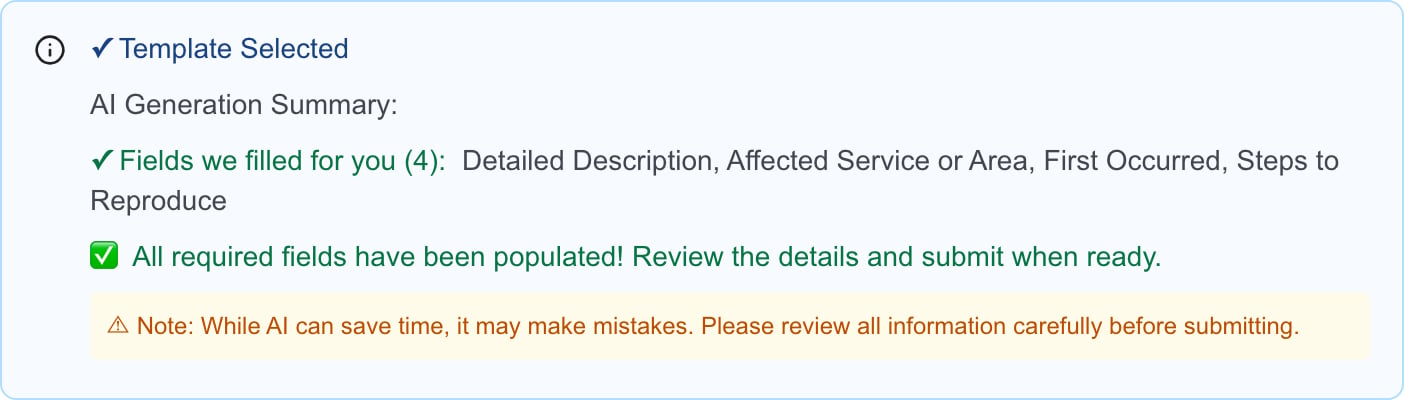 A field being filled does not mean its answer is correct. Remove assumptions and correct anything that does not match your request.
Fill any remaining required questions and visit every form section. Some questions appear only after you change an earlier answer. Add supporting files where the template provides an upload field.
If you need a different request type, return to template selection. Changing templates clears the current answers, so keep a copy of useful information first.
Select **Create Ticket** and wait for the creation result. Keep the ticket number if one is provided.
If the ticket succeeds but attachments or an appointment fail, keep the existing ticket and follow up on the failed part. See understanding the submission result.
## Improve the generated answers
Reopen the AI Assistant to provide more detail or request changes, then use **Regenerate** when it is shown. Review the new result before submitting; another generation can change the selected template or answers.
You can also edit the form directly. This is usually the quickest way to correct a date, choose an option, or replace an assumption with information you know.
## Requests with additional forms
Some templates contain another request form inside them. AI can fill those questions too when your description provides enough information. The summary identifies them using the parent and inner question labels.
Review the additional form and complete its required questions. An applicable embedded request can create its own ticket when you submit the main form. AI assistance does not change how your MSP routes those requests.
## Troubleshooting
| Problem | What to do |
| -------------------------------------------- | ----------------------------------------------------------------------------------------------------------------------- |
| There is no AI option | Use manual template selection and ask your MSP whether AI is enabled for your portal. |
| AI chose the wrong request | Choose the appropriate template manually, or give a more specific description and generate again. |
| A field is blank | Fill it directly. AI cannot infer information you did not provide. |
| A date or selected person is wrong | Correct it in the form. Check actual calendar dates rather than relying on phrases such as “next Monday.” |
| A required question appears after generation | Complete it. Conditional questions depend on the form's current answers. |
| Generation fails | Keep your description, try a clearer request, or complete the form manually. Contact your MSP if the problem continues. |
| The summary says everything is filled | Review all answers, then select **Create Ticket**. The summary does not submit the request. |
## Frequently asked questions
Yes. Start on **Home** and describe the support request to the AI Assistant. Answer its questions and review the request before submitting it. You can also use AI on **Tickets > New Ticket** to prepare a form that you review and submit with **Create Ticket**.
No. In this ticket-creation flow, **Generate** prepares the form. **Create Ticket** submits it.
AI selects from the templates available in your current request context. It does not grant access to hidden templates or change your permissions.
No. Your MSP must provide an active request template first. Ask your IT provider to check your company's available templates.
Review all answers before submission, especially dates, people, selected options, and statements about what happened. AI can make mistakes or infer details you did not intend.
Add a clear description for AI to work from. Attach supporting files in the request's upload fields when available; file-upload options depend on the template.
Yes. Edit the generated form directly, or choose a template manually. Switching to another template clears the current answers.
## Related guides
* How to open a ticket
* Find and follow up on a ticket
* [MSP guide: create a ticket template](/user-guides/ticketing/how-to-create-a-ticket-template)
A field being filled does not mean its answer is correct. Remove assumptions and correct anything that does not match your request.
Fill any remaining required questions and visit every form section. Some questions appear only after you change an earlier answer. Add supporting files where the template provides an upload field.
If you need a different request type, return to template selection. Changing templates clears the current answers, so keep a copy of useful information first.
Select **Create Ticket** and wait for the creation result. Keep the ticket number if one is provided.
If the ticket succeeds but attachments or an appointment fail, keep the existing ticket and follow up on the failed part. See understanding the submission result.
## Improve the generated answers
Reopen the AI Assistant to provide more detail or request changes, then use **Regenerate** when it is shown. Review the new result before submitting; another generation can change the selected template or answers.
You can also edit the form directly. This is usually the quickest way to correct a date, choose an option, or replace an assumption with information you know.
## Requests with additional forms
Some templates contain another request form inside them. AI can fill those questions too when your description provides enough information. The summary identifies them using the parent and inner question labels.
Review the additional form and complete its required questions. An applicable embedded request can create its own ticket when you submit the main form. AI assistance does not change how your MSP routes those requests.
## Troubleshooting
| Problem | What to do |
| -------------------------------------------- | ----------------------------------------------------------------------------------------------------------------------- |
| There is no AI option | Use manual template selection and ask your MSP whether AI is enabled for your portal. |
| AI chose the wrong request | Choose the appropriate template manually, or give a more specific description and generate again. |
| A field is blank | Fill it directly. AI cannot infer information you did not provide. |
| A date or selected person is wrong | Correct it in the form. Check actual calendar dates rather than relying on phrases such as “next Monday.” |
| A required question appears after generation | Complete it. Conditional questions depend on the form's current answers. |
| Generation fails | Keep your description, try a clearer request, or complete the form manually. Contact your MSP if the problem continues. |
| The summary says everything is filled | Review all answers, then select **Create Ticket**. The summary does not submit the request. |
## Frequently asked questions
Yes. Start on **Home** and describe the support request to the AI Assistant. Answer its questions and review the request before submitting it. You can also use AI on **Tickets > New Ticket** to prepare a form that you review and submit with **Create Ticket**.
No. In this ticket-creation flow, **Generate** prepares the form. **Create Ticket** submits it.
AI selects from the templates available in your current request context. It does not grant access to hidden templates or change your permissions.
No. Your MSP must provide an active request template first. Ask your IT provider to check your company's available templates.
Review all answers before submission, especially dates, people, selected options, and statements about what happened. AI can make mistakes or infer details you did not intend.
Add a clear description for AI to work from. Attach supporting files in the request's upload fields when available; file-upload options depend on the template.
Yes. Edit the generated form directly, or choose a template manually. Switching to another template clears the current answers.
## Related guides
* How to open a ticket
* Find and follow up on a ticket
* [MSP guide: create a ticket template](/user-guides/ticketing/how-to-create-a-ticket-template)