> ## Documentation Index
> Fetch the complete documentation index at: https://docs.msportal.ai/llms.txt
> Use this file to discover all available pages before exploring further.
# Arrange your personal sidebar
> Reorder your portal navigation, organize pages into sections, hide unused items, and restore the default layout.
**Audience:** Company users and MSP staff arranging their own navigation. These changes affect your personal sidebar.
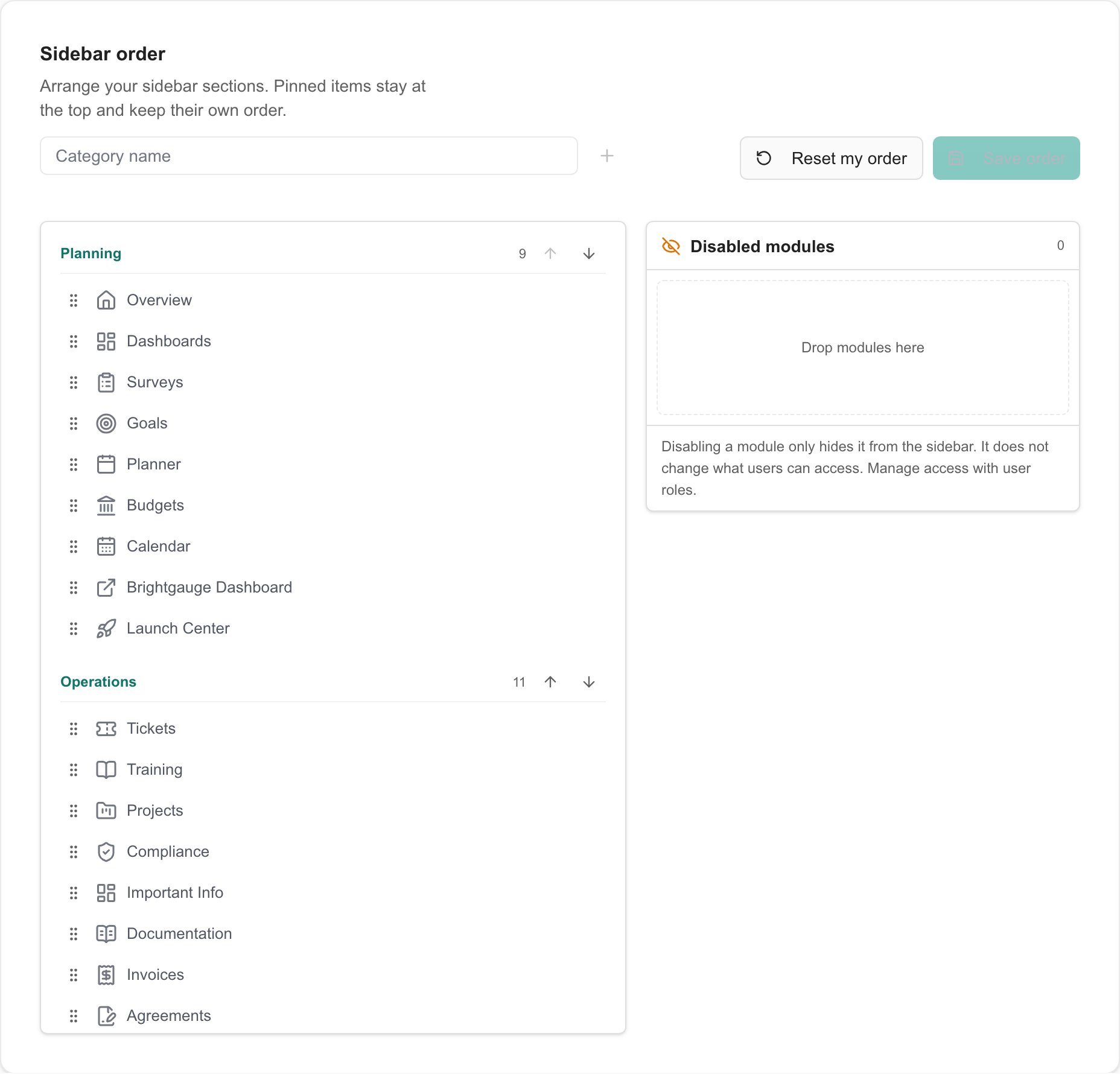
Open **Settings > User Settings** (`/settings/user`) and scroll to **Sidebar order**. The editor shows the pages available for your account. The MSP controls the organization's default layout and which modules are available.
## Reorder pages and sections
Drag the handle beside a page to move it within its section or into another section.
Enter a **Category name** and select **Add category** to create a personal section. Drag pages into it. Select a custom section's name to rename it, and use the up and down controls to move a section.
Deleting a custom section returns its pages to their default sections; it does not delete the pages or their records.
Select **Save order**. Until you save, the editor displays **Not applied until you save** and your changes are only staged.
 ## Hide or restore a page
Drag an unused page into **Disabled modules**, or use its **Remove from navigation** control. Select **Save order** to hide it from your sidebar.
To show it again, drag it from **Disabled modules** into a section and save. An item marked **Disabled by your administrator** is locked by the MSP and cannot be restored from your personal editor.
Hiding a page changes navigation only. It does not revoke permissions, disable an integration, or delete any records. Ask your MSP to change access permissions.
## Restore the default layout
Select **Reset my order** to load your company or organization's default into the editor. Review it, then select **Save order** to apply the reset. Reset alone does not save the change.
The personal editor lets you rearrange custom links and dashboard entries already supplied by your administrator. Ask your MSP to add new external links or configure shared navigation defaults.
## FAQs
The editor stages changes. Select **Save order** and wait for the saved message.
Changes in **User Settings > Sidebar order** affect your personal layout. The MSP manages company and organization defaults separately.
A lock means your administrator disabled it at a higher level. Ask your MSP to change that setting. A module can also be unavailable because of permissions or feature availability.
No. Removing it from navigation only hides its sidebar entry.
Select **Reset my order**, review the staged default layout, then select **Save order**. This restores the applicable company or organization default.
New custom links are configured by the MSP in the shared Navigation settings. Your personal editor can reorder links already available to you.
Retry the page. If it still fails, give your MSP the error message. Do not assume an empty or failed editor means your access was removed.
## Related guides
* [Understand your role and company access](/user-guides/account/understand-your-access)
* [MSP guide: Configure shared sidebar navigation](/user-guides/getting-started/customizing-the-sidebar)
## Hide or restore a page
Drag an unused page into **Disabled modules**, or use its **Remove from navigation** control. Select **Save order** to hide it from your sidebar.
To show it again, drag it from **Disabled modules** into a section and save. An item marked **Disabled by your administrator** is locked by the MSP and cannot be restored from your personal editor.
Hiding a page changes navigation only. It does not revoke permissions, disable an integration, or delete any records. Ask your MSP to change access permissions.
## Restore the default layout
Select **Reset my order** to load your company or organization's default into the editor. Review it, then select **Save order** to apply the reset. Reset alone does not save the change.
The personal editor lets you rearrange custom links and dashboard entries already supplied by your administrator. Ask your MSP to add new external links or configure shared navigation defaults.
## FAQs
The editor stages changes. Select **Save order** and wait for the saved message.
Changes in **User Settings > Sidebar order** affect your personal layout. The MSP manages company and organization defaults separately.
A lock means your administrator disabled it at a higher level. Ask your MSP to change that setting. A module can also be unavailable because of permissions or feature availability.
No. Removing it from navigation only hides its sidebar entry.
Select **Reset my order**, review the staged default layout, then select **Save order**. This restores the applicable company or organization default.
New custom links are configured by the MSP in the shared Navigation settings. Your personal editor can reorder links already available to you.
Retry the page. If it still fails, give your MSP the error message. Do not assume an empty or failed editor means your access was removed.
## Related guides
* [Understand your role and company access](/user-guides/account/understand-your-access)
* [MSP guide: Configure shared sidebar navigation](/user-guides/getting-started/customizing-the-sidebar)