> ## Documentation Index
> Fetch the complete documentation index at: https://docs.msportal.ai/llms.txt
> Use this file to discover all available pages before exploring further.
# Upload and manage agreement PDFs
> MSP guide to yearly PDF uploads, keeping versions, replacing a year’s documents, and deleting individual files.
MSP staff with agreement write access can manage PDFs in **Agreements** or **Contracts > select a record > Documents**. The agreement must be mapped to a company. Company users do not have these upload and delete controls.
## Prepare the upload
Choose a PDF file no larger than 25 MB. Give it a useful filename: the portal uses the filename without the `.pdf` extension as the document title. Confirm that you are uploading to the correct agreement and company.
The upload stores a document in MSPortal. It does not change the underlying PSA agreement, billing terms, balance, or signature status. Users with access to the agreement’s documents can read the uploaded file; there is no separate publish step in this workflow.
## Upload a PDF
Select the agreement row and open **Documents**. Find **Upload yearly PDF**.
Choose the year the document belongs to. This organizes the file; it does not change the agreement’s start or end dates.
Select **Keep versions** to add the next version for that year, or **Replace year** to remove that year’s active documents and use the new PDF as version 1.
Check the replacement notice and retain any copies you need before replacing a year.
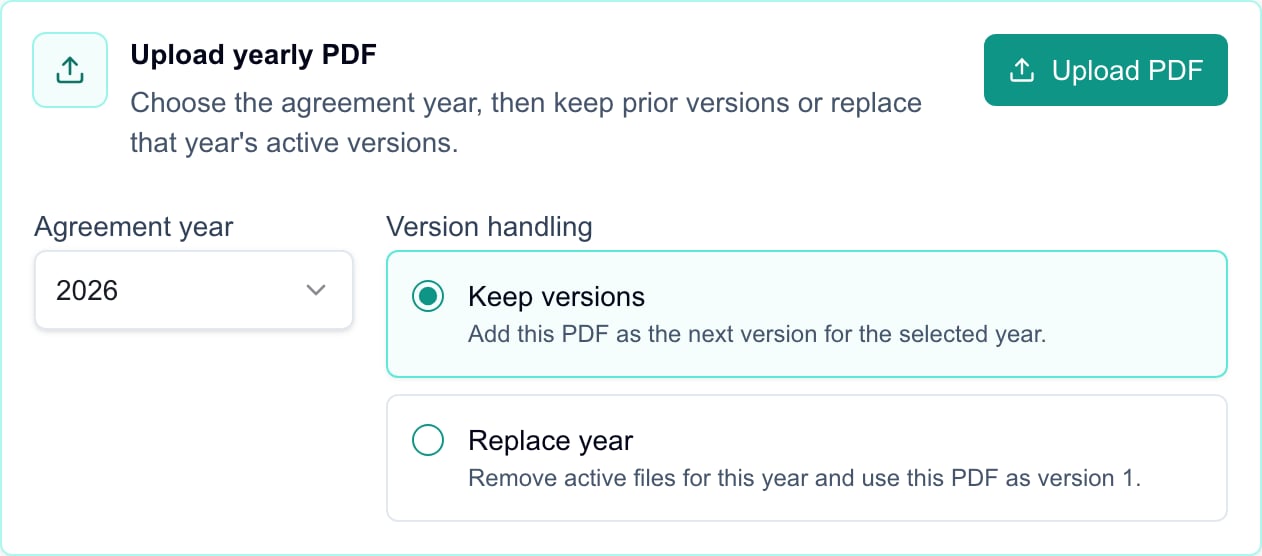 This crop shows the controls in an MSP Demo session before choosing a file. Company users do not see these management controls.
Select **Upload PDF** and choose the PDF in your browser’s file picker. Selecting the file starts the upload immediately with the year and version handling already selected. There is no second Save or upload-confirmation button.
Wait for **Document uploaded**, then check the year, title, version badge, and document count. Use Download to verify the file when appropriate. If an error appears, inspect the list before retrying.
**Replace year** affects all active versions for the selected year on this agreement, not just one highlighted document. Set the intended year and mode before choosing a file. Use **Keep versions** when you need to retain the existing files.
## Delete one document
1. Find the exact year and version in Documents.
2. Select that document’s **Delete** icon.
3. Check the title in **Delete document?**.
4. Select **Delete** to remove it, or **Cancel** to keep it.
5. Wait for **Document deleted** and confirm the file is no longer listed.
There is no restore control in this screen. Deleting a PDF does not delete the agreement record, change its status, or remove other years’ files.
## Frequently asked questions
Choosing a file after selecting **Upload PDF** starts the upload immediately. Set the year and version handling first.
No. Those controls prepare the next upload. The change happens when you choose and upload a file.
Keep versions adds the next active version for that agreement year. Replace year removes that year’s active files and starts the replacement at version 1.
This control accepts PDF files only, up to 25 MB. Convert the intended document to PDF before uploading it.
Check MSP staff access, agreement write permission, feature availability, and the agreement’s company mapping. Company users do not see this management control.
No restore action is provided here. Keep required copies before replacement or deletion.
The file becomes available through the agreement’s document access after a successful upload. There is no separate publish action, and this upload does not edit the PSA agreement.
## Related guides
* [Open an agreement PDF](/user-guides/agreements/download-documents)
* [Understand agreement balances](/user-guides/agreements/read-balances)
This crop shows the controls in an MSP Demo session before choosing a file. Company users do not see these management controls.
Select **Upload PDF** and choose the PDF in your browser’s file picker. Selecting the file starts the upload immediately with the year and version handling already selected. There is no second Save or upload-confirmation button.
Wait for **Document uploaded**, then check the year, title, version badge, and document count. Use Download to verify the file when appropriate. If an error appears, inspect the list before retrying.
**Replace year** affects all active versions for the selected year on this agreement, not just one highlighted document. Set the intended year and mode before choosing a file. Use **Keep versions** when you need to retain the existing files.
## Delete one document
1. Find the exact year and version in Documents.
2. Select that document’s **Delete** icon.
3. Check the title in **Delete document?**.
4. Select **Delete** to remove it, or **Cancel** to keep it.
5. Wait for **Document deleted** and confirm the file is no longer listed.
There is no restore control in this screen. Deleting a PDF does not delete the agreement record, change its status, or remove other years’ files.
## Frequently asked questions
Choosing a file after selecting **Upload PDF** starts the upload immediately. Set the year and version handling first.
No. Those controls prepare the next upload. The change happens when you choose and upload a file.
Keep versions adds the next active version for that agreement year. Replace year removes that year’s active files and starts the replacement at version 1.
This control accepts PDF files only, up to 25 MB. Convert the intended document to PDF before uploading it.
Check MSP staff access, agreement write permission, feature availability, and the agreement’s company mapping. Company users do not see this management control.
No restore action is provided here. Keep required copies before replacement or deletion.
The file becomes available through the agreement’s document access after a successful upload. There is no separate publish action, and this upload does not edit the PSA agreement.
## Related guides
* [Open an agreement PDF](/user-guides/agreements/download-documents)
* [Understand agreement balances](/user-guides/agreements/read-balances)