> ## Documentation Index
> Fetch the complete documentation index at: https://docs.msportal.ai/llms.txt
> Use this file to discover all available pages before exploring further.
# Budgets
> Create, manage, and track IT budgets with strategic planning integration in MSPortal.ai
The Budgets module helps MSPs create and manage IT budgets for their clients. Build budgets by importing items from Planner, linking strategic goals, and adding products from your PSA. Track approval status and export professional budget documents.
 ## Overview
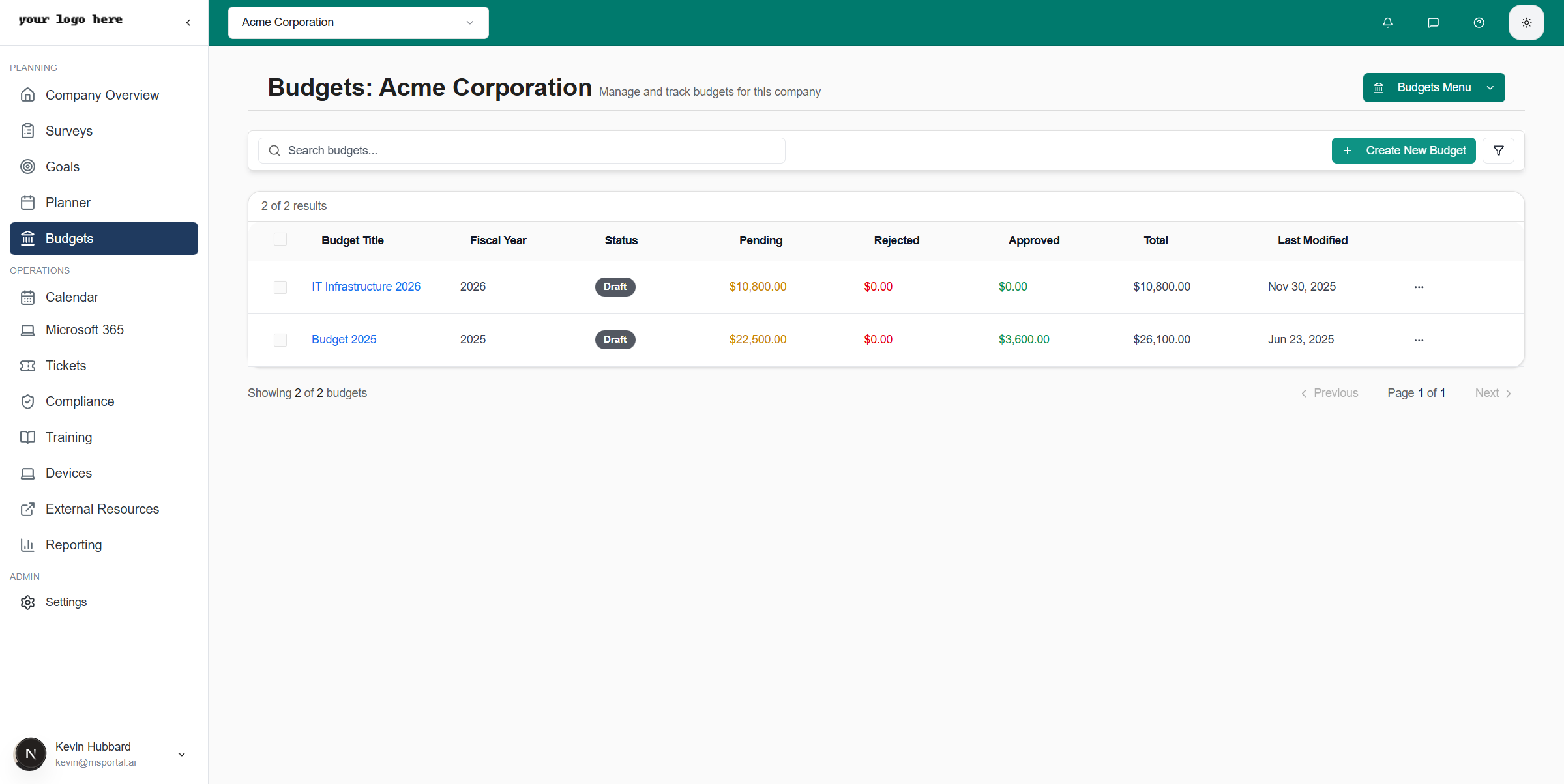
When you navigate to **Budgets** from the sidebar, you will see the budgets list for the selected company which includes:
* **Search Bar** - Filter budgets by title
* **Create New Budget** - Start building a new budget
* **Budgets Table** - View all budgets with status, totals, and approval breakdown
* **Bulk Actions** - Select multiple budgets for batch operations
## Overview
When you navigate to **Budgets** from the sidebar, you will see the budgets list for the selected company which includes:
* **Search Bar** - Filter budgets by title
* **Create New Budget** - Start building a new budget
* **Budgets Table** - View all budgets with status, totals, and approval breakdown
* **Bulk Actions** - Select multiple budgets for batch operations
 ## Budgets Menu
The **Budgets Menu** provides quick navigation between different budget-related areas:
## Budgets Menu
The **Budgets Menu** provides quick navigation between different budget-related areas:
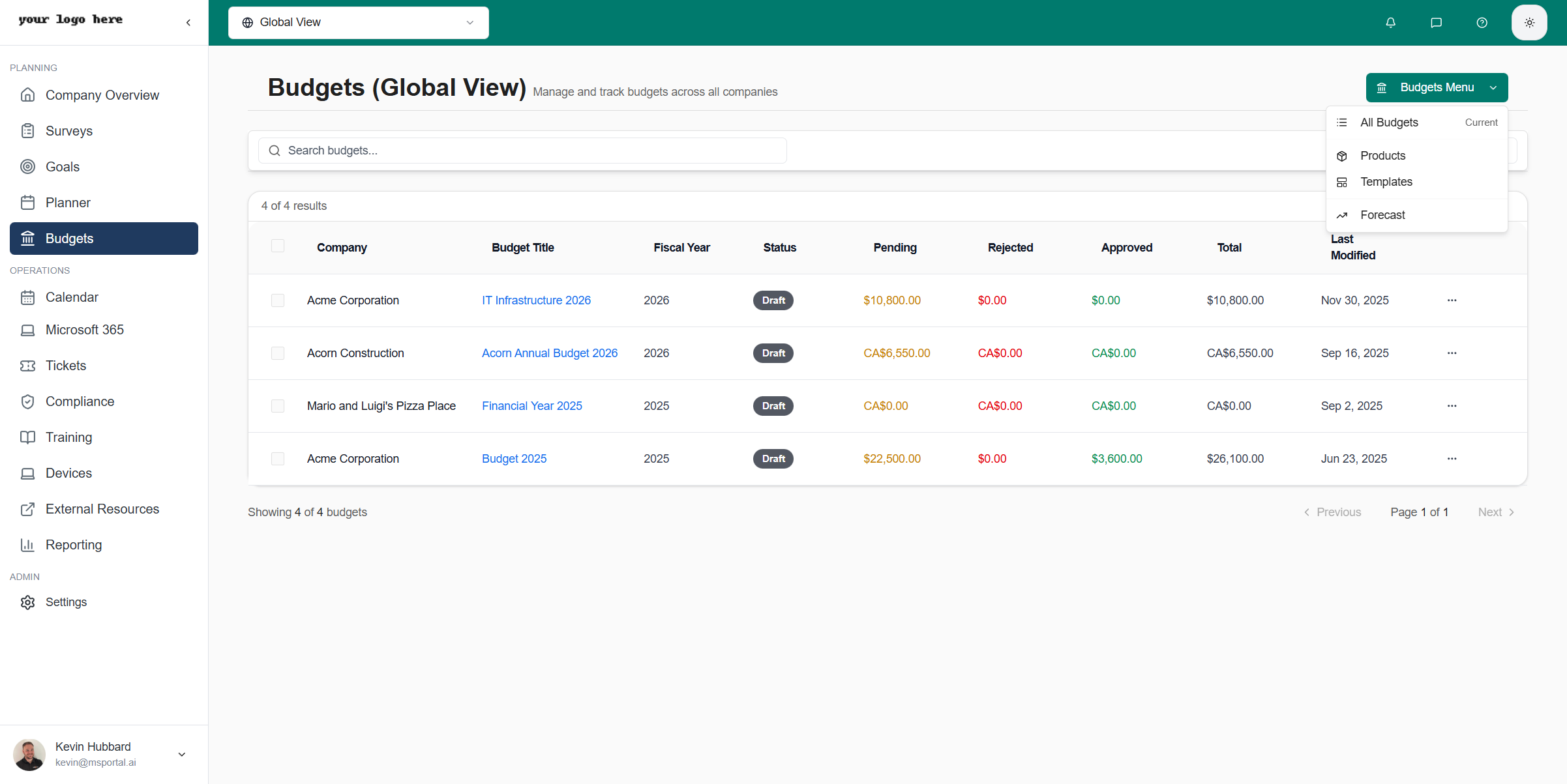 | Menu Option | Description |
| --------------- | --------------------------------------------------- |
| **All Budgets** | View the main budgets list for the selected company |
| **Products** | Manage your product catalog for budgeting |
| **Templates** | Access budget templates for quick creation |
| **Forecast** | Plan future budget projections |
Click the **Budgets Menu** button in the top-right of any budgets page to navigate between these areas.
## Budgets Table
The budgets table displays key information for each budget:
| Column | Description |
| ----------------- | --------------------------------------------------------------------- |
| **Budget Title** | Name of the budget (click to edit) |
| **Fiscal Year** | The fiscal year the budget applies to |
| **Status** | Overall budget status: Draft, Pending Approval, Approved, or Obsolete |
| **Pending** | Sum of line items with "Pending" status |
| **Rejected** | Sum of line items with "Rejected" status |
| **Approved** | Sum of line items with "Approved" status |
| **Total** | Grand total of all line items (regardless of status) |
| **Last Modified** | When the budget was last updated |
The **Pending**, **Rejected**, and **Approved** columns show the monetary totals of line items grouped by their individual status. This helps you quickly see how much of the budget has been approved versus what's still pending review.
## Creating a Budget
Select a company from the company selector, then click **Budgets** in the sidebar.
Click the **+ Create New Budget** button in the top right corner.
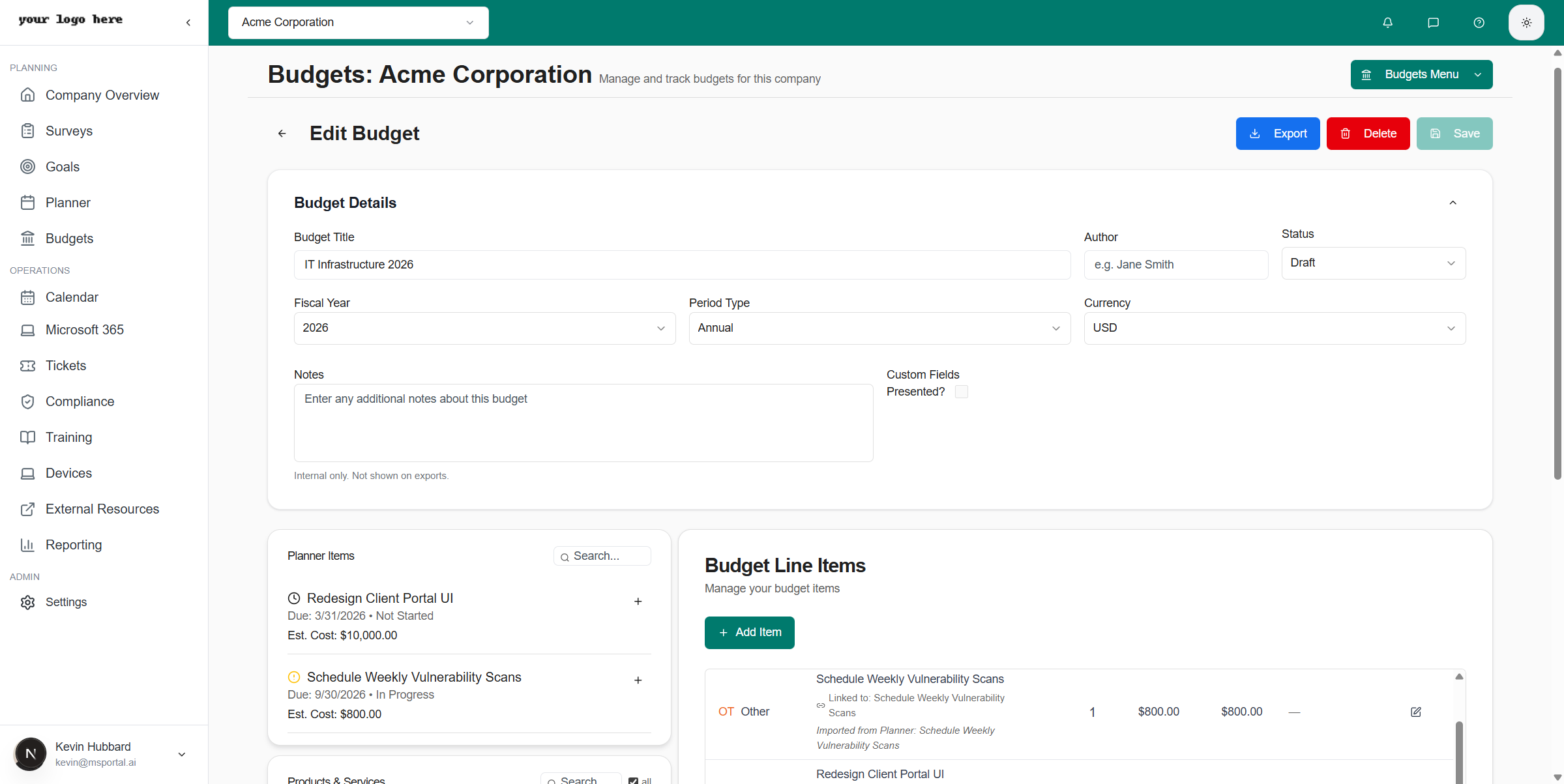
Fill in the budget header information:
* **Budget Title** - A descriptive name (e.g., "IT Infrastructure 2026")
* **Author** - The person responsible for the budget
* **Status** - Set initial status (typically Draft)
* **Fiscal Year** - Select the target year
* **Period Type** - Choose Annual, Quarterly, or Monthly
* **Currency** - Select the currency (USD, EUR, etc.)
* **Notes** - Add internal notes (not shown on exports)
Build your budget by adding items from three sources:
* **Planner Items** - Import tasks from your Planner
* **Products and Services** - Add products from your PSA
* **Strategic Goals** - Link goals to budget items
Click **Save** to save your budget. You will see a confirmation message.
| Menu Option | Description |
| --------------- | --------------------------------------------------- |
| **All Budgets** | View the main budgets list for the selected company |
| **Products** | Manage your product catalog for budgeting |
| **Templates** | Access budget templates for quick creation |
| **Forecast** | Plan future budget projections |
Click the **Budgets Menu** button in the top-right of any budgets page to navigate between these areas.
## Budgets Table
The budgets table displays key information for each budget:
| Column | Description |
| ----------------- | --------------------------------------------------------------------- |
| **Budget Title** | Name of the budget (click to edit) |
| **Fiscal Year** | The fiscal year the budget applies to |
| **Status** | Overall budget status: Draft, Pending Approval, Approved, or Obsolete |
| **Pending** | Sum of line items with "Pending" status |
| **Rejected** | Sum of line items with "Rejected" status |
| **Approved** | Sum of line items with "Approved" status |
| **Total** | Grand total of all line items (regardless of status) |
| **Last Modified** | When the budget was last updated |
The **Pending**, **Rejected**, and **Approved** columns show the monetary totals of line items grouped by their individual status. This helps you quickly see how much of the budget has been approved versus what's still pending review.
## Creating a Budget
Select a company from the company selector, then click **Budgets** in the sidebar.
Click the **+ Create New Budget** button in the top right corner.
Fill in the budget header information:
* **Budget Title** - A descriptive name (e.g., "IT Infrastructure 2026")
* **Author** - The person responsible for the budget
* **Status** - Set initial status (typically Draft)
* **Fiscal Year** - Select the target year
* **Period Type** - Choose Annual, Quarterly, or Monthly
* **Currency** - Select the currency (USD, EUR, etc.)
* **Notes** - Add internal notes (not shown on exports)
Build your budget by adding items from three sources:
* **Planner Items** - Import tasks from your Planner
* **Products and Services** - Add products from your PSA
* **Strategic Goals** - Link goals to budget items
Click **Save** to save your budget. You will see a confirmation message.
 ## Adding Budget Line Items
The budget builder provides three panels for importing items into your budget:
### Planner Items
Import items directly from your company Planner. Each planner item shows:
* Task name and icon
* Due date and status
* Estimated cost (if set)
Click the **+** button next to any planner item to add it as a budget line item.
### Products and Services
Add products from your PSA or manually created products. Products display:
* Product name
* SKU (if available)
* Vendor
* Category
* Unit price
Toggle the **all** checkbox to see products from all tenants or just the current company.
### Strategic Goals
Link strategic goals to your budget for alignment with company objectives. Goals show:
* Goal title
* Priority badge (High, Medium, Low)
* Target date and status
Linking goals to budget items helps demonstrate how IT spending supports strategic business objectives during budget reviews.
## Budget Line Items Table
Once items are added, they appear in the Budget Line Items table:
| Column | Description |
| -------------- | --------------------------------------------------------------------- |
| **Type** | Line item type: SW (Software), HW (Hardware), LB (Labour), OT (Other) |
| **Details** | Item name and linked source (Planner, Product, Goal, or Device) |
| **Quantity** | Number of units |
| **Unit Price** | Cost per unit |
| **Total** | Line total (Quantity x Unit Price) |
| **Category** | Budget category for grouping |
| **Status** | Line item approval status (Draft, Pending, Approved, Rejected) |
| **Actions** | Edit, reorder, or delete the line item |
### Line Item Fields
Each line item supports the following fields:
| Field | Description |
| ------------------- | ------------------------------------------------------- |
| **Description** | Name or description of the line item |
| **Type** | Software, Hardware, Labour, or Other |
| **Quantity** | Number of units |
| **Unit Price** | Cost per unit |
| **Category** | Category for organizing items (from planner item types) |
| **Status** | Approval status: Draft, Pending, Approved, or Rejected |
| **Recurrence** | One-Time or recurring expense |
| **Term (Months)** | Duration in months for recurring items |
| **Annualized Cost** | Calculated annual cost for recurring items |
| **Notes** | Additional notes for the line item |
| **Linked Item** | Optional link to a Planner item, Goal, or Device |
### Linked Items
Line items can be linked to other entities for traceability:
| Link Type | Description |
| ----------- | ------------------------------------------ |
| **Planner** | Links to a task in the Planner module |
| **Goal** | Links to a strategic goal |
| **Device** | Links to a device from the asset inventory |
| **Other** | Generic linkage for custom items |
Linked items display a badge showing the source, and clicking the link navigates to the original item.
### Budget Totals
The totals section shows spending breakdown by type:
* **Software** - Total software costs
* **Hardware** - Total hardware costs
* **Labour** - Total labour costs
* **Other** - Other expenses
* **Grand Total** - Sum of all line items
## Viewing a Budget
To view a budget in read-only presentation mode:
1. Click the **Actions** button on any budget row
2. Select **View**
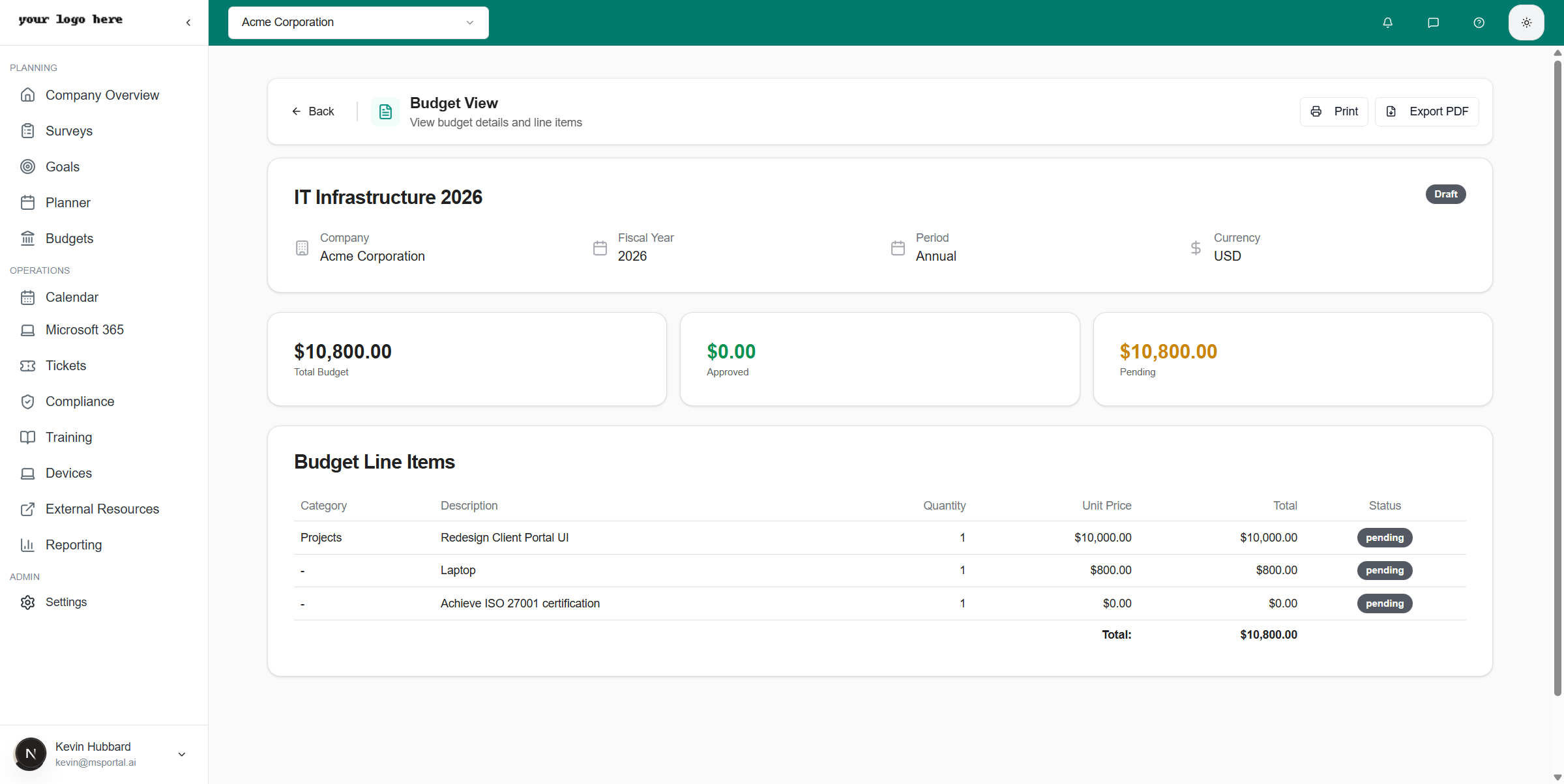
3. The Budget View page displays a clean summary with:
* Budget title and status
* Company, fiscal year, period, and currency
* Summary cards showing Total, Approved, and Pending amounts
* Line items table with status indicators
### Export Options
From the Budget View, you can:
* **Print** - Print the budget directly
* **Export PDF** - Download a professional PDF document
## Budget Statuses
Budgets progress through these status stages:
| Status | Description | Editable |
| -------------------- | ----------------------------------------------- | -------- |
| **Draft** | Budget is being created or edited | Yes |
| **Pending Approval** | Budget submitted for review | Yes |
| **Approved** | Budget has been approved and permanently locked | No |
| **Obsolete** | Budget is archived and no longer active | No |
## Budget Lock (Approval)
When you change a budget's status to **Approved**, a confirmation dialog appears warning that this action is permanent.
**Approval permanently locks the budget.** Once approved:
* All budget header fields become read-only (title, fiscal year, currency, notes, etc.)
* Line items cannot be added, edited, deleted, or reordered
* Line item statuses cannot be changed
* **This action cannot be undone**
### What Happens When You Lock a Budget
The lock affects the entire budget:
| Action | Locked Budget |
| ------------------------- | ------------- |
| Edit budget title/details | Disabled |
| Add new line items | Disabled |
| Edit existing line items | Disabled |
| Delete line items | Disabled |
| Reorder line items | Disabled |
| Change line item status | Disabled |
| Duplicate budget | **Allowed** |
| Export/Print | **Allowed** |
### Making Changes After Approval
If you need to make changes to an approved budget:
Click **Actions** > **Duplicate** on the approved budget.
The duplicate is created in **Draft** status with "(Copy)" appended to the title.
Edit the duplicate as needed.
Optionally change the original budget to **Obsolete** status to indicate it has been superseded.
Keep approved budgets as historical records. Use the Obsolete status to archive superseded budgets while maintaining an audit trail.
## Line Item Statuses
Individual line items have their own approval statuses, separate from the overall budget status:
| Status | Color | Description |
| ------------ | ------ | ---------------------- |
| **Draft** | Gray | Item is being prepared |
| **Pending** | Yellow | Awaiting approval |
| **Approved** | Green | Item has been approved |
| **Rejected** | Red | Item was rejected |
### Changing Line Item Status
To change the status of individual line items:
Click on the budget to open it in edit mode.
In the line items table, locate the **Status** column.
Click the colored status badge to open the status dropdown.
Choose the new status from the dropdown. The change saves automatically.
Line item statuses can only be changed when the budget is in **Draft** or **Pending Approval** status. Once a budget is **Approved**, all line item statuses are locked.
### Bulk Status Updates
To update multiple line item statuses at once:
1. Click **Actions** on the budget row in the list view
2. Select **Update Statuses**
3. Select the items you want to update
4. Choose the new status to apply
## Managing Budgets
### Editing a Budget
1. Click on the budget title in the table, or
2. Click **Actions** then **Edit**
3. Make your changes
4. Click **Save**
### Duplicating a Budget
To create a copy of an existing budget:
1. Click **Actions** then **Duplicate**
2. A new budget is created with "(Copy)" appended to the title
3. Edit as needed
### Deleting a Budget
1. Click **Actions** then **Delete**
2. Confirm the deletion
Deleting a budget is permanent and cannot be undone.
## Budget Actions Menu
Click the **Actions** button on any budget to access:
* **View** - Open read-only presentation mode
* **Edit** - Open the budget editor
* **Update Statuses** - Change approval status of line items
* **Duplicate** - Create a copy of the budget
* **Export** - Export to PDF or other formats
* **Delete** - Remove the budget
## Products Catalog
The Products area allows you to manage a centralized product catalog for use across all budgets. Access it via **Budgets Menu > Products**.
## Adding Budget Line Items
The budget builder provides three panels for importing items into your budget:
### Planner Items
Import items directly from your company Planner. Each planner item shows:
* Task name and icon
* Due date and status
* Estimated cost (if set)
Click the **+** button next to any planner item to add it as a budget line item.
### Products and Services
Add products from your PSA or manually created products. Products display:
* Product name
* SKU (if available)
* Vendor
* Category
* Unit price
Toggle the **all** checkbox to see products from all tenants or just the current company.
### Strategic Goals
Link strategic goals to your budget for alignment with company objectives. Goals show:
* Goal title
* Priority badge (High, Medium, Low)
* Target date and status
Linking goals to budget items helps demonstrate how IT spending supports strategic business objectives during budget reviews.
## Budget Line Items Table
Once items are added, they appear in the Budget Line Items table:
| Column | Description |
| -------------- | --------------------------------------------------------------------- |
| **Type** | Line item type: SW (Software), HW (Hardware), LB (Labour), OT (Other) |
| **Details** | Item name and linked source (Planner, Product, Goal, or Device) |
| **Quantity** | Number of units |
| **Unit Price** | Cost per unit |
| **Total** | Line total (Quantity x Unit Price) |
| **Category** | Budget category for grouping |
| **Status** | Line item approval status (Draft, Pending, Approved, Rejected) |
| **Actions** | Edit, reorder, or delete the line item |
### Line Item Fields
Each line item supports the following fields:
| Field | Description |
| ------------------- | ------------------------------------------------------- |
| **Description** | Name or description of the line item |
| **Type** | Software, Hardware, Labour, or Other |
| **Quantity** | Number of units |
| **Unit Price** | Cost per unit |
| **Category** | Category for organizing items (from planner item types) |
| **Status** | Approval status: Draft, Pending, Approved, or Rejected |
| **Recurrence** | One-Time or recurring expense |
| **Term (Months)** | Duration in months for recurring items |
| **Annualized Cost** | Calculated annual cost for recurring items |
| **Notes** | Additional notes for the line item |
| **Linked Item** | Optional link to a Planner item, Goal, or Device |
### Linked Items
Line items can be linked to other entities for traceability:
| Link Type | Description |
| ----------- | ------------------------------------------ |
| **Planner** | Links to a task in the Planner module |
| **Goal** | Links to a strategic goal |
| **Device** | Links to a device from the asset inventory |
| **Other** | Generic linkage for custom items |
Linked items display a badge showing the source, and clicking the link navigates to the original item.
### Budget Totals
The totals section shows spending breakdown by type:
* **Software** - Total software costs
* **Hardware** - Total hardware costs
* **Labour** - Total labour costs
* **Other** - Other expenses
* **Grand Total** - Sum of all line items
## Viewing a Budget
To view a budget in read-only presentation mode:
1. Click the **Actions** button on any budget row
2. Select **View**
3. The Budget View page displays a clean summary with:
* Budget title and status
* Company, fiscal year, period, and currency
* Summary cards showing Total, Approved, and Pending amounts
* Line items table with status indicators
### Export Options
From the Budget View, you can:
* **Print** - Print the budget directly
* **Export PDF** - Download a professional PDF document
## Budget Statuses
Budgets progress through these status stages:
| Status | Description | Editable |
| -------------------- | ----------------------------------------------- | -------- |
| **Draft** | Budget is being created or edited | Yes |
| **Pending Approval** | Budget submitted for review | Yes |
| **Approved** | Budget has been approved and permanently locked | No |
| **Obsolete** | Budget is archived and no longer active | No |
## Budget Lock (Approval)
When you change a budget's status to **Approved**, a confirmation dialog appears warning that this action is permanent.
**Approval permanently locks the budget.** Once approved:
* All budget header fields become read-only (title, fiscal year, currency, notes, etc.)
* Line items cannot be added, edited, deleted, or reordered
* Line item statuses cannot be changed
* **This action cannot be undone**
### What Happens When You Lock a Budget
The lock affects the entire budget:
| Action | Locked Budget |
| ------------------------- | ------------- |
| Edit budget title/details | Disabled |
| Add new line items | Disabled |
| Edit existing line items | Disabled |
| Delete line items | Disabled |
| Reorder line items | Disabled |
| Change line item status | Disabled |
| Duplicate budget | **Allowed** |
| Export/Print | **Allowed** |
### Making Changes After Approval
If you need to make changes to an approved budget:
Click **Actions** > **Duplicate** on the approved budget.
The duplicate is created in **Draft** status with "(Copy)" appended to the title.
Edit the duplicate as needed.
Optionally change the original budget to **Obsolete** status to indicate it has been superseded.
Keep approved budgets as historical records. Use the Obsolete status to archive superseded budgets while maintaining an audit trail.
## Line Item Statuses
Individual line items have their own approval statuses, separate from the overall budget status:
| Status | Color | Description |
| ------------ | ------ | ---------------------- |
| **Draft** | Gray | Item is being prepared |
| **Pending** | Yellow | Awaiting approval |
| **Approved** | Green | Item has been approved |
| **Rejected** | Red | Item was rejected |
### Changing Line Item Status
To change the status of individual line items:
Click on the budget to open it in edit mode.
In the line items table, locate the **Status** column.
Click the colored status badge to open the status dropdown.
Choose the new status from the dropdown. The change saves automatically.
Line item statuses can only be changed when the budget is in **Draft** or **Pending Approval** status. Once a budget is **Approved**, all line item statuses are locked.
### Bulk Status Updates
To update multiple line item statuses at once:
1. Click **Actions** on the budget row in the list view
2. Select **Update Statuses**
3. Select the items you want to update
4. Choose the new status to apply
## Managing Budgets
### Editing a Budget
1. Click on the budget title in the table, or
2. Click **Actions** then **Edit**
3. Make your changes
4. Click **Save**
### Duplicating a Budget
To create a copy of an existing budget:
1. Click **Actions** then **Duplicate**
2. A new budget is created with "(Copy)" appended to the title
3. Edit as needed
### Deleting a Budget
1. Click **Actions** then **Delete**
2. Confirm the deletion
Deleting a budget is permanent and cannot be undone.
## Budget Actions Menu
Click the **Actions** button on any budget to access:
* **View** - Open read-only presentation mode
* **Edit** - Open the budget editor
* **Update Statuses** - Change approval status of line items
* **Duplicate** - Create a copy of the budget
* **Export** - Export to PDF or other formats
* **Delete** - Remove the budget
## Products Catalog
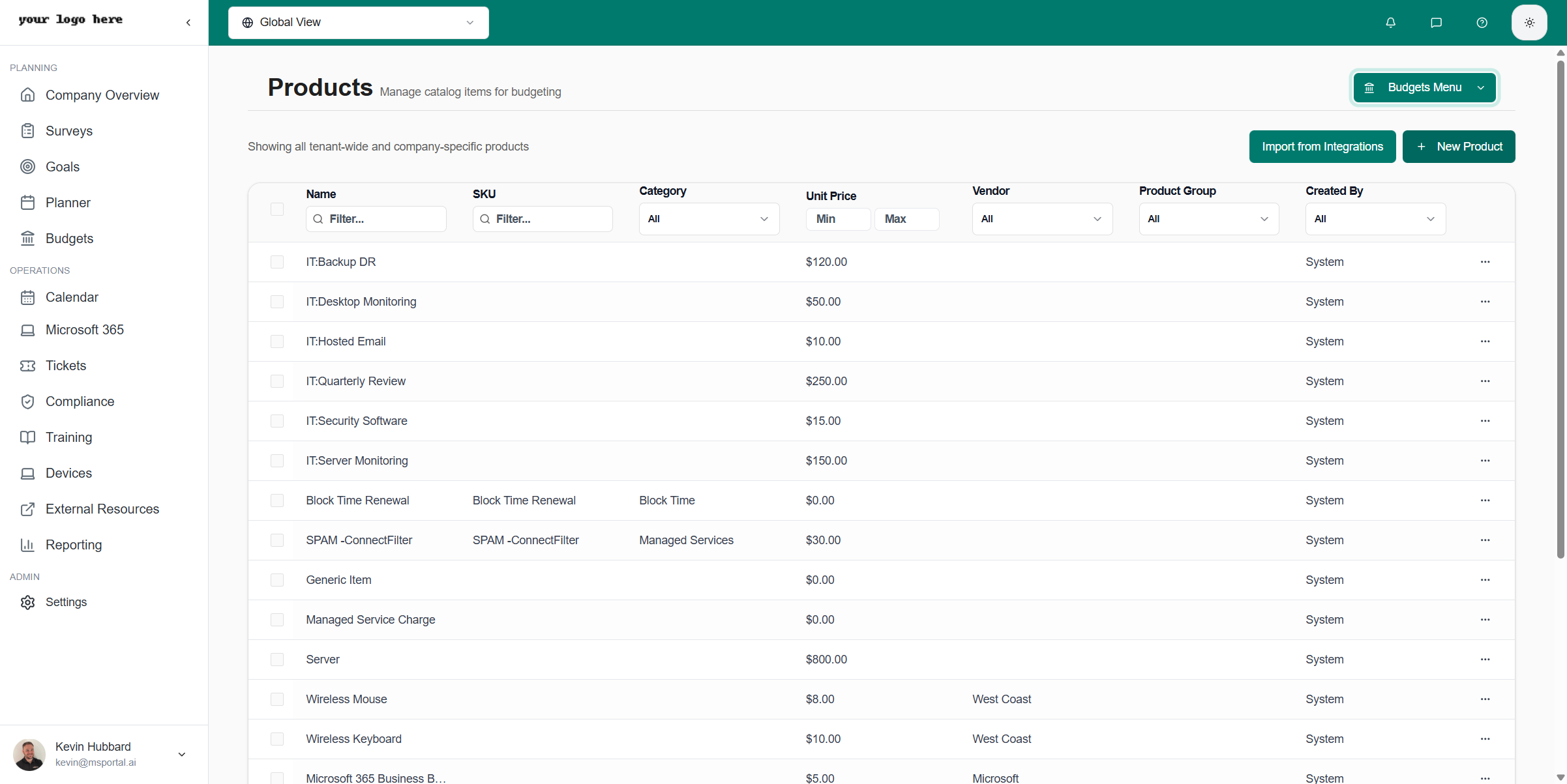
The Products area allows you to manage a centralized product catalog for use across all budgets. Access it via **Budgets Menu > Products**.
 ### Products Table
The products table displays your catalog with filterable columns:
| Column | Description |
| ----------------- | ----------------------------------------------------- |
| **Name** | Product name (e.g., "Microsoft 365 Business Premium") |
| **SKU** | Stock keeping unit identifier |
| **Category** | Product category (Block Time, Managed Services, etc.) |
| **Unit Price** | Cost per unit |
| **Vendor** | Supplier or manufacturer (Microsoft, Tech Data, etc.) |
| **Product Group** | Grouping for organization |
| **Created By** | System or user who created the product |
### Filtering Products
Use the filter controls in each column header to quickly find products:
* **Text filters** - Type to search by Name or SKU
* **Dropdown filters** - Select Category, Vendor, Product Group, or Created By
* **Price range** - Set minimum and maximum unit price
### Adding Products
Click the **+ New Product** button in the top-right corner.
Fill in the product information:
* Name (required)
* SKU
* Category
* Unit Price
* Vendor
* Product Group
Click **Save** to add the product to your catalog.
### Importing from Integrations
Click **Import from Integrations** to pull products from connected PSA systems:
* ConnectWise Manage
* Autotask PSA
* HaloPSA
Imported products include accurate pricing, SKUs, and vendor information.
Products are available tenant-wide by default, making them accessible across all company budgets. Toggle the visibility option to show tenant-wide or company-specific products.
## Budget Forecast
The Forecast feature helps you project future budget trends based on historical data and growth assumptions. Access it via **Budgets Menu > Forecast**.
### Products Table
The products table displays your catalog with filterable columns:
| Column | Description |
| ----------------- | ----------------------------------------------------- |
| **Name** | Product name (e.g., "Microsoft 365 Business Premium") |
| **SKU** | Stock keeping unit identifier |
| **Category** | Product category (Block Time, Managed Services, etc.) |
| **Unit Price** | Cost per unit |
| **Vendor** | Supplier or manufacturer (Microsoft, Tech Data, etc.) |
| **Product Group** | Grouping for organization |
| **Created By** | System or user who created the product |
### Filtering Products
Use the filter controls in each column header to quickly find products:
* **Text filters** - Type to search by Name or SKU
* **Dropdown filters** - Select Category, Vendor, Product Group, or Created By
* **Price range** - Set minimum and maximum unit price
### Adding Products
Click the **+ New Product** button in the top-right corner.
Fill in the product information:
* Name (required)
* SKU
* Category
* Unit Price
* Vendor
* Product Group
Click **Save** to add the product to your catalog.
### Importing from Integrations
Click **Import from Integrations** to pull products from connected PSA systems:
* ConnectWise Manage
* Autotask PSA
* HaloPSA
Imported products include accurate pricing, SKUs, and vendor information.
Products are available tenant-wide by default, making them accessible across all company budgets. Toggle the visibility option to show tenant-wide or company-specific products.
## Budget Forecast
The Forecast feature helps you project future budget trends based on historical data and growth assumptions. Access it via **Budgets Menu > Forecast**.
 ### Forecast Settings
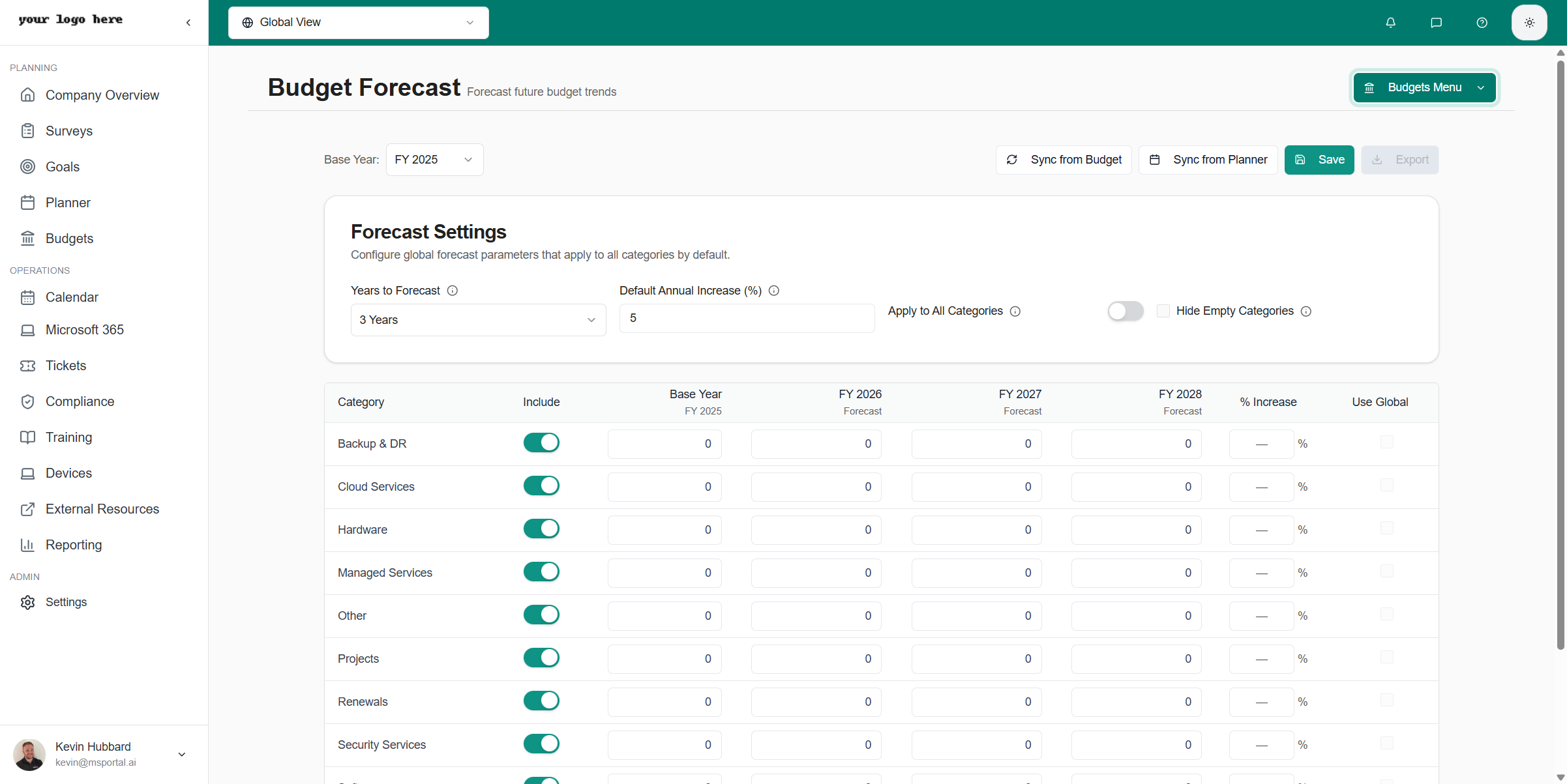
Configure global parameters that apply to all categories:
| Setting | Description |
| ------------------------------- | ------------------------------------------------------ |
| **Base Year** | The fiscal year to use as the baseline (e.g., FY 2025) |
| **Years to Forecast** | How many years to project (1-5 years) |
| **Default Annual Increase (%)** | The default growth percentage applied to categories |
| **Apply to All Categories** | Toggle to apply the default increase uniformly |
| **Hide Empty Categories** | Hide categories with zero base values |
### Forecast Categories
The forecast table breaks down projections by spending category:
* **Backup & DR** - Backup and disaster recovery services
* **Cloud Services** - Cloud infrastructure and hosting
* **Hardware** - Physical equipment and devices
* **Managed Services** - Ongoing IT management services
* **Other** - Miscellaneous expenses
* **Projects** - One-time project costs
* **Renewals** - Software and service renewals
* **Security Services** - Cybersecurity tools and services
* **Software** - Software licenses and subscriptions
* **Training & Adoption** - Training and change management
### Forecast Table Columns
| Column | Description |
| -------------------- | ------------------------------------------------ |
| **Category** | The spending category name |
| **Include** | Toggle to include/exclude category from forecast |
| **Base Year** | The starting amount from the base fiscal year |
| **FY 20XX Forecast** | Projected amount for each future year |
| **% Increase** | Custom growth rate for this category |
| **Use Global** | Use the global default increase percentage |
### Syncing Forecast Data
Click **Sync from Budget** to populate base year values from approved budgets. This pulls actual budget line items into the forecast categories.
Click **Sync from Planner** to import planned items as forecast data. Useful for projecting costs of planned initiatives.
Fine-tune individual category amounts and growth percentages as needed.
Click **Save** to store your forecast configuration.
### Understanding Projections
Each forecast year shows:
* **Projected Amount** - The calculated value based on base year and growth rate
* **Year-over-Year Change** - The dollar amount increase from the previous year
* **Percentage Change** - The growth rate expressed as a percentage
Use different growth rates for different categories to model realistic scenarios. For example, Security Services might grow at 10% while Hardware remains flat.
The Export feature is coming soon and will allow you to download forecast reports for client presentations and planning meetings.
## Best Practices
* Create budgets well before the fiscal year begins
* Link budgets to strategic goals for alignment visibility
* Use categories to organize line items by type
* Update line item statuses as approvals are received
* Export PDF versions for client presentations
* Use **Obsolete** status for superseded budgets rather than deleting them
* Review all line items before approving a budget (approval is permanent)
* Use recurring items with term months for subscriptions to calculate annualized costs
Avoid these common pitfalls:
* **Approving too early** - Once approved, budgets cannot be edited; ensure all items are finalized
* Creating budgets without linking to planner items or goals
* Leaving budgets in Draft status indefinitely
* Not updating line item statuses after approval decisions
* Deleting budgets instead of marking them Obsolete for audit trails
* Forgetting to set recurrence and term for subscription items
## Integrations
### Planner Integration
Budgets integrate with the Planner module to:
* Import planner items as budget line items
* Maintain links between budget items and tasks
* Show estimated costs from planner items
### Goals Integration
Link strategic goals to demonstrate:
* How IT spending supports business objectives
* Alignment between budgets and company strategy
* Progress on goal-related expenditures
### PSA Integration
Products from connected PSAs (ConnectWise, Autotask, HaloPSA) are available:
* Import products with accurate pricing
* Maintain product SKUs and categories
* Access vendor information
## Related Resources
* [Planner](/user-guides/planner/index) - Manage tasks and link to budgets
* [Goals](/user-guides/goals/index) - Set strategic objectives
* [Company Overview](/user-guides/company-overview/index) - View company budget status
## Need Help?
For assistance with the Budgets module, contact [support@msportal.ai](mailto:support@msportal.ai).
### Forecast Settings
Configure global parameters that apply to all categories:
| Setting | Description |
| ------------------------------- | ------------------------------------------------------ |
| **Base Year** | The fiscal year to use as the baseline (e.g., FY 2025) |
| **Years to Forecast** | How many years to project (1-5 years) |
| **Default Annual Increase (%)** | The default growth percentage applied to categories |
| **Apply to All Categories** | Toggle to apply the default increase uniformly |
| **Hide Empty Categories** | Hide categories with zero base values |
### Forecast Categories
The forecast table breaks down projections by spending category:
* **Backup & DR** - Backup and disaster recovery services
* **Cloud Services** - Cloud infrastructure and hosting
* **Hardware** - Physical equipment and devices
* **Managed Services** - Ongoing IT management services
* **Other** - Miscellaneous expenses
* **Projects** - One-time project costs
* **Renewals** - Software and service renewals
* **Security Services** - Cybersecurity tools and services
* **Software** - Software licenses and subscriptions
* **Training & Adoption** - Training and change management
### Forecast Table Columns
| Column | Description |
| -------------------- | ------------------------------------------------ |
| **Category** | The spending category name |
| **Include** | Toggle to include/exclude category from forecast |
| **Base Year** | The starting amount from the base fiscal year |
| **FY 20XX Forecast** | Projected amount for each future year |
| **% Increase** | Custom growth rate for this category |
| **Use Global** | Use the global default increase percentage |
### Syncing Forecast Data
Click **Sync from Budget** to populate base year values from approved budgets. This pulls actual budget line items into the forecast categories.
Click **Sync from Planner** to import planned items as forecast data. Useful for projecting costs of planned initiatives.
Fine-tune individual category amounts and growth percentages as needed.
Click **Save** to store your forecast configuration.
### Understanding Projections
Each forecast year shows:
* **Projected Amount** - The calculated value based on base year and growth rate
* **Year-over-Year Change** - The dollar amount increase from the previous year
* **Percentage Change** - The growth rate expressed as a percentage
Use different growth rates for different categories to model realistic scenarios. For example, Security Services might grow at 10% while Hardware remains flat.
The Export feature is coming soon and will allow you to download forecast reports for client presentations and planning meetings.
## Best Practices
* Create budgets well before the fiscal year begins
* Link budgets to strategic goals for alignment visibility
* Use categories to organize line items by type
* Update line item statuses as approvals are received
* Export PDF versions for client presentations
* Use **Obsolete** status for superseded budgets rather than deleting them
* Review all line items before approving a budget (approval is permanent)
* Use recurring items with term months for subscriptions to calculate annualized costs
Avoid these common pitfalls:
* **Approving too early** - Once approved, budgets cannot be edited; ensure all items are finalized
* Creating budgets without linking to planner items or goals
* Leaving budgets in Draft status indefinitely
* Not updating line item statuses after approval decisions
* Deleting budgets instead of marking them Obsolete for audit trails
* Forgetting to set recurrence and term for subscription items
## Integrations
### Planner Integration
Budgets integrate with the Planner module to:
* Import planner items as budget line items
* Maintain links between budget items and tasks
* Show estimated costs from planner items
### Goals Integration
Link strategic goals to demonstrate:
* How IT spending supports business objectives
* Alignment between budgets and company strategy
* Progress on goal-related expenditures
### PSA Integration
Products from connected PSAs (ConnectWise, Autotask, HaloPSA) are available:
* Import products with accurate pricing
* Maintain product SKUs and categories
* Access vendor information
## Related Resources
* [Planner](/user-guides/planner/index) - Manage tasks and link to budgets
* [Goals](/user-guides/goals/index) - Set strategic objectives
* [Company Overview](/user-guides/company-overview/index) - View company budget status
## Need Help?
For assistance with the Budgets module, contact [support@msportal.ai](mailto:support@msportal.ai).