> ## Documentation Index
> Fetch the complete documentation index at: https://docs.msportal.ai/llms.txt
> Use this file to discover all available pages before exploring further.
# Create and edit a company budget
> Choose a company, enter budget details, add planned costs, and save an editable budget.
Open **Budgets > Create New Budget** to prepare a budget for one company. To change an existing Draft or Pending Approval budget, select its linked **Budget Title** or its **Edit** action in the Budgets list.
**Audience:** MSP staff and Company users whose MSP has granted budget editing access. Company users with read access should use [Read a budget overview](/user-guides/budgets/read-budget) and ask their MSP to make changes.
## Before you start
* Select the correct company in the top company selector. A budget belongs to one company.
* Your role needs budget write or management permission. Management permission is also needed to approve a budget or delete saved items.
* Use a Draft or Pending Approval budget. Approved and Archived budgets are locked; [duplicate an approved budget](/user-guides/budgets/approving-and-locking-budgets) when preparing a replacement plan.
* Check the fiscal year and currency before adding costs. Selecting a currency does not convert prices using exchange rates.
## Create a budget
Select the company, open **Budgets**, and choose **Create New Budget**. If you see **Select a Company**, use the top company selector first. Check the company before entering any costs.
Enter a descriptive **Budget Title**, such as Annual technology plan. Complete **Author**, check **Fiscal Year**, **Period Type**, and **Currency**, and keep **Status** as Draft while building the plan. Add **Notes** that readers should see.
On an existing budget, expand **Budget Details** to expose these fields. Notes are visible in the budget reader and included in PDF and Excel exports; do not use them for private staff-only information.
Choose **Add Item** for a manual cost. Enter its description, quantity, unit price, category and billing schedule. See [Add and edit budget line items](/user-guides/budgets/edit-line-items) for the complete steps.
The builder also offers Planner, goal, product and Import controls. Review imported descriptions, quantities, prices and recurrence before saving.
Choose the header **Save** and wait for the saved confirmation. A successful new-budget save returns you to the Budgets list. Reload the saved budget to check its current details and line items.
Entering a title, adding a row, or selecting the row's checkmark does not save the budget. Save before navigating away.
Open the budget's **View** action and review **Monthly Breakdown**. Recurrence and start month control planned monthly charges; the builder's Line Total is quantity multiplied by unit price, not the full recurring annual cost.
Use the separate [approval guide](/user-guides/budgets/approving-and-locking-budgets) when the plan is ready to be locked.
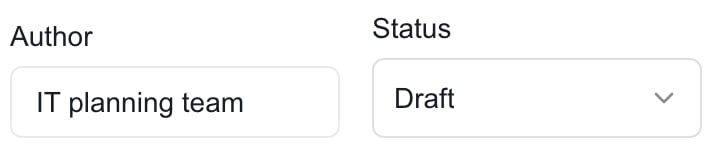 *MSP editor with unsaved example values. Select the image to enlarge the fields.*
## Edit a saved budget
Open an editable budget from the list. Expand **Budget Details** for header fields, or use a line's pencil menu and **Edit** for its costs. Make changes, choose **Save**, wait for confirmation, and reload the budget to verify the result. The edit page normally remains open after saving.
If another person changed the budget while you were editing, the save can be rejected. Keep a note of your intended changes, reload the current budget, compare the latest values, and reapply only the changes still needed.
## What saves when?
| Action | When it persists |
| ------------------------------------------------------------ | ------------------------------------------------------------------------------------------------------------------- |
| Change title, author, fiscal year, period, currency or notes | Header **Save** |
| Add a line, edit its costs, category, billing or linked item | Header **Save** |
| Remove a line from the editable builder | Header **Save**; deleting saved lines also requires management permission |
| Select the row checkmark | Ends row editing only; still choose **Save** |
| Change an existing line's **Approval** | Immediately; it is separate from unsaved header or cost edits |
| Change a newly added, unsaved line's **Approval** | With the first budget **Save** |
| Change a monthly override in the reader | On leaving the changed cell or pressing Enter; see the [monthly guide](/user-guides/budgets/read-monthly-breakdown) |
| Choose Approved for the whole budget | Confirm the warning, then **Save**; this permanently locks the baseline |
## Troubleshooting
| Problem | What to check |
| --------------------------------------------- | ----------------------------------------------------------------------------------------------------------------------------------------------------------------------------------- |
| Create or Edit is missing | Ask your MSP to check budget permissions and company access. |
| Select a Company appears | Choose one company using the top selector. |
| Save is disabled | Make a change; check that the budget is editable and a save is not already running. |
| Save reports an error | Read the message, check the title, currency, line values and selected links. A failed save is not a saved budget. |
| Budget is read-only | Approved and Archived budgets stay locked. Use the replacement-budget workflow. |
| Reopened budget shows an old price after Save | Reload the page and check the saved values before making further edits. Opening it again through the list can show an older view. If it still differs, ask your MSP to investigate. |
| New-budget Export does nothing | Save the budget first. Exports require an existing saved budget. |
| Export does not contain recent edits | Save the edits before generating the document. |
## Bring existing costs into the budget
Use the import guides for [Excel workbooks](/user-guides/budgets/import-excel), [earlier-year recurring services](/user-guides/budgets/import-previous-year), [Planner items, goals and products](/user-guides/budgets/import-planning-and-products), or [Microsoft 365 licensing](/user-guides/budgets/import-microsoft-365-licensing). Each path adds proposed rows; review the costs and choose **Save**.
## Frequently asked questions
Select one company, open Budgets, and choose Create New Budget. Your role needs budget editing access.
Only when the MSP has granted the necessary budget permissions and company access. Being a Company administrator alone does not grant those permissions. Otherwise, ask the MSP to make changes.
A budget belongs to one company. Select the company before creating it; use separate budgets for other companies.
No. Notes are shown in the budget reader and included in PDF and Excel exports. Write them for everyone who can access the budget.
No. Annual, Quarterly and Monthly describe the budget period. Each line has its own Recurrence and Start month. Monthly Breakdown still displays January through December, and approval captures the selected fiscal year's January–December baseline.
No exchange-rate conversion is performed. Choose currency before adding costs and review existing or imported line prices and currencies when changing a plan.
No. It is an editable budget status. An authorized manager must follow the separate approval-and-Save workflow to lock the budget.
The Approval selector on an existing saved line persists immediately. Header and ordinary cost edits still require Save.
No. An approved baseline stays locked. Duplicate it to prepare a new Draft, then review every copied line before approving the replacement.
No. Save first, then export the saved budget. Export is not a substitute for Save.
Related: [Find budgets](/user-guides/budgets/find-budgets), [Edit line items](/user-guides/budgets/edit-line-items), [Monthly Breakdown](/user-guides/budgets/read-monthly-breakdown), [Approve a budget](/user-guides/budgets/approving-and-locking-budgets).
For document contents, saved-data rules and print limitations, see [Download or print a budget](/user-guides/budgets/export-and-print-budgets).
For a one-month exception to a saved line’s schedule, see [Adjust a budget amount for one month](/user-guides/budgets/edit-monthly-overrides). Monthly overrides save separately from the budget editor.
For the full copy and cleanup workflows, see [Duplicate a budget](/user-guides/budgets/duplicate-budget) and [Delete unwanted draft budgets](/user-guides/budgets/delete-budgets). Approved and Archived budgets cannot be deleted.
*MSP editor with unsaved example values. Select the image to enlarge the fields.*
## Edit a saved budget
Open an editable budget from the list. Expand **Budget Details** for header fields, or use a line's pencil menu and **Edit** for its costs. Make changes, choose **Save**, wait for confirmation, and reload the budget to verify the result. The edit page normally remains open after saving.
If another person changed the budget while you were editing, the save can be rejected. Keep a note of your intended changes, reload the current budget, compare the latest values, and reapply only the changes still needed.
## What saves when?
| Action | When it persists |
| ------------------------------------------------------------ | ------------------------------------------------------------------------------------------------------------------- |
| Change title, author, fiscal year, period, currency or notes | Header **Save** |
| Add a line, edit its costs, category, billing or linked item | Header **Save** |
| Remove a line from the editable builder | Header **Save**; deleting saved lines also requires management permission |
| Select the row checkmark | Ends row editing only; still choose **Save** |
| Change an existing line's **Approval** | Immediately; it is separate from unsaved header or cost edits |
| Change a newly added, unsaved line's **Approval** | With the first budget **Save** |
| Change a monthly override in the reader | On leaving the changed cell or pressing Enter; see the [monthly guide](/user-guides/budgets/read-monthly-breakdown) |
| Choose Approved for the whole budget | Confirm the warning, then **Save**; this permanently locks the baseline |
## Troubleshooting
| Problem | What to check |
| --------------------------------------------- | ----------------------------------------------------------------------------------------------------------------------------------------------------------------------------------- |
| Create or Edit is missing | Ask your MSP to check budget permissions and company access. |
| Select a Company appears | Choose one company using the top selector. |
| Save is disabled | Make a change; check that the budget is editable and a save is not already running. |
| Save reports an error | Read the message, check the title, currency, line values and selected links. A failed save is not a saved budget. |
| Budget is read-only | Approved and Archived budgets stay locked. Use the replacement-budget workflow. |
| Reopened budget shows an old price after Save | Reload the page and check the saved values before making further edits. Opening it again through the list can show an older view. If it still differs, ask your MSP to investigate. |
| New-budget Export does nothing | Save the budget first. Exports require an existing saved budget. |
| Export does not contain recent edits | Save the edits before generating the document. |
## Bring existing costs into the budget
Use the import guides for [Excel workbooks](/user-guides/budgets/import-excel), [earlier-year recurring services](/user-guides/budgets/import-previous-year), [Planner items, goals and products](/user-guides/budgets/import-planning-and-products), or [Microsoft 365 licensing](/user-guides/budgets/import-microsoft-365-licensing). Each path adds proposed rows; review the costs and choose **Save**.
## Frequently asked questions
Select one company, open Budgets, and choose Create New Budget. Your role needs budget editing access.
Only when the MSP has granted the necessary budget permissions and company access. Being a Company administrator alone does not grant those permissions. Otherwise, ask the MSP to make changes.
A budget belongs to one company. Select the company before creating it; use separate budgets for other companies.
No. Notes are shown in the budget reader and included in PDF and Excel exports. Write them for everyone who can access the budget.
No. Annual, Quarterly and Monthly describe the budget period. Each line has its own Recurrence and Start month. Monthly Breakdown still displays January through December, and approval captures the selected fiscal year's January–December baseline.
No exchange-rate conversion is performed. Choose currency before adding costs and review existing or imported line prices and currencies when changing a plan.
No. It is an editable budget status. An authorized manager must follow the separate approval-and-Save workflow to lock the budget.
The Approval selector on an existing saved line persists immediately. Header and ordinary cost edits still require Save.
No. An approved baseline stays locked. Duplicate it to prepare a new Draft, then review every copied line before approving the replacement.
No. Save first, then export the saved budget. Export is not a substitute for Save.
Related: [Find budgets](/user-guides/budgets/find-budgets), [Edit line items](/user-guides/budgets/edit-line-items), [Monthly Breakdown](/user-guides/budgets/read-monthly-breakdown), [Approve a budget](/user-guides/budgets/approving-and-locking-budgets).
For document contents, saved-data rules and print limitations, see [Download or print a budget](/user-guides/budgets/export-and-print-budgets).
For a one-month exception to a saved line’s schedule, see [Adjust a budget amount for one month](/user-guides/budgets/edit-monthly-overrides). Monthly overrides save separately from the budget editor.
For the full copy and cleanup workflows, see [Duplicate a budget](/user-guides/budgets/duplicate-budget) and [Delete unwanted draft budgets](/user-guides/budgets/delete-budgets). Approved and Archived budgets cannot be deleted.