> ## Documentation Index
> Fetch the complete documentation index at: https://docs.msportal.ai/llms.txt
> Use this file to discover all available pages before exploring further.
# Add and edit budget line items
> Enter planned costs, set billing recurrence, link work, and distinguish row approval from saving edits.
Use **Add Item** in the budget builder to enter a planned cost. Use an existing line's pencil menu and **Edit** to change its description, category, billing, quantity, unit price, notes or link to a Planner item or goal.
**Audience:** MSP staff and Company users with budget editing access assigned by their MSP. A read-only user can [review the plan](/user-guides/budgets/read-budget) and request changes from the MSP.
## Add a manual cost
Create a company budget or open a Draft or Pending Approval budget from the Budgets list. Approved and Archived budgets are locked.
Enter a clear **Description**. Optionally select a Planner item or goal, choose a **Category**, and add **Notes (optional)**. Choose None when a category or link does not apply.
Enter the number of units and the price per unit. Click outside the number field to update the calculated **Line Total**. For example, five workstations at USD 1,200 each produce a USD 6,000 line total.
Use a positive whole-number quantity and a nonnegative price. A zero-price field can appear blank; verify whether the cost is intentionally zero before approving the budget.
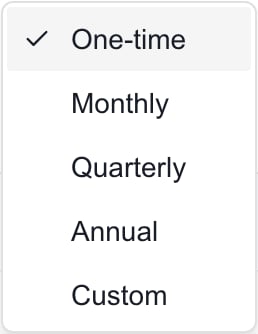
Choose **Recurrence** and **Start month** in the Billing column. For **Custom**, also set **Every N months**. Use One-time for a purchase charged once; use the matching recurring cadence for services.
Select the checkmark, labeled **Confirm line item edits**, to return the row to its compact view. Then choose the header **Save** and wait for confirmation. Review the saved result in the budget reader and Monthly Breakdown.
## Billing choices
| Recurrence | Planned charging pattern |
| ---------- | --------------------------------------------------- |
| One-time | Once in Start month |
| Monthly | Every month from Start month |
| Quarterly | Every three months from Start month |
| Annual | Once per year, starting in Start month |
| Custom | Every specified number of months, from 1 through 60 |
 Monthly Breakdown shows charges within the selected fiscal year. An existing imported term or a monthly override can change the displayed schedule. Review that tab after saving; changing the budget's Period Type does not replace a line's billing settings.
The builder's **Line Total** is quantity × unit price for one charge. It does not multiply by all recurring charges in the year. For example, ten licenses at USD 20 have a USD 200 line total; a full January–December monthly plan without overrides totals USD 2,400.
## Edit, link or remove a line
Open the line's pencil menu and choose **Edit**. The row checkmark finishes editing but does not save to the budget. You can also double-click a description, category, billing, quantity or unit-price cell to edit that field, then choose **Save**.
The link selector associates the cost with a Planner item or goal. Choosing **None** removes that association from the pending edit. It does not delete the Planner item or goal.
To remove a line, use **Delete** in its pencil menu or the trash icon while editing, then choose **Save**. Removing an unsaved row discards that proposed row. Deleting an already saved line requires budget management permission.
## Change a line's Approval status
The **Approval** column offers **Draft**, **Pending**, **Approved** and **Rejected**. This is the line's status, separate from the overall budget Status.
For an existing saved line, choosing an Approval value saves that status immediately. There is no separate confirmation and the header Save button is not required for that status change. For a new unsaved line, the status is stored with the first Save.
Approving one line does not approve or lock the whole budget. Conversely, once the whole budget is Approved or Archived, its line statuses cannot be changed. See [Approve and lock budgets](/user-guides/budgets/approving-and-locking-budgets).
## Troubleshooting
| Problem | What to check |
| ----------------------------------------- | --------------------------------------------------------------------------------------------------- |
| Add Item or Edit is unavailable | Check permissions and whether the whole budget is locked. |
| A number changed but the total has not | Leave the number field, check the value, and then save. |
| A line disappeared after leaving the page | Adding it or selecting its checkmark was not enough; the budget needed Save. |
| Delete is missing for a saved line | Ask your MSP to check budget management permission. |
| Line status change fails | Read the error and reload the latest budget before retrying; someone may have changed or locked it. |
| Monthly totals differ from Line Total | Check recurrence, Start month, existing term and overrides. |
| A goal or Planner item is missing | Check that it belongs to this company and is available to your role. |
## Frequently asked questions
Open an editable budget and choose Add Item. Enter the description, quantity, unit price and billing schedule manually, then Save.
No. Confirm line item edits closes the row editor. Choose the header Save to persist the proposed costs and ordinary edits.
Yes. Edit the row, select an available Planner item or goal in its link selector, and Save. Select None and Save to remove the link.
Set Recurrence to Quarterly and Start month to Apr, then Save. Review April, July and October in Monthly Breakdown, allowing for any existing term or overrides.
Line Total is quantity multiplied by unit price for one charge. Monthly Breakdown projects recurring charges across the year.
With management permission, use the line's Delete action in an editable budget, then Save. Approved and Archived budgets remain locked.
No. The line remains visible. Rejected amounts are excluded from the Budgets list's Total and from the approved Actuals baseline, but the overview and Monthly Breakdown can still display them.
No. Line Approval and whole-budget Status are separate. Use the overall approval workflow when the entire baseline is ready to lock.
No. Use a new Draft, such as a reviewed duplicate, for changes to an approved plan.
Manual line edits change the MSPortal budget. They do not place an order or update a provider product's price. Save records the plan, not a purchase.
Related: [Create and edit a budget](/user-guides/budgets/create-and-edit-budgets), [Read monthly costs](/user-guides/budgets/read-monthly-breakdown), [Read a budget](/user-guides/budgets/read-budget).
To arrange category groups in Overview and newly exported documents, see [Arrange budget sections](/user-guides/budgets/arrange-budget-sections). This does not change Monthly Breakdown ordering.
For a one-month exception to a saved line’s schedule, see [Adjust a budget amount for one month](/user-guides/budgets/edit-monthly-overrides). Monthly overrides save separately from the budget editor.
Monthly Breakdown shows charges within the selected fiscal year. An existing imported term or a monthly override can change the displayed schedule. Review that tab after saving; changing the budget's Period Type does not replace a line's billing settings.
The builder's **Line Total** is quantity × unit price for one charge. It does not multiply by all recurring charges in the year. For example, ten licenses at USD 20 have a USD 200 line total; a full January–December monthly plan without overrides totals USD 2,400.
## Edit, link or remove a line
Open the line's pencil menu and choose **Edit**. The row checkmark finishes editing but does not save to the budget. You can also double-click a description, category, billing, quantity or unit-price cell to edit that field, then choose **Save**.
The link selector associates the cost with a Planner item or goal. Choosing **None** removes that association from the pending edit. It does not delete the Planner item or goal.
To remove a line, use **Delete** in its pencil menu or the trash icon while editing, then choose **Save**. Removing an unsaved row discards that proposed row. Deleting an already saved line requires budget management permission.
## Change a line's Approval status
The **Approval** column offers **Draft**, **Pending**, **Approved** and **Rejected**. This is the line's status, separate from the overall budget Status.
For an existing saved line, choosing an Approval value saves that status immediately. There is no separate confirmation and the header Save button is not required for that status change. For a new unsaved line, the status is stored with the first Save.
Approving one line does not approve or lock the whole budget. Conversely, once the whole budget is Approved or Archived, its line statuses cannot be changed. See [Approve and lock budgets](/user-guides/budgets/approving-and-locking-budgets).
## Troubleshooting
| Problem | What to check |
| ----------------------------------------- | --------------------------------------------------------------------------------------------------- |
| Add Item or Edit is unavailable | Check permissions and whether the whole budget is locked. |
| A number changed but the total has not | Leave the number field, check the value, and then save. |
| A line disappeared after leaving the page | Adding it or selecting its checkmark was not enough; the budget needed Save. |
| Delete is missing for a saved line | Ask your MSP to check budget management permission. |
| Line status change fails | Read the error and reload the latest budget before retrying; someone may have changed or locked it. |
| Monthly totals differ from Line Total | Check recurrence, Start month, existing term and overrides. |
| A goal or Planner item is missing | Check that it belongs to this company and is available to your role. |
## Frequently asked questions
Open an editable budget and choose Add Item. Enter the description, quantity, unit price and billing schedule manually, then Save.
No. Confirm line item edits closes the row editor. Choose the header Save to persist the proposed costs and ordinary edits.
Yes. Edit the row, select an available Planner item or goal in its link selector, and Save. Select None and Save to remove the link.
Set Recurrence to Quarterly and Start month to Apr, then Save. Review April, July and October in Monthly Breakdown, allowing for any existing term or overrides.
Line Total is quantity multiplied by unit price for one charge. Monthly Breakdown projects recurring charges across the year.
With management permission, use the line's Delete action in an editable budget, then Save. Approved and Archived budgets remain locked.
No. The line remains visible. Rejected amounts are excluded from the Budgets list's Total and from the approved Actuals baseline, but the overview and Monthly Breakdown can still display them.
No. Line Approval and whole-budget Status are separate. Use the overall approval workflow when the entire baseline is ready to lock.
No. Use a new Draft, such as a reviewed duplicate, for changes to an approved plan.
Manual line edits change the MSPortal budget. They do not place an order or update a provider product's price. Save records the plan, not a purchase.
Related: [Create and edit a budget](/user-guides/budgets/create-and-edit-budgets), [Read monthly costs](/user-guides/budgets/read-monthly-breakdown), [Read a budget](/user-guides/budgets/read-budget).
To arrange category groups in Overview and newly exported documents, see [Arrange budget sections](/user-guides/budgets/arrange-budget-sections). This does not change Monthly Breakdown ordering.
For a one-month exception to a saved line’s schedule, see [Adjust a budget amount for one month](/user-guides/budgets/edit-monthly-overrides). Monthly overrides save separately from the budget editor.