> ## Documentation Index
> Fetch the complete documentation index at: https://docs.msportal.ai/llms.txt
> Use this file to discover all available pages before exploring further.
# Download or print a budget
> Export a saved budget to PDF or Excel, print the current view, and combine selected budgets into one PDF.
**Audience:** Company users with access to the budget and MSP staff. Your MSP manages permissions. Exporting a single accessible budget does not require approving it. Bulk selection currently requires budget management access.
## Choose the output
| Action | What you receive | What it does not include |
| ------------------- | ----------------------------------------------------------------------------------------------------- | -------------------------------------------------------------------------------------------------------------- |
| **Export PDF** | A formatted document of the saved budget, with category groups, billing labels, amounts and statuses. | The Monthly Breakdown schedule, Actuals reconciliation, or unsaved editor changes. |
| **Export Excel** | A `.xlsx` workbook with one **Budget** sheet, metadata, line items, category subtotals and notes. | A live spreadsheet connection, automatic recalculation formulas, or separate Monthly Breakdown/Actuals sheets. |
| **Print** | The browser's print preview for the currently displayed budget tab. | A guarantee that a wide table fits; inspect the preview before printing. |
| **Export Selected** | One combined PDF containing the selected budgets for one company. | An Excel workbook or a new consolidated budget total. |
## Download one budget
Open **Budgets**, find the correct company and budget, then choose its row **... > View**. Check the title, fiscal year, currency and status in Budget Details.
Open the header **...** menu and select **Export PDF** or **Export Excel**. The list row's separate Export item currently has no working action; use the Budget Details header instead.
Allow the document to finish generating and check your browser's downloads. If an error appears, the export has not been confirmed. Keep the page open while it prepares the file.
Open the downloaded file and check the budget name, company, year, line count, amounts, statuses and notes. Confirm the currency against Budget Details; the PDF can use a currency symbol without spelling out the currency code.
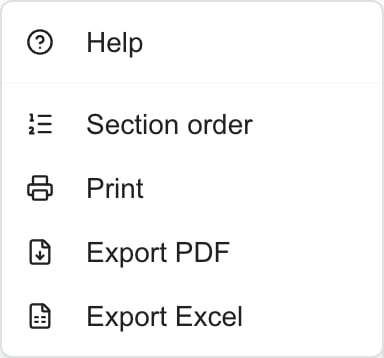 *MSP menu example. Section order is a separate editing action and appears only when permitted and applicable.*
The same PDF and Excel actions are available for an existing budget in the editor. **Save first.** Export reads the saved record; it does not save your current title, line-item edits or newly imported rows. An unsaved new budget needs its first successful Save before it can be exported.
Switching to Monthly Breakdown or Actuals before choosing Export PDF or Export Excel does not change the exported document into a report of that tab. For the schedule, use [Monthly Breakdown](/user-guides/budgets/read-monthly-breakdown); for actual spend, use [Actuals](/user-guides/budgets/tracking-budget-actuals).
## Read exported amounts and notes
The document's line amount is **quantity × unit price**. Its overall total includes rejected lines as well as approved and pending lines. This differs from the budgets list Total, which excludes rejected amounts, and from the annualized costs in Monthly Breakdown.
A recurring line with quantity 1 and price 100 shows a line amount of 100 in the document. Its scheduled yearly cost can be higher. Do not use the exported Grand Total as proof of twelve months of recurring spend.
* **Budget notes** can appear in both PDF and Excel. They are not private MSP-only comments, even if the editor's helper text says otherwise.
* **Line-item notes** appear beneath their items in Excel. The current PDF layout does not render those separate line notes.
* PDF pages can repeat the same grand total in the table footer. That is not a separate page total to add again.
* Excel's amounts and totals are fixed values. Changing a quantity or price in the downloaded file does not automatically recalculate the totals or update MSPortal.
Excel includes Category, Description, Qty, Unit Price, Recurrence, Term, Status and Line Total. It does not include a January–December schedule, start-month column, monthly overrides or a separate custom-interval field. Check those billing settings in the application before reusing a workbook as an import source. See [Import budget line items from Excel](/user-guides/budgets/import-excel) for mapping and review steps.
## Print the current view
1. Open the budget reader and select the tab you intend to print.
2. Open the header **... > Print**.
3. In your browser's print preview, inspect every page, column and total. Choose the available printer or Save as PDF destination, page range and other browser settings.
4. Continue only when the preview includes the content you need. Otherwise cancel and use an appropriate document export or the on-screen view.
The current default Monthly Breakdown print layout can cut off later months and the yearly total. Check that all twelve months and the rightmost columns are visible; do not treat a clipped printout as the full annual schedule. Export PDF and Export Excel are not replacements for that monthly schedule.
Overview printing can place the details on a separate page from the line-item table. Export PDF uses its own document layout. Review long descriptions and category headings around page breaks before sharing either result.
## Combine selected budgets into one PDF
This option is useful for MSP staff and delegated budget managers. The current list shows selection checkboxes only with budget management access. If you can read a budget but cannot select rows, export it individually through View or ask your MSP for a combined copy.
1. Select **one company** in the top company selector before selecting any rows. Global View cannot supply the company required for this action.
2. Tick the intended budgets and verify the selection count. Check their titles and years, especially when filters hide other selected rows.
3. Open the selected-row menu, currently labeled **Filter (count)** on desktop, and choose **Export Selected**.
4. Open the downloaded `budgets.pdf` and confirm that every selected budget is present with the correct company.
Each budget keeps its own amounts and status; the file is not a merged budget or a cross-company report. If one selected document fails while others succeed, the combined file can contain only the successful documents. Verify the included titles rather than relying solely on the success message. Retry missing budgets individually after checking the error or access with your MSP.
## Troubleshooting
| Result | Next step |
| ----------------------------------------------- | ---------------------------------------------------------------------------------------------------------------------------- |
| The row Export item does nothing | Open View, then use the header Export PDF or Export Excel. |
| Recent edits are absent | Save the budget, wait for success and export again. |
| No file appears | Check the browser downloads and any displayed error. Verify access and retry when appropriate. |
| Export Selected asks for a company | Select one company in the top selector, then reselect its budgets. A table filter alone is not the same as company context. |
| A combined PDF omits a budget | Check each selected title and export the missing budget separately. Some documents may have succeeded before another failed. |
| The total differs from the list or monthly view | Compare rejected lines and quantity × price versus scheduled recurring costs. |
| Editing Excel did not change totals | The exported workbook contains fixed values, not recalculation formulas. Review and calculate changes explicitly. |
| Printed monthly columns are missing | Cancel the incomplete print. Check the complete schedule in the application and ask the MSP for the required presentation. |
## Frequently asked questions
Open Budgets, choose the budget row's View action, then use the header ... > Export PDF or Export Excel. Your MSP controls access to the budget.
No. Exports read the saved budget. Save edits and imported rows successfully before exporting; a new budget needs its first Save.
No. Header PDF and Excel actions produce the saved budget document independently of the active tab. They do not export the Actuals table.
No. It contains one Budget sheet with line items and fixed totals. It does not include January–December columns, monthly overrides or a separate monthly schedule.
Budget-level notes can appear in both PDF and Excel. Line-item notes appear in Excel but are not rendered by the current PDF layout. Budget notes are not private MSP-only comments.
The document totals all line quantities times unit prices, including rejected lines. The list Total excludes rejected amounts; Monthly Breakdown schedules recurring charges across months.
No. The exported totals are fixed values rather than formulas. Editing the file also does not change the saved budget in MSPortal.
Inspect the browser preview carefully. The default print layout can clip later months and the yearly total. Do not share a clipped print as a complete schedule; the normal PDF and Excel exports do not contain that schedule either.
Print uses the current tab and the browser's print layout. Export PDF generates a separate document from the saved budget, independent of the active tab.
With budget management access, select one company, tick its intended budgets and choose Filter (count) > Export Selected. Open budgets.pdf and verify every selected title is present.
The current list's selection checkboxes require budget management access. Readers can use each budget's View > Export PDF or Export Excel instead, or ask the MSP for a combined document.
No. Failed documents can be omitted when other selected documents succeed. Inspect the titles and export any missing budget individually after checking access or errors.
No. These actions create documents or a browser print preview. Approval, budget edits and provider changes use separate workflows.
The table footer can repeat the budget grand total on each page. Do not add those repeated totals together as separate amounts.
Related: [Find budgets](/user-guides/budgets/find-budgets), [Read a budget](/user-guides/budgets/read-budget), [Create and edit budgets](/user-guides/budgets/create-and-edit-budgets).
To arrange category groups in Overview and newly exported documents, see [Arrange budget sections](/user-guides/budgets/arrange-budget-sections). This does not change Monthly Breakdown ordering.
*MSP menu example. Section order is a separate editing action and appears only when permitted and applicable.*
The same PDF and Excel actions are available for an existing budget in the editor. **Save first.** Export reads the saved record; it does not save your current title, line-item edits or newly imported rows. An unsaved new budget needs its first successful Save before it can be exported.
Switching to Monthly Breakdown or Actuals before choosing Export PDF or Export Excel does not change the exported document into a report of that tab. For the schedule, use [Monthly Breakdown](/user-guides/budgets/read-monthly-breakdown); for actual spend, use [Actuals](/user-guides/budgets/tracking-budget-actuals).
## Read exported amounts and notes
The document's line amount is **quantity × unit price**. Its overall total includes rejected lines as well as approved and pending lines. This differs from the budgets list Total, which excludes rejected amounts, and from the annualized costs in Monthly Breakdown.
A recurring line with quantity 1 and price 100 shows a line amount of 100 in the document. Its scheduled yearly cost can be higher. Do not use the exported Grand Total as proof of twelve months of recurring spend.
* **Budget notes** can appear in both PDF and Excel. They are not private MSP-only comments, even if the editor's helper text says otherwise.
* **Line-item notes** appear beneath their items in Excel. The current PDF layout does not render those separate line notes.
* PDF pages can repeat the same grand total in the table footer. That is not a separate page total to add again.
* Excel's amounts and totals are fixed values. Changing a quantity or price in the downloaded file does not automatically recalculate the totals or update MSPortal.
Excel includes Category, Description, Qty, Unit Price, Recurrence, Term, Status and Line Total. It does not include a January–December schedule, start-month column, monthly overrides or a separate custom-interval field. Check those billing settings in the application before reusing a workbook as an import source. See [Import budget line items from Excel](/user-guides/budgets/import-excel) for mapping and review steps.
## Print the current view
1. Open the budget reader and select the tab you intend to print.
2. Open the header **... > Print**.
3. In your browser's print preview, inspect every page, column and total. Choose the available printer or Save as PDF destination, page range and other browser settings.
4. Continue only when the preview includes the content you need. Otherwise cancel and use an appropriate document export or the on-screen view.
The current default Monthly Breakdown print layout can cut off later months and the yearly total. Check that all twelve months and the rightmost columns are visible; do not treat a clipped printout as the full annual schedule. Export PDF and Export Excel are not replacements for that monthly schedule.
Overview printing can place the details on a separate page from the line-item table. Export PDF uses its own document layout. Review long descriptions and category headings around page breaks before sharing either result.
## Combine selected budgets into one PDF
This option is useful for MSP staff and delegated budget managers. The current list shows selection checkboxes only with budget management access. If you can read a budget but cannot select rows, export it individually through View or ask your MSP for a combined copy.
1. Select **one company** in the top company selector before selecting any rows. Global View cannot supply the company required for this action.
2. Tick the intended budgets and verify the selection count. Check their titles and years, especially when filters hide other selected rows.
3. Open the selected-row menu, currently labeled **Filter (count)** on desktop, and choose **Export Selected**.
4. Open the downloaded `budgets.pdf` and confirm that every selected budget is present with the correct company.
Each budget keeps its own amounts and status; the file is not a merged budget or a cross-company report. If one selected document fails while others succeed, the combined file can contain only the successful documents. Verify the included titles rather than relying solely on the success message. Retry missing budgets individually after checking the error or access with your MSP.
## Troubleshooting
| Result | Next step |
| ----------------------------------------------- | ---------------------------------------------------------------------------------------------------------------------------- |
| The row Export item does nothing | Open View, then use the header Export PDF or Export Excel. |
| Recent edits are absent | Save the budget, wait for success and export again. |
| No file appears | Check the browser downloads and any displayed error. Verify access and retry when appropriate. |
| Export Selected asks for a company | Select one company in the top selector, then reselect its budgets. A table filter alone is not the same as company context. |
| A combined PDF omits a budget | Check each selected title and export the missing budget separately. Some documents may have succeeded before another failed. |
| The total differs from the list or monthly view | Compare rejected lines and quantity × price versus scheduled recurring costs. |
| Editing Excel did not change totals | The exported workbook contains fixed values, not recalculation formulas. Review and calculate changes explicitly. |
| Printed monthly columns are missing | Cancel the incomplete print. Check the complete schedule in the application and ask the MSP for the required presentation. |
## Frequently asked questions
Open Budgets, choose the budget row's View action, then use the header ... > Export PDF or Export Excel. Your MSP controls access to the budget.
No. Exports read the saved budget. Save edits and imported rows successfully before exporting; a new budget needs its first Save.
No. Header PDF and Excel actions produce the saved budget document independently of the active tab. They do not export the Actuals table.
No. It contains one Budget sheet with line items and fixed totals. It does not include January–December columns, monthly overrides or a separate monthly schedule.
Budget-level notes can appear in both PDF and Excel. Line-item notes appear in Excel but are not rendered by the current PDF layout. Budget notes are not private MSP-only comments.
The document totals all line quantities times unit prices, including rejected lines. The list Total excludes rejected amounts; Monthly Breakdown schedules recurring charges across months.
No. The exported totals are fixed values rather than formulas. Editing the file also does not change the saved budget in MSPortal.
Inspect the browser preview carefully. The default print layout can clip later months and the yearly total. Do not share a clipped print as a complete schedule; the normal PDF and Excel exports do not contain that schedule either.
Print uses the current tab and the browser's print layout. Export PDF generates a separate document from the saved budget, independent of the active tab.
With budget management access, select one company, tick its intended budgets and choose Filter (count) > Export Selected. Open budgets.pdf and verify every selected title is present.
The current list's selection checkboxes require budget management access. Readers can use each budget's View > Export PDF or Export Excel instead, or ask the MSP for a combined document.
No. Failed documents can be omitted when other selected documents succeed. Inspect the titles and export any missing budget individually after checking access or errors.
No. These actions create documents or a browser print preview. Approval, budget edits and provider changes use separate workflows.
The table footer can repeat the budget grand total on each page. Do not add those repeated totals together as separate amounts.
Related: [Find budgets](/user-guides/budgets/find-budgets), [Read a budget](/user-guides/budgets/read-budget), [Create and edit budgets](/user-guides/budgets/create-and-edit-budgets).
To arrange category groups in Overview and newly exported documents, see [Arrange budget sections](/user-guides/budgets/arrange-budget-sections). This does not change Monthly Breakdown ordering.