> ## Documentation Index
> Fetch the complete documentation index at: https://docs.msportal.ai/llms.txt
> Use this file to discover all available pages before exploring further.
# Import budget line items from Excel
> Map an XLSX workbook, resolve import errors, review skipped duplicates, and save the imported costs.
Open an editable company budget and choose **Import > Import Excel** to add costs from an `.xlsx` workbook. Import adds proposed line items; choose the budget's **Save** afterward to persist them.
**Audience:** MSP staff and Company users with budget editing permission assigned by their MSP. Read-only users should ask the MSP to import their spreadsheet.
## Prepare the workbook
Use an exported budget workbook or a worksheet with a clear header row. The importer reads the sheet named **Budget** when present; otherwise it reads the first sheet. It does not combine all worksheets.
| Field | How to prepare it |
| ---------------------------- | -------------------------------------------------------------------------------------------------------------------------------------------- |
| Description, Qty, Unit Price | Required column mappings. Give every cost a description and valid nonnegative numbers. Unit Price is the price per unit, not the line total. |
| Category | Optional. Use an existing budget category name, or leave it unmapped. Import does not create categories. |
| Recurrence | Optional: One-Time, Monthly, Quarterly, Annual or Custom. Blank or unmapped defaults to One-Time. |
| Term | Optional whole number of months, from 1 to 120. A missing term defaults to 1 for one-time costs and 12 for recurring costs. |
| Status | Optional line status: Draft, Pending, Approved or Rejected. Blank or unmapped defaults to Pending. |
| Notes | Optional line notes. Write them for everyone who can access the budget. |
Use numeric cells for prices and quantities. Avoid locale-ambiguous text such as comma decimal separators, and use saved numeric values when a formula has no calculated result. Give separate costs distinct descriptions: matching descriptions are treated as duplicates even when their prices differ.
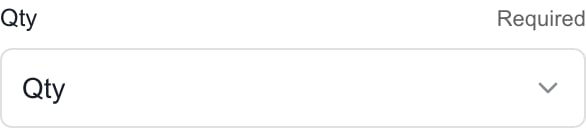 *MSP example: check each required mapping before importing.*
## Import and save
Select the company and open a Draft or Pending Approval budget, or [create a new budget](/user-guides/budgets/create-and-edit-budgets). Check its currency before importing.
Choose **Import > Import Excel**, then **Choose file** and select the `.xlsx` workbook. Wait for parsing to finish.
Confirm **Description**, **Qty** and **Unit Price** point to the right workbook columns. Map the optional fields you need; use **Not mapped** for fields you want to omit.
Mapping changes update the import result immediately. The importer detects the header row; there is no separate worksheet or header-row picker in this dialog. If detection is wrong, simplify the workbook and choose it again.
Correct any **Fix … issues before importing** messages in the workbook or mappings. Any error blocks the import. Duplicate warnings identify skipped rows and do not update existing costs.
**Ready to import … line items** counts the new valid rows. **No new line items were found** means no new costs remain to add. Review the count before proceeding.
Choose **Import … items**. The dialog closes and the proposed rows appear in the budget builder. Check descriptions, quantities, prices, categories, line statuses and notes.
Imported lines start in January and use the target budget's currency. Set **Start month** and, for Custom recurrence, **Every N months** in the builder before saving. Currency labels do not perform exchange-rate conversion.
Choose the header **Save**, wait for the saved confirmation, then reload the budget and check **Monthly Breakdown**. An import confirmation is not a saved budget.
## What is copied?
Excel import copies mapped line fields. It does not restore the workbook's budget title, company, fiscal year, overall status or currency. It also does not restore Planner/product/goal links, start months, custom recurrence intervals or monthly overrides. Review those separately when rebuilding a plan from an export.
Existing and within-file duplicates are skipped by description, ignoring capitalization and leading/trailing spaces. Import is additive: it does not replace an existing line, change its price, or remove lines missing from the workbook.
## Troubleshooting
| Message or result | What to do |
| --------------------------------------------- | ----------------------------------------------------------------------------------------------------------------------------------------------------------- |
| Map Description, Qty, and Unit Price | Select the three required source columns. |
| Category does not match | Use a category available in this budget, or leave Category unmapped and assign it later. |
| Category matches more than one | Ask the MSP to resolve ambiguous category names, or assign the category after import. |
| Invalid quantity, price, recurrence or status | Correct the indicated worksheet row and choose the file again. |
| All rows skipped | Check for matching descriptions already in the builder; import will not update them. |
| Ready to import, but Save fails | Check the Save error as well: the budget still requires valid company access, links and line values. Do not treat the parsing preview as a successful save. |
| Recurring totals look wrong | Review Start month, Custom interval, term and any monthly overrides after Save. |
## Frequently asked questions
Open a company budget you can edit, choose Import > Import Excel, and select an XLSX file. Review mappings and errors, import the rows, then Save the budget.
This dialog accepts XLSX. It reads the Budget worksheet when present, otherwise the first worksheet. Combine the intended rows into that worksheet before importing.
No. Review Column mapping and select the correct workbook column for each field. Description, Qty and Unit Price must be mapped.
No. A matching description is skipped, even if the workbook's quantity or price changed. Edit that existing line in the builder instead.
No. Resolve all errors before importing. Duplicate warnings are different: those rows are skipped while other valid new rows can be added.
No. It sets that imported line's status when saved. The whole budget has a separate approval workflow.
No. It adds mapped line fields, not a full budget backup. Review company, currency, fiscal year, start months, custom intervals, links and monthly overrides separately.
No. Imported amounts use the target budget's currency without exchange-rate conversion. Check prices before saving.
Import adds proposed rows to the current editor. You still need the header Save and a successful saved confirmation.
Related: [Edit budget lines](/user-guides/budgets/edit-line-items), [Create a budget](/user-guides/budgets/create-and-edit-budgets), [Read monthly costs](/user-guides/budgets/read-monthly-breakdown).
*MSP example: check each required mapping before importing.*
## Import and save
Select the company and open a Draft or Pending Approval budget, or [create a new budget](/user-guides/budgets/create-and-edit-budgets). Check its currency before importing.
Choose **Import > Import Excel**, then **Choose file** and select the `.xlsx` workbook. Wait for parsing to finish.
Confirm **Description**, **Qty** and **Unit Price** point to the right workbook columns. Map the optional fields you need; use **Not mapped** for fields you want to omit.
Mapping changes update the import result immediately. The importer detects the header row; there is no separate worksheet or header-row picker in this dialog. If detection is wrong, simplify the workbook and choose it again.
Correct any **Fix … issues before importing** messages in the workbook or mappings. Any error blocks the import. Duplicate warnings identify skipped rows and do not update existing costs.
**Ready to import … line items** counts the new valid rows. **No new line items were found** means no new costs remain to add. Review the count before proceeding.
Choose **Import … items**. The dialog closes and the proposed rows appear in the budget builder. Check descriptions, quantities, prices, categories, line statuses and notes.
Imported lines start in January and use the target budget's currency. Set **Start month** and, for Custom recurrence, **Every N months** in the builder before saving. Currency labels do not perform exchange-rate conversion.
Choose the header **Save**, wait for the saved confirmation, then reload the budget and check **Monthly Breakdown**. An import confirmation is not a saved budget.
## What is copied?
Excel import copies mapped line fields. It does not restore the workbook's budget title, company, fiscal year, overall status or currency. It also does not restore Planner/product/goal links, start months, custom recurrence intervals or monthly overrides. Review those separately when rebuilding a plan from an export.
Existing and within-file duplicates are skipped by description, ignoring capitalization and leading/trailing spaces. Import is additive: it does not replace an existing line, change its price, or remove lines missing from the workbook.
## Troubleshooting
| Message or result | What to do |
| --------------------------------------------- | ----------------------------------------------------------------------------------------------------------------------------------------------------------- |
| Map Description, Qty, and Unit Price | Select the three required source columns. |
| Category does not match | Use a category available in this budget, or leave Category unmapped and assign it later. |
| Category matches more than one | Ask the MSP to resolve ambiguous category names, or assign the category after import. |
| Invalid quantity, price, recurrence or status | Correct the indicated worksheet row and choose the file again. |
| All rows skipped | Check for matching descriptions already in the builder; import will not update them. |
| Ready to import, but Save fails | Check the Save error as well: the budget still requires valid company access, links and line values. Do not treat the parsing preview as a successful save. |
| Recurring totals look wrong | Review Start month, Custom interval, term and any monthly overrides after Save. |
## Frequently asked questions
Open a company budget you can edit, choose Import > Import Excel, and select an XLSX file. Review mappings and errors, import the rows, then Save the budget.
This dialog accepts XLSX. It reads the Budget worksheet when present, otherwise the first worksheet. Combine the intended rows into that worksheet before importing.
No. Review Column mapping and select the correct workbook column for each field. Description, Qty and Unit Price must be mapped.
No. A matching description is skipped, even if the workbook's quantity or price changed. Edit that existing line in the builder instead.
No. Resolve all errors before importing. Duplicate warnings are different: those rows are skipped while other valid new rows can be added.
No. It sets that imported line's status when saved. The whole budget has a separate approval workflow.
No. It adds mapped line fields, not a full budget backup. Review company, currency, fiscal year, start months, custom intervals, links and monthly overrides separately.
No. Imported amounts use the target budget's currency without exchange-rate conversion. Check prices before saving.
Import adds proposed rows to the current editor. You still need the header Save and a successful saved confirmation.
Related: [Edit budget lines](/user-guides/budgets/edit-line-items), [Create a budget](/user-guides/budgets/create-and-edit-budgets), [Read monthly costs](/user-guides/budgets/read-monthly-breakdown).