> ## Documentation Index
> Fetch the complete documentation index at: https://docs.msportal.ai/llms.txt
> Use this file to discover all available pages before exploring further.
# Add Microsoft 365 licensing costs to a budget
> Match purchased Microsoft 365 seats to MSP catalog pricing and review the resulting budget lines.
Choose **Import > Import Microsoft 365 licensing** in an editable company budget to turn synchronized purchased seats into planned costs. Match each license to an MSP product, review the quantity and pricing, import the selected rows, then save the budget.
**Audience:** MSP staff and Company users with the necessary permissions assigned by their MSP. This is a budget-planning task; it does not buy licenses or assign them to users.
## Before you start
* The budget must have a company and remain editable.
* The MSP needs an active Microsoft 365 integration and synchronized license data for that company.
* Your role needs budget editing access and access to read Microsoft 365 data.
* Prepare suitable catalog products with unit prices, billing recurrence and exact Microsoft SKU or product names where possible.
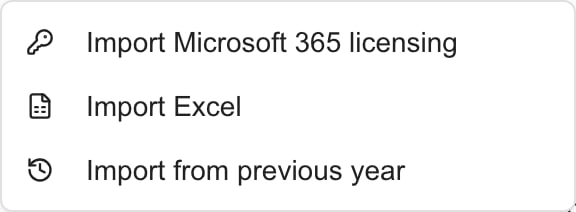 *MSP example: the licensing option requires Microsoft 365 integration and access.*
## Match and import licenses
Check the company and currency, then choose **Import > Import Microsoft 365 licensing**. Wait for the company's licenses to load.
Review each license's purchased and assigned quantities. The imported budget quantity uses **purchased** seats, including seats that have not been assigned to a user.
Review the suggested product. For an unmatched license, choose **Choose an MSP product**, search the catalog and select the product that supplies this license. The picker offers tenant-wide products and products for this company, not products assigned only to another company.
Suggestions use exact SKU or name matches, ignoring capitalization and repeated spaces. An ambiguous match stays unselected until you choose it. A similarly named product is not proof of the right price or billing term.
Check the catalog unit price, recurrence and resulting line total. New confident matches start selected; manually choosing a product also selects that license. Clear any row you do not want. **Select all** selects importable rows with a product, not unmatched rows.
A product already linked to this budget is marked **Already in budget**. Review the existing row instead of trying to import that product again. Check zero prices and missing billing defaults even when a row can be selected.
Choose **Import … licenses**. Review the new lines in the builder, including category, notes, quantity, unit price and recurrence. They start in January with line status Pending and use the budget currency without exchange-rate conversion.
Set the correct Start month, review setup fees separately, then choose **Save**. Reload the saved plan and check Monthly Breakdown.
## Understand the numbers
The imported line quantity comes from purchased seats; price and cadence come from the matched MSP product. The displayed Line total is purchased quantity × unit price for one charge, not necessarily a full year's cost.
Identical license SKUs from multiple Microsoft connections for the same company are combined. The import excludes rows without purchased seats and recognized free or trial-only grants. Low utilization alone does not exclude a paid license; mixed paid-and-trial source data can still contain a budgetable commitment.
The result is a planning snapshot. Later Microsoft seat changes or catalog price changes do not automatically update the saved budget. Review current licensing and update the plan through your normal budget workflow.
## Troubleshooting
| Problem | What to check |
| ----------------------------------------- | ------------------------------------------------------------------------------------------------------------------------ |
| Import Microsoft 365 licensing is missing | Active Microsoft integration and your Microsoft 365 read permission. Ask the MSP to check access. |
| Import is disabled | Select a company and check that the budget is editable. |
| No purchased licenses found | Correct company, synchronized inventory, purchased quantities and free/trial eligibility. |
| License needs a product | Choose an appropriate catalog product or ask the MSP to add one. |
| Product is missing from the picker | Company applicability, search text, whether it is already in the budget, or whether another license row has selected it. |
| Already in budget | Review the existing linked product line; this import does not update its seats or price. |
| Price or cadence is wrong | Correct the catalog product through the MSP, or review the proposed budget line before Save. |
| Failed to load Microsoft 365 licensing | Check access and integration health with the MSP. A failed load does not prove the company has no licenses. |
## Frequently asked questions
Open an editable company budget and choose Import > Import Microsoft 365 licensing. Match licenses to catalog products, review the selected rows, import them and Save.
Purchased seats become the budget quantity. Unassigned purchased seats can still represent a cost.
The matched MSP catalog product supplies the unit price and billing recurrence. Microsoft license inventory supplies the purchased-seat count.
The import excludes rows without purchased seats and recognized free or trial-only grants. It is intended to identify budgetable commitments, not reproduce every license inventory row.
No. Imported values are a snapshot. Review current licensing and edit the budget when seats, prices or billing change.
No. An existing linked product is marked Already in budget. Review and edit the existing line instead.
No. It adds proposed budget lines. It does not change Microsoft assignments, buy seats or modify a provider subscription.
This path builds the matched license cost line. Review any setup charge separately; do not assume the product sidebar's separate setup-fee behavior also occurs here.
Related: [Read cloud license usage](/user-guides/cloud/licenses), [Edit budget line items](/user-guides/budgets/edit-line-items), [Add catalog products](/user-guides/budgets/import-planning-and-products).
*MSP example: the licensing option requires Microsoft 365 integration and access.*
## Match and import licenses
Check the company and currency, then choose **Import > Import Microsoft 365 licensing**. Wait for the company's licenses to load.
Review each license's purchased and assigned quantities. The imported budget quantity uses **purchased** seats, including seats that have not been assigned to a user.
Review the suggested product. For an unmatched license, choose **Choose an MSP product**, search the catalog and select the product that supplies this license. The picker offers tenant-wide products and products for this company, not products assigned only to another company.
Suggestions use exact SKU or name matches, ignoring capitalization and repeated spaces. An ambiguous match stays unselected until you choose it. A similarly named product is not proof of the right price or billing term.
Check the catalog unit price, recurrence and resulting line total. New confident matches start selected; manually choosing a product also selects that license. Clear any row you do not want. **Select all** selects importable rows with a product, not unmatched rows.
A product already linked to this budget is marked **Already in budget**. Review the existing row instead of trying to import that product again. Check zero prices and missing billing defaults even when a row can be selected.
Choose **Import … licenses**. Review the new lines in the builder, including category, notes, quantity, unit price and recurrence. They start in January with line status Pending and use the budget currency without exchange-rate conversion.
Set the correct Start month, review setup fees separately, then choose **Save**. Reload the saved plan and check Monthly Breakdown.
## Understand the numbers
The imported line quantity comes from purchased seats; price and cadence come from the matched MSP product. The displayed Line total is purchased quantity × unit price for one charge, not necessarily a full year's cost.
Identical license SKUs from multiple Microsoft connections for the same company are combined. The import excludes rows without purchased seats and recognized free or trial-only grants. Low utilization alone does not exclude a paid license; mixed paid-and-trial source data can still contain a budgetable commitment.
The result is a planning snapshot. Later Microsoft seat changes or catalog price changes do not automatically update the saved budget. Review current licensing and update the plan through your normal budget workflow.
## Troubleshooting
| Problem | What to check |
| ----------------------------------------- | ------------------------------------------------------------------------------------------------------------------------ |
| Import Microsoft 365 licensing is missing | Active Microsoft integration and your Microsoft 365 read permission. Ask the MSP to check access. |
| Import is disabled | Select a company and check that the budget is editable. |
| No purchased licenses found | Correct company, synchronized inventory, purchased quantities and free/trial eligibility. |
| License needs a product | Choose an appropriate catalog product or ask the MSP to add one. |
| Product is missing from the picker | Company applicability, search text, whether it is already in the budget, or whether another license row has selected it. |
| Already in budget | Review the existing linked product line; this import does not update its seats or price. |
| Price or cadence is wrong | Correct the catalog product through the MSP, or review the proposed budget line before Save. |
| Failed to load Microsoft 365 licensing | Check access and integration health with the MSP. A failed load does not prove the company has no licenses. |
## Frequently asked questions
Open an editable company budget and choose Import > Import Microsoft 365 licensing. Match licenses to catalog products, review the selected rows, import them and Save.
Purchased seats become the budget quantity. Unassigned purchased seats can still represent a cost.
The matched MSP catalog product supplies the unit price and billing recurrence. Microsoft license inventory supplies the purchased-seat count.
The import excludes rows without purchased seats and recognized free or trial-only grants. It is intended to identify budgetable commitments, not reproduce every license inventory row.
No. Imported values are a snapshot. Review current licensing and edit the budget when seats, prices or billing change.
No. An existing linked product is marked Already in budget. Review and edit the existing line instead.
No. It adds proposed budget lines. It does not change Microsoft assignments, buy seats or modify a provider subscription.
This path builds the matched license cost line. Review any setup charge separately; do not assume the product sidebar's separate setup-fee behavior also occurs here.
Related: [Read cloud license usage](/user-guides/cloud/licenses), [Edit budget line items](/user-guides/budgets/edit-line-items), [Add catalog products](/user-guides/budgets/import-planning-and-products).