> ## Documentation Index
> Fetch the complete documentation index at: https://docs.msportal.ai/llms.txt
> Use this file to discover all available pages before exploring further.
# Complete the internal meeting survey
> Rate a meeting, save or revise survey answers, and understand skipping and resume behavior.
**Audience:** MSP staff with meeting write access. This internal wrap-up survey is separate from Company-facing feedback surveys.
## Open the survey
Open the meeting workspace and select **Wrap-Up**, **Start wrap-up** or **Continue wrap-up**, as available. Choose **Survey** in the step bar to open **How did the meeting go?**
Wrap-up must be enabled for the meeting's type in **Settings > Operations > Calendar > Post-Meeting**. It can be opened before the meeting is marked Completed; entering wrap-up does not itself complete the meeting. The first visit creates its progress record.
## Answer the configured questions
Your MSP controls the questions and whether each is required. You may see one-to-five ratings, one-to-ten scales, Yes/No, a choice list, or free text.
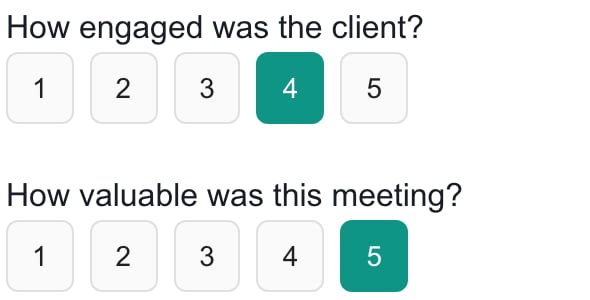 *Example configured rating questions. Your MSP's question set can differ.*
Select a numbered button for a rating, choose an option for a list, or enter text. **No** is a valid answer to a Yes/No question; it is different from leaving the question unanswered. Required questions show an asterisk and must be answered when you submit the survey.
If your MSP has never configured questions, built-in defaults can appear. If it has configured questions but disabled all of them, the survey has no active questions. Ask an MSP administrator to manage the question set.
## Save with Continue
Choose **Continue** to submit the current answers. Wait for success and the **Transcript & AI** step. Return to **Survey** to review saved answers or revise them, then choose Continue again to save the revisions.
**Save & exit** does not submit survey answers. Leaving the page or switching steps can discard unsubmitted changes. Use **Continue** before leaving when you want to keep the answers.
The survey is one record for this meeting, not a separate response for every staff member. Coordinate with colleagues before replacing its answers.
## Skip deliberately
**Skip this step** records the survey as skipped and proceeds to Transcript & AI. It clears any previously saved survey answers for the meeting and removes the survey's completion state. It is not a way to leave existing answers untouched.
Use **Save & exit** to leave without submitting new edits, or return to another step when you intend to keep already-saved answers. Neither choice saves current unsent changes.
The step bar's completion check marks a submitted survey; it does not mean the meeting is complete or that a client summary has been sent. An optional survey can also be submitted without filling every optional question.
## Frequently asked questions
Open the meeting's Wrap-Up and choose Survey. The page is titled How did the meeting go?
This wrap-up survey is for MSP staff. Company-facing feedback surveys are separate workflows.
No. Choose Continue to submit the current survey answers.
No. Use Continue first. Leaving or switching steps can discard unsubmitted changes.
Skip this step clears the saved answers, marks the survey skipped and removes its completion state.
Yes. Return to Survey, edit the answers and choose Continue to submit the replacements.
No. Selecting No is a valid answer. Leaving both choices unselected is unanswered.
A never-configured question set can use built-in defaults. Disabling all existing questions instead leaves no active questions.
No. The wrap-up stores one survey response for the meeting. Coordinate changes with other staff.
No. It saves the survey and moves to Transcript & AI. Meeting status, summary email and finishing wrap-up are separate actions.
## Related guides
* [Add a meeting transcript](/user-guides/calendar/add-meeting-transcript)
* [Meeting summaries and wrap-up](/user-guides/calendar/meeting-summaries)
*Example configured rating questions. Your MSP's question set can differ.*
Select a numbered button for a rating, choose an option for a list, or enter text. **No** is a valid answer to a Yes/No question; it is different from leaving the question unanswered. Required questions show an asterisk and must be answered when you submit the survey.
If your MSP has never configured questions, built-in defaults can appear. If it has configured questions but disabled all of them, the survey has no active questions. Ask an MSP administrator to manage the question set.
## Save with Continue
Choose **Continue** to submit the current answers. Wait for success and the **Transcript & AI** step. Return to **Survey** to review saved answers or revise them, then choose Continue again to save the revisions.
**Save & exit** does not submit survey answers. Leaving the page or switching steps can discard unsubmitted changes. Use **Continue** before leaving when you want to keep the answers.
The survey is one record for this meeting, not a separate response for every staff member. Coordinate with colleagues before replacing its answers.
## Skip deliberately
**Skip this step** records the survey as skipped and proceeds to Transcript & AI. It clears any previously saved survey answers for the meeting and removes the survey's completion state. It is not a way to leave existing answers untouched.
Use **Save & exit** to leave without submitting new edits, or return to another step when you intend to keep already-saved answers. Neither choice saves current unsent changes.
The step bar's completion check marks a submitted survey; it does not mean the meeting is complete or that a client summary has been sent. An optional survey can also be submitted without filling every optional question.
## Frequently asked questions
Open the meeting's Wrap-Up and choose Survey. The page is titled How did the meeting go?
This wrap-up survey is for MSP staff. Company-facing feedback surveys are separate workflows.
No. Choose Continue to submit the current survey answers.
No. Use Continue first. Leaving or switching steps can discard unsubmitted changes.
Skip this step clears the saved answers, marks the survey skipped and removes its completion state.
Yes. Return to Survey, edit the answers and choose Continue to submit the replacements.
No. Selecting No is a valid answer. Leaving both choices unselected is unanswered.
A never-configured question set can use built-in defaults. Disabling all existing questions instead leaves no active questions.
No. The wrap-up stores one survey response for the meeting. Coordinate changes with other staff.
No. It saves the survey and moves to Transcript & AI. Meeting status, summary email and finishing wrap-up are separate actions.
## Related guides
* [Add a meeting transcript](/user-guides/calendar/add-meeting-transcript)
* [Meeting summaries and wrap-up](/user-guides/calendar/meeting-summaries)