> ## Documentation Index
> Fetch the complete documentation index at: https://docs.msportal.ai/llms.txt
> Use this file to discover all available pages before exploring further.
# Configure Calendar defaults and work hours
> Set busy-block labels, default meeting length, week start and full-day or half-day time ranges for your MSP.
**Audience:** MSP administrators with Calendar settings access and permission to manage Calendar settings. Company users can [read and filter the Calendar](/user-guides/calendar/filter-calendar-events); they do not change these tenant settings.
Open **Settings > Calendar > General Settings**. These defaults apply across your MSP tenant. They are separate from the current viewer's filters and the [Freeze Windows](/user-guides/calendar/manage-freeze-windows) and [Post-Meeting](/user-guides/calendar/configure-post-meeting) tabs.
## Change general defaults
**Show event details** displays an available subject instead of a generic Busy label for calendar busy blocks. Access restrictions and missing subjects can still limit the details shown. This is not a setting for every meeting, file or private note.
Choose **Default Meeting Duration**: **15 minutes**, **30 minutes**, **45 minutes**, **1 hour**, **1.5 hours** or **2 hours**. It provides a starting length for new Calendar meeting drafts. Review each draft before saving it.
Set **Week Start Day** to **Sunday** or **Monday**. This affects calendar week layout and date ranges. It does not move existing meetings to another date.
Select **Save** in the page header and wait for completion. Switching tabs does not save the draft; unsaved changes can remain when you return to General Settings. Reopen the page to verify the saved values.
Changing these defaults does not rewrite existing meeting start/end times, send invitations or change Microsoft/PSA synchronization settings.
## Set Regular Hours and half-day ranges
In **Work Hours**, edit the Start and End clock fields for each range. Check the hour, minutes and any AM/PM segment shown by your browser.
| Range | Used by |
| ----------------------------------------- | ------------------------------------------------ |
| **Regular Hours** | The meeting editor's full-day duration shortcut. |
| **Morning** under **Half Day Settings** | The morning half-day shortcut. |
| **Afternoon** under **Half Day Settings** | The afternoon half-day shortcut. |
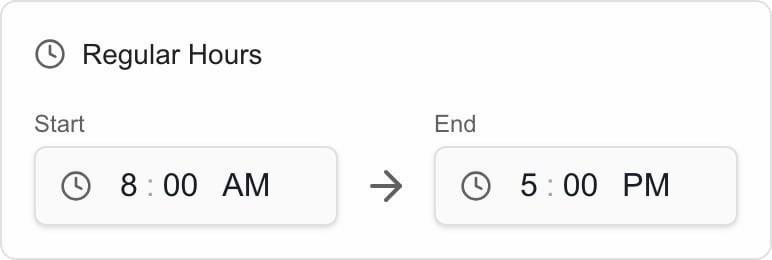 Each range must end later than it starts on the same day. An overnight range such as 10 PM–6 AM is not accepted here. The form disables Save for an invalid range and displays **Enter valid start and end times, with the end after the start.**
These are clock-time defaults, not a time-zone selector or a rule that prevents meetings outside office hours. Check the Calendar time zone and the final meeting dates/times before saving a draft. A full-day or half-day label uses your configured range; do not assume it always means exactly eight or four elapsed hours.
Select the header **Save** after editing the ranges. Reload to discard unsaved changes and return to the saved defaults.
## Troubleshooting
* **Save is disabled:** there may be no changes, a save may be in progress, or a Start/End range may be invalid.
* **Save fails despite opening the page:** viewing settings and managing them are separate permissions. Ask an MSP administrator to check your role.
* **Busy is still shown:** check whether a subject is available, the saved Show event details setting and your access. [Calendar Blocks visibility](/user-guides/calendar/filter-calendar-events) is a separate control.
* **Existing meetings did not change length:** defaults affect new drafts and explicit duration choices, not previously saved meetings.
* **I need calendar synchronization settings:** use the appropriate [integration guide](/user-guides/integrations/index). General Settings does not connect a provider calendar.
## Frequently asked questions
Open Settings, Calendar, General Settings. Edit the general controls or Work Hours and select Save in the page header.
No. These are MSP tenant settings. Company users can use the calendar views and filters their MSP makes available.
No. These settings apply across the MSP tenant. A viewer's current calendar filters are separate.
Choose 15, 30 or 45 minutes, 1 hour, 1.5 hours or 2 hours. Check the actual new draft before saving it.
No. It changes the starting length of new Calendar meeting drafts. Existing meetings keep their saved dates and times.
Yes. Set Week Start Day to Monday and save. Sunday is the other available choice.
It uses an available subject instead of a generic Busy label for calendar busy blocks. Missing data and access restrictions still apply; it does not configure all private content.
No. They provide full-day and half-day time defaults. Review scheduling and restrictions separately.
Not in these same-day ranges. Every End must be later than its Start. An overnight range such as 10 PM–6 AM is invalid here.
No. They use the configured Regular Hours, Morning or Afternoon time range. Review the final draft start and end times.
No. Unsaved changes can remain when you return to the tab. Use the header Save explicitly; reload to discard unsaved changes.
No. It saves Calendar defaults. Invitation sending and provider integration configuration are separate workflows.
## Related guides
* [Find events in Calendar](/user-guides/calendar/find-calendar-events)
* [Filter Calendar events and layers](/user-guides/calendar/filter-calendar-events)
* [Manage freeze windows](/user-guides/calendar/manage-freeze-windows)
* [Configure post-meeting workflow](/user-guides/calendar/configure-post-meeting)
Each range must end later than it starts on the same day. An overnight range such as 10 PM–6 AM is not accepted here. The form disables Save for an invalid range and displays **Enter valid start and end times, with the end after the start.**
These are clock-time defaults, not a time-zone selector or a rule that prevents meetings outside office hours. Check the Calendar time zone and the final meeting dates/times before saving a draft. A full-day or half-day label uses your configured range; do not assume it always means exactly eight or four elapsed hours.
Select the header **Save** after editing the ranges. Reload to discard unsaved changes and return to the saved defaults.
## Troubleshooting
* **Save is disabled:** there may be no changes, a save may be in progress, or a Start/End range may be invalid.
* **Save fails despite opening the page:** viewing settings and managing them are separate permissions. Ask an MSP administrator to check your role.
* **Busy is still shown:** check whether a subject is available, the saved Show event details setting and your access. [Calendar Blocks visibility](/user-guides/calendar/filter-calendar-events) is a separate control.
* **Existing meetings did not change length:** defaults affect new drafts and explicit duration choices, not previously saved meetings.
* **I need calendar synchronization settings:** use the appropriate [integration guide](/user-guides/integrations/index). General Settings does not connect a provider calendar.
## Frequently asked questions
Open Settings, Calendar, General Settings. Edit the general controls or Work Hours and select Save in the page header.
No. These are MSP tenant settings. Company users can use the calendar views and filters their MSP makes available.
No. These settings apply across the MSP tenant. A viewer's current calendar filters are separate.
Choose 15, 30 or 45 minutes, 1 hour, 1.5 hours or 2 hours. Check the actual new draft before saving it.
No. It changes the starting length of new Calendar meeting drafts. Existing meetings keep their saved dates and times.
Yes. Set Week Start Day to Monday and save. Sunday is the other available choice.
It uses an available subject instead of a generic Busy label for calendar busy blocks. Missing data and access restrictions still apply; it does not configure all private content.
No. They provide full-day and half-day time defaults. Review scheduling and restrictions separately.
Not in these same-day ranges. Every End must be later than its Start. An overnight range such as 10 PM–6 AM is invalid here.
No. They use the configured Regular Hours, Morning or Afternoon time range. Review the final draft start and end times.
No. Unsaved changes can remain when you return to the tab. Use the header Save explicitly; reload to discard unsaved changes.
No. It saves Calendar defaults. Invitation sending and provider integration configuration are separate workflows.
## Related guides
* [Find events in Calendar](/user-guides/calendar/find-calendar-events)
* [Filter Calendar events and layers](/user-guides/calendar/filter-calendar-events)
* [Manage freeze windows](/user-guides/calendar/manage-freeze-windows)
* [Configure post-meeting workflow](/user-guides/calendar/configure-post-meeting)