> ## Documentation Index
> Fetch the complete documentation index at: https://docs.msportal.ai/llms.txt
> Use this file to discover all available pages before exploring further.
# Configure the post-meeting workflow
> Choose which meetings offer wrap-up, control completion prompts and transcript AI, and configure automatic QBR logging.
**Audience:** MSP administrators with Calendar settings access and permission to manage these settings. Company users do not configure this workflow; they can [read a meeting summary](/user-guides/calendar/understand-meeting-summary).
Open **Settings > Calendar > Post-Meeting**. These settings apply across your MSP tenant, rather than to one company or your personal calendar.
The **Post-Meeting Flow** card controls the workflow. The **Post-meeting survey questions** card has separate [question editing and save controls](/user-guides/calendar/manage-meeting-survey-questions).
## Choose when wrap-up is available
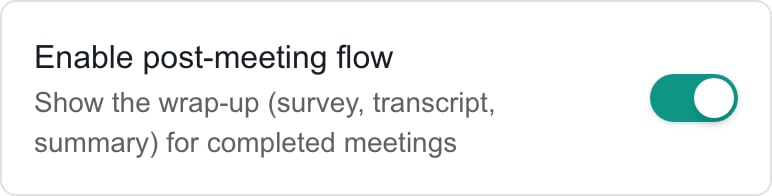
Turn on **Enable post-meeting flow** to offer the internal survey, transcript and summary workflow to authorized staff.
Open **Event Types** and select the types that should offer wrap-up. The choices are **QBR**, **On-site Tech Visit**, **Internal Meeting**, **Client Call**, **Project Milestone**, **Compliance Review**, **Business Review**, **Service Call** and **Other**. Keep at least one selected. To disable wrap-up entirely, turn off **Enable post-meeting flow** instead of trying to clear every type.
**Prompt when a meeting is completed** controls the invitation to start wrap-up when a meeting is marked Completed. Turning this off does not itself disable the enabled wrap-up workflow.
Select **Save** in the page header. Wait for the save to finish, then revisit Post-Meeting to check the saved values. The button is disabled when there are no pending settings changes.
 Switching settings tabs is not a save or a reliable way to discard a draft. Save the intended changes before leaving the page; reload to return to the saved settings if you want to discard unsaved flow controls.
## Understand each control
| Control | What it controls | What to check separately |
| --------------------------------------- | ------------------------------------------------------------------------------------ | --------------------------------------------------------------------------------------------- |
| **Enable post-meeting flow** | Availability of the internal wrap-up workflow. | Meeting type and staff access. |
| **Event Types** | Which meeting types offer wrap-up. | This selection does not define automatic QBR eligibility. |
| **Prompt when a meeting is completed** | The completion prompt. | Staff can still use enabled wrap-up entry points without the prompt. |
| **AI transcript processing** | Generating notes and action items from a stored transcript in wrap-up. | Transcript storage and summary drafting are separate. |
| **Update the QBR log automatically** | Automatic company QBR logging after an eligible summary is sent. | Company linkage, meeting type, an existing manually edited entry, and any generation failure. |
| **Push QBR log entries to Autotask as** | The Autotask Company Note type for eligible automatic QBR writeback, when available. | It does not send a summary email or push a note merely by saving this setting. |
All controls in this table use the header **Save**. Turning off the main flow does not automatically turn off the other switches. If you want to stop automatic QBR logging, turn off **Update the QBR log automatically** explicitly and save.
## Configure transcript AI
Turn **AI transcript processing** on or off and save. Staff can still store a transcript when transcript AI is off. Generating transcript notes, applying them to a meeting, and generating a summary are different actions.
Turning this setting off is not a global switch for every AI feature. See [Add a meeting transcript](/user-guides/calendar/add-meeting-transcript) for storage, generated output and **Add to meeting** behavior.
## Configure automatic QBR logging
1. Set **Update the QBR log automatically** as needed.
2. For an available Autotask connection, review **Push QBR log entries to Autotask as**. Choose a note type to enable that writeback, or **Do not push to Autotask** to keep it off.
3. Select the header **Save**.
4. After an eligible summary is sent, check the company's [Account Notes and QBR Log](/user-guides/calendar/read-account-notes) for the actual result.
Automatic QBR generation excludes Internal Meeting, On-site Tech Visit and Service Call meetings. It also needs a linked company. An existing QBR entry that staff have manually edited is protected from automatic replacement. Enabling every wrap-up event type does not remove these restrictions.
The Autotask type selector is disabled when automatic QBR logging is off. Turning logging off can retain the previously selected type; review it before enabling logging again.
## Troubleshooting
* **I can open the settings but Save fails:** viewing Calendar settings and managing the flow are separate permissions. Ask an MSP administrator to review your role. Question editing has its own Calendar/Meetings management requirement.
* **Wrap-up is missing:** check the saved flow switch, the meeting's selected event type and your meeting permissions. Company users do not use internal wrap-up.
* **No completion prompt:** check its separate switch and whether the prompt was dismissed for this meeting.
* **No QBR entry appeared:** check eligibility, company linkage, manual edits and the actual generation outcome. A sent email does not prove the QBR or provider copy succeeded. Do not resend the email just to repair a missing QBR entry.
* **No Autotask note-type selector:** it appears only when an applicable Autotask connection and its note-type context are available.
## Frequently asked questions
Open Settings, Calendar, then Post-Meeting. Use the Post-Meeting Flow card and save with the page header Save button.
No. Calendar Post-Meeting configuration is an MSP administration task. Company recipients can read the meeting summary and ask their MSP for changes.
They apply across the MSP tenant. They are not personal calendar preferences or a separate configuration for one company.
No. The flow switches, event-type selection and available Autotask note type require the page header Save. Survey question controls have separate save behavior.
Keep at least one event type selected. Turn off Enable post-meeting flow and save to disable the workflow entirely.
No. Prompt when a meeting is completed controls the prompt. Enabled wrap-up entry points still depend on the flow switch, meeting type and staff access.
Do not rely on it to stop QBR logging. Turn off Update the QBR log automatically explicitly and save; the switches control separate behavior.
Yes. Transcript storage is separate from generating notes and action items. AI transcript processing is not a switch for every AI feature.
No. It excludes Internal Meeting, On-site Tech Visit and Service Call, needs a linked company, and can skip an existing manually edited QBR entry.
No. Event Types controls wrap-up availability. Automatic QBR logging has separate eligibility rules.
No. Saving configures later eligible automatic QBR writeback. It does not immediately create a provider note or send a summary email.
Choose Do not push to Autotask in the available note-type selector and save. Automatic QBR logging in MSPortal is controlled separately.
It is disabled when Update the QBR log automatically is off. A previously selected type can remain stored, so review it before enabling logging again.
Do not use tab switching as either action. Save the intended flow changes explicitly. Reload to return to the saved settings when discarding unsaved flow controls.
No. Check each outcome separately. Do not resend the email solely to repair a missing QBR or provider note.
## Related guides
* [Manage internal meeting survey questions](/user-guides/calendar/manage-meeting-survey-questions)
* [Meeting summaries and wrap-up](/user-guides/calendar/meeting-summaries)
* [Write account notes and QBR entries](/user-guides/calendar/write-account-notes)
Switching settings tabs is not a save or a reliable way to discard a draft. Save the intended changes before leaving the page; reload to return to the saved settings if you want to discard unsaved flow controls.
## Understand each control
| Control | What it controls | What to check separately |
| --------------------------------------- | ------------------------------------------------------------------------------------ | --------------------------------------------------------------------------------------------- |
| **Enable post-meeting flow** | Availability of the internal wrap-up workflow. | Meeting type and staff access. |
| **Event Types** | Which meeting types offer wrap-up. | This selection does not define automatic QBR eligibility. |
| **Prompt when a meeting is completed** | The completion prompt. | Staff can still use enabled wrap-up entry points without the prompt. |
| **AI transcript processing** | Generating notes and action items from a stored transcript in wrap-up. | Transcript storage and summary drafting are separate. |
| **Update the QBR log automatically** | Automatic company QBR logging after an eligible summary is sent. | Company linkage, meeting type, an existing manually edited entry, and any generation failure. |
| **Push QBR log entries to Autotask as** | The Autotask Company Note type for eligible automatic QBR writeback, when available. | It does not send a summary email or push a note merely by saving this setting. |
All controls in this table use the header **Save**. Turning off the main flow does not automatically turn off the other switches. If you want to stop automatic QBR logging, turn off **Update the QBR log automatically** explicitly and save.
## Configure transcript AI
Turn **AI transcript processing** on or off and save. Staff can still store a transcript when transcript AI is off. Generating transcript notes, applying them to a meeting, and generating a summary are different actions.
Turning this setting off is not a global switch for every AI feature. See [Add a meeting transcript](/user-guides/calendar/add-meeting-transcript) for storage, generated output and **Add to meeting** behavior.
## Configure automatic QBR logging
1. Set **Update the QBR log automatically** as needed.
2. For an available Autotask connection, review **Push QBR log entries to Autotask as**. Choose a note type to enable that writeback, or **Do not push to Autotask** to keep it off.
3. Select the header **Save**.
4. After an eligible summary is sent, check the company's [Account Notes and QBR Log](/user-guides/calendar/read-account-notes) for the actual result.
Automatic QBR generation excludes Internal Meeting, On-site Tech Visit and Service Call meetings. It also needs a linked company. An existing QBR entry that staff have manually edited is protected from automatic replacement. Enabling every wrap-up event type does not remove these restrictions.
The Autotask type selector is disabled when automatic QBR logging is off. Turning logging off can retain the previously selected type; review it before enabling logging again.
## Troubleshooting
* **I can open the settings but Save fails:** viewing Calendar settings and managing the flow are separate permissions. Ask an MSP administrator to review your role. Question editing has its own Calendar/Meetings management requirement.
* **Wrap-up is missing:** check the saved flow switch, the meeting's selected event type and your meeting permissions. Company users do not use internal wrap-up.
* **No completion prompt:** check its separate switch and whether the prompt was dismissed for this meeting.
* **No QBR entry appeared:** check eligibility, company linkage, manual edits and the actual generation outcome. A sent email does not prove the QBR or provider copy succeeded. Do not resend the email just to repair a missing QBR entry.
* **No Autotask note-type selector:** it appears only when an applicable Autotask connection and its note-type context are available.
## Frequently asked questions
Open Settings, Calendar, then Post-Meeting. Use the Post-Meeting Flow card and save with the page header Save button.
No. Calendar Post-Meeting configuration is an MSP administration task. Company recipients can read the meeting summary and ask their MSP for changes.
They apply across the MSP tenant. They are not personal calendar preferences or a separate configuration for one company.
No. The flow switches, event-type selection and available Autotask note type require the page header Save. Survey question controls have separate save behavior.
Keep at least one event type selected. Turn off Enable post-meeting flow and save to disable the workflow entirely.
No. Prompt when a meeting is completed controls the prompt. Enabled wrap-up entry points still depend on the flow switch, meeting type and staff access.
Do not rely on it to stop QBR logging. Turn off Update the QBR log automatically explicitly and save; the switches control separate behavior.
Yes. Transcript storage is separate from generating notes and action items. AI transcript processing is not a switch for every AI feature.
No. It excludes Internal Meeting, On-site Tech Visit and Service Call, needs a linked company, and can skip an existing manually edited QBR entry.
No. Event Types controls wrap-up availability. Automatic QBR logging has separate eligibility rules.
No. Saving configures later eligible automatic QBR writeback. It does not immediately create a provider note or send a summary email.
Choose Do not push to Autotask in the available note-type selector and save. Automatic QBR logging in MSPortal is controlled separately.
It is disabled when Update the QBR log automatically is off. A previously selected type can remain stored, so review it before enabling logging again.
Do not use tab switching as either action. Save the intended flow changes explicitly. Reload to return to the saved settings when discarding unsaved flow controls.
No. Check each outcome separately. Do not resend the email solely to repair a missing QBR or provider note.
## Related guides
* [Manage internal meeting survey questions](/user-guides/calendar/manage-meeting-survey-questions)
* [Meeting summaries and wrap-up](/user-guides/calendar/meeting-summaries)
* [Write account notes and QBR entries](/user-guides/calendar/write-account-notes)