> ## Documentation Index
> Fetch the complete documentation index at: https://docs.msportal.ai/llms.txt
> Use this file to discover all available pages before exploring further.
# Filter Calendar events and layers
> Control visible appointments, changes, busy blocks and saved hiding preferences without changing the underlying events.
**Audience:** Company users with Calendar access and MSP staff. Use these controls to organize the events you are allowed to see. They do not change permissions or cancel events.
## Search and filter the detailed grid
1. In **Calendar**, select a date and **Day**, **Week** or **Month** view.
2. Use **Search events...** to match titles, notes, locations or company names in the loaded visible range. It is not a search across every date in the tenant.
3. Use **Staff** to include events assigned to any selected person. The choices depend on the available event data; an empty list does not prove the MSP has no staff.
4. Open the **Filter** icon for **Event Types**, **Companies**, **Staff** and **Status**. Where available, **Filter by Role** matches companies where a selected person holds the chosen company role; it does not grant that role to you or mean that person attends each event.
5. Select the relevant options, then **Apply Filters** to close the drawer. Selections already affect the local view; closing the drawer is not a cancel operation. Use **Reset** to clear ordinary filters.
Choices within an event-type, company, staff or status section are alternatives. Different sections narrow the result together. Role selections allow companies matching any selected role/person pair and then combine with the other event filters.
Changing the top Company selector clears local company/project chips and closes open event dialogs. Search, staff, role, status and saved hiding preferences can remain active, so review them when the new scope looks empty.
The status filter includes **Scheduled**, **Confirmed**, **In Progress**, **Completed** and **Canceled**. The main grid hides Canceled events when no explicit status is selected. Event types and available data vary; choosing a type does not create an event.
## Choose layers
Open the stacked-layers icon in the toolbar. Depending on permissions, it offers:
| Control | What it changes |
| ------------------- | ---------------------------------------------------------------------------------------------------------- |
| **Appointments** | Meeting and appointment/service-call events, plus associated busy-block visibility when blocks are enabled |
| **Changes** | Scheduled changes and freeze-window information; detailed grid overlays also require Calendar Blocks |
| **Calendar Blocks** | Whether available calendar busy blocks are fetched and shown |
| **My Blocks** | Selects your user for busy-block filtering; unavailable until Calendar Blocks is on |
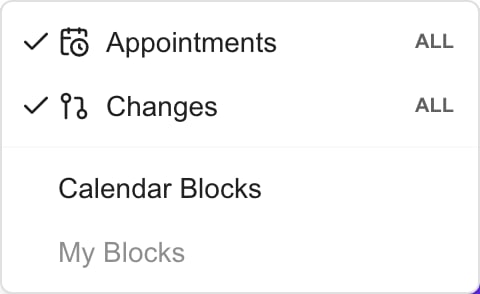 *Example with All access. Your layer scopes depend on the role assigned by your MSP.*
Appointments and Changes show **Mine**, **Site** or **All**, reflecting the layer access assigned by your MSP. These labels are not choices for expanding your permissions. A Site role without an assigned site can resolve to Mine. A layer with no access is omitted.
To focus on your own busy blocks, clear Staff and role selections before enabling **My Blocks**. In the current control behavior, those user selections combine, so selecting other staff or role holders alongside My Blocks can also include their blocks. My Blocks does not filter all meetings to just yours; use **Calendar Menu > My Meetings** for the personal meetings page.
Turning a layer or Calendar Blocks off only changes visibility. It does not delete an appointment, cancel an invitation, remove a freeze window or alter a provider calendar. Appointments must remain enabled to display its busy blocks. Busy-block details can be redacted according to MSP configuration and access.
## Hide repeated titles and all-day events
Use **Hide items** to select event titles you do not want in the detailed grid. Matching ignores case and surrounding spaces and applies to every event with that exact title, not just one occurrence or company. A partial word is not a title match.
Hidden-title choices are saved in your browser for this Calendar surface and survive **Reset**. To restore them, reopen Hide items and remove the selected titles. Hiding a title is not deletion and does not change other users' schedules. The main Calendar and an embedded project schedule keep separate hiding preferences.
The all-day icon switches between **Hide all-day events** and **Show all-day events**. It affects all-day and multi-day all-day events and is also remembered for this Calendar surface. Reset restores all-day visibility. Hiding all-day events does not change their stored duration or stop invitations.
## Reset without losing track of saved preferences
**Reset** clears search, event types, local company/project chips, staff, statuses and role filters; it clears My Blocks, turns Appointments and Changes back on, shows all-day events and restores weekdays-only Week view. It leaves hidden-title choices and the Calendar Blocks toggle unchanged. It does not change the top Company scope or grant missing layer access.
The Filter badge counts groups of active filters, not every selected value or every visibility setting. A zero badge does not mean hidden titles are cleared or all layers are visible.
These detailed-grid filters do not all apply to Year summaries. Switch to Day, Week or Month to inspect filtered event results. See [Find events in Calendar](/user-guides/calendar/find-calendar-events).
## FAQs
Titles, notes, locations and company names in the loaded visible date range; it is not a search across all dates.
No. Filter choices change the local view. Apply Filters closes the drawer; closing without it does not undo those choices.
An event matches if any selected staff member is assigned. Other event filter sections narrow that result further.
No. It matches companies where the selected person holds that company role, then combines with the other event filters.
No. Local company/project selections and open event dialogs clear, while other filters and saved hiding preferences can remain.
Open Filter, expand Status and select Canceled. They are hidden by default in the main grid.
They describe your MSP-assigned visibility for that layer. They are not permission-upgrade controls.
A Site role without an assigned site can resolve to Mine. Ask the MSP to check your site assignment.
The layer may not be permitted for your role. Visibility controls do not grant missing access.
Enable Calendar Blocks first. My Blocks applies to busy blocks, not every meeting.
Current block filtering combines your user with selected staff and role holders. Clear Staff and role selections to focus on your own blocks.
No. It changes visibility only; meetings, invitations and provider calendars are not canceled.
Appointment busy blocks require Appointments to remain enabled as well as Calendar Blocks. Freeze information belongs to the Changes layer, and its Day, Week and Month overlays also require Calendar Blocks.
No. It hides every exact matching title in the detailed view, ignoring case and surrounding spaces.
Reopen Hide items and remove the selected title. Reset does not clear this saved preference.
The main Calendar and project schedule surfaces keep separate hiding preferences.
All-day and multi-day all-day events in the detailed grid. It changes visibility, not the event’s stored duration.
Hidden titles, the Calendar Blocks toggle and the top Company scope. It does not expand permissions.
No. The badge counts selected filter groups, not every visibility preference or layer toggle.
Year summaries follow Company scope and layer selection but do not apply all local detailed-grid filters. Open a day to see filtered results.
See [Understand Calendar freeze windows](/user-guides/calendar/understand-change-freezes) for scope, recurrence and scheduling warnings.
*Example with All access. Your layer scopes depend on the role assigned by your MSP.*
Appointments and Changes show **Mine**, **Site** or **All**, reflecting the layer access assigned by your MSP. These labels are not choices for expanding your permissions. A Site role without an assigned site can resolve to Mine. A layer with no access is omitted.
To focus on your own busy blocks, clear Staff and role selections before enabling **My Blocks**. In the current control behavior, those user selections combine, so selecting other staff or role holders alongside My Blocks can also include their blocks. My Blocks does not filter all meetings to just yours; use **Calendar Menu > My Meetings** for the personal meetings page.
Turning a layer or Calendar Blocks off only changes visibility. It does not delete an appointment, cancel an invitation, remove a freeze window or alter a provider calendar. Appointments must remain enabled to display its busy blocks. Busy-block details can be redacted according to MSP configuration and access.
## Hide repeated titles and all-day events
Use **Hide items** to select event titles you do not want in the detailed grid. Matching ignores case and surrounding spaces and applies to every event with that exact title, not just one occurrence or company. A partial word is not a title match.
Hidden-title choices are saved in your browser for this Calendar surface and survive **Reset**. To restore them, reopen Hide items and remove the selected titles. Hiding a title is not deletion and does not change other users' schedules. The main Calendar and an embedded project schedule keep separate hiding preferences.
The all-day icon switches between **Hide all-day events** and **Show all-day events**. It affects all-day and multi-day all-day events and is also remembered for this Calendar surface. Reset restores all-day visibility. Hiding all-day events does not change their stored duration or stop invitations.
## Reset without losing track of saved preferences
**Reset** clears search, event types, local company/project chips, staff, statuses and role filters; it clears My Blocks, turns Appointments and Changes back on, shows all-day events and restores weekdays-only Week view. It leaves hidden-title choices and the Calendar Blocks toggle unchanged. It does not change the top Company scope or grant missing layer access.
The Filter badge counts groups of active filters, not every selected value or every visibility setting. A zero badge does not mean hidden titles are cleared or all layers are visible.
These detailed-grid filters do not all apply to Year summaries. Switch to Day, Week or Month to inspect filtered event results. See [Find events in Calendar](/user-guides/calendar/find-calendar-events).
## FAQs
Titles, notes, locations and company names in the loaded visible date range; it is not a search across all dates.
No. Filter choices change the local view. Apply Filters closes the drawer; closing without it does not undo those choices.
An event matches if any selected staff member is assigned. Other event filter sections narrow that result further.
No. It matches companies where the selected person holds that company role, then combines with the other event filters.
No. Local company/project selections and open event dialogs clear, while other filters and saved hiding preferences can remain.
Open Filter, expand Status and select Canceled. They are hidden by default in the main grid.
They describe your MSP-assigned visibility for that layer. They are not permission-upgrade controls.
A Site role without an assigned site can resolve to Mine. Ask the MSP to check your site assignment.
The layer may not be permitted for your role. Visibility controls do not grant missing access.
Enable Calendar Blocks first. My Blocks applies to busy blocks, not every meeting.
Current block filtering combines your user with selected staff and role holders. Clear Staff and role selections to focus on your own blocks.
No. It changes visibility only; meetings, invitations and provider calendars are not canceled.
Appointment busy blocks require Appointments to remain enabled as well as Calendar Blocks. Freeze information belongs to the Changes layer, and its Day, Week and Month overlays also require Calendar Blocks.
No. It hides every exact matching title in the detailed view, ignoring case and surrounding spaces.
Reopen Hide items and remove the selected title. Reset does not clear this saved preference.
The main Calendar and project schedule surfaces keep separate hiding preferences.
All-day and multi-day all-day events in the detailed grid. It changes visibility, not the event’s stored duration.
Hidden titles, the Calendar Blocks toggle and the top Company scope. It does not expand permissions.
No. The badge counts selected filter groups, not every visibility preference or layer toggle.
Year summaries follow Company scope and layer selection but do not apply all local detailed-grid filters. Open a day to see filtered results.
See [Understand Calendar freeze windows](/user-guides/calendar/understand-change-freezes) for scope, recurrence and scheduling warnings.