> ## Documentation Index
> Fetch the complete documentation index at: https://docs.msportal.ai/llms.txt
> Use this file to discover all available pages before exploring further.
# Find events in Calendar
> Choose a date and view, open available events, and understand why something may be missing.
**Audience:** Company users with Calendar access and MSP staff. Available companies, event layers and actions depend on the access your MSP assigns.
## Open the right calendar view
1. Open **Calendar** in the sidebar. Check the top Company selector where available; Global View means your accessible company scope, not unrestricted access to every organization's calendar.
2. Choose **Day**, **Week**, **Month** or **Year** in the toolbar.
3. Use the left and right arrows to move through the selected day, week, month or year. Select **Today** to return to the current date while retaining the selected view.
4. In Month view, open an event card. If a day has more events than fit, use its more-events control to expand the list.
5. In Year view, select a date to open Day view and load that day's events. A Year summary is not an event-detail view.
The **Calendar Menu** in the page header also links to **Calendar View**, **My Meetings** and **List View**. These are separate pages; the Day/Week/Month/Year buttons change the main Calendar view. **Recurring Meetings** is an MSP scheduling option when enabled and permitted, not a Company-user prerequisite for seeing a recurring invitation.
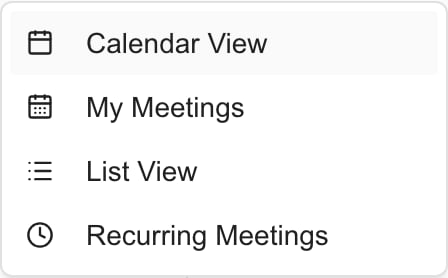 *MSP navigation example. Recurring Meetings appears only when enabled and permitted; Company users do not need it to attend a meeting.*
See [My Meetings](/user-guides/calendar/find-my-meetings) for your participant list, or [List View](/user-guides/calendar/find-meetings-list) for the meeting-record table.
## Read dates and times
The grid uses the MSP's configured calendar time zone and week-start settings. It need not match your computer's time zone. Check the meeting's date, time and time zone before relying on an invitation or comparing it with another calendar.
Week view starts with weekdays unless **Enable Saturday / Sunday** is selected in the Filter drawer. Month and Year views still show their calendar weekends. Use Day view for a specific weekend date when needed.
Your browser remembers the selected view. A selected date can be restored when you return on the same calendar day; on a later day, the calendar returns to the current date while retaining your view preference. **Today** does not clear search, filters or hidden-title preferences.
When focus is outside an input or open dialog, the left/right arrow keys navigate the visible period and **T** returns to Today. Use the visible controls if a text field or dialog has focus.
## Open an event
Selecting an event opens the details appropriate to its source. A meeting can open its meeting dialog, a scheduled appointment/change can open a detail panel, and some service-call events open the linked ticket. Day view also provides a selected-event side panel. A recurring occurrence may first ask which occurrence or series to inspect or edit; opening that choice is not a saved change.
Review the title, company, timing, source and status. Viewing an event does not imply permission to edit, reschedule, cancel or manage its attendees. If a linked ticket or other record is unavailable, ask your MSP to check that record's access separately.
Selecting an existing card is different from dragging it or choosing an action. Dragging and event actions can start rescheduling workflows when permitted. Use the event details to read information without changing its schedule.
## Understand Year view
Year shows daily summaries across the selected Company scope and enabled Appointments/Changes layers. Its counts do not apply all the local controls used by the detailed grid: search, staff, company chips, role, status, hidden-title and all-day selections do not narrow this summary.
Selecting a day loads the detailed events with those local filters. It can therefore show fewer items than the Year count. The Year summary does not list individual meeting IDs or busy blocks.
## Find a missing event
* Check the date, Company selector and Calendar access first.
* Use **Today** if you are looking at an old period, then check [Calendar filters and layers](/user-guides/calendar/filter-calendar-events).
* Canceled meetings are hidden by default in the main grid. Select **Canceled** under the Filter drawer's Status section to look for them.
* Review **Hide items**, all-day visibility and the Appointments/Changes layers. Resetting ordinary filters does not clear hidden titles.
* A blank grid does not prove the MSP has no meetings. Data may be outside the visible range, hidden by preferences, unavailable to your role or temporarily unable to load.
Company users should ask their MSP to review missing access. New Meeting and edit controls require additional permissions; Company administrator status alone does not grant them.
## FAQs
Open Calendar in the sidebar, check your Company scope, then choose Day, Week, Month or Year.
No. It uses the companies and records accessible to your account.
Select Today in the toolbar. It keeps the selected view and does not clear filters or hidden titles.
Select the date in its month calendar. Calendar switches to Day view and loads its detailed events.
Year summaries follow Company scope and layers, but do not apply every local search, staff, role, status, hidden-title or all-day filter used by the detailed grid.
Open Filter and enable Saturday / Sunday in the Week section. This setting controls Week view, not Month or Year.
The MSP-configured calendar time zone. It may differ from your computer; check meeting time-zone details before comparing calendars.
The view is remembered, while a selected date is restored only during the same calendar day.
The main grid hides Canceled events by default. Select Canceled in the Filter drawer’s Status section.
Opening details does not save a schedule change. Dragging an event or choosing editing actions is a separate workflow.
Some service-call events link to their underlying ticket. Access to that ticket is checked separately.
Not automatically. Calendar creation, editing and management permissions are separate; ask your MSP to review the action you need.
Open Calendar Menu in the page header. These pages are separate from the main Day/Week/Month/Year view buttons.
No. Recurring Meetings is an MSP scheduling option; Company users do not need it to see invitations they are allowed to access.
Left/right arrows move the period and T returns to Today, when focus is outside text inputs and open dialogs.
No. Check the date, Company scope, permissions, layers, local filters and saved hidden titles, and allow data to load.
*MSP navigation example. Recurring Meetings appears only when enabled and permitted; Company users do not need it to attend a meeting.*
See [My Meetings](/user-guides/calendar/find-my-meetings) for your participant list, or [List View](/user-guides/calendar/find-meetings-list) for the meeting-record table.
## Read dates and times
The grid uses the MSP's configured calendar time zone and week-start settings. It need not match your computer's time zone. Check the meeting's date, time and time zone before relying on an invitation or comparing it with another calendar.
Week view starts with weekdays unless **Enable Saturday / Sunday** is selected in the Filter drawer. Month and Year views still show their calendar weekends. Use Day view for a specific weekend date when needed.
Your browser remembers the selected view. A selected date can be restored when you return on the same calendar day; on a later day, the calendar returns to the current date while retaining your view preference. **Today** does not clear search, filters or hidden-title preferences.
When focus is outside an input or open dialog, the left/right arrow keys navigate the visible period and **T** returns to Today. Use the visible controls if a text field or dialog has focus.
## Open an event
Selecting an event opens the details appropriate to its source. A meeting can open its meeting dialog, a scheduled appointment/change can open a detail panel, and some service-call events open the linked ticket. Day view also provides a selected-event side panel. A recurring occurrence may first ask which occurrence or series to inspect or edit; opening that choice is not a saved change.
Review the title, company, timing, source and status. Viewing an event does not imply permission to edit, reschedule, cancel or manage its attendees. If a linked ticket or other record is unavailable, ask your MSP to check that record's access separately.
Selecting an existing card is different from dragging it or choosing an action. Dragging and event actions can start rescheduling workflows when permitted. Use the event details to read information without changing its schedule.
## Understand Year view
Year shows daily summaries across the selected Company scope and enabled Appointments/Changes layers. Its counts do not apply all the local controls used by the detailed grid: search, staff, company chips, role, status, hidden-title and all-day selections do not narrow this summary.
Selecting a day loads the detailed events with those local filters. It can therefore show fewer items than the Year count. The Year summary does not list individual meeting IDs or busy blocks.
## Find a missing event
* Check the date, Company selector and Calendar access first.
* Use **Today** if you are looking at an old period, then check [Calendar filters and layers](/user-guides/calendar/filter-calendar-events).
* Canceled meetings are hidden by default in the main grid. Select **Canceled** under the Filter drawer's Status section to look for them.
* Review **Hide items**, all-day visibility and the Appointments/Changes layers. Resetting ordinary filters does not clear hidden titles.
* A blank grid does not prove the MSP has no meetings. Data may be outside the visible range, hidden by preferences, unavailable to your role or temporarily unable to load.
Company users should ask their MSP to review missing access. New Meeting and edit controls require additional permissions; Company administrator status alone does not grant them.
## FAQs
Open Calendar in the sidebar, check your Company scope, then choose Day, Week, Month or Year.
No. It uses the companies and records accessible to your account.
Select Today in the toolbar. It keeps the selected view and does not clear filters or hidden titles.
Select the date in its month calendar. Calendar switches to Day view and loads its detailed events.
Year summaries follow Company scope and layers, but do not apply every local search, staff, role, status, hidden-title or all-day filter used by the detailed grid.
Open Filter and enable Saturday / Sunday in the Week section. This setting controls Week view, not Month or Year.
The MSP-configured calendar time zone. It may differ from your computer; check meeting time-zone details before comparing calendars.
The view is remembered, while a selected date is restored only during the same calendar day.
The main grid hides Canceled events by default. Select Canceled in the Filter drawer’s Status section.
Opening details does not save a schedule change. Dragging an event or choosing editing actions is a separate workflow.
Some service-call events link to their underlying ticket. Access to that ticket is checked separately.
Not automatically. Calendar creation, editing and management permissions are separate; ask your MSP to review the action you need.
Open Calendar Menu in the page header. These pages are separate from the main Day/Week/Month/Year view buttons.
No. Recurring Meetings is an MSP scheduling option; Company users do not need it to see invitations they are allowed to access.
Left/right arrows move the period and T returns to Today, when focus is outside text inputs and open dialogs.
No. Check the date, Company scope, permissions, layers, local filters and saved hidden titles, and allow data to load.