> ## Documentation Index
> Fetch the complete documentation index at: https://docs.msportal.ai/llms.txt
> Use this file to discover all available pages before exploring further.
# Find meetings in List View
> Search meeting records by title, company, participant, date, type or status and open the relevant meeting.
**Audience:** Company users with meeting access and MSP staff. The list follows your accessible Company scope and meeting permissions.
## Open and filter the list
1. Open **Calendar Menu > List View**. The page is titled **Meetings List**.
2. Check the top Company selector where available. Global View means your accessible scope, not permission to read every company's meetings.
3. Use the filters directly below the column headings. Enter a title in **Title**, or choose a **Date & Time**, **Company**, **Participants**, **Type** or **Status** filter.
4. Combine filters to narrow the loaded list. Clear an individual choice back to **All**, clear the title field, or use the table's clear-filters control.
5. Select the meeting's title, date or another detail cell to open its meeting dialog. Use the row's **...** menu for the available meeting destinations and actions.
This table currently has no separate global search box, CSV export, column chooser or page-size control. Title filtering searches the title; the location shown beneath it is not a separate searchable column.
## Choose the appropriate filter
| Filter | Use it for |
| ---------------- | -------------------------------------------------------------------------------------------- |
| **Date & Time** | Meeting start dates using relative periods such as Today, This Week, This Month or This Year |
| **Title** | Matching words in a meeting title |
| **Company** | One or more company names present in the loaded list |
| **Participants** | Available participant names or external-email values represented in the table |
| **Type** | One available meeting type |
| **Status** | One available meeting status |
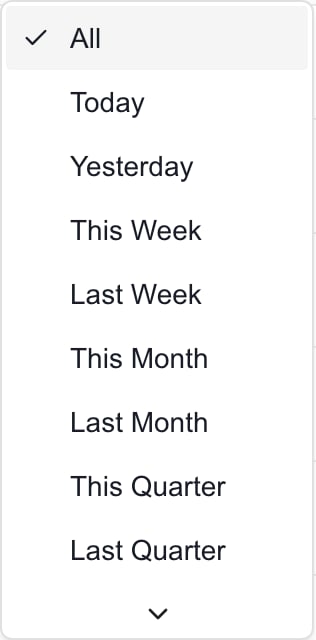 *Scroll the menu for more periods, including year options.*
Date & Time offers predefined periods; it is not a custom start/end date picker. It filters the meeting's start date, not whether any portion of a long meeting overlaps the period. Use [Calendar's Day/Week/Month views](/user-guides/calendar/find-calendar-events) when you need to inspect a particular date.
Filters combine to narrow the list. The choices are based on the current data, so a missing option does not prove that meeting type, person or status is unsupported. Canceled records are not automatically hidden in List View; select the relevant status if you need to isolate them.
Changing the top Company selector closes an open meeting dialog and resets this table's local filters and sorting. Wait for the new company data to load before interpreting the results.
## Read the rows
The list shows meeting records across the loaded accessible scope. It does not expand every recurrence into a separate row, and it is not the complete mixed-source event feed used by the main Calendar grid. Calendar busy blocks, changes and freeze windows are not separate rows in this table.
**Date & Time** shows the meeting's start date and start/end times. For a meeting spanning more than one day, open its details to check the end date. Times in this list use your browser's time zone, which can differ from the main grid's configured calendar zone.
Participant initials summarize internal people, with an additional count when more than three are present. An external count identifies guest participants. A name can appear as **Unknown** when the available directory cannot resolve it; the initials are not an attendance or acceptance confirmation. Open the meeting for a fuller roster.
A dash in Company or an empty location means the table has no display value; it does not by itself prove that the record is inaccessible or invalid. Use the meeting details and ask your MSP when something is unexpected.
## Open meeting actions
The row menu can include **Open Meeting Page**, **Present**, **Wrap-Up** and **Edit**. Which options are available depends on the meeting, enabled features and your access. Opening the menu does not save a change. Access to the destination or editing action is checked separately; a visible link does not guarantee permission to use every control there.
*Scroll the menu for more periods, including year options.*
Date & Time offers predefined periods; it is not a custom start/end date picker. It filters the meeting's start date, not whether any portion of a long meeting overlaps the period. Use [Calendar's Day/Week/Month views](/user-guides/calendar/find-calendar-events) when you need to inspect a particular date.
Filters combine to narrow the list. The choices are based on the current data, so a missing option does not prove that meeting type, person or status is unsupported. Canceled records are not automatically hidden in List View; select the relevant status if you need to isolate them.
Changing the top Company selector closes an open meeting dialog and resets this table's local filters and sorting. Wait for the new company data to load before interpreting the results.
## Read the rows
The list shows meeting records across the loaded accessible scope. It does not expand every recurrence into a separate row, and it is not the complete mixed-source event feed used by the main Calendar grid. Calendar busy blocks, changes and freeze windows are not separate rows in this table.
**Date & Time** shows the meeting's start date and start/end times. For a meeting spanning more than one day, open its details to check the end date. Times in this list use your browser's time zone, which can differ from the main grid's configured calendar zone.
Participant initials summarize internal people, with an additional count when more than three are present. An external count identifies guest participants. A name can appear as **Unknown** when the available directory cannot resolve it; the initials are not an attendance or acceptance confirmation. Open the meeting for a fuller roster.
A dash in Company or an empty location means the table has no display value; it does not by itself prove that the record is inaccessible or invalid. Use the meeting details and ask your MSP when something is unexpected.
## Open meeting actions
The row menu can include **Open Meeting Page**, **Present**, **Wrap-Up** and **Edit**. Which options are available depends on the meeting, enabled features and your access. Opening the menu does not save a change. Access to the destination or editing action is checked separately; a visible link does not guarantee permission to use every control there.
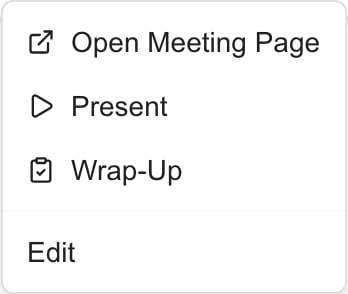 *MSP example. Available actions and access to their destinations depend on your role and meeting configuration.*
Use **Open Meeting Page** to reach the [meeting workspace](/user-guides/calendar/read-meeting-workspace). Reading a row is separate from changing a schedule, sending an invitation, publishing a summary or completing a wrap-up. Company administrator status alone does not grant those actions.
## FAQs
Open Calendar Menu > List View. Its page title is Meetings List, and filters sit below the column headings.
List View shows accessible meeting records for the selected Company scope. My Meetings further selects meetings where your account is a participant and can include personal busy blocks.
No. It still uses your accessible companies and meeting visibility.
No. The Title filter matches the meeting title, even when a location is displayed beneath it.
The current Date & Time filter provides predefined periods. Use the main Calendar to inspect a specific date.
It filters the meeting start date. A long meeting that started outside the selected period can be excluded.
Filter choices depend on values available in the loaded list. Check the Company scope and current records.
No. List View includes matching canceled records. The main Calendar grid has a different default.
The table resets its local filters and sorting and closes the open meeting dialog while the scope changes.
List View contains meeting records. It does not list the main Calendar's busy blocks, changes and freeze windows as separate rows.
It lists meeting records rather than expanding every occurrence. Use the main Calendar for occurrence dates.
Your browser's time zone. It can differ from the main Calendar grid; check the meeting's explicit time zone and invitation.
Open the meeting details. The list shows the start date and start/end times, not a separate end-date column.
No. They summarize participant identity. Unknown means a display name could not be resolved.
Open the row's ... menu and choose Open Meeting Page when available. The destination enforces its own access.
No. Opening the menu is separate from the selected action and any save or send workflow.
This meeting table currently provides neither a CSV export control nor a column chooser.
*MSP example. Available actions and access to their destinations depend on your role and meeting configuration.*
Use **Open Meeting Page** to reach the [meeting workspace](/user-guides/calendar/read-meeting-workspace). Reading a row is separate from changing a schedule, sending an invitation, publishing a summary or completing a wrap-up. Company administrator status alone does not grant those actions.
## FAQs
Open Calendar Menu > List View. Its page title is Meetings List, and filters sit below the column headings.
List View shows accessible meeting records for the selected Company scope. My Meetings further selects meetings where your account is a participant and can include personal busy blocks.
No. It still uses your accessible companies and meeting visibility.
No. The Title filter matches the meeting title, even when a location is displayed beneath it.
The current Date & Time filter provides predefined periods. Use the main Calendar to inspect a specific date.
It filters the meeting start date. A long meeting that started outside the selected period can be excluded.
Filter choices depend on values available in the loaded list. Check the Company scope and current records.
No. List View includes matching canceled records. The main Calendar grid has a different default.
The table resets its local filters and sorting and closes the open meeting dialog while the scope changes.
List View contains meeting records. It does not list the main Calendar's busy blocks, changes and freeze windows as separate rows.
It lists meeting records rather than expanding every occurrence. Use the main Calendar for occurrence dates.
Your browser's time zone. It can differ from the main Calendar grid; check the meeting's explicit time zone and invitation.
Open the meeting details. The list shows the start date and start/end times, not a separate end-date column.
No. They summarize participant identity. Unknown means a display name could not be resolved.
Open the row's ... menu and choose Open Meeting Page when available. The destination enforces its own access.
No. Opening the menu is separate from the selected action and any save or send workflow.
This meeting table currently provides neither a CSV export control nor a column chooser.