> ## Documentation Index
> Fetch the complete documentation index at: https://docs.msportal.ai/llms.txt
> Use this file to discover all available pages before exploring further.
# Calendar
> Schedule, manage, and coordinate meetings across your client companies
The Calendar module helps MSPs schedule and manage client meetings, including Quarterly Business Reviews (QBRs), strategy sessions, and regular check-ins. View meetings across all companies or filter by specific clients.
 ## Navigating the Calendar
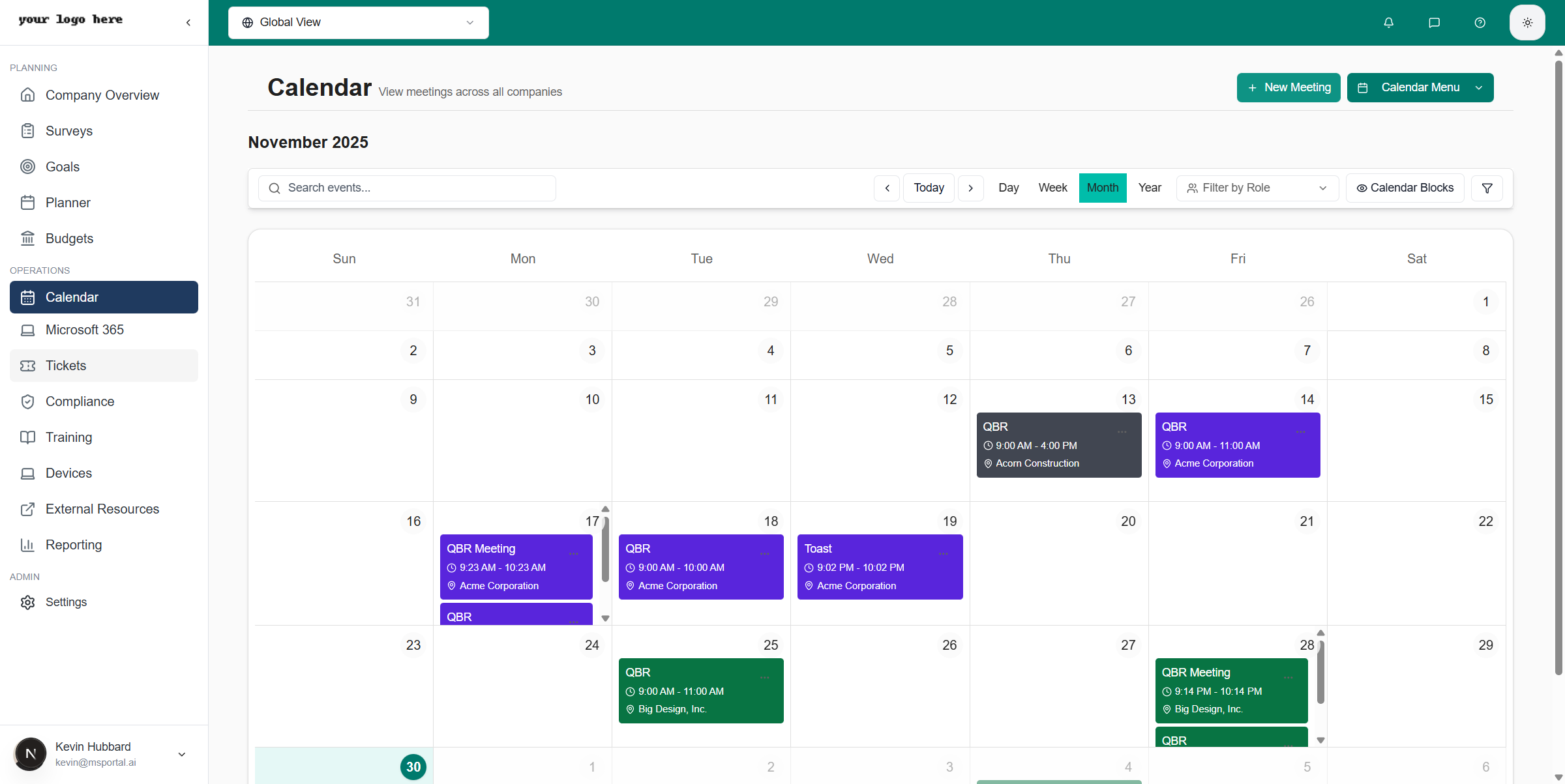
The calendar displays meetings in a monthly view by default. Each meeting shows:
* **Meeting title** - The name of the meeting (e.g., "QBR" for Quarterly Business Reviews)
* **Company name** - Which client the meeting is associated with
* **Color coding** - Visual distinction between different meeting types
### Viewing Options
Use the **Global View** dropdown at the top to:
* View meetings across all companies
* Filter to a specific company's meetings
* See only your assigned meetings
### Quick Preview
Click any meeting on the calendar to see a preview dialog:
## Navigating the Calendar
The calendar displays meetings in a monthly view by default. Each meeting shows:
* **Meeting title** - The name of the meeting (e.g., "QBR" for Quarterly Business Reviews)
* **Company name** - Which client the meeting is associated with
* **Color coding** - Visual distinction between different meeting types
### Viewing Options
Use the **Global View** dropdown at the top to:
* View meetings across all companies
* Filter to a specific company's meetings
* See only your assigned meetings
### Quick Preview
Click any meeting on the calendar to see a preview dialog:
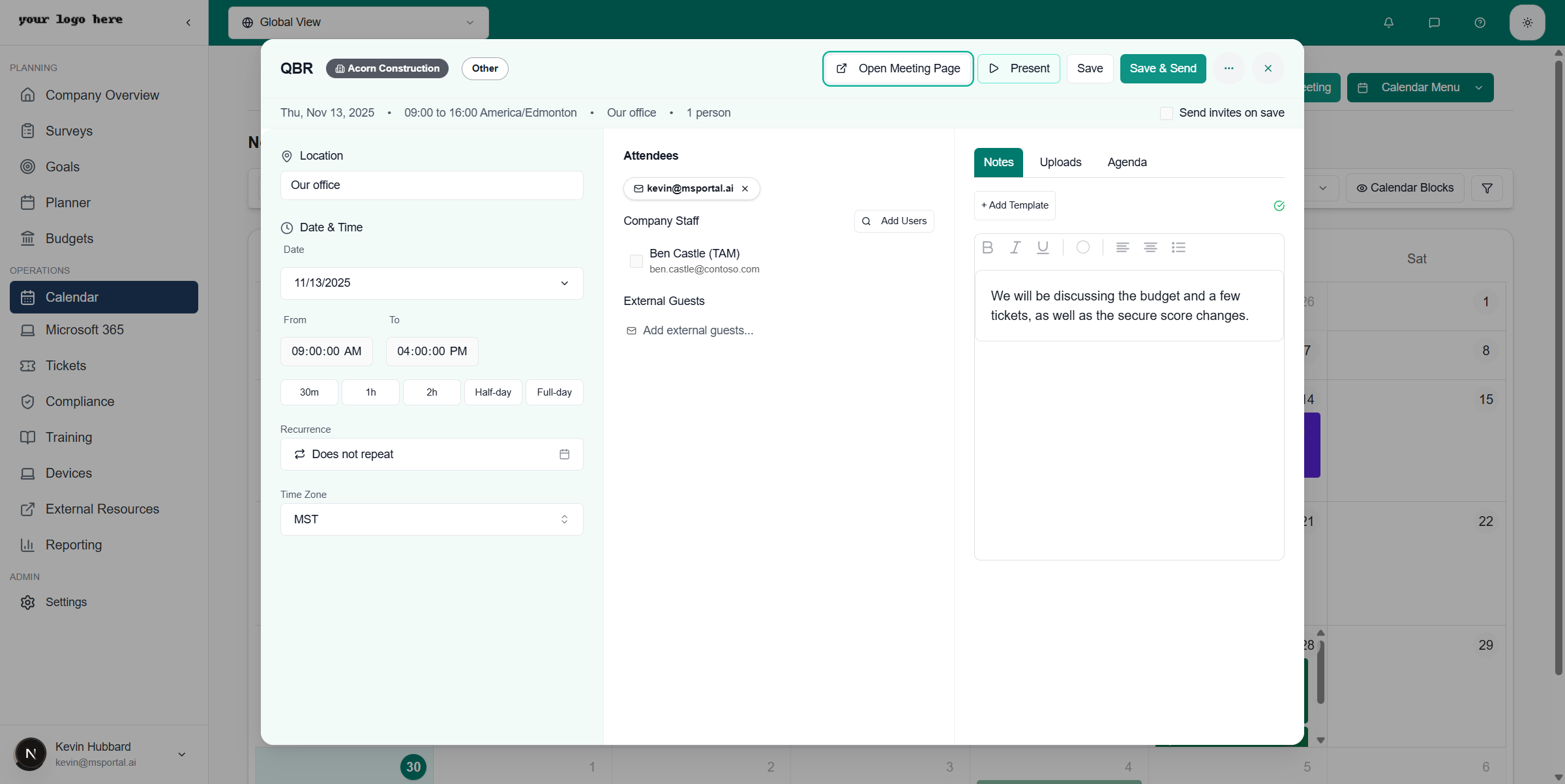 The preview shows:
* **Date and time** - When the meeting is scheduled
* **Location** - Where the meeting takes place (physical address or virtual link)
* **Attendees** - Who's invited to the meeting
* **Notes** - Any meeting notes or preparation materials
Click **Open Meeting Page** to access the full meeting details and management features.
## Creating a Meeting
To create a new meeting:
1. Click the **+ New Meeting** button in the top-right corner
2. Fill in the meeting details:
* **Title** - Name of the meeting
* **Company** - Which client this meeting is for
* **Meeting Type** - QBR, Strategy Session, Check-in, etc.
* **Date and Time** - When the meeting occurs
* **Location** - Physical address or video call link
* **Attendees** - Invite participants from the company
3. Add any initial notes or agenda items
4. Click **Save** to create the meeting
## Meeting Types
MSPortal supports various meeting types:
| Type | Description |
| -------------- | --------------------------------------------------------- |
| **QBR** | Quarterly Business Reviews - comprehensive client reviews |
| **Strategy** | Strategic planning and roadmap discussions |
| **Check-in** | Regular status updates and relationship touchpoints |
| **Onboarding** | New client onboarding sessions |
| **Training** | Client training and education sessions |
| **Custom** | Any other meeting type you define |
## Next Steps
Learn how to manage meeting details, attendees, and agendas
Present meeting content professionally to clients
Generate and send AI-powered meeting summaries
The preview shows:
* **Date and time** - When the meeting is scheduled
* **Location** - Where the meeting takes place (physical address or virtual link)
* **Attendees** - Who's invited to the meeting
* **Notes** - Any meeting notes or preparation materials
Click **Open Meeting Page** to access the full meeting details and management features.
## Creating a Meeting
To create a new meeting:
1. Click the **+ New Meeting** button in the top-right corner
2. Fill in the meeting details:
* **Title** - Name of the meeting
* **Company** - Which client this meeting is for
* **Meeting Type** - QBR, Strategy Session, Check-in, etc.
* **Date and Time** - When the meeting occurs
* **Location** - Physical address or video call link
* **Attendees** - Invite participants from the company
3. Add any initial notes or agenda items
4. Click **Save** to create the meeting
## Meeting Types
MSPortal supports various meeting types:
| Type | Description |
| -------------- | --------------------------------------------------------- |
| **QBR** | Quarterly Business Reviews - comprehensive client reviews |
| **Strategy** | Strategic planning and roadmap discussions |
| **Check-in** | Regular status updates and relationship touchpoints |
| **Onboarding** | New client onboarding sessions |
| **Training** | Client training and education sessions |
| **Custom** | Any other meeting type you define |
## Next Steps
Learn how to manage meeting details, attendees, and agendas
Present meeting content professionally to clients
Generate and send AI-powered meeting summaries