> ## Documentation Index
> Fetch the complete documentation index at: https://docs.msportal.ai/llms.txt
> Use this file to discover all available pages before exploring further.
# Create and manage Calendar freeze windows
> Configure tenant, company or site change-freeze periods, recurrence and activation, then verify their Calendar overlays.
**Audience:** MSP administrators with Calendar settings access and Calendar management permission. Company users can [understand freeze windows and report conflicts](/user-guides/calendar/understand-change-freezes).
Open **Settings > Calendar > Freeze Windows**. A freeze warns about restricted change periods; it does not automatically cancel meetings, move provider events or enforce every booking restriction.
## Choose the scope
Check the company selector at the top of the app before opening the editor.
| Scope | Use it for |
| ----------------- | ----------------------------------------------------------------------------- |
| **Tenant-wide** | A period shared across your MSP tenant. Use Global View to create or edit it. |
| **Company-wide** | A period for the selected Company in the editor. |
| **Specific site** | A period for one existing Site belonging to the selected Company. |
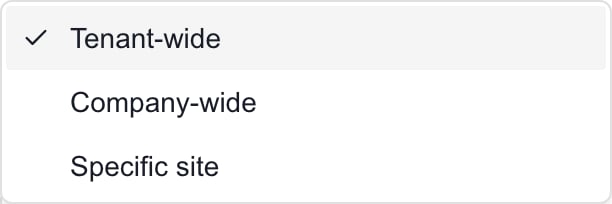 In a scoped company view, tenant-wide windows can still appear but their edit/delete controls are disabled. New windows default to Company-wide; a single selected company is preselected. Use a company within your current permitted scope. Selecting a company in the editor does not grant access to it.
## Create a freeze window
Select **Add freeze window**.
Enter a clear **Name**, from 2 to 160 characters. Add **Description** if useful, up to 2,000 characters. Explain the work or period the restriction applies to.
Choose **Scope**. Company-wide requires a **Company**. Specific site requires both **Company** and **Site**; select the company first. Changing the company clears the previous site selection.
Enter **Starts at** and **Ends at**. End must be after Start. Choose **Recurrence** and, for a repeating window, optionally set **Repeat until** to a date on or after the first occurrence.
**Active** is on for a new window. Turn it off to prepare a definition without showing its occurrences in Calendar.
Select **Save** inside the dialog and wait for **Freeze window saved**. This saves the definition immediately; there is no additional header Save for the Freeze Windows tab. **Cancel** discards the unsaved dialog.
## Configure repeating windows
The start date anchors recurrence and the Start/End fields define each occurrence's time range.
| Recurrence | Schedule |
| ------------ | ------------------------------------------------------------------------------------------- |
| **One time** | One occurrence at the entered dates/times. |
| **Daily** | Every day from the start date. |
| **Weekly** | Every seven days, on the start date's weekday. |
| **Monthly** | The start date's day of the month, using the month's last day when that day is unavailable. |
| **Annual** | The same month/day each year, using the month's last day when needed. |
**Repeat until** includes occurrences whose start date falls on that date. It does not cut an occurrence short at midnight. Leave it blank when you do not want an explicit end date, but verify the dates you actually need in Calendar; the displayed/generated range is not an unlimited future schedule.
When converting a repeating window to **One time**, clear **Repeat until** before changing the recurrence. An old cutoff can remain stored even when its field is hidden. A cutoff before the start date can leave no visible occurrence.
## Check time zones
The editor uses your browser's local date/time and saves the browser time zone with the window. There is no separate Time zone selector in this dialog. The settings list displays the saved range using the window's saved time zone, while Calendar can display another viewing zone.
When editing a window from another time zone, review the dates and clock values carefully before saving. Saving uses the current browser zone, which can change the recurrence's local-time interpretation. Check occurrences around daylight-saving changes when relevant.
## Edit, deactivate or delete
* **Edit:** select the pencil icon on the saved window, change the fields and select the dialog **Save**. **Cancel** preserves the saved version.
* **Deactivate:** edit the window, turn **Active** off, then **Save**. The definition remains in settings with an Inactive badge; its generated Calendar occurrences are removed. Turning Active back on and saving generates its applicable occurrences again.
* **Delete:** select the trash icon and review **Delete freeze window "\[name]"?** in the browser confirmation. Cancel to keep it, or confirm to remove the definition and its generated occurrences.
Editing a repeating window updates the definition and its occurrences. This is not an editor for just one occurrence. Do not delete a whole recurring window when you only intend to change unrelated scheduled work.
## Verify the result in Calendar
1. Open **Calendar** with the appropriate company scope and date range.
2. Enable **Changes** in the layers menu.
3. Also enable **Calendar Blocks** for the freeze overlay in Day, Week or Month grids.
4. Check the named period and its start/end times. Check actual overlapping changes separately.
A freeze warning does not prove that a provider event was rescheduled or that an exception was approved. Deleting a freeze does not delete the meetings, changes or provider appointments that overlapped it.
## Troubleshooting
* **Save is disabled:** provide a name of at least two characters, valid Start/End dates, and the required Company/Site selections.
* **I can open settings but cannot load or manage freezes:** freeze management requires more than settings-page visibility. Ask an MSP administrator to review your role.
* **A tenant-wide window is read-only:** switch to Global View if you have permission to manage tenant-wide settings.
* **No sites are available:** select the correct company first. The picker uses existing company locations; this editor does not create sites.
* **Saved but not visible in Calendar:** check Active, scope, date range, Repeat until, Changes and Calendar Blocks. Confirm that the recurrence includes the date you are viewing. If the overlay remains missing, verify the saved restriction before scheduling work; do not interpret an empty grid as permission to proceed.
## Frequently asked questions
Open Settings, Calendar, Freeze Windows and select Add freeze window. Save inside the dialog.
Choose Tenant-wide, Company-wide or Specific site. Tenant-wide management requires Global View; site scope requires an existing site belonging to the selected company.
Tenant-wide windows can remain visible in a scoped company view. Switch to Global View with appropriate permission to edit or delete them.
No. Select existing records. For Specific site, select Company first and then one of its existing locations.
No. Changing Company clears the selected Site so you can choose a location belonging to the new company.
No. It provides restricted-period and conflict information. Follow your scheduling and approval process; do not assume every meeting or provider event is blocked.
No. Save inside the freeze dialog. General Settings and Post-Meeting use their own header Save controls.
Yes. Turn Active off before saving. The definition remains in settings without active Calendar occurrences.
Choose One time, Daily, Weekly, Monthly or Annual. The entered start date anchors the recurrence.
It uses the month's last day when that month does not have the anchor day. Verify the relevant occurrences in Calendar.
It includes eligible occurrences starting on that date. It does not truncate an occurrence that ends later.
Check Active, scope and the selected date range. Also check Repeat until: an old cutoff before the new start can leave no occurrence, even if you later switch to One time.
It uses the current browser's local time zone and saves that zone with the window. The Calendar viewing zone can differ. Review carefully when editing from another zone.
Edit it, turn Active off and select the dialog Save. The saved definition remains while its generated occurrences are removed.
Yes. Cancel the browser confirmation after selecting Delete. The definition remains unchanged.
No. It removes the freeze definition and its generated occurrences. Overlapping work remains a separate record.
No. It edits the shared window definition and rebuilds its occurrences. The settings editor does not offer an individual-occurrence exception.
Check the scope and date range, then enable both Changes and Calendar Blocks. Also verify the recurrence dates and Repeat until.
## Related guides
* [Understand Calendar freeze windows](/user-guides/calendar/understand-change-freezes)
* [Filter Calendar events and layers](/user-guides/calendar/filter-calendar-events)
* [Configure Calendar defaults](/user-guides/calendar/configure-calendar-defaults)
In a scoped company view, tenant-wide windows can still appear but their edit/delete controls are disabled. New windows default to Company-wide; a single selected company is preselected. Use a company within your current permitted scope. Selecting a company in the editor does not grant access to it.
## Create a freeze window
Select **Add freeze window**.
Enter a clear **Name**, from 2 to 160 characters. Add **Description** if useful, up to 2,000 characters. Explain the work or period the restriction applies to.
Choose **Scope**. Company-wide requires a **Company**. Specific site requires both **Company** and **Site**; select the company first. Changing the company clears the previous site selection.
Enter **Starts at** and **Ends at**. End must be after Start. Choose **Recurrence** and, for a repeating window, optionally set **Repeat until** to a date on or after the first occurrence.
**Active** is on for a new window. Turn it off to prepare a definition without showing its occurrences in Calendar.
Select **Save** inside the dialog and wait for **Freeze window saved**. This saves the definition immediately; there is no additional header Save for the Freeze Windows tab. **Cancel** discards the unsaved dialog.
## Configure repeating windows
The start date anchors recurrence and the Start/End fields define each occurrence's time range.
| Recurrence | Schedule |
| ------------ | ------------------------------------------------------------------------------------------- |
| **One time** | One occurrence at the entered dates/times. |
| **Daily** | Every day from the start date. |
| **Weekly** | Every seven days, on the start date's weekday. |
| **Monthly** | The start date's day of the month, using the month's last day when that day is unavailable. |
| **Annual** | The same month/day each year, using the month's last day when needed. |
**Repeat until** includes occurrences whose start date falls on that date. It does not cut an occurrence short at midnight. Leave it blank when you do not want an explicit end date, but verify the dates you actually need in Calendar; the displayed/generated range is not an unlimited future schedule.
When converting a repeating window to **One time**, clear **Repeat until** before changing the recurrence. An old cutoff can remain stored even when its field is hidden. A cutoff before the start date can leave no visible occurrence.
## Check time zones
The editor uses your browser's local date/time and saves the browser time zone with the window. There is no separate Time zone selector in this dialog. The settings list displays the saved range using the window's saved time zone, while Calendar can display another viewing zone.
When editing a window from another time zone, review the dates and clock values carefully before saving. Saving uses the current browser zone, which can change the recurrence's local-time interpretation. Check occurrences around daylight-saving changes when relevant.
## Edit, deactivate or delete
* **Edit:** select the pencil icon on the saved window, change the fields and select the dialog **Save**. **Cancel** preserves the saved version.
* **Deactivate:** edit the window, turn **Active** off, then **Save**. The definition remains in settings with an Inactive badge; its generated Calendar occurrences are removed. Turning Active back on and saving generates its applicable occurrences again.
* **Delete:** select the trash icon and review **Delete freeze window "\[name]"?** in the browser confirmation. Cancel to keep it, or confirm to remove the definition and its generated occurrences.
Editing a repeating window updates the definition and its occurrences. This is not an editor for just one occurrence. Do not delete a whole recurring window when you only intend to change unrelated scheduled work.
## Verify the result in Calendar
1. Open **Calendar** with the appropriate company scope and date range.
2. Enable **Changes** in the layers menu.
3. Also enable **Calendar Blocks** for the freeze overlay in Day, Week or Month grids.
4. Check the named period and its start/end times. Check actual overlapping changes separately.
A freeze warning does not prove that a provider event was rescheduled or that an exception was approved. Deleting a freeze does not delete the meetings, changes or provider appointments that overlapped it.
## Troubleshooting
* **Save is disabled:** provide a name of at least two characters, valid Start/End dates, and the required Company/Site selections.
* **I can open settings but cannot load or manage freezes:** freeze management requires more than settings-page visibility. Ask an MSP administrator to review your role.
* **A tenant-wide window is read-only:** switch to Global View if you have permission to manage tenant-wide settings.
* **No sites are available:** select the correct company first. The picker uses existing company locations; this editor does not create sites.
* **Saved but not visible in Calendar:** check Active, scope, date range, Repeat until, Changes and Calendar Blocks. Confirm that the recurrence includes the date you are viewing. If the overlay remains missing, verify the saved restriction before scheduling work; do not interpret an empty grid as permission to proceed.
## Frequently asked questions
Open Settings, Calendar, Freeze Windows and select Add freeze window. Save inside the dialog.
Choose Tenant-wide, Company-wide or Specific site. Tenant-wide management requires Global View; site scope requires an existing site belonging to the selected company.
Tenant-wide windows can remain visible in a scoped company view. Switch to Global View with appropriate permission to edit or delete them.
No. Select existing records. For Specific site, select Company first and then one of its existing locations.
No. Changing Company clears the selected Site so you can choose a location belonging to the new company.
No. It provides restricted-period and conflict information. Follow your scheduling and approval process; do not assume every meeting or provider event is blocked.
No. Save inside the freeze dialog. General Settings and Post-Meeting use their own header Save controls.
Yes. Turn Active off before saving. The definition remains in settings without active Calendar occurrences.
Choose One time, Daily, Weekly, Monthly or Annual. The entered start date anchors the recurrence.
It uses the month's last day when that month does not have the anchor day. Verify the relevant occurrences in Calendar.
It includes eligible occurrences starting on that date. It does not truncate an occurrence that ends later.
Check Active, scope and the selected date range. Also check Repeat until: an old cutoff before the new start can leave no occurrence, even if you later switch to One time.
It uses the current browser's local time zone and saves that zone with the window. The Calendar viewing zone can differ. Review carefully when editing from another zone.
Edit it, turn Active off and select the dialog Save. The saved definition remains while its generated occurrences are removed.
Yes. Cancel the browser confirmation after selecting Delete. The definition remains unchanged.
No. It removes the freeze definition and its generated occurrences. Overlapping work remains a separate record.
No. It edits the shared window definition and rebuilds its occurrences. The settings editor does not offer an individual-occurrence exception.
Check the scope and date range, then enable both Changes and Calendar Blocks. Also verify the recurrence dates and Repeat until.
## Related guides
* [Understand Calendar freeze windows](/user-guides/calendar/understand-change-freezes)
* [Filter Calendar events and layers](/user-guides/calendar/filter-calendar-events)
* [Configure Calendar defaults](/user-guides/calendar/configure-calendar-defaults)