> ## Documentation Index
> Fetch the complete documentation index at: https://docs.msportal.ai/llms.txt
> Use this file to discover all available pages before exploring further.
# Manage internal meeting survey questions
> Add, edit, activate, reorder and delete the questions staff answer during meeting wrap-up.
**Audience:** MSP administrators with Calendar settings access and Calendar or Meetings management permission. These questions are for the internal staff wrap-up, not a Company survey invitation.
Open **Settings > Calendar > Post-Meeting** and use **Post-meeting survey questions**. The catalog applies across your MSP tenant. To answer the questions for a meeting, see [Complete the internal meeting survey](/user-guides/calendar/complete-meeting-survey).
## Add a question
Select **Add question**.
Enter **Question** and, if useful, **Description (optional)**. Keep the prompt clear and specific. A question can contain up to 500 characters; its description can contain up to 2,000.
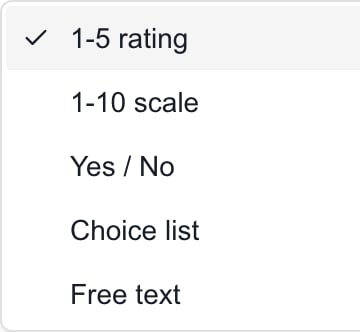
Select **Answer type**. For **Choice list**, enter one option per line in **Options (one per line)**. Include at least one nonblank option; up to 20 options are supported, each up to 200 characters.
 **Required** asks staff to answer before using the survey's normal Continue action. **Active** includes the question in the current survey. New questions start active and optional; turn Active off before saving if you are preparing a question for later.
Select **Save** inside the dialog. This saves the question immediately and closes the dialog. You do not also need the page header Save. **Cancel** discards unsaved dialog edits.
## Choose the right answer type
| Answer type | Use it for |
| --------------- | ---------------------------------------------------- |
| **1-5 rating** | A short rating such as engagement or meeting value. |
| **1-10 scale** | A broader numeric score. |
| **Yes / No** | A binary answer such as whether follow-up is needed. |
| **Choice list** | One answer from your defined options. |
| **Free text** | Comments or an explanation. |
## Edit a saved question
1. Select the question's pencil icon, labeled **Edit question**.
2. Change the question, description, answer type, options, Required or Active setting.
3. Select the dialog **Save**, or **Cancel** to keep the saved version.
Changing a choice question to another answer type removes its choice-list configuration when saved. Review the question and its type together. Existing submitted answers retain the question information captured when they were submitted; editing the catalog does not rewrite that saved history automatically.
## Activate or deactivate a question
Use the row's **Active** switch. This saves immediately, independently of the header Save. Deactivation keeps the question in the settings catalog but removes it from the active survey questions.
To leave no active questions, deactivate the configured questions. Deleting every question is different: when the catalog is empty, the wrap-up can use its built-in default questions.
## Change question order
Use **Move up** or **Move down** on the question's row. The first question cannot move up and the last cannot move down. Each move saves immediately; no header Save is needed.
Wait for each operation to finish before making another move. Reopen the page to check the saved order, especially after an error.
## Delete a question
1. Select the question's **Delete** trash icon.
2. Review the browser confirmation: **Delete this question? Existing answers keep a snapshot of it.**
3. Cancel to keep the question, or confirm deletion to remove it from the catalog.
Deletion does not immediately erase its previously submitted answer snapshots. However, re-submitting a meeting survey uses the current active questions, so do not use catalog deletion as a promise that later edits will preserve every old answer. Deactivate a question when you want to retain it for possible reuse.
## Add the default questions
When the settings catalog is empty, use its **Add default questions** button to create editable defaults: engagement, meeting value, client sentiment, follow-up needed and additional comments. They start active and optional.
The button does not appear simply because all existing questions are inactive. It is not a reset button for an existing catalog, and it does not overwrite your custom questions.
## Know which Save to use
| Change | When it saves |
| ---------------------------- | ------------------------------------ |
| Add or edit question details | **Save** inside the question dialog. |
| Row **Active** switch | Immediately. |
| **Move up** / **Move down** | Immediately. |
| Delete question | After confirming the browser prompt. |
| Post-Meeting Flow settings | Separate page header **Save**. |
**Required** is a survey-step check, not a guarantee that nobody can skip the survey or finish another part of wrap-up. It does not turn the internal staff survey into a mandatory Company response.
## Troubleshooting
* **A question will not save:** provide a nonblank question; for Choice list, provide at least one nonblank option and stay within the length limits.
* **I can open settings but cannot change questions:** an MSP administrator must check both settings access and the Calendar/Meetings management permissions needed for question changes.
* **A saved question does not appear in wrap-up:** check Active, the enabled flow and event types, then reopen the meeting's wrap-up to load the current configuration.
* **The list looks out of order after a failed move:** reopen settings and check the saved order before trying again.
## Frequently asked questions
Open Settings, Calendar, Post-Meeting, then select Add question in Post-meeting survey questions. Save inside the question dialog.
No. This is the MSP staff's internal wrap-up survey. It is separate from Company survey invitations and the summary email.
Yes. This catalog is tenant-wide, rather than a separate question set for each company or staff member.
Choose 1-5 rating, 1-10 scale, Yes / No, Choice list or Free text.
Choose Choice list and enter one option per line in Options (one per line). Include at least one nonblank option, with no more than 20 options of up to 200 characters each.
New questions start active and optional. Change Active or Required before selecting the dialog Save when you need different behavior.
No. The question dialog Save persists the question independently. The header Save belongs to the separate Post-Meeting Flow controls.
No. Cancel discards the current unsaved dialog edits. It does not undo an earlier Save, row activation, reorder or confirmed deletion.
Turn off its row Active switch. The change saves immediately and the question remains in the settings catalog for later reuse.
Use Move up or Move down on a question row. Each move saves immediately. Wait for it to finish and check the saved order after an error.
No. Previously submitted answers retain snapshots. Re-submitting a meeting survey uses the current active questions, so later edits can change which answers are retained.
Cancel the browser confirmation after selecting the question's Delete icon. The saved question remains in the catalog.
No. An empty catalog can cause built-in defaults to appear. Deactivate the configured questions when you want no active questions.
It appears when the catalog has no questions, not when all existing questions are inactive. It does not reset or overwrite an existing catalog.
No. Required checks the normal survey Continue action. It does not guarantee that staff cannot skip the survey or navigate to another wrap-up step.
No. Saved answers retain their submitted question information. Re-submitting a survey uses the current active catalog, so review existing answers before doing so.
## Related guides
* [Configure the post-meeting workflow](/user-guides/calendar/configure-post-meeting)
* [Complete the internal meeting survey](/user-guides/calendar/complete-meeting-survey)
* [Meeting summaries and wrap-up](/user-guides/calendar/meeting-summaries)
**Required** asks staff to answer before using the survey's normal Continue action. **Active** includes the question in the current survey. New questions start active and optional; turn Active off before saving if you are preparing a question for later.
Select **Save** inside the dialog. This saves the question immediately and closes the dialog. You do not also need the page header Save. **Cancel** discards unsaved dialog edits.
## Choose the right answer type
| Answer type | Use it for |
| --------------- | ---------------------------------------------------- |
| **1-5 rating** | A short rating such as engagement or meeting value. |
| **1-10 scale** | A broader numeric score. |
| **Yes / No** | A binary answer such as whether follow-up is needed. |
| **Choice list** | One answer from your defined options. |
| **Free text** | Comments or an explanation. |
## Edit a saved question
1. Select the question's pencil icon, labeled **Edit question**.
2. Change the question, description, answer type, options, Required or Active setting.
3. Select the dialog **Save**, or **Cancel** to keep the saved version.
Changing a choice question to another answer type removes its choice-list configuration when saved. Review the question and its type together. Existing submitted answers retain the question information captured when they were submitted; editing the catalog does not rewrite that saved history automatically.
## Activate or deactivate a question
Use the row's **Active** switch. This saves immediately, independently of the header Save. Deactivation keeps the question in the settings catalog but removes it from the active survey questions.
To leave no active questions, deactivate the configured questions. Deleting every question is different: when the catalog is empty, the wrap-up can use its built-in default questions.
## Change question order
Use **Move up** or **Move down** on the question's row. The first question cannot move up and the last cannot move down. Each move saves immediately; no header Save is needed.
Wait for each operation to finish before making another move. Reopen the page to check the saved order, especially after an error.
## Delete a question
1. Select the question's **Delete** trash icon.
2. Review the browser confirmation: **Delete this question? Existing answers keep a snapshot of it.**
3. Cancel to keep the question, or confirm deletion to remove it from the catalog.
Deletion does not immediately erase its previously submitted answer snapshots. However, re-submitting a meeting survey uses the current active questions, so do not use catalog deletion as a promise that later edits will preserve every old answer. Deactivate a question when you want to retain it for possible reuse.
## Add the default questions
When the settings catalog is empty, use its **Add default questions** button to create editable defaults: engagement, meeting value, client sentiment, follow-up needed and additional comments. They start active and optional.
The button does not appear simply because all existing questions are inactive. It is not a reset button for an existing catalog, and it does not overwrite your custom questions.
## Know which Save to use
| Change | When it saves |
| ---------------------------- | ------------------------------------ |
| Add or edit question details | **Save** inside the question dialog. |
| Row **Active** switch | Immediately. |
| **Move up** / **Move down** | Immediately. |
| Delete question | After confirming the browser prompt. |
| Post-Meeting Flow settings | Separate page header **Save**. |
**Required** is a survey-step check, not a guarantee that nobody can skip the survey or finish another part of wrap-up. It does not turn the internal staff survey into a mandatory Company response.
## Troubleshooting
* **A question will not save:** provide a nonblank question; for Choice list, provide at least one nonblank option and stay within the length limits.
* **I can open settings but cannot change questions:** an MSP administrator must check both settings access and the Calendar/Meetings management permissions needed for question changes.
* **A saved question does not appear in wrap-up:** check Active, the enabled flow and event types, then reopen the meeting's wrap-up to load the current configuration.
* **The list looks out of order after a failed move:** reopen settings and check the saved order before trying again.
## Frequently asked questions
Open Settings, Calendar, Post-Meeting, then select Add question in Post-meeting survey questions. Save inside the question dialog.
No. This is the MSP staff's internal wrap-up survey. It is separate from Company survey invitations and the summary email.
Yes. This catalog is tenant-wide, rather than a separate question set for each company or staff member.
Choose 1-5 rating, 1-10 scale, Yes / No, Choice list or Free text.
Choose Choice list and enter one option per line in Options (one per line). Include at least one nonblank option, with no more than 20 options of up to 200 characters each.
New questions start active and optional. Change Active or Required before selecting the dialog Save when you need different behavior.
No. The question dialog Save persists the question independently. The header Save belongs to the separate Post-Meeting Flow controls.
No. Cancel discards the current unsaved dialog edits. It does not undo an earlier Save, row activation, reorder or confirmed deletion.
Turn off its row Active switch. The change saves immediately and the question remains in the settings catalog for later reuse.
Use Move up or Move down on a question row. Each move saves immediately. Wait for it to finish and check the saved order after an error.
No. Previously submitted answers retain snapshots. Re-submitting a meeting survey uses the current active questions, so later edits can change which answers are retained.
Cancel the browser confirmation after selecting the question's Delete icon. The saved question remains in the catalog.
No. An empty catalog can cause built-in defaults to appear. Deactivate the configured questions when you want no active questions.
It appears when the catalog has no questions, not when all existing questions are inactive. It does not reset or overwrite an existing catalog.
No. Required checks the normal survey Continue action. It does not guarantee that staff cannot skip the survey or navigate to another wrap-up step.
No. Saved answers retain their submitted question information. Re-submitting a survey uses the current active catalog, so review existing answers before doing so.
## Related guides
* [Configure the post-meeting workflow](/user-guides/calendar/configure-post-meeting)
* [Complete the internal meeting survey](/user-guides/calendar/complete-meeting-survey)
* [Meeting summaries and wrap-up](/user-guides/calendar/meeting-summaries)