> ## Documentation Index
> Fetch the complete documentation index at: https://docs.msportal.ai/llms.txt
> Use this file to discover all available pages before exploring further.
# Meeting Summaries
> Generate and send AI-powered meeting summaries to clients
After a meeting, MSPortal can generate professional summary emails using AI, helping you follow up with clients quickly and consistently.
## Accessing Send Summary
From any meeting page, click the **Send Summary** button in the header to open the summary interface.
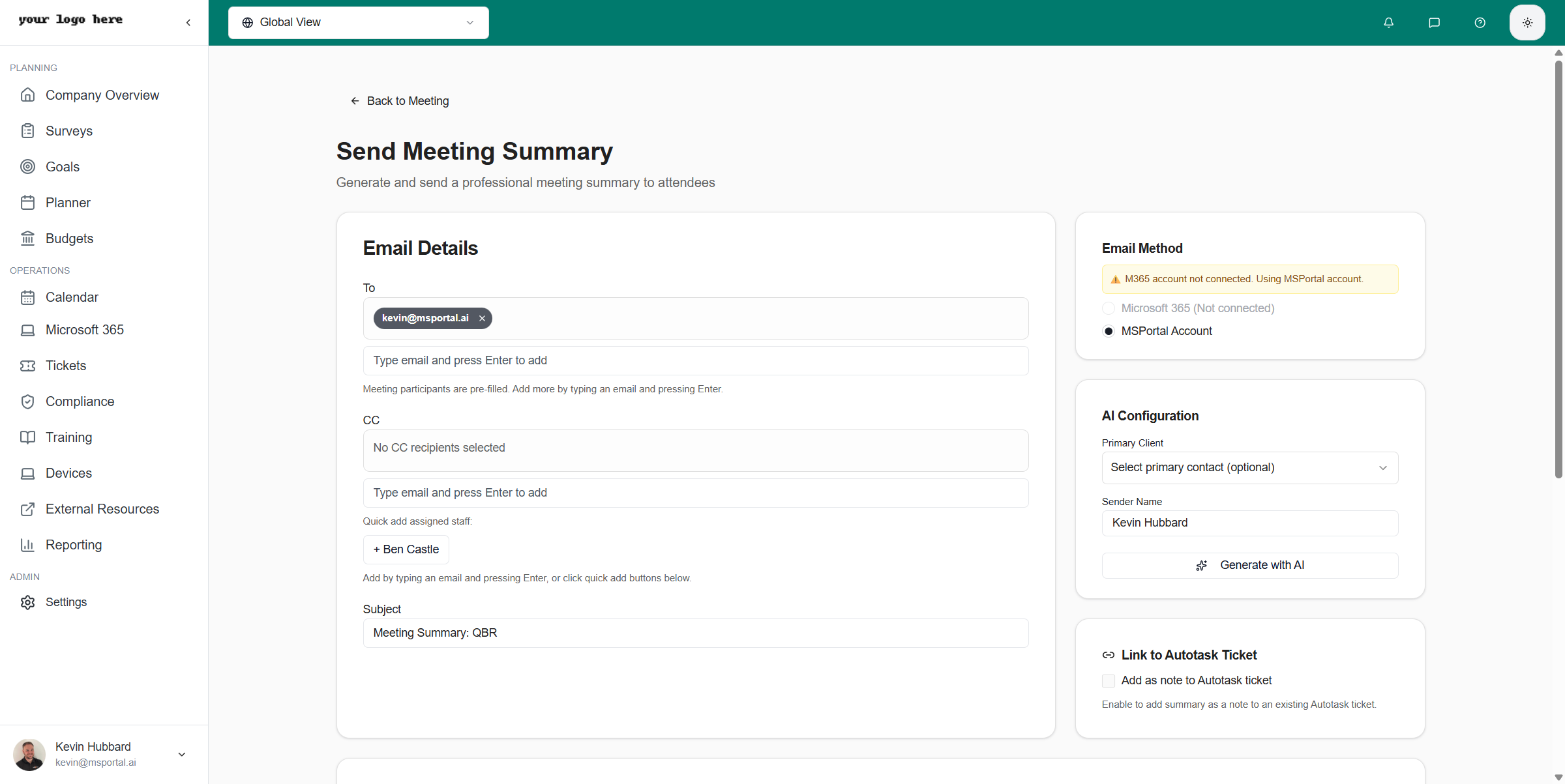 ## Summary Configuration
### Email Details
Configure the basic email settings:
* **To** - Select recipients from meeting attendees or add custom addresses
* **Subject** - Auto-populated with meeting name, editable as needed
* **From** - Your email address (configurable in settings)
### Email Method
Choose how to send the summary:
| Method | Description |
| ------------------- | -------------------------------------------------- |
| **MSPortal** | Send directly through MSPortal's email system |
| **PSA Integration** | Route through your PSA's email system for tracking |
### AI Configuration
Customize how the AI generates your summary:
* **Tone** - Professional, friendly, or technical
* **Length** - Brief overview or detailed recap
* **Focus Areas** - Emphasize action items, decisions, or discussion points
## Generating the Summary
Click **Generate with AI** to create the meeting summary. The AI analyzes:
* Meeting agenda items and their content
* Meeting notes you've captured
* Attendee information
* Meeting type and context
## Summary Configuration
### Email Details
Configure the basic email settings:
* **To** - Select recipients from meeting attendees or add custom addresses
* **Subject** - Auto-populated with meeting name, editable as needed
* **From** - Your email address (configurable in settings)
### Email Method
Choose how to send the summary:
| Method | Description |
| ------------------- | -------------------------------------------------- |
| **MSPortal** | Send directly through MSPortal's email system |
| **PSA Integration** | Route through your PSA's email system for tracking |
### AI Configuration
Customize how the AI generates your summary:
* **Tone** - Professional, friendly, or technical
* **Length** - Brief overview or detailed recap
* **Focus Areas** - Emphasize action items, decisions, or discussion points
## Generating the Summary
Click **Generate with AI** to create the meeting summary. The AI analyzes:
* Meeting agenda items and their content
* Meeting notes you've captured
* Attendee information
* Meeting type and context
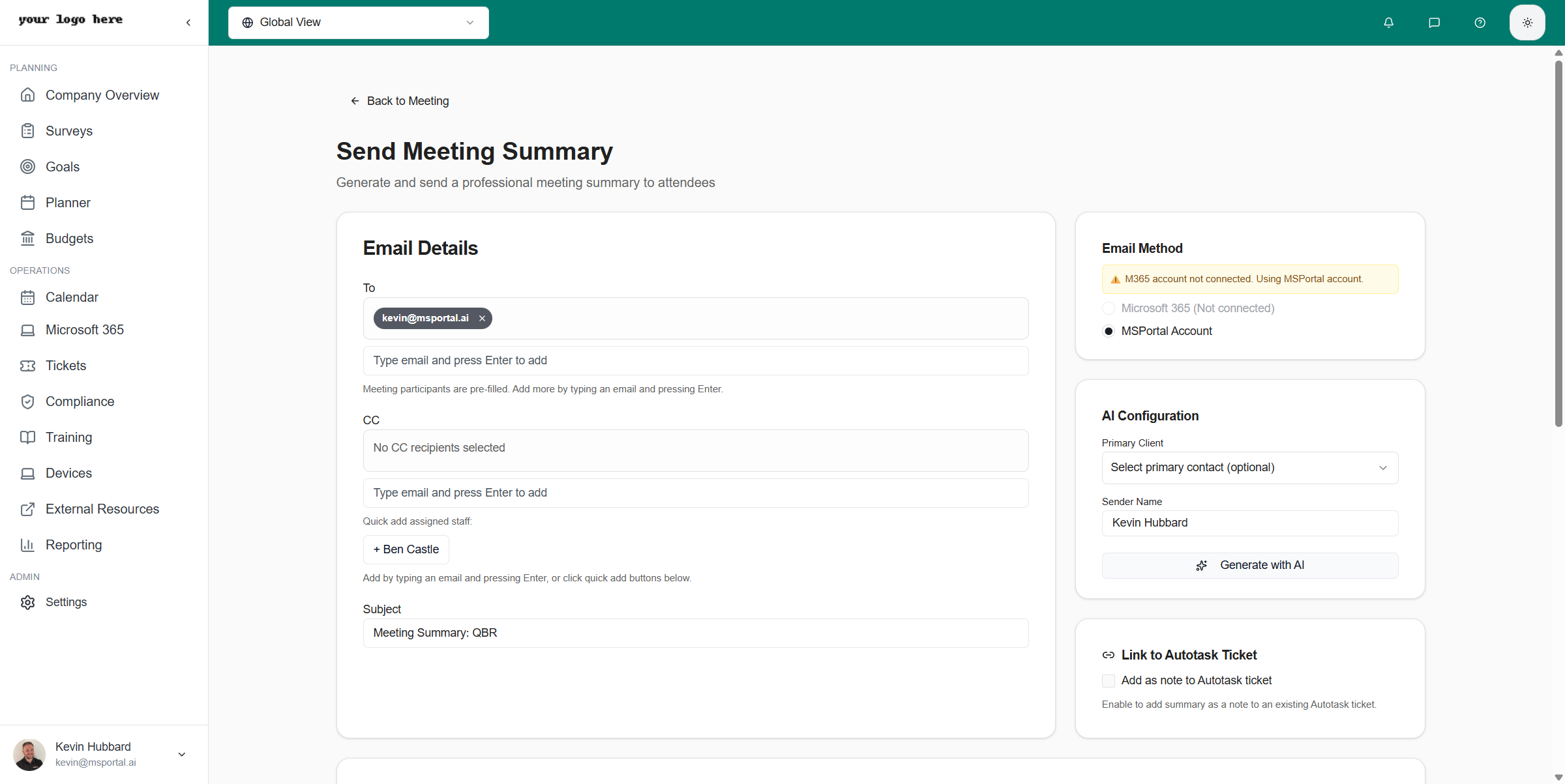 The generated summary includes:
* **Professional greeting** addressed to the attendee
* **Meeting overview** summarizing what was discussed
* **Key discussion points** with specific details from your agenda
* **Action items and next steps** for follow-up
* **Closing** with contact information
### Email Content Editor
The summary appears in a rich text editor where you can:
* Edit any part of the generated text
* Add additional information
* Remove sections that aren't relevant
* Format text with bold, italic, lists, etc.
* Insert links or images
Always review the AI-generated content before sending. While the AI does an excellent job summarizing, you may want to add personal touches or correct any specific details.
## PSA Integration
The generated summary includes:
* **Professional greeting** addressed to the attendee
* **Meeting overview** summarizing what was discussed
* **Key discussion points** with specific details from your agenda
* **Action items and next steps** for follow-up
* **Closing** with contact information
### Email Content Editor
The summary appears in a rich text editor where you can:
* Edit any part of the generated text
* Add additional information
* Remove sections that aren't relevant
* Format text with bold, italic, lists, etc.
* Insert links or images
Always review the AI-generated content before sending. While the AI does an excellent job summarizing, you may want to add personal touches or correct any specific details.
## PSA Integration
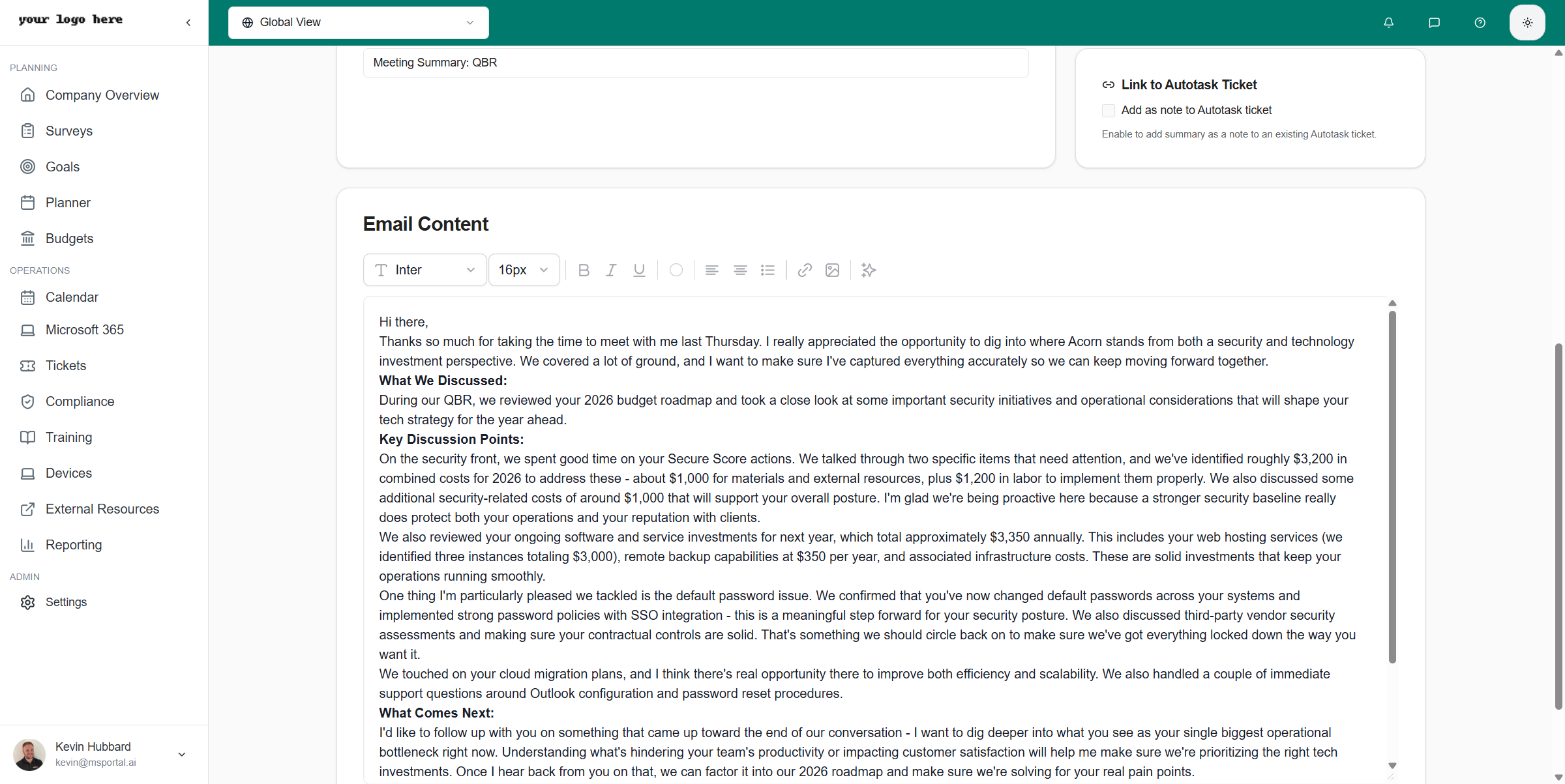 ### Link to PSA Ticket
If you have a PSA integration connected (ConnectWise, Autotask, or Halo PSA), you can save the meeting summary directly to a ticket:
1. Check **Add as note to \[PSA] ticket** (the label matches your connected PSA)
2. Select or search for the relevant ticket
3. When you send the summary, it's automatically added as a note to that ticket
This creates a permanent record of client communications in your PSA system, making it easy to track the history of client interactions.
## Sending the Summary
Once you're satisfied with the summary:
1. Review all recipients in the **To** field
2. Verify the subject line is appropriate
3. Make any final edits to the content
4. Click **Send** to deliver the summary
## Best Practices
The AI uses your meeting notes to generate more accurate and detailed summaries. Take notes throughout the meeting for the best results.
The more agenda items you include, the more context the AI has to work with. Planner items, budgets, and compliance checks all contribute to richer summaries.
Always read through the generated summary. Check for accuracy, appropriate tone, and completeness before sending to clients.
Link summaries to PSA tickets to maintain a complete record of client communications. This helps with continuity when team members change or when reviewing account history.
Send summaries within 24 hours of the meeting while the discussion is still fresh. Prompt follow-up demonstrates professionalism and attention to detail.
## Summary Templates
The AI adapts its output based on meeting type:
| Meeting Type | Summary Focus |
| -------------- | ------------------------------------------------------------------------------------ |
| **QBR** | Comprehensive review of the quarter, metrics, achievements, and upcoming initiatives |
| **Strategy** | Key decisions, roadmap items, and strategic priorities |
| **Check-in** | Status updates, quick wins, and immediate action items |
| **Onboarding** | Setup progress, training completed, and next steps |
## Related Features
Learn how to capture meeting notes and build agendas
Configure PSA integrations for seamless workflows
### Link to PSA Ticket
If you have a PSA integration connected (ConnectWise, Autotask, or Halo PSA), you can save the meeting summary directly to a ticket:
1. Check **Add as note to \[PSA] ticket** (the label matches your connected PSA)
2. Select or search for the relevant ticket
3. When you send the summary, it's automatically added as a note to that ticket
This creates a permanent record of client communications in your PSA system, making it easy to track the history of client interactions.
## Sending the Summary
Once you're satisfied with the summary:
1. Review all recipients in the **To** field
2. Verify the subject line is appropriate
3. Make any final edits to the content
4. Click **Send** to deliver the summary
## Best Practices
The AI uses your meeting notes to generate more accurate and detailed summaries. Take notes throughout the meeting for the best results.
The more agenda items you include, the more context the AI has to work with. Planner items, budgets, and compliance checks all contribute to richer summaries.
Always read through the generated summary. Check for accuracy, appropriate tone, and completeness before sending to clients.
Link summaries to PSA tickets to maintain a complete record of client communications. This helps with continuity when team members change or when reviewing account history.
Send summaries within 24 hours of the meeting while the discussion is still fresh. Prompt follow-up demonstrates professionalism and attention to detail.
## Summary Templates
The AI adapts its output based on meeting type:
| Meeting Type | Summary Focus |
| -------------- | ------------------------------------------------------------------------------------ |
| **QBR** | Comprehensive review of the quarter, metrics, achievements, and upcoming initiatives |
| **Strategy** | Key decisions, roadmap items, and strategic priorities |
| **Check-in** | Status updates, quick wins, and immediate action items |
| **Onboarding** | Setup progress, training completed, and next steps |
## Related Features
Learn how to capture meeting notes and build agendas
Configure PSA integrations for seamless workflows