> ## Documentation Index
> Fetch the complete documentation index at: https://docs.msportal.ai/llms.txt
> Use this file to discover all available pages before exploring further.
# Meeting Pages
> Manage meeting details, attendees, notes, and build agendas for client meetings
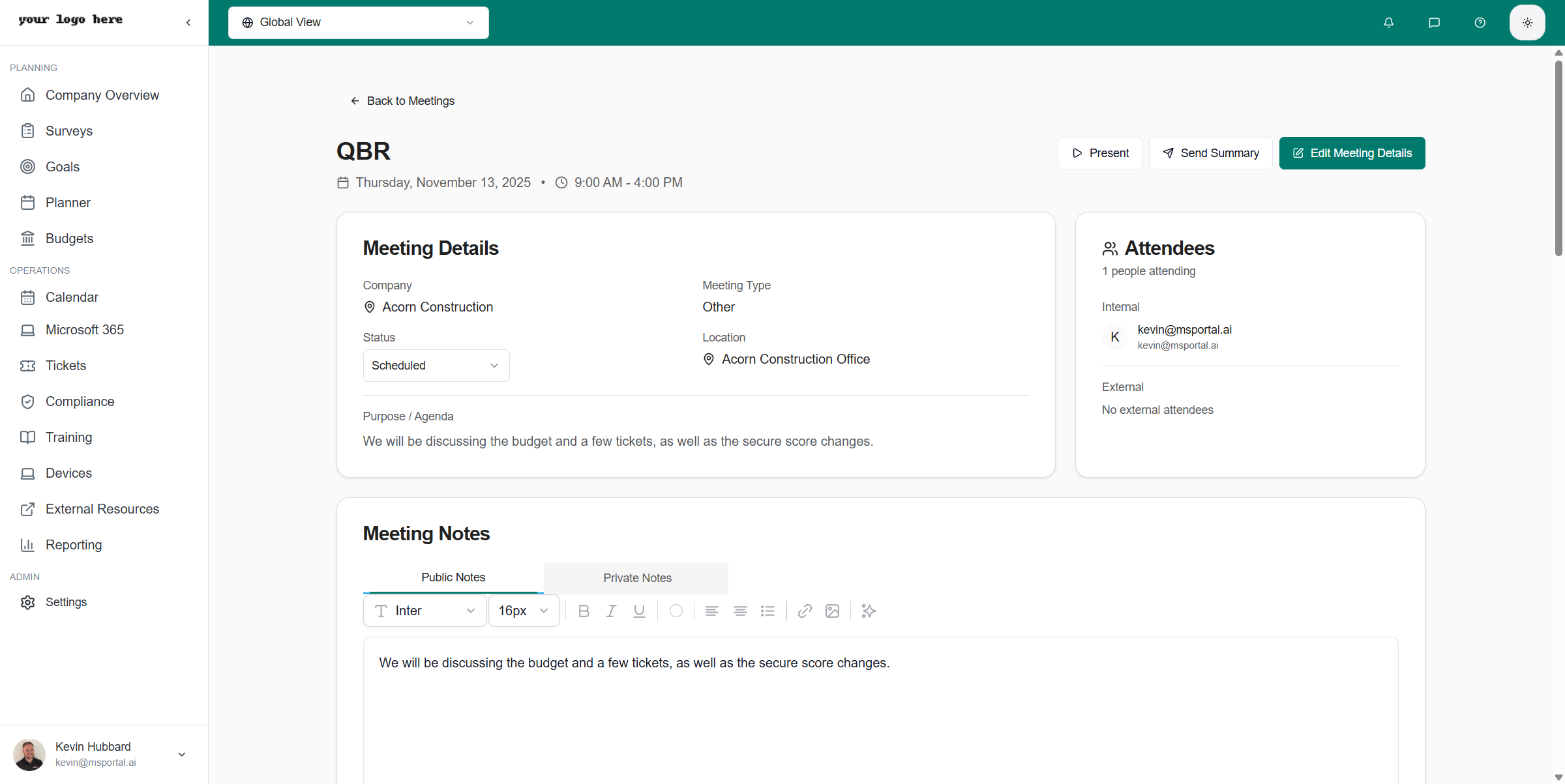
Each meeting in MSPortal has a dedicated page where you can manage all aspects of the meeting, from basic details to comprehensive agendas with data from across the platform.
 ## Meeting Page Sections
### Meeting Details
The left panel displays core meeting information:
* **Company** - The client company associated with this meeting
* **Meeting Type** - QBR, Strategy Session, Check-in, etc.
* **Status** - Scheduled, In Progress, Completed, or Cancelled
* **Location** - Physical address or video conferencing link
* **Purpose/Agenda** - High-level description of what the meeting covers
### Attendees
The attendees section shows everyone invited to the meeting:
* View the list of participants with their contact information
* Add or remove attendees as needed
* See who has confirmed attendance
* Access attendee email addresses for quick communication
### Meeting Notes
A rich text editor for capturing meeting notes:
* Format text with bold, italic, lists, and headings
* Add notes before, during, or after the meeting
* Notes are automatically saved
* Perfect for capturing action items and key discussion points
## Building an Agenda
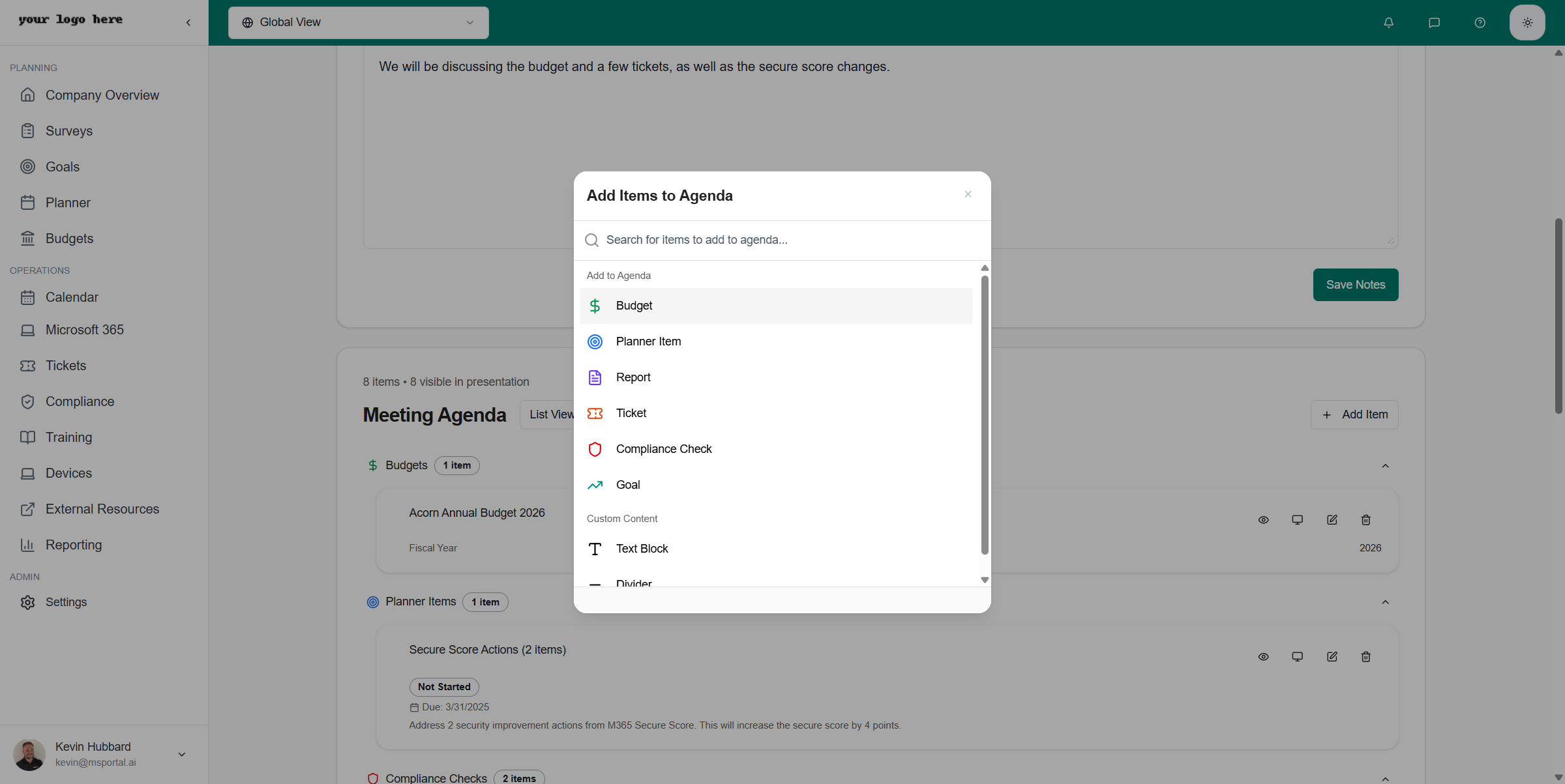
The agenda is the heart of your meeting preparation. Click **Add Item** to add content from across MSPortal to your meeting agenda.
## Meeting Page Sections
### Meeting Details
The left panel displays core meeting information:
* **Company** - The client company associated with this meeting
* **Meeting Type** - QBR, Strategy Session, Check-in, etc.
* **Status** - Scheduled, In Progress, Completed, or Cancelled
* **Location** - Physical address or video conferencing link
* **Purpose/Agenda** - High-level description of what the meeting covers
### Attendees
The attendees section shows everyone invited to the meeting:
* View the list of participants with their contact information
* Add or remove attendees as needed
* See who has confirmed attendance
* Access attendee email addresses for quick communication
### Meeting Notes
A rich text editor for capturing meeting notes:
* Format text with bold, italic, lists, and headings
* Add notes before, during, or after the meeting
* Notes are automatically saved
* Perfect for capturing action items and key discussion points
## Building an Agenda
The agenda is the heart of your meeting preparation. Click **Add Item** to add content from across MSPortal to your meeting agenda.
 ### Available Agenda Item Types
| Item Type | Description |
| -------------------- | --------------------------------------------------------------- |
| **Budget** | Add budget items to discuss financial planning with clients |
| **Planner Item** | Include tasks and projects from the Planner module |
| **Report** | Embed reports showing metrics, compliance status, or other data |
| **Ticket** | Reference support tickets for discussion |
| **Compliance Check** | Show compliance status and security findings |
| **Goal** | Display company goals and progress tracking |
| **Text Block** | Add custom text sections for talking points |
| **Divider** | Organize sections with visual separators |
### Adding Items to the Agenda
1. Click the **Add Item** button
2. Select the item type you want to add
3. Choose the specific item (e.g., which budget, which planner task)
4. The item is added to your agenda
Build your agenda before the meeting to ensure you have all relevant data ready to present. Items pull live data from MSPortal, so information is always current.
### Organizing the Agenda
* **Drag and drop** items to reorder them
* Use **Dividers** to create logical sections
* Add **Text Blocks** for transitions or discussion prompts
* Remove items by clicking the delete icon
## Meeting Actions
The meeting page header provides quick actions:
| Button | Action |
| ---------------- | --------------------------------------------------- |
| **Present** | Launch presentation mode to walk through the agenda |
| **Send Summary** | Generate and send an AI-powered meeting summary |
| **Edit** | Modify meeting details |
| **Delete** | Remove the meeting |
## Best Practices
Build your agenda at least a day before the meeting. This gives you time to review the content and ensure all data is accurate.
Include items that are meaningful to the client. For QBRs, focus on compliance status, completed projects, and upcoming initiatives.
Use the Meeting Notes section to capture key points, decisions, and action items as they come up.
Use dividers and text blocks to create a clear flow. Common sections include: Review, Current Status, Upcoming Work, Q\&A.
## Next Steps
Learn how to present your agenda to clients
Send professional follow-up emails after meetings
### Available Agenda Item Types
| Item Type | Description |
| -------------------- | --------------------------------------------------------------- |
| **Budget** | Add budget items to discuss financial planning with clients |
| **Planner Item** | Include tasks and projects from the Planner module |
| **Report** | Embed reports showing metrics, compliance status, or other data |
| **Ticket** | Reference support tickets for discussion |
| **Compliance Check** | Show compliance status and security findings |
| **Goal** | Display company goals and progress tracking |
| **Text Block** | Add custom text sections for talking points |
| **Divider** | Organize sections with visual separators |
### Adding Items to the Agenda
1. Click the **Add Item** button
2. Select the item type you want to add
3. Choose the specific item (e.g., which budget, which planner task)
4. The item is added to your agenda
Build your agenda before the meeting to ensure you have all relevant data ready to present. Items pull live data from MSPortal, so information is always current.
### Organizing the Agenda
* **Drag and drop** items to reorder them
* Use **Dividers** to create logical sections
* Add **Text Blocks** for transitions or discussion prompts
* Remove items by clicking the delete icon
## Meeting Actions
The meeting page header provides quick actions:
| Button | Action |
| ---------------- | --------------------------------------------------- |
| **Present** | Launch presentation mode to walk through the agenda |
| **Send Summary** | Generate and send an AI-powered meeting summary |
| **Edit** | Modify meeting details |
| **Delete** | Remove the meeting |
## Best Practices
Build your agenda at least a day before the meeting. This gives you time to review the content and ensure all data is accurate.
Include items that are meaningful to the client. For QBRs, focus on compliance status, completed projects, and upcoming initiatives.
Use the Meeting Notes section to capture key points, decisions, and action items as they come up.
Use dividers and text blocks to create a clear flow. Common sections include: Review, Current Status, Upcoming Work, Q\&A.
## Next Steps
Learn how to present your agenda to clients
Send professional follow-up emails after meetings