> ## Documentation Index
> Fetch the complete documentation index at: https://docs.msportal.ai/llms.txt
> Use this file to discover all available pages before exploring further.
# Presenting Meetings
> Present meeting agendas professionally with a built-in presentation mode
MSPortal's presentation mode transforms your meeting agenda into a professional slide deck, perfect for QBRs and client-facing meetings.
## Starting a Presentation
From any meeting page, click the **Present** button in the header to launch presentation mode.
## Presentation Overview
When you enter presentation mode, you'll first see an overview of all agenda items:
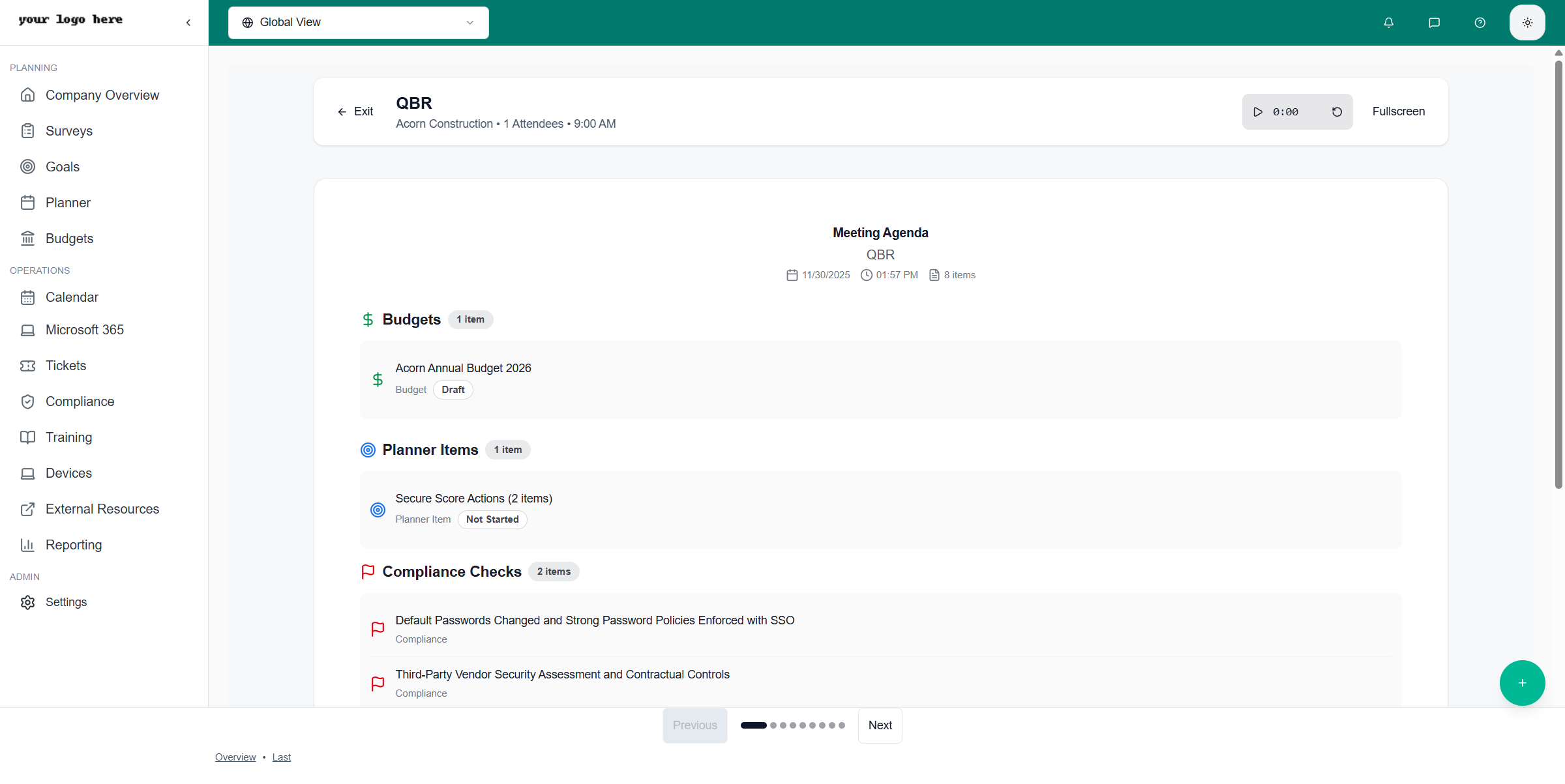 The overview displays:
* **All agenda items** organized by type
* **Quick navigation** - click any item to jump directly to it
* **Item counts** showing how many items of each type are included
This overview helps you see the full meeting structure at a glance and navigate to specific sections as needed.
## Presenting Individual Items
Click **Next** or select an item from the overview to view it in detail:
The overview displays:
* **All agenda items** organized by type
* **Quick navigation** - click any item to jump directly to it
* **Item counts** showing how many items of each type are included
This overview helps you see the full meeting structure at a glance and navigate to specific sections as needed.
## Presenting Individual Items
Click **Next** or select an item from the overview to view it in detail:
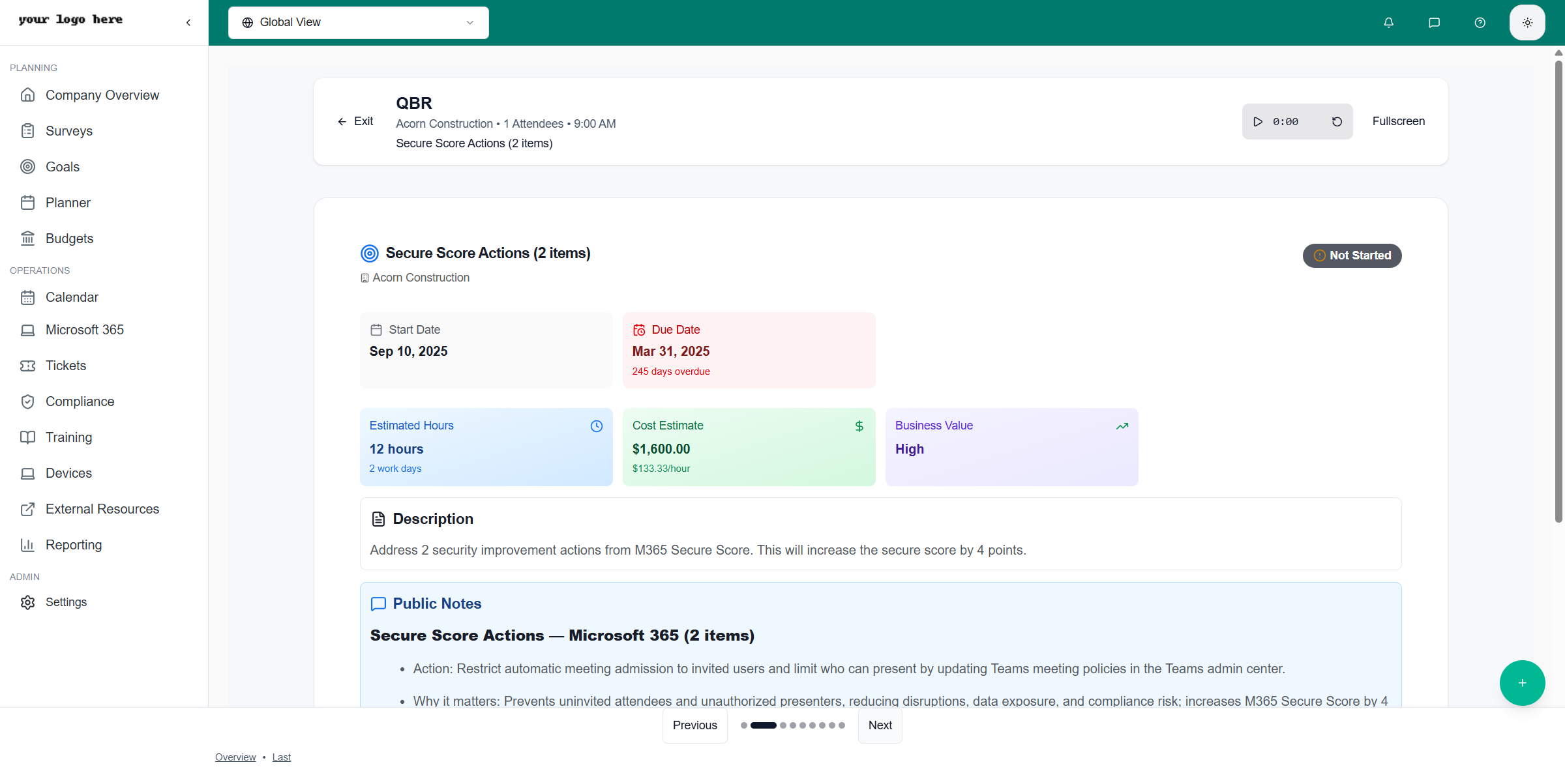 Each item is displayed as a full-screen slide with all relevant details. For example, a Planner Item shows:
* **Title** - The task or project name
* **Start Date** and **Due Date** - Timeline information
* **Estimated Hours** - Time investment required
* **Cost Estimate** - Budget implications
* **Business Value** - Why this work matters
* **Description** - Full details about the item
* **Public Notes** - Additional context for the client
## Navigation Controls
The presentation interface includes intuitive navigation:
| Control | Action |
| ------------ | ------------------------------------------------------ |
| **Next** | Move to the next slide |
| **Previous** | Go back to the previous slide |
| **Overview** | Return to the full agenda overview |
| **Exit** | Leave presentation mode and return to the meeting page |
Use keyboard shortcuts for smoother presentations: Arrow keys navigate between slides, and Escape exits presentation mode.
## What Gets Presented
Different agenda item types display different information:
### Budgets
* Budget name and total amount
* Line items with costs
* Approval status
### Planner Items
* Task details and timeline
* Cost estimates and business value
* Description and notes
### Compliance Checks
* Compliance framework and status
* Findings and recommendations
* Risk levels
### Reports
* Embedded report visualizations
* Key metrics and charts
* Data summaries
### Goals
* Goal name and target
* Current progress
* Related milestones
### Tickets
* Ticket summary and status
* Resolution details
* Time spent
## Presentation Best Practices
Run through the presentation before your meeting to ensure all data displays correctly and the flow makes sense.
Start with the overview to set expectations, then dive into individual items. Return to it when transitioning between sections.
Presentation data is pulled live from MSPortal. Review shortly before the meeting to ensure you're showing the latest information.
For virtual meetings, share your screen before entering presentation mode. The full-screen format is optimized for screen sharing.
## After the Presentation
When you're done presenting:
1. Click **Exit** to return to the meeting page
2. Update **Meeting Notes** with any discussion points or action items
3. Use **Send Summary** to generate and email a meeting recap
## Next Steps
Generate AI-powered meeting summaries to send to clients
Learn more about managing meeting details and agendas
Each item is displayed as a full-screen slide with all relevant details. For example, a Planner Item shows:
* **Title** - The task or project name
* **Start Date** and **Due Date** - Timeline information
* **Estimated Hours** - Time investment required
* **Cost Estimate** - Budget implications
* **Business Value** - Why this work matters
* **Description** - Full details about the item
* **Public Notes** - Additional context for the client
## Navigation Controls
The presentation interface includes intuitive navigation:
| Control | Action |
| ------------ | ------------------------------------------------------ |
| **Next** | Move to the next slide |
| **Previous** | Go back to the previous slide |
| **Overview** | Return to the full agenda overview |
| **Exit** | Leave presentation mode and return to the meeting page |
Use keyboard shortcuts for smoother presentations: Arrow keys navigate between slides, and Escape exits presentation mode.
## What Gets Presented
Different agenda item types display different information:
### Budgets
* Budget name and total amount
* Line items with costs
* Approval status
### Planner Items
* Task details and timeline
* Cost estimates and business value
* Description and notes
### Compliance Checks
* Compliance framework and status
* Findings and recommendations
* Risk levels
### Reports
* Embedded report visualizations
* Key metrics and charts
* Data summaries
### Goals
* Goal name and target
* Current progress
* Related milestones
### Tickets
* Ticket summary and status
* Resolution details
* Time spent
## Presentation Best Practices
Run through the presentation before your meeting to ensure all data displays correctly and the flow makes sense.
Start with the overview to set expectations, then dive into individual items. Return to it when transitioning between sections.
Presentation data is pulled live from MSPortal. Review shortly before the meeting to ensure you're showing the latest information.
For virtual meetings, share your screen before entering presentation mode. The full-screen format is optimized for screen sharing.
## After the Presentation
When you're done presenting:
1. Click **Exit** to return to the meeting page
2. Update **Meeting Notes** with any discussion points or action items
3. Use **Send Summary** to generate and email a meeting recap
## Next Steps
Generate AI-powered meeting summaries to send to clients
Learn more about managing meeting details and agendas