> ## Documentation Index
> Fetch the complete documentation index at: https://docs.msportal.ai/llms.txt
> Use this file to discover all available pages before exploring further.
# Find and read account notes
> Search company account history, read QBR decisions and commitments, and distinguish portal notes from Autotask records.
**Audience:** MSP staff with access to the company's notes. Account Notes and the QBR Log are internal; Company users should use shared meeting information and [meeting summaries](/user-guides/calendar/understand-meeting-summary).
## Open the right history
| Starting point | What to do |
| --------------------------------------- | ------------------------------------------------------------------------------------------------------------------------------------------------- |
| **Settings > Companies** | Open the company, then explicitly select **Notes**. This includes account notes, QBR entries and synchronized Autotask notes. |
| A company-linked meeting | Choose **QBR Log**. It shows the company's QBR entries, with this meeting's entry first when it is in the loaded results and matches the filters. |
| Company overview **Account Notes** card | Use **View all**, then select **Notes** in company settings. A row linked to a meeting opens that meeting instead. |
A company link containing the Notes bookmark can still open **Overview**. Select the visible **Notes** tab to reach account history.
The overview card shows a short recent preview. Its heading count describes notes, and an open-commitment count belongs to the individual QBR row. It is not a total of every open commitment across the company.
## Search and filter
When entries exist, use **Search account notes** to match title, author, note type, note text, discussed topics, decisions, commitment descriptions or owners. Search applies to the entries already loaded for this company.
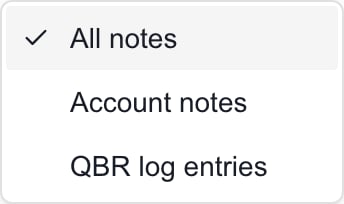 * **Filter by kind:** choose **All notes**, **Account notes** or **QBR log entries** in the company Notes tab. The meeting's QBR Log is already restricted to QBR entries.
* **Filter by note type:** choose an available type label. It can be disabled when the loaded entries have no type labels.
* **Sort account notes:** choose **Newest first** or **Oldest first**. Sorting uses the note's date; the current meeting's matching entry remains pinned first.
* **Clear:** removes search, kind and type filters. It keeps your chosen date sort. **Clear search** removes only the search text.
The **Showing** count describes the filtered and loaded entries. The full panel loads up to 500 recent entries, and searching or choosing Oldest first does not fetch older history beyond that loaded set. There is no next-page or export control in this panel.
## Read an entry
Account notes show a title, date, body and available author details. Long bodies have **Show full note** and **Show less**; these change the display without editing the note.
QBR entries group information under **Discussed**, **Agreed** and **Actioned**. A commitment may have an owner and due date; **Done** marks its completion. The open count on the entry applies to that entry alone. Owner text is not proof of a portal assignment or notification.
Clicking **Done** on a portal QBR entry saves a change immediately. It is not a read-only filter. The QBR tick does not automatically update a separate meeting action item's status or an Autotask copy.
**This meeting** identifies the current meeting's entry. **Open meeting** takes you to a linked meeting when you are reading from another location. An entry created directly in company settings can be unlinked and have no Open meeting action.
## Understand origin and sync labels
| Label or control | Meaning |
| ------------------------ | ------------------------------------------------------------------------------------------------------------------------------------------- |
| **From Autotask** | A synchronized source note. It has no portal Edit or Delete controls; correct it in the source system through the appropriate MSP workflow. |
| **AI generated** | The entry originated from AI generation. The label alone does not prove its contents were reviewed or that it has never been edited. |
| **Synced to Autotask** | A portal note has a recorded successful sync. Later portal edits or commitment ticks do not necessarily update that copy. |
| **Autotask sync failed** | Check the sync error and retry separately from saving the portal note. |
| **Edit** / **Delete** | Actions for portal-authored records, subject to your permissions. Delete needs stronger management access than ordinary editing. |
Portal-authored notes do not require Autotask. Imported notes and optional writeback depend on the company's integration mapping. See [create and update notes](/user-guides/calendar/write-account-notes) for explicit save and sync steps.
## Frequently asked questions
Open Settings > Companies, select the company and choose Notes. If a link opens Overview, select Notes explicitly.
These are MSP staff views. Company users can read shared meeting information or a summary provided by their MSP.
No. It shows QBR entries for the company. This meeting's entry is pinned first when present in the loaded, filtered results.
The Notes bookmark can open Overview. Select the Notes tab after the company page opens.
No. Its heading counts notes, while a displayed QBR row's open count belongs to that entry. It is a short preview, not a company-wide commitment total.
Titles, authors, note types, body text, discussed topics, decisions, commitment descriptions and owners in the loaded entries.
No. The panel loads up to 500 recent entries. Filtering and sorting operate on that set without fetching older pages.
The current panel offers Newest first and Oldest first. Use search for authors and the note type filter for available types.
No. It clears search, kind and type filters while keeping the chosen date sort.
The loaded entries may not have note type labels. Portal notes can exist without an Autotask type.
No. It expands the displayed body. Show less collapses it again.
Yes, for an editable portal QBR commitment. It changes the log entry, not a separate meeting action item's status or the Autotask copy.
No. Imported source notes have no portal Edit or Delete controls. Use the appropriate source-system workflow.
No. A previous sync can remain recorded after local edits. Deliberately update the Autotask copy when saving if it needs the changes.
## Related guides
* [Create and update account notes](/user-guides/calendar/write-account-notes)
* [Account Notes and QBR Log](/user-guides/calendar/account-notes)
* [Read a meeting workspace](/user-guides/calendar/read-meeting-workspace)
* **Filter by kind:** choose **All notes**, **Account notes** or **QBR log entries** in the company Notes tab. The meeting's QBR Log is already restricted to QBR entries.
* **Filter by note type:** choose an available type label. It can be disabled when the loaded entries have no type labels.
* **Sort account notes:** choose **Newest first** or **Oldest first**. Sorting uses the note's date; the current meeting's matching entry remains pinned first.
* **Clear:** removes search, kind and type filters. It keeps your chosen date sort. **Clear search** removes only the search text.
The **Showing** count describes the filtered and loaded entries. The full panel loads up to 500 recent entries, and searching or choosing Oldest first does not fetch older history beyond that loaded set. There is no next-page or export control in this panel.
## Read an entry
Account notes show a title, date, body and available author details. Long bodies have **Show full note** and **Show less**; these change the display without editing the note.
QBR entries group information under **Discussed**, **Agreed** and **Actioned**. A commitment may have an owner and due date; **Done** marks its completion. The open count on the entry applies to that entry alone. Owner text is not proof of a portal assignment or notification.
Clicking **Done** on a portal QBR entry saves a change immediately. It is not a read-only filter. The QBR tick does not automatically update a separate meeting action item's status or an Autotask copy.
**This meeting** identifies the current meeting's entry. **Open meeting** takes you to a linked meeting when you are reading from another location. An entry created directly in company settings can be unlinked and have no Open meeting action.
## Understand origin and sync labels
| Label or control | Meaning |
| ------------------------ | ------------------------------------------------------------------------------------------------------------------------------------------- |
| **From Autotask** | A synchronized source note. It has no portal Edit or Delete controls; correct it in the source system through the appropriate MSP workflow. |
| **AI generated** | The entry originated from AI generation. The label alone does not prove its contents were reviewed or that it has never been edited. |
| **Synced to Autotask** | A portal note has a recorded successful sync. Later portal edits or commitment ticks do not necessarily update that copy. |
| **Autotask sync failed** | Check the sync error and retry separately from saving the portal note. |
| **Edit** / **Delete** | Actions for portal-authored records, subject to your permissions. Delete needs stronger management access than ordinary editing. |
Portal-authored notes do not require Autotask. Imported notes and optional writeback depend on the company's integration mapping. See [create and update notes](/user-guides/calendar/write-account-notes) for explicit save and sync steps.
## Frequently asked questions
Open Settings > Companies, select the company and choose Notes. If a link opens Overview, select Notes explicitly.
These are MSP staff views. Company users can read shared meeting information or a summary provided by their MSP.
No. It shows QBR entries for the company. This meeting's entry is pinned first when present in the loaded, filtered results.
The Notes bookmark can open Overview. Select the Notes tab after the company page opens.
No. Its heading counts notes, while a displayed QBR row's open count belongs to that entry. It is a short preview, not a company-wide commitment total.
Titles, authors, note types, body text, discussed topics, decisions, commitment descriptions and owners in the loaded entries.
No. The panel loads up to 500 recent entries. Filtering and sorting operate on that set without fetching older pages.
The current panel offers Newest first and Oldest first. Use search for authors and the note type filter for available types.
No. It clears search, kind and type filters while keeping the chosen date sort.
The loaded entries may not have note type labels. Portal notes can exist without an Autotask type.
No. It expands the displayed body. Show less collapses it again.
Yes, for an editable portal QBR commitment. It changes the log entry, not a separate meeting action item's status or the Autotask copy.
No. Imported source notes have no portal Edit or Delete controls. Use the appropriate source-system workflow.
No. A previous sync can remain recorded after local edits. Deliberately update the Autotask copy when saving if it needs the changes.
## Related guides
* [Create and update account notes](/user-guides/calendar/write-account-notes)
* [Account Notes and QBR Log](/user-guides/calendar/account-notes)
* [Read a meeting workspace](/user-guides/calendar/read-meeting-workspace)