> ## Documentation Index
> Fetch the complete documentation index at: https://docs.msportal.ai/llms.txt
> Use this file to discover all available pages before exploring further.
# Understand Calendar freeze windows
> Recognize restricted change periods, show freeze overlays and ask your MSP about scheduling conflicts.
**Audience:** Company users and MSP staff with Calendar and Changes-layer access. Your MSP manages freeze-window definitions; Company users do not create or edit them in Calendar settings.
A **freeze window** marks a period when your organization wants to restrict changes, such as a busy trading period or a planned reporting close. MSPortal can show the window in Calendar and flag overlapping changes. A warning does not itself cancel an event, block every booking or grant an exception to your organization's process.
## Find a freeze window
1. Open **Calendar** and check the company scope and displayed date range.
2. Open the layers menu and keep **Changes** enabled. In the Day, Week or Month grid, also turn on **Calendar Blocks** to show the freeze overlay.
3. Look for the named freeze period. Check the Calendar time zone and the dates involved; a recurring freeze can appear more than once.
4. Review the related scheduled change or appointment if you have access. A conflict warning can say **This event overlaps a freeze window.**
5. Ask your MSP to confirm whether work should move or requires an approved exception. Include the company/site, freeze name, planned work and relevant date/time.
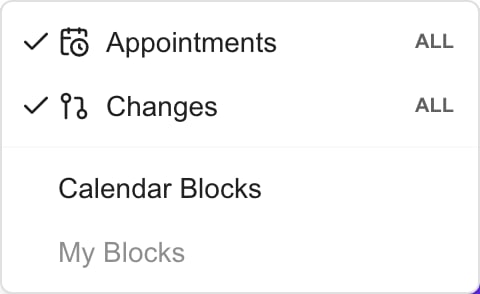 **Mine**, **Site** or **All** beside a layer reflects assigned access; it is not a menu for granting yourself broader permissions. A missing Changes layer can mean your role does not have access.
## Understand scope and recurrence
An MSP can configure a freeze for the whole MSP tenant, a company, or a specific site. Do not assume a similarly named freeze applies to every company or site. Ask your MSP to confirm the intended scope if the calendar label is unclear.
A window can occur once or repeat daily, weekly, monthly or annually. The visible calendar range is not a complete history of every recurrence. An inactive, expired or out-of-range freeze may not appear.
## Handle a conflict
Check the actual event and freeze times before requesting a change. The presence of an overlap warning is information for your scheduling process; it does not tell you that a provider event was cancelled, that an approval was granted or that all other events have been checked.
Do not hide the layer as a way to resolve the conflict. Turning layers off only changes your view. Your MSP must edit the relevant freeze or reschedule the work through its normal process.
## Frequently asked questions
It identifies a restricted change period set by your MSP. Calendar can show the period and warn about overlapping scheduled changes.
No. Ask your MSP to manage them under Settings, Calendar, Freeze Windows. Company users can read available Calendar information and discuss scheduling conflicts.
Check the company scope, date range and access. Enable Changes and Calendar Blocks for the freeze overlay. The window must also be active and have an occurrence in that range.
No. Treat it as a scheduling warning and follow your organization's approval process. Do not assume every meeting or provider event is blocked automatically.
No. It only hides information from your view. The saved freeze remains until an authorized MSP user changes it.
Provide the company and site, freeze name, planned work and relevant dates/times. Ask whether to reschedule or follow an exception process.
No. Check the visible date range, applicable company/site and your organization's process. Missing warnings are not approval or proof that every event was checked.
Your MSP may have configured daily, weekly, monthly or annual recurrence. Confirm the relevant occurrence and time zone before scheduling work.
Do not infer that from the view alone. Freeze scope can be tenant-wide, company-wide or site-specific; ask your MSP to confirm applicability when unclear.
## Related guides
* [Find Calendar events](/user-guides/calendar/find-calendar-events)
* [Filter Calendar layers](/user-guides/calendar/filter-calendar-events)
* [MSP: manage freeze windows](/user-guides/calendar/manage-freeze-windows)
**Mine**, **Site** or **All** beside a layer reflects assigned access; it is not a menu for granting yourself broader permissions. A missing Changes layer can mean your role does not have access.
## Understand scope and recurrence
An MSP can configure a freeze for the whole MSP tenant, a company, or a specific site. Do not assume a similarly named freeze applies to every company or site. Ask your MSP to confirm the intended scope if the calendar label is unclear.
A window can occur once or repeat daily, weekly, monthly or annually. The visible calendar range is not a complete history of every recurrence. An inactive, expired or out-of-range freeze may not appear.
## Handle a conflict
Check the actual event and freeze times before requesting a change. The presence of an overlap warning is information for your scheduling process; it does not tell you that a provider event was cancelled, that an approval was granted or that all other events have been checked.
Do not hide the layer as a way to resolve the conflict. Turning layers off only changes your view. Your MSP must edit the relevant freeze or reschedule the work through its normal process.
## Frequently asked questions
It identifies a restricted change period set by your MSP. Calendar can show the period and warn about overlapping scheduled changes.
No. Ask your MSP to manage them under Settings, Calendar, Freeze Windows. Company users can read available Calendar information and discuss scheduling conflicts.
Check the company scope, date range and access. Enable Changes and Calendar Blocks for the freeze overlay. The window must also be active and have an occurrence in that range.
No. Treat it as a scheduling warning and follow your organization's approval process. Do not assume every meeting or provider event is blocked automatically.
No. It only hides information from your view. The saved freeze remains until an authorized MSP user changes it.
Provide the company and site, freeze name, planned work and relevant dates/times. Ask whether to reschedule or follow an exception process.
No. Check the visible date range, applicable company/site and your organization's process. Missing warnings are not approval or proof that every event was checked.
Your MSP may have configured daily, weekly, monthly or annual recurrence. Confirm the relevant occurrence and time zone before scheduling work.
Do not infer that from the view alone. Freeze scope can be tenant-wide, company-wide or site-specific; ask your MSP to confirm applicability when unclear.
## Related guides
* [Find Calendar events](/user-guides/calendar/find-calendar-events)
* [Filter Calendar layers](/user-guides/calendar/filter-calendar-events)
* [MSP: manage freeze windows](/user-guides/calendar/manage-freeze-windows)