> ## Documentation Index
> Fetch the complete documentation index at: https://docs.msportal.ai/llms.txt
> Use this file to discover all available pages before exploring further.
# Find and export domains
> Filter the domain inventory and download the currently loaded page with its defined CSV fields.
Use column filters on **Cloud > Domains** to find accessible domain records, then **Export CSV** to download the currently loaded filtered page.
**Audience:** Company users with Microsoft 365 read access and MSP staff. Export uses read access; it does not require domain-management permission.
## Find a domain
1. Confirm the top-bar company scope.
2. Enter the domain name or part of it in the **Domain** column filter. Matching ignores letter case and surrounding spaces.
3. Choose **Provider** or **Company** where those columns appear. Click the checkbox beside the required option.
4. Choose **Verification** or **Authentication**, or show **Primary** and **Cloud presence** through Columns and use their filters.
5. Wait for the result count and rows to update. Filters search across list pages and return the list to page 1. Use Previous and Next to read further pages of up to 50 rows.
Domain searches the stored domain name. It does not search company names, email addresses or aliases. Multiple selected providers or authentication types are alternatives; different active fields must all match.
For multi-select filters such as Provider, if clicking an option name leaves the filter at All, click its checkbox instead and confirm the selection before continuing.
## Find unverified records
Open **Verification** and choose **Unverified**. All clears that field; Verified selects records with a true verification flag.
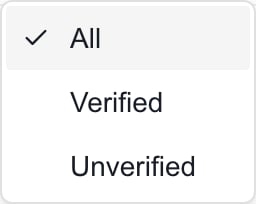 There is no separate Unknown option in the current table. Review Provider before interpreting the result. A missing verification value is grouped with Unverified; it is not proof of a failed provider check.
**Clear Filters** removes table filters, including a provider supplied by an entry URL. It keeps the top-bar company scope and your access limits. Reopening an entry link can restore the provider specified by that link.
Services, Expires, Auto-renew, Registrar status, Aliases, Created and Last synced have no dedicated column filters on this page. Column sorting is not offered. Export the relevant pages if you need to sort recorded expiry dates in a spreadsheet.
## Export the loaded page
1. Confirm the company, provider and other filters.
2. Navigate to the list page you need and wait for it to load.
3. Click **Export CSV** above the table.
4. Open the downloaded CSV and verify the rows before using it for a review.
5. For more than 50 matching records, repeat on each required page. This export does not fetch unopened pages automatically.
The CSV contains **Domain**, **Provider**, **Company**, **Primary**, **Verification**, **Cloud presence**, **Expires**, **Auto-renew**, **Registrar status**, **Services**, **Authentication**, **Aliases**, and **Last synced**. Fields are defined independently of column visibility. Services and aliases use semicolon-separated values. **Created** is not included.
Missing values can be blank, while the Verification export uses the same Unverified fallback as the table. The file is synchronized inventory, not a live provider or DNS audit. If no rows match, broaden filters before exporting. Check browser downloads if a file is not obvious.
Summary cards are company/provider totals, while this export uses the currently loaded filtered rows; their counts can differ.
## FAQs
No. It exports the currently loaded filtered page, up to 50 records. Open and export each required page separately.
No. Microsoft 365 read access permits export of the domain data you can access.
No. The export has defined fields independent of column visibility. Created is omitted, while fields such as Auto-renew and Registrar status are included.
No. Domain searches the stored domain name. Use the Company filter or top-bar company selector for company scope; aliases are not searched by this field.
The current table has no expiry-date filter or column sorting. Export the relevant loaded pages for additional sorting and analysis.
The current filter treats missing verification flags as false. DNSimple rows do not supply cloud verification here, so they match Unverified.
No. It clears table filters while retaining top-bar scope and permission restrictions.
Total domains follows company/provider scope across pages. The CSV contains only the loaded page and follows the other active column filters too.
## Related guides
* [Read cloud and registrar domains](/user-guides/cloud/domains)
* [Review domain renewal information](/user-guides/cloud/review-domain-renewals)
There is no separate Unknown option in the current table. Review Provider before interpreting the result. A missing verification value is grouped with Unverified; it is not proof of a failed provider check.
**Clear Filters** removes table filters, including a provider supplied by an entry URL. It keeps the top-bar company scope and your access limits. Reopening an entry link can restore the provider specified by that link.
Services, Expires, Auto-renew, Registrar status, Aliases, Created and Last synced have no dedicated column filters on this page. Column sorting is not offered. Export the relevant pages if you need to sort recorded expiry dates in a spreadsheet.
## Export the loaded page
1. Confirm the company, provider and other filters.
2. Navigate to the list page you need and wait for it to load.
3. Click **Export CSV** above the table.
4. Open the downloaded CSV and verify the rows before using it for a review.
5. For more than 50 matching records, repeat on each required page. This export does not fetch unopened pages automatically.
The CSV contains **Domain**, **Provider**, **Company**, **Primary**, **Verification**, **Cloud presence**, **Expires**, **Auto-renew**, **Registrar status**, **Services**, **Authentication**, **Aliases**, and **Last synced**. Fields are defined independently of column visibility. Services and aliases use semicolon-separated values. **Created** is not included.
Missing values can be blank, while the Verification export uses the same Unverified fallback as the table. The file is synchronized inventory, not a live provider or DNS audit. If no rows match, broaden filters before exporting. Check browser downloads if a file is not obvious.
Summary cards are company/provider totals, while this export uses the currently loaded filtered rows; their counts can differ.
## FAQs
No. It exports the currently loaded filtered page, up to 50 records. Open and export each required page separately.
No. Microsoft 365 read access permits export of the domain data you can access.
No. The export has defined fields independent of column visibility. Created is omitted, while fields such as Auto-renew and Registrar status are included.
No. Domain searches the stored domain name. Use the Company filter or top-bar company selector for company scope; aliases are not searched by this field.
The current table has no expiry-date filter or column sorting. Export the relevant loaded pages for additional sorting and analysis.
The current filter treats missing verification flags as false. DNSimple rows do not supply cloud verification here, so they match Unverified.
No. It clears table filters while retaining top-bar scope and permission restrictions.
Total domains follows company/provider scope across pages. The CSV contains only the loaded page and follows the other active column filters too.
## Related guides
* [Read cloud and registrar domains](/user-guides/cloud/domains)
* [Review domain renewal information](/user-guides/cloud/review-domain-renewals)