> ## Documentation Index
> Fetch the complete documentation index at: https://docs.msportal.ai/llms.txt
> Use this file to discover all available pages before exploring further.
# Find and filter cloud groups
> Search group names or email, combine company and type filters, and troubleshoot missing groups.
Use the column filters on **Cloud > Groups** to find accessible Microsoft or Google groups. The table loads 50 groups per page, and its supported filters search across the matching dataset.
**Audience:** Company users with Microsoft 365 read access and MSP staff.
## Find a group
1. Confirm the top-bar company scope.
2. Enter a name in the **Group** column filter, or a group email/domain fragment in **Email**.
3. Use **Company** and **Provider** where those columns appear, and choose a **Type** when needed.
4. Wait for the count and rows to update. Changing a filter returns the list to page 1 and closes an open member dialog.
5. Use **Previous** and **Next** for additional results, then click the required row to read its members.
Group searches the stored group name; Email searches the group email. These text matches ignore letter case and surrounding spaces. They do not search member names, descriptions, aliases or company names. Use the separate Company selector/filter for company scope.
## Choose a type
Open the **Type** filter and select the classifications you need. Its search box finds type options, not group or member records. Multiple selected types are alternatives: a group can match any selected type.
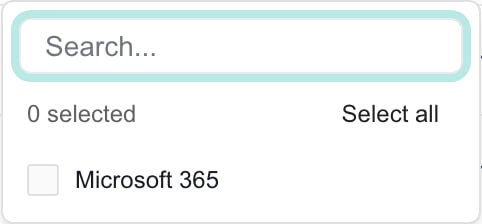 Different column filters combine, so a row must also match the other active fields. **Clear Filters** removes the table filters, including a provider supplied by an entry link, while keeping the top-bar company scope and account access limits. Reopening the page can restore a provider specified in its URL.
Provider is omitted when only one provider is available. Company is omitted when the top bar selects one company. A Type option can produce no rows after other filters or client-visibility restrictions are applied.
## Sorting, export, and missing results
The current Groups list does not offer column sorting, a Members range filter, a Client visible filter, or CSV export. The member dialog also has no search or export. Ask your MSP for provider records if you need a broader membership analysis.
For an empty result, clear table filters and check the company scope. If a Company user still cannot see a group that an MSP reader can see, the MSP should check **Client visible** as well as company mapping and synchronization. A group offered in a ticket form does not by itself grant access to Cloud Groups; ticket forms have their own access and provider/type restrictions.
MSP staff: [Hide all security groups](/user-guides/cloud/manage-group-visibility) uses the **top-bar company scope**, not these table filters or the visible page.
## FAQs
No. The Group field searches group names and Email searches group email. There is no reverse member lookup on this page.
No. It narrows the available type options. Use the Group column filter for a group name.
No. Choices within Type are alternatives. Other active fields must also match.
The current Groups table does not offer sorting or CSV export. Ask your MSP for the relevant provider records for broader analysis.
No. It clears table filters but preserves top-bar scope and your authorized access.
MSP readers can see groups hidden from clients. Company users also depend on company access, mapping and synchronization. Ask your MSP to review the group visibility and access.
No. Ticket-form group pickers do not require Cloud Groups read access. The form also applies its configured provider and type choices.
No. The bulk action uses the top-bar company scope and targets Security and Mail-enabled security groups across pages. Table search, provider, type and Company column filters do not narrow it.
## Related guides
* [Read cloud groups and members](/user-guides/cloud/groups)
* [Manage client group visibility](/user-guides/cloud/manage-group-visibility)
Different column filters combine, so a row must also match the other active fields. **Clear Filters** removes the table filters, including a provider supplied by an entry link, while keeping the top-bar company scope and account access limits. Reopening the page can restore a provider specified in its URL.
Provider is omitted when only one provider is available. Company is omitted when the top bar selects one company. A Type option can produce no rows after other filters or client-visibility restrictions are applied.
## Sorting, export, and missing results
The current Groups list does not offer column sorting, a Members range filter, a Client visible filter, or CSV export. The member dialog also has no search or export. Ask your MSP for provider records if you need a broader membership analysis.
For an empty result, clear table filters and check the company scope. If a Company user still cannot see a group that an MSP reader can see, the MSP should check **Client visible** as well as company mapping and synchronization. A group offered in a ticket form does not by itself grant access to Cloud Groups; ticket forms have their own access and provider/type restrictions.
MSP staff: [Hide all security groups](/user-guides/cloud/manage-group-visibility) uses the **top-bar company scope**, not these table filters or the visible page.
## FAQs
No. The Group field searches group names and Email searches group email. There is no reverse member lookup on this page.
No. It narrows the available type options. Use the Group column filter for a group name.
No. Choices within Type are alternatives. Other active fields must also match.
The current Groups table does not offer sorting or CSV export. Ask your MSP for the relevant provider records for broader analysis.
No. It clears table filters but preserves top-bar scope and your authorized access.
MSP readers can see groups hidden from clients. Company users also depend on company access, mapping and synchronization. Ask your MSP to review the group visibility and access.
No. Ticket-form group pickers do not require Cloud Groups read access. The form also applies its configured provider and type choices.
No. The bulk action uses the top-bar company scope and targets Security and Mail-enabled security groups across pages. Table search, provider, type and Company column filters do not narrow it.
## Related guides
* [Read cloud groups and members](/user-guides/cloud/groups)
* [Manage client group visibility](/user-guides/cloud/manage-group-visibility)