> ## Documentation Index
> Fetch the complete documentation index at: https://docs.msportal.ai/llms.txt
> Use this file to discover all available pages before exploring further.
# Compliance
> Track and manage compliance requirements across frameworks with hierarchical assessments
The Compliance module helps you manage regulatory compliance, track security frameworks, and maintain audit readiness. Organize compliance checks by company, assessment runs, and locations with detailed tracking and evidence management.
## Accessing Compliance
1. Click **Compliance** in the sidebar
2. The compliance dashboard displays your assessment overview
## View Options
The compliance module offers two viewing options to suit your workflow:
### Tree View
The tree view organizes compliance data hierarchically, making it easy to drill down from company to individual checks:
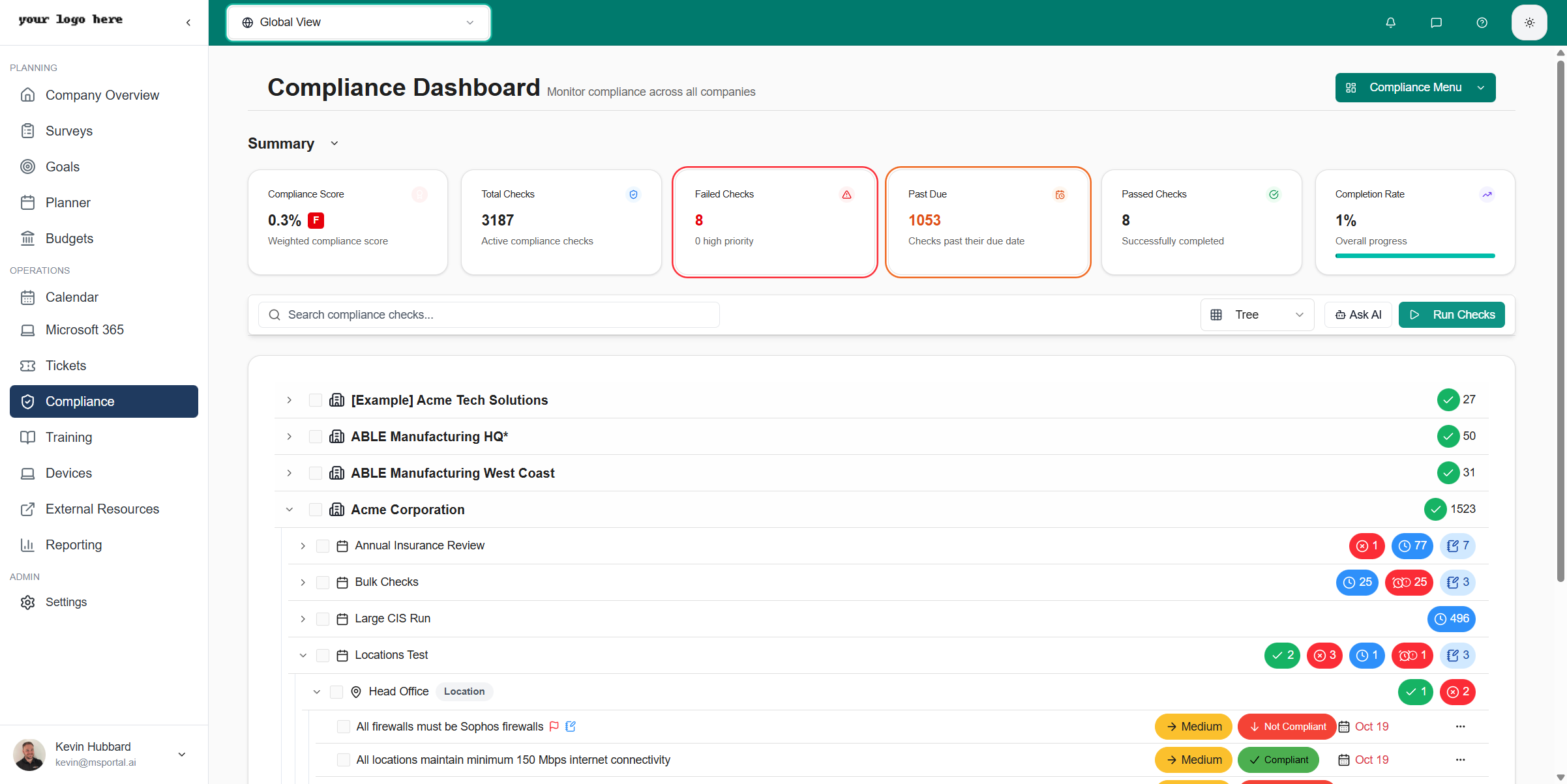 The tree hierarchy follows this structure:
* **Company** - Top-level organization
* **Compliance Run** - Assessment period or audit (e.g., "Annual Insurance Checks")
* **Group/Location** - Logical grouping or physical location
* **Individual Check** - Specific compliance requirement
Click the expand arrow next to any item to reveal its children. Status badges show compliant (green) and non-compliant (red) counts at each level.
### List View
Toggle to **List** view for a flat, sortable table of all compliance checks:
The tree hierarchy follows this structure:
* **Company** - Top-level organization
* **Compliance Run** - Assessment period or audit (e.g., "Annual Insurance Checks")
* **Group/Location** - Logical grouping or physical location
* **Individual Check** - Specific compliance requirement
Click the expand arrow next to any item to reveal its children. Status badges show compliant (green) and non-compliant (red) counts at each level.
### List View
Toggle to **List** view for a flat, sortable table of all compliance checks:
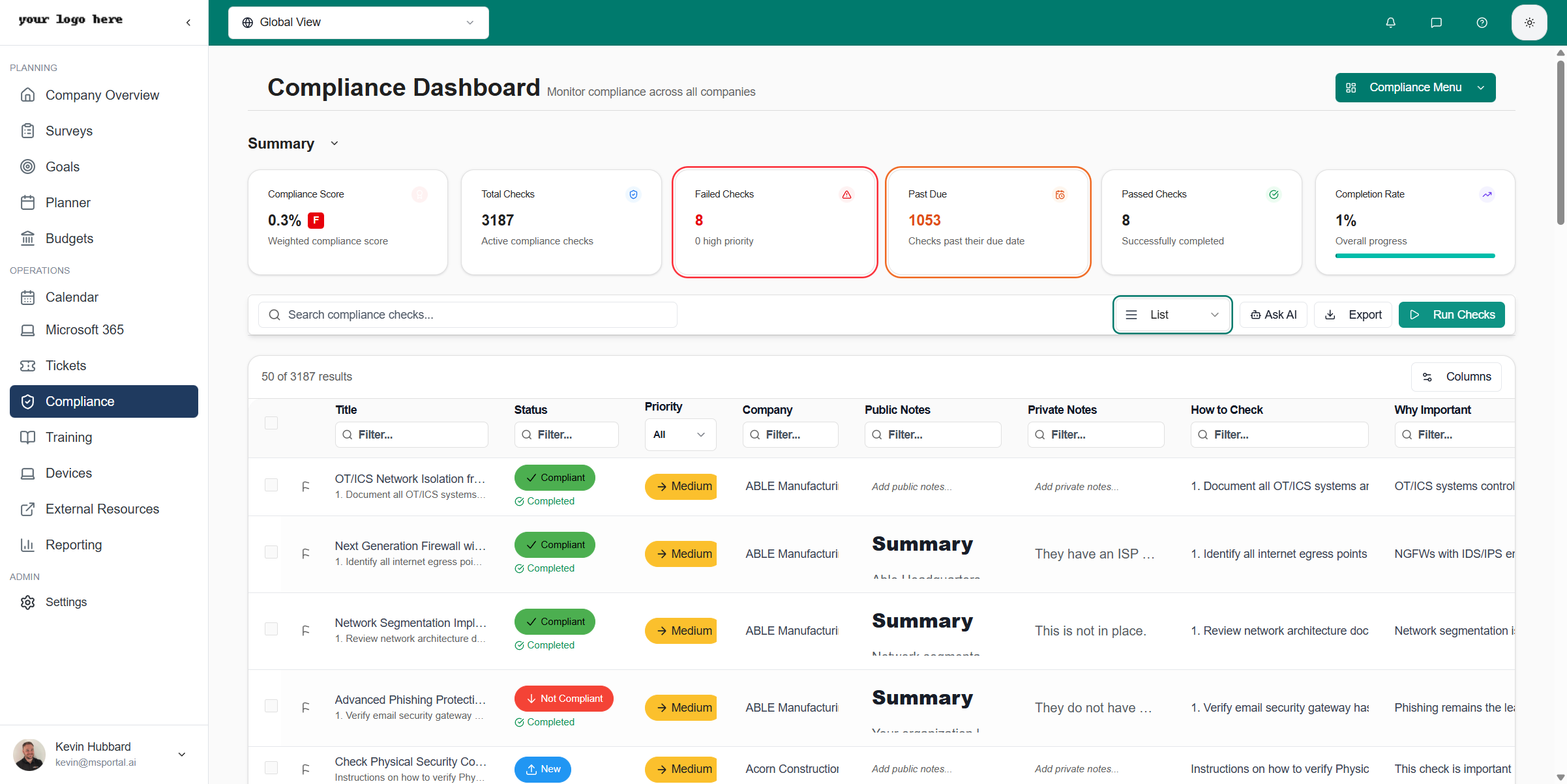 The list view displays:
| Column | Description |
| -------------- | ------------------------------- |
| **Company** | The organization being assessed |
| **Compliance** | The compliance run name |
| **Group** | Location group or category |
| **Location** | Specific site or area |
| **Check** | The compliance requirement name |
| **Status** | Current compliance status |
| **Priority** | Critical, High, Medium, or Low |
| **Due Date** | Target completion date |
Use the column headers to sort by any field, or use the filter controls to narrow results.
## Running Compliance Checks
Click **Run Checks** in the toolbar to execute compliance assessments against your companies.
The list view displays:
| Column | Description |
| -------------- | ------------------------------- |
| **Company** | The organization being assessed |
| **Compliance** | The compliance run name |
| **Group** | Location group or category |
| **Location** | Specific site or area |
| **Check** | The compliance requirement name |
| **Status** | Current compliance status |
| **Priority** | Critical, High, Medium, or Low |
| **Due Date** | Target completion date |
Use the column headers to sort by any field, or use the filter controls to narrow results.
## Running Compliance Checks
Click **Run Checks** in the toolbar to execute compliance assessments against your companies.
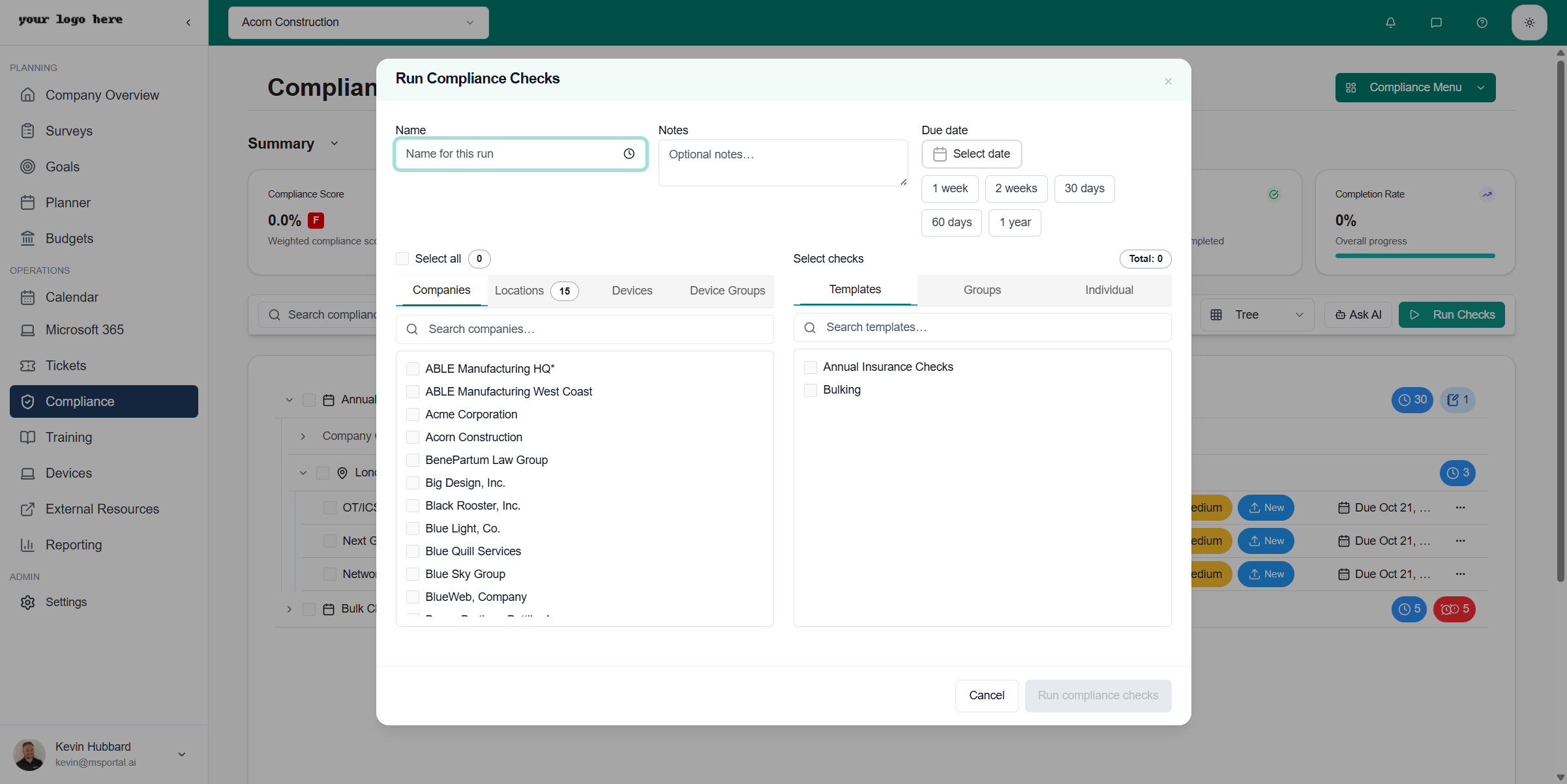 ### Configuration Options
| Field | Description |
| ------------ | -------------------------------------------------------------------------------------- |
| **Name** | A descriptive name for this compliance run |
| **Notes** | Optional notes about the assessment |
| **Due Date** | When checks should be completed (1 week, 2 weeks, 30 days, 90 days, 1 year, or custom) |
### Selecting Entities
The left panel lets you choose what to assess:
| Tab | Description |
| ----------------- | ---------------------------------------------- |
| **Companies** | Select individual companies to assess |
| **Locations** | Choose specific locations within companies |
| **Devices** | Target individual devices for technical checks |
| **Device Groups** | Select groups of devices by category |
Use **Select all** to include all items, or check individual items from the list.
### Understanding Checks, Groups, and Templates
The right panel organizes compliance requirements in a three-level hierarchy:
Individual checks are specific compliance requirements. Each check represents a single item to verify, such as "Verify firewall rules are documented" or "Confirm MFA is enabled for admin accounts."
Select the **Individual** tab to choose specific checks to run.
Groups organize related checks into logical categories. For example:
* **Network Security** - Contains checks for firewalls, segmentation, access controls
* **Identity Management** - Contains checks for authentication, authorization, MFA
* **Data Protection** - Contains checks for encryption, backup, data handling
Select the **Groups** tab to run all checks within selected groups.
Templates bundle multiple groups and checks into pre-configured assessment packages. They represent complete compliance frameworks or custom assessment collections:
* **Annual Insurance Checks** - Standard checks for cyber insurance audits
* **CIS Controls v8** - Full CIS benchmark assessment
* **NIST CSF** - National Institute of Standards cybersecurity framework
* **Custom Templates** - Your organization's specific requirements
Select the **Template** tab to run entire assessment packages at once.
**Hierarchy Tip:** Templates contain Groups, and Groups contain individual Checks. Selecting a Template automatically includes all its Groups and their Checks. This makes it easy to run comprehensive assessments without selecting hundreds of individual items.
### Running the Assessment
1. Configure the run name, notes, and due date
2. Select companies or other entities in the left panel
3. Choose templates, groups, or individual checks in the right panel
4. Click **Run compliance checks** to start the assessment
## Compliance Check Details
Click any check in the tree or list view to open the detailed view:
### Configuration Options
| Field | Description |
| ------------ | -------------------------------------------------------------------------------------- |
| **Name** | A descriptive name for this compliance run |
| **Notes** | Optional notes about the assessment |
| **Due Date** | When checks should be completed (1 week, 2 weeks, 30 days, 90 days, 1 year, or custom) |
### Selecting Entities
The left panel lets you choose what to assess:
| Tab | Description |
| ----------------- | ---------------------------------------------- |
| **Companies** | Select individual companies to assess |
| **Locations** | Choose specific locations within companies |
| **Devices** | Target individual devices for technical checks |
| **Device Groups** | Select groups of devices by category |
Use **Select all** to include all items, or check individual items from the list.
### Understanding Checks, Groups, and Templates
The right panel organizes compliance requirements in a three-level hierarchy:
Individual checks are specific compliance requirements. Each check represents a single item to verify, such as "Verify firewall rules are documented" or "Confirm MFA is enabled for admin accounts."
Select the **Individual** tab to choose specific checks to run.
Groups organize related checks into logical categories. For example:
* **Network Security** - Contains checks for firewalls, segmentation, access controls
* **Identity Management** - Contains checks for authentication, authorization, MFA
* **Data Protection** - Contains checks for encryption, backup, data handling
Select the **Groups** tab to run all checks within selected groups.
Templates bundle multiple groups and checks into pre-configured assessment packages. They represent complete compliance frameworks or custom assessment collections:
* **Annual Insurance Checks** - Standard checks for cyber insurance audits
* **CIS Controls v8** - Full CIS benchmark assessment
* **NIST CSF** - National Institute of Standards cybersecurity framework
* **Custom Templates** - Your organization's specific requirements
Select the **Template** tab to run entire assessment packages at once.
**Hierarchy Tip:** Templates contain Groups, and Groups contain individual Checks. Selecting a Template automatically includes all its Groups and their Checks. This makes it easy to run comprehensive assessments without selecting hundreds of individual items.
### Running the Assessment
1. Configure the run name, notes, and due date
2. Select companies or other entities in the left panel
3. Choose templates, groups, or individual checks in the right panel
4. Click **Run compliance checks** to start the assessment
## Compliance Check Details
Click any check in the tree or list view to open the detailed view:
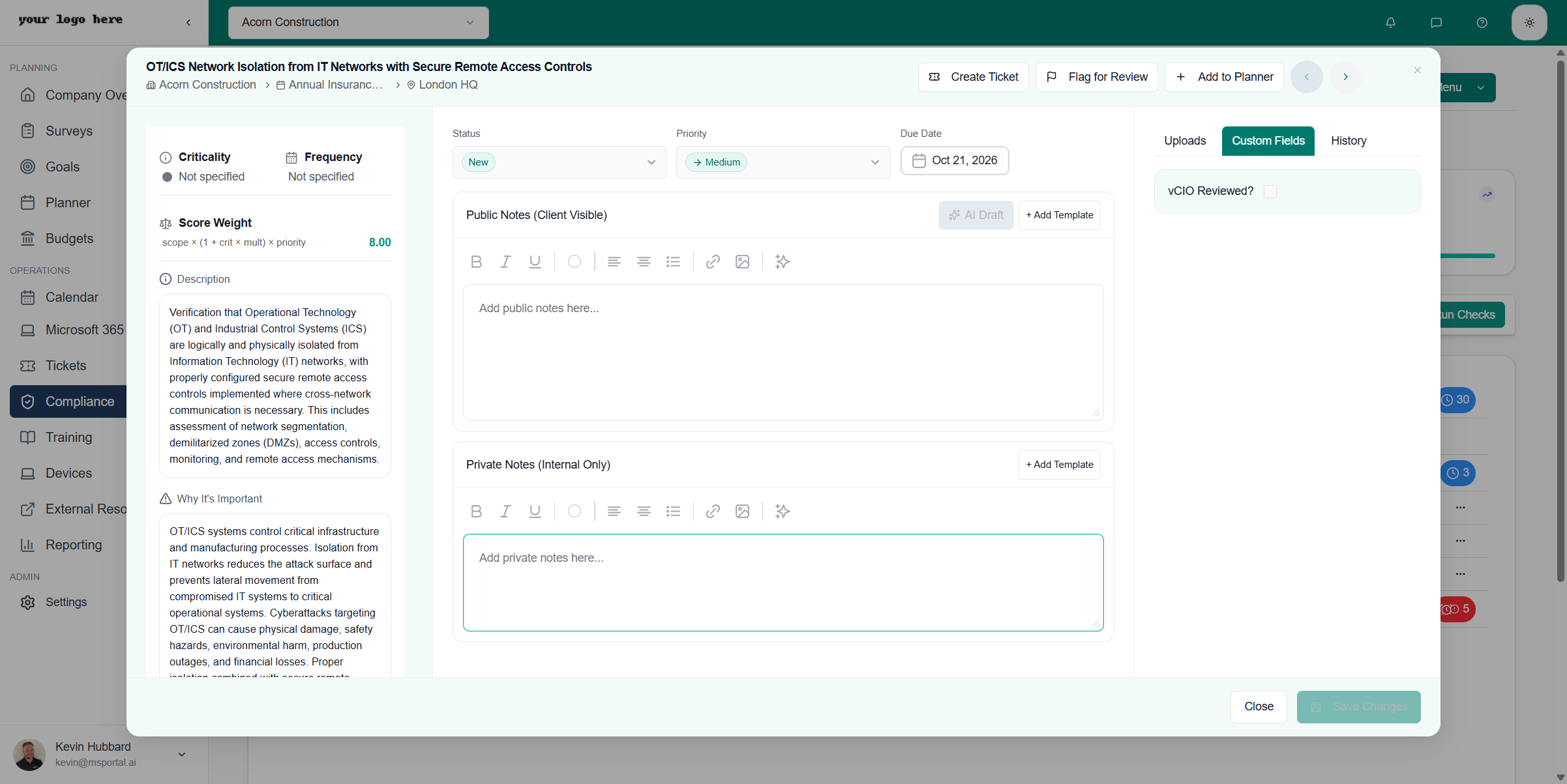 ### Left Panel: Guidance
| Field | Description |
| ---------------------- | -------------------------------------------------- |
| **Criticality** | How critical this check is to compliance |
| **Frequency** | How often this check should be assessed |
| **Score Weight** | Point value for compliance scoring (formula shown) |
| **Description** | What this check validates |
| **Why It's Important** | Business and security impact of compliance |
### Center Panel: Assessment
#### Status and Priority
| Field | Description |
| ------------ | --------------------------------------------------------- |
| **Status** | Set to New, In Progress, Compliant, Not Compliant, or N/A |
| **Priority** | Critical, High, Medium, or Low |
| **Due Date** | Target completion date |
#### Public Notes (Client Visible)
Public notes are visible to clients in reports and portals. Use the rich text editor to document:
* Assessment findings
* Compliance status justification
* Recommendations for improvement
Click **+ Add Template** to insert pre-written content for common scenarios.
#### Private Notes (Internal Only)
Private notes are visible only to your internal team. Use this for:
* Technical implementation details
* Internal discussions and observations
* Assessment notes not intended for clients
* Raw findings before client-ready documentation
### Left Panel: Guidance
| Field | Description |
| ---------------------- | -------------------------------------------------- |
| **Criticality** | How critical this check is to compliance |
| **Frequency** | How often this check should be assessed |
| **Score Weight** | Point value for compliance scoring (formula shown) |
| **Description** | What this check validates |
| **Why It's Important** | Business and security impact of compliance |
### Center Panel: Assessment
#### Status and Priority
| Field | Description |
| ------------ | --------------------------------------------------------- |
| **Status** | Set to New, In Progress, Compliant, Not Compliant, or N/A |
| **Priority** | Critical, High, Medium, or Low |
| **Due Date** | Target completion date |
#### Public Notes (Client Visible)
Public notes are visible to clients in reports and portals. Use the rich text editor to document:
* Assessment findings
* Compliance status justification
* Recommendations for improvement
Click **+ Add Template** to insert pre-written content for common scenarios.
#### Private Notes (Internal Only)
Private notes are visible only to your internal team. Use this for:
* Technical implementation details
* Internal discussions and observations
* Assessment notes not intended for clients
* Raw findings before client-ready documentation
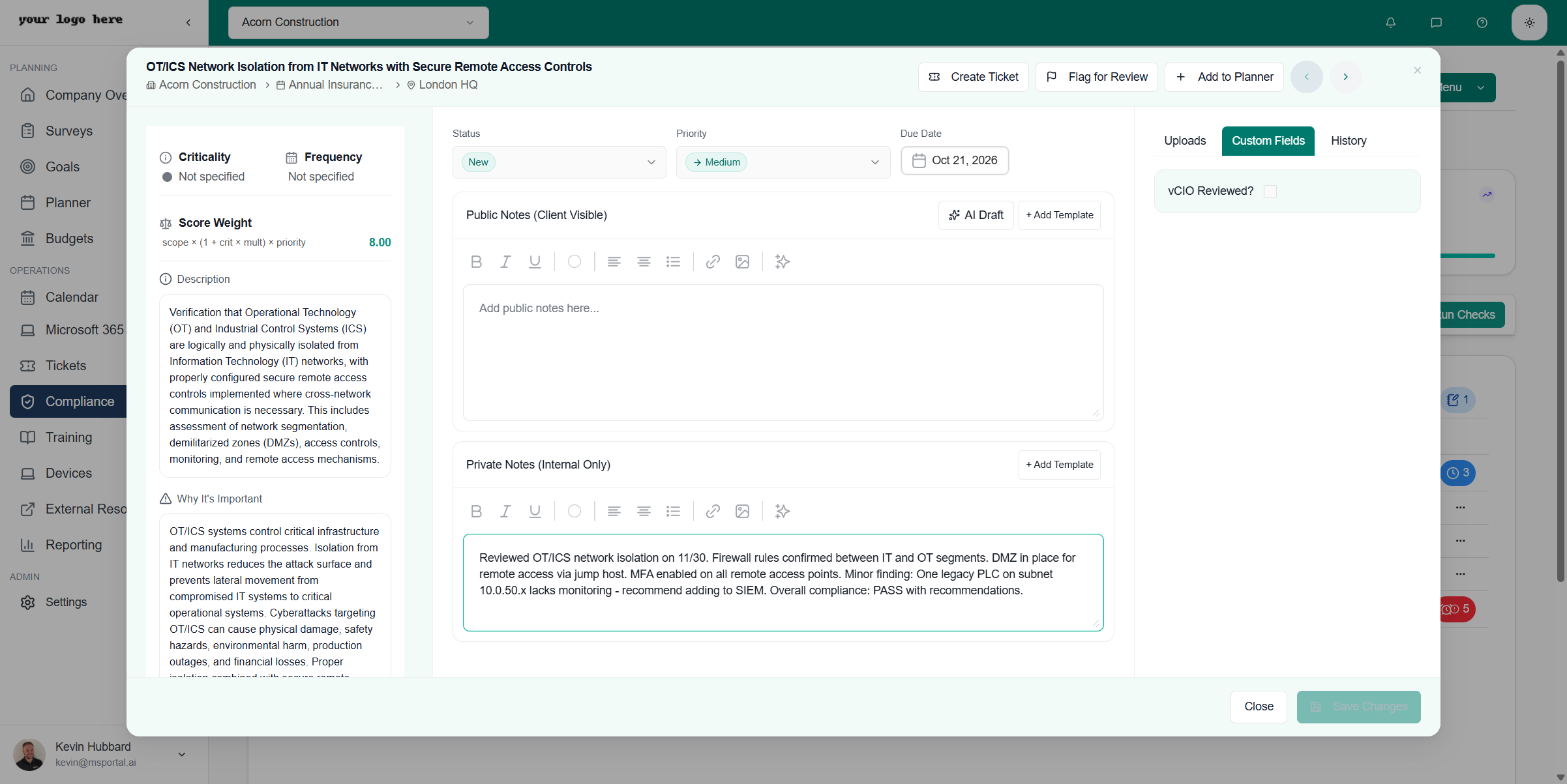 ## AI Draft Feature
The **AI Draft** button transforms your private notes into polished, client-ready public documentation.
### How It Works
1. Enter your raw assessment observations in **Private Notes**
2. Click **AI Draft** in the Public Notes header
3. AI generates structured documentation including:
* **Summary** - Clear overview of the assessment findings
* **Business Impact** - Why this matters to the organization
* **Remediation** - Actionable steps to address gaps
## AI Draft Feature
The **AI Draft** button transforms your private notes into polished, client-ready public documentation.
### How It Works
1. Enter your raw assessment observations in **Private Notes**
2. Click **AI Draft** in the Public Notes header
3. AI generates structured documentation including:
* **Summary** - Clear overview of the assessment findings
* **Business Impact** - Why this matters to the organization
* **Remediation** - Actionable steps to address gaps
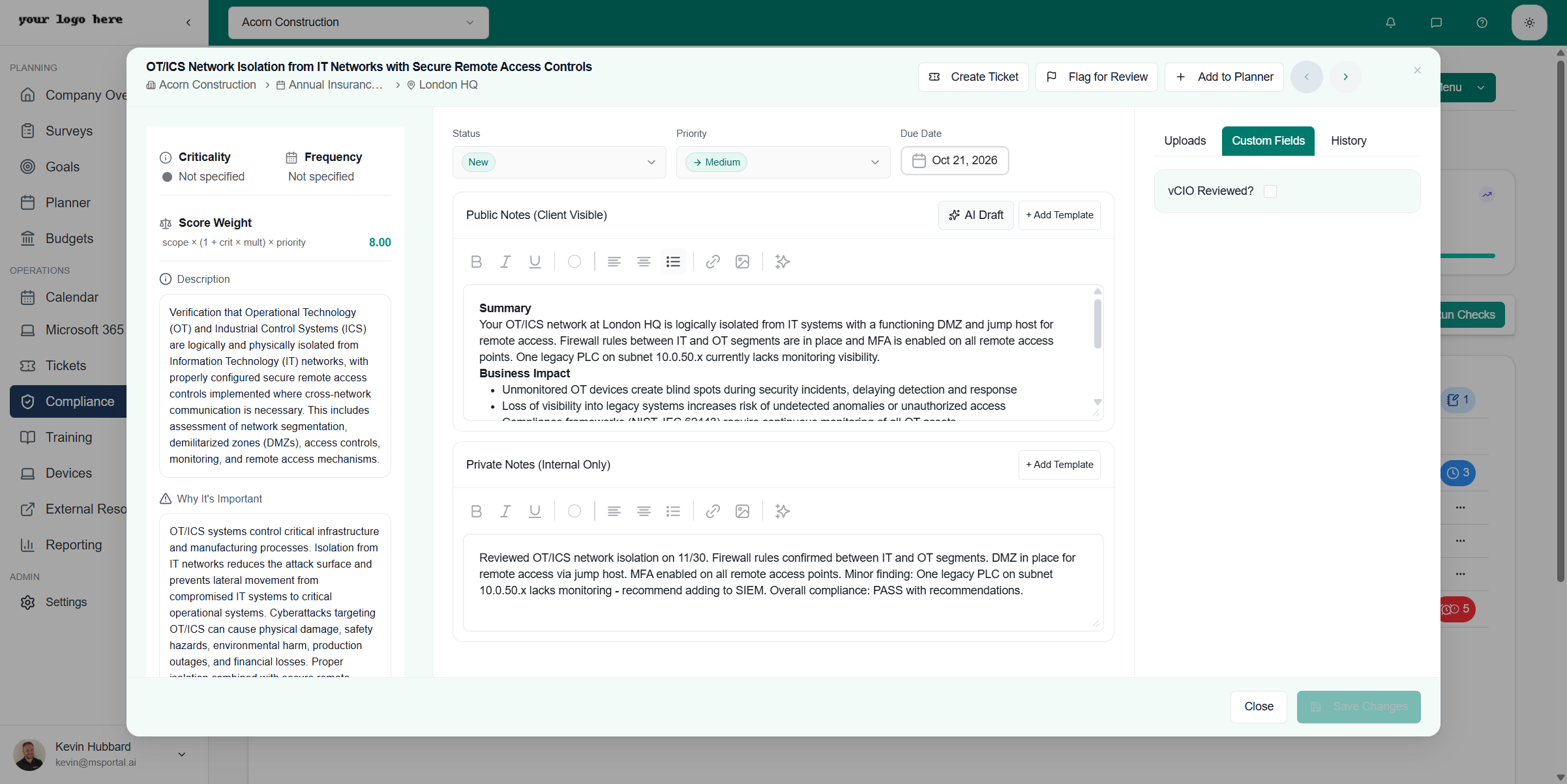 **Best Practice:** Write detailed technical observations in Private Notes, including specific findings, device names, and technical details. AI Draft will extract the relevant information and format it professionally for client communication.
### Example Workflow
**Private Notes (your input):**
> Reviewed OTICS network isolation on 11/30. Firewall rules confirmed between IT and OT segments. DMZ in place for remote access via jump host. MFA enabled on all remote access points. Minor finding: One legacy PLC on subnet 10.0.50.x lacks monitoring - recommend adding to SIEM. Overall compliance: PASS with recommendations.
**AI Draft (generated output):**
> **Summary**
> Your OTICS network at London HQ is logically isolated from IT systems with a functioning DMZ and jump host for remote access. Firewall rules between IT and OT segments are in place and MFA is enabled on all remote access points.
>
> **Business Impact**
>
> * Unmonitored OT devices create blind spots during security incidents
> * Loss of visibility into legacy systems increases risk of undetected anomalies
>
> **Remediation**
>
> * Step 1: Your MSP to add legacy PLC (subnet 10.0.50.x) to SIEM with appropriate OT-specific logging rules
> * Step 2: Verify SIEM is collecting baseline operational data from the PLC
## Adding Checks to Planner
Compliance checks can be converted into Planner initiatives for tracking remediation work.
1. Open a compliance check
2. Click **Add to Planner** in the toolbar
3. Configure the initiative details:
**Best Practice:** Write detailed technical observations in Private Notes, including specific findings, device names, and technical details. AI Draft will extract the relevant information and format it professionally for client communication.
### Example Workflow
**Private Notes (your input):**
> Reviewed OTICS network isolation on 11/30. Firewall rules confirmed between IT and OT segments. DMZ in place for remote access via jump host. MFA enabled on all remote access points. Minor finding: One legacy PLC on subnet 10.0.50.x lacks monitoring - recommend adding to SIEM. Overall compliance: PASS with recommendations.
**AI Draft (generated output):**
> **Summary**
> Your OTICS network at London HQ is logically isolated from IT systems with a functioning DMZ and jump host for remote access. Firewall rules between IT and OT segments are in place and MFA is enabled on all remote access points.
>
> **Business Impact**
>
> * Unmonitored OT devices create blind spots during security incidents
> * Loss of visibility into legacy systems increases risk of undetected anomalies
>
> **Remediation**
>
> * Step 1: Your MSP to add legacy PLC (subnet 10.0.50.x) to SIEM with appropriate OT-specific logging rules
> * Step 2: Verify SIEM is collecting baseline operational data from the PLC
## Adding Checks to Planner
Compliance checks can be converted into Planner initiatives for tracking remediation work.
1. Open a compliance check
2. Click **Add to Planner** in the toolbar
3. Configure the initiative details:
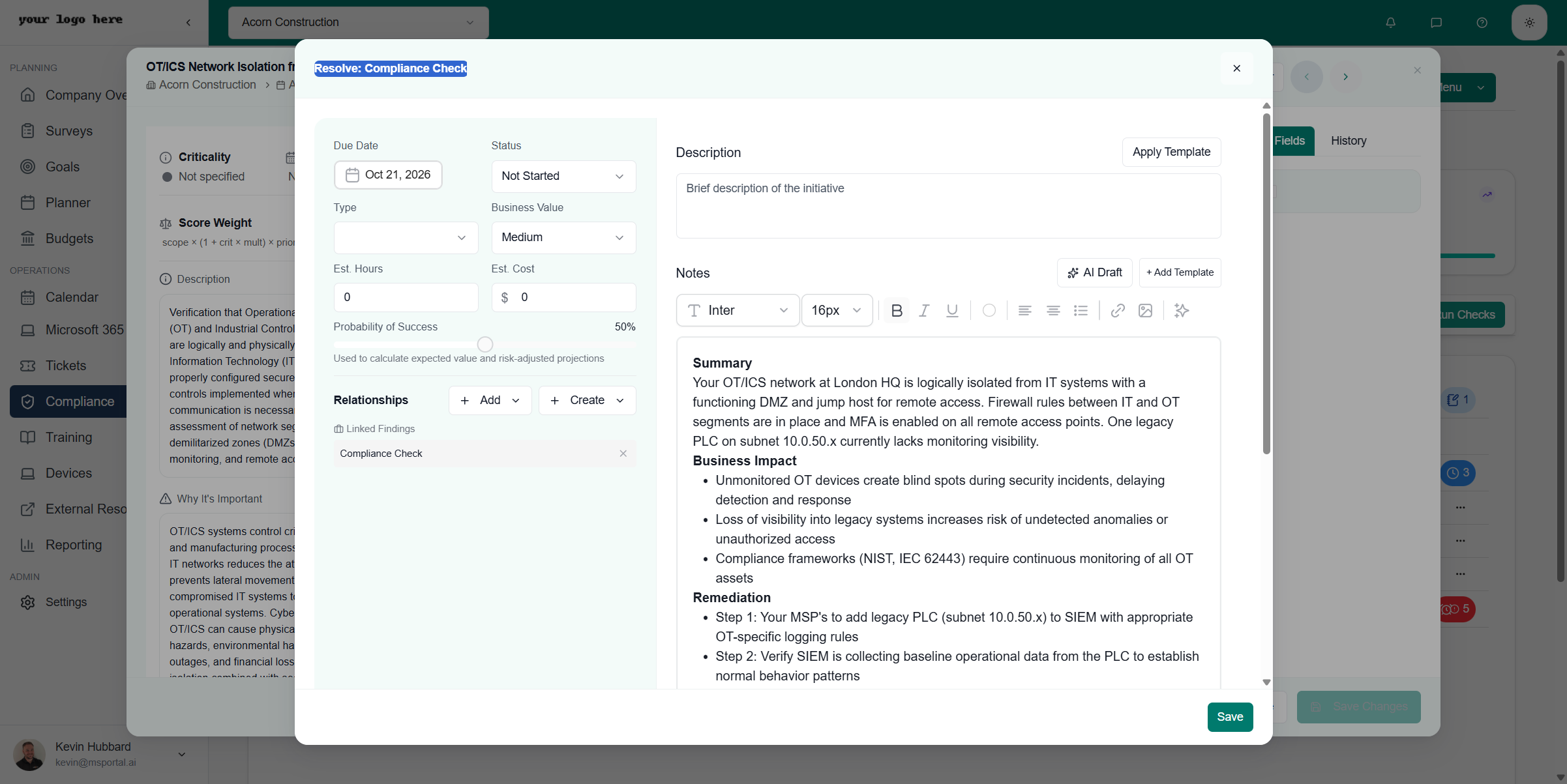 | Field | Description |
| -------------------------- | ---------------------------------------------------- |
| **Due Date** | Target completion date for the initiative |
| **Status** | Initial status (Not Started, In Progress, etc.) |
| **Type** | Category of work (Compliance Check is auto-selected) |
| **Business Value** | Low, Medium, High, or Critical priority |
| **Est. Hours** | Estimated hours to complete |
| **Est. Cost** | Estimated cost if applicable |
| **Probability of Success** | Confidence level for completion |
| **Relationships** | Link to related findings or other initiatives |
| **Description** | Auto-populated from check details |
| **Notes** | AI Draft available to generate remediation plan |
Click **Save** to create the Planner initiative. The compliance check will be linked to the initiative for tracking.
## Additional Tabs
### Uploads Tab
Attach evidence files and supporting documentation:
* Documents (PDF, DOC, DOCX)
* Spreadsheets (XLS, XLSX, CSV)
* Images (PNG, JPG, GIF)
* Text files (TXT, LOG)
### Custom Fields Tab
View and edit additional fields configured for your organization, such as:
* vCIO Reviewed checkbox
* Custom assessment criteria
* Organization-specific metadata
### History Tab
Audit trail showing all changes to the check:
* Status changes with timestamps
* Who made each change
* Previous values for comparison
## Status Types
| Status | Description | Badge Color |
| ------------------ | ------------------------- | ----------- |
| **New** | Not yet assessed | Gray |
| **In Progress** | Currently being assessed | Blue |
| **Compliant** | Requirement fully met | Green |
| **Not Compliant** | Requirement not satisfied | Red |
| **Past Due** | Assessment overdue | Orange |
| **Not Applicable** | Requirement doesn't apply | Gray |
## Compliance Scoring
### Score Calculation
Each check has a score weight that contributes to overall compliance:
* **Score Weight** - Points for this check (calculated from criticality and multipliers)
* **Earned Points** - Points earned when compliant
* **Total Score** - Sum of all weighted checks
### Weight Formula
The score weight formula is displayed on each check:
`score = (1 + crit × mult) × priority`
Where:
* **crit** - Criticality value
* **mult** - Organization multiplier
* **priority** - Priority weight
## Toolbar Actions
| Action | Description |
| ------------------- | ------------------------------------ |
| **Run Checks** | Execute compliance assessments |
| **Create Ticket** | Create a support ticket from a check |
| **Flag for Review** | Mark check for team review |
| **Add to Planner** | Convert to Planner initiative |
| **Compliance Menu** | Access additional compliance options |
## Best Practices
### Assessment Strategy
1. **Use Templates** - Start with pre-built templates for standard frameworks
2. **Schedule Regularly** - Set up recurring assessment runs
3. **Document Thoroughly** - Use Private Notes for raw findings, AI Draft for client docs
4. **Track in Planner** - Convert findings to initiatives for remediation tracking
### Evidence Management
* **Organize by Check** - Keep evidence linked to specific requirements
* **Date Your Evidence** - Include timestamps in documentation
* **Version Control** - Maintain history of changes
* **Secure Storage** - Evidence is encrypted at rest
### Remediation Workflow
1. Identify non-compliant checks
2. Review the "Why It's Important" guidance
3. Use AI Draft to generate remediation steps
4. Add to Planner for tracking
5. Implement changes and attach evidence
6. Update status to Compliant
## Supported Frameworks
The compliance module supports industry-standard frameworks. Framework checks are not included—you'll need to create your own checks and templates based on your compliance requirements.
| Framework | Description |
| ---------------- | --------------------------------------- |
| **CIS Controls** | Center for Internet Security benchmarks |
| **ISO 27001** | Information security management |
| **NIST CSF** | Cybersecurity framework |
| **HIPAA** | Healthcare compliance |
| **GDPR** | Data privacy regulations |
| **SOC 2** | Service organization controls |
| **PCI DSS** | Payment card industry standards |
| **Custom** | Your own compliance frameworks |
## Related Resources
* [Adding CIS Benchmarks](/user-guides/compliance/adding-cis-benchmarks) - Configure CIS controls
* [Planner](/user-guides/planner/index) - Track compliance initiatives
* [Reporting](/user-guides/reporting/index) - Compliance reports
* [Company Overview](/user-guides/company-overview/index) - Company compliance status
| Field | Description |
| -------------------------- | ---------------------------------------------------- |
| **Due Date** | Target completion date for the initiative |
| **Status** | Initial status (Not Started, In Progress, etc.) |
| **Type** | Category of work (Compliance Check is auto-selected) |
| **Business Value** | Low, Medium, High, or Critical priority |
| **Est. Hours** | Estimated hours to complete |
| **Est. Cost** | Estimated cost if applicable |
| **Probability of Success** | Confidence level for completion |
| **Relationships** | Link to related findings or other initiatives |
| **Description** | Auto-populated from check details |
| **Notes** | AI Draft available to generate remediation plan |
Click **Save** to create the Planner initiative. The compliance check will be linked to the initiative for tracking.
## Additional Tabs
### Uploads Tab
Attach evidence files and supporting documentation:
* Documents (PDF, DOC, DOCX)
* Spreadsheets (XLS, XLSX, CSV)
* Images (PNG, JPG, GIF)
* Text files (TXT, LOG)
### Custom Fields Tab
View and edit additional fields configured for your organization, such as:
* vCIO Reviewed checkbox
* Custom assessment criteria
* Organization-specific metadata
### History Tab
Audit trail showing all changes to the check:
* Status changes with timestamps
* Who made each change
* Previous values for comparison
## Status Types
| Status | Description | Badge Color |
| ------------------ | ------------------------- | ----------- |
| **New** | Not yet assessed | Gray |
| **In Progress** | Currently being assessed | Blue |
| **Compliant** | Requirement fully met | Green |
| **Not Compliant** | Requirement not satisfied | Red |
| **Past Due** | Assessment overdue | Orange |
| **Not Applicable** | Requirement doesn't apply | Gray |
## Compliance Scoring
### Score Calculation
Each check has a score weight that contributes to overall compliance:
* **Score Weight** - Points for this check (calculated from criticality and multipliers)
* **Earned Points** - Points earned when compliant
* **Total Score** - Sum of all weighted checks
### Weight Formula
The score weight formula is displayed on each check:
`score = (1 + crit × mult) × priority`
Where:
* **crit** - Criticality value
* **mult** - Organization multiplier
* **priority** - Priority weight
## Toolbar Actions
| Action | Description |
| ------------------- | ------------------------------------ |
| **Run Checks** | Execute compliance assessments |
| **Create Ticket** | Create a support ticket from a check |
| **Flag for Review** | Mark check for team review |
| **Add to Planner** | Convert to Planner initiative |
| **Compliance Menu** | Access additional compliance options |
## Best Practices
### Assessment Strategy
1. **Use Templates** - Start with pre-built templates for standard frameworks
2. **Schedule Regularly** - Set up recurring assessment runs
3. **Document Thoroughly** - Use Private Notes for raw findings, AI Draft for client docs
4. **Track in Planner** - Convert findings to initiatives for remediation tracking
### Evidence Management
* **Organize by Check** - Keep evidence linked to specific requirements
* **Date Your Evidence** - Include timestamps in documentation
* **Version Control** - Maintain history of changes
* **Secure Storage** - Evidence is encrypted at rest
### Remediation Workflow
1. Identify non-compliant checks
2. Review the "Why It's Important" guidance
3. Use AI Draft to generate remediation steps
4. Add to Planner for tracking
5. Implement changes and attach evidence
6. Update status to Compliant
## Supported Frameworks
The compliance module supports industry-standard frameworks. Framework checks are not included—you'll need to create your own checks and templates based on your compliance requirements.
| Framework | Description |
| ---------------- | --------------------------------------- |
| **CIS Controls** | Center for Internet Security benchmarks |
| **ISO 27001** | Information security management |
| **NIST CSF** | Cybersecurity framework |
| **HIPAA** | Healthcare compliance |
| **GDPR** | Data privacy regulations |
| **SOC 2** | Service organization controls |
| **PCI DSS** | Payment card industry standards |
| **Custom** | Your own compliance frameworks |
## Related Resources
* [Adding CIS Benchmarks](/user-guides/compliance/adding-cis-benchmarks) - Configure CIS controls
* [Planner](/user-guides/planner/index) - Track compliance initiatives
* [Reporting](/user-guides/reporting/index) - Compliance reports
* [Company Overview](/user-guides/company-overview/index) - Company compliance status