> ## Documentation Index
> Fetch the complete documentation index at: https://docs.msportal.ai/llms.txt
> Use this file to discover all available pages before exploring further.
# Assign external dashboard URLs to companies
> Give each company its own external dashboard destination and maintain assignments.
**Audience:** MSP staff with permission to manage dashboard settings.
Each company needs an assigned URL to access an external dashboard. Company users always use their company-specific URL; an unassigned company does not fall back to the default URL. The default remains useful for MSP global viewing.
## Add a company URL
Go to **Settings > Dashboards > External Dashboards**. Find the item and choose **… > Company URLs**.
Under **Add Manually**, choose the company and enter its **HTTPS** dashboard URL. The selector lists companies not already assigned to this item.
Select **Add Company URL**. This saves immediately. Check **Assigned URLs** afterward; reopen Company URLs if the table reload closes the dialog.
Confirm the company URL, active status and eligible Company roles. Open the dashboard in the intended company context and check the external service’s own access. The default URL’s frame-policy result does not verify this company URL.
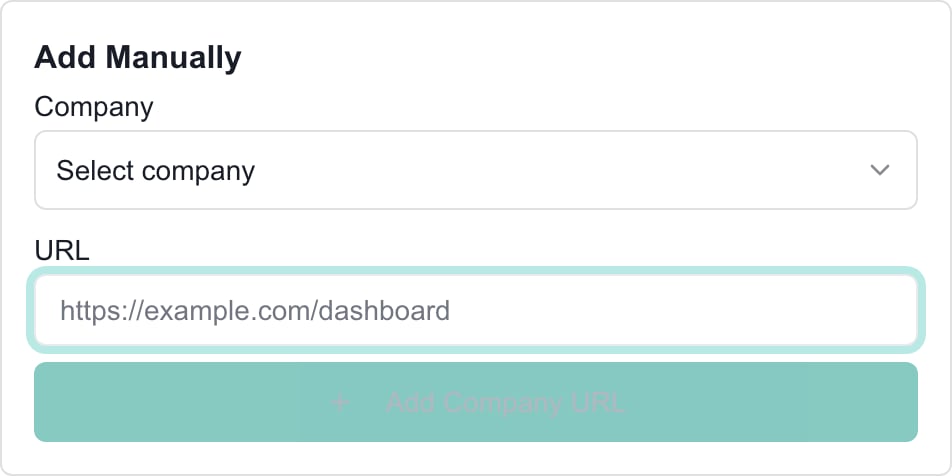 The image shows the MSP assignment form before a company and URL are entered.
## Edit or remove an assignment
Use the **Assigned URLs** filter to find a company or URL. Select its pencil icon, edit the URL and select the checkmark to save. The X cancels that unsaved inline edit.
The trash icon removes the company assignment immediately, without a separate confirmation. The company will no longer qualify through that assignment. Removing the URL does not delete the company or the external service’s dashboard.
Adding, saving an inline edit and removing a URL are immediate changes. **Close** only closes the dialog; it does not undo saved changes. To restore an assignment, add the company and its correct URL again.
## CSV controls
The dialog also offers **Export CSV** and **Upload CSV**. These work with company assignments for this one external item, not the external-dashboard catalog’s table export.
| Control | Purpose |
| ------------------------ | ------------------------------------------------------------------------------------------------------------------------------------------- |
| **Export Current** | Export all assigned company URLs for the item. The on-screen text filter does not narrow this export. |
| **Export All Companies** | Export the company list with existing URLs and blanks for companies not assigned to this item. Blank rows do not create assignments. |
| **Upload CSV** | Process a file and add or update matching company assignments. Selecting the file begins processing; there is no separate approval preview. |
Use the exact two-column format displayed in the dialog, with quoted **Company Name** and **URL** fields. Match the company’s name and use HTTPS destinations. Leave an unchanged URL alone; a blank URL is skipped and does not remove an assignment. Use the trash icon for removal.
The importer can save some rows while others fail. Read the result counts and reopen Assigned URLs to verify the changes. Do not assume a failed import rolled back successful rows. Use manual assignment for names containing quotation marks or where company names are duplicated, and verify the intended company before saving.
## Troubleshooting
| Symptom | Check |
| ------------------------------------------ | --------------------------------------------------------------------------------------------------------------------- |
| Company is not in Add Manually | It may already be assigned. Find it under Assigned URLs and edit there. |
| Company still cannot open the dashboard | Check its exact assignment, dashboard active status, Company role and external-service account. |
| URL saves but cannot be embedded | Verify the company URL directly. The automatic policy check uses the default URL only. |
| Closing the dialog did not undo the change | Changes save individually. Edit the value back or recreate the removed assignment. |
| CSV import only changed some rows | Inspect result counts and actual assignments. Unchanged or blank URLs are skipped; other rows can fail independently. |
## Related guides
* [Configure external dashboards](/user-guides/dashboards/configure-external-dashboards)
* [Open an external dashboard](/user-guides/dashboards/open-external-dashboard)
* [Understand your access](/user-guides/account/understand-your-access)
## Frequently asked questions
Use Settings > Dashboards > External Dashboards, then the item’s Company URLs action.
No. Each company needs an assigned URL. The default URL serves MSP global viewing.
Yes. Assign each company its own intended HTTPS URL under the same external item.
Immediately when Add Company URL succeeds. Close is not an undo action.
Find it under Assigned URLs, select the pencil, change the URL and select the checkmark. The X cancels only the unsaved inline edit.
No. The trash control removes the assignment immediately. Review the company and URL before selecting it.
No. It removes that company’s association with this external item in MSPortal.
Add Manually lists companies not already assigned. Edit the company’s existing Assigned URLs entry instead.
No. It exports all assigned URLs for this item, even when the list is filtered.
No. It produces a list with blanks for unassigned companies. Exporting does not create assignments.
No. Blank URLs are skipped. Use the assignment’s trash control when removal is intended.
No. Selecting the file begins processing and can save valid rows immediately. Inspect the result counts and assignments afterward.
Do not assume so. Rows are processed separately and partial success is possible. Verify the actual assignments.
No. It checks the default URL. Test each intended company destination and its external-service access separately.
Ask the MSP to manage company URL assignments, dashboard role restrictions and user permissions.
The image shows the MSP assignment form before a company and URL are entered.
## Edit or remove an assignment
Use the **Assigned URLs** filter to find a company or URL. Select its pencil icon, edit the URL and select the checkmark to save. The X cancels that unsaved inline edit.
The trash icon removes the company assignment immediately, without a separate confirmation. The company will no longer qualify through that assignment. Removing the URL does not delete the company or the external service’s dashboard.
Adding, saving an inline edit and removing a URL are immediate changes. **Close** only closes the dialog; it does not undo saved changes. To restore an assignment, add the company and its correct URL again.
## CSV controls
The dialog also offers **Export CSV** and **Upload CSV**. These work with company assignments for this one external item, not the external-dashboard catalog’s table export.
| Control | Purpose |
| ------------------------ | ------------------------------------------------------------------------------------------------------------------------------------------- |
| **Export Current** | Export all assigned company URLs for the item. The on-screen text filter does not narrow this export. |
| **Export All Companies** | Export the company list with existing URLs and blanks for companies not assigned to this item. Blank rows do not create assignments. |
| **Upload CSV** | Process a file and add or update matching company assignments. Selecting the file begins processing; there is no separate approval preview. |
Use the exact two-column format displayed in the dialog, with quoted **Company Name** and **URL** fields. Match the company’s name and use HTTPS destinations. Leave an unchanged URL alone; a blank URL is skipped and does not remove an assignment. Use the trash icon for removal.
The importer can save some rows while others fail. Read the result counts and reopen Assigned URLs to verify the changes. Do not assume a failed import rolled back successful rows. Use manual assignment for names containing quotation marks or where company names are duplicated, and verify the intended company before saving.
## Troubleshooting
| Symptom | Check |
| ------------------------------------------ | --------------------------------------------------------------------------------------------------------------------- |
| Company is not in Add Manually | It may already be assigned. Find it under Assigned URLs and edit there. |
| Company still cannot open the dashboard | Check its exact assignment, dashboard active status, Company role and external-service account. |
| URL saves but cannot be embedded | Verify the company URL directly. The automatic policy check uses the default URL only. |
| Closing the dialog did not undo the change | Changes save individually. Edit the value back or recreate the removed assignment. |
| CSV import only changed some rows | Inspect result counts and actual assignments. Unchanged or blank URLs are skipped; other rows can fail independently. |
## Related guides
* [Configure external dashboards](/user-guides/dashboards/configure-external-dashboards)
* [Open an external dashboard](/user-guides/dashboards/open-external-dashboard)
* [Understand your access](/user-guides/account/understand-your-access)
## Frequently asked questions
Use Settings > Dashboards > External Dashboards, then the item’s Company URLs action.
No. Each company needs an assigned URL. The default URL serves MSP global viewing.
Yes. Assign each company its own intended HTTPS URL under the same external item.
Immediately when Add Company URL succeeds. Close is not an undo action.
Find it under Assigned URLs, select the pencil, change the URL and select the checkmark. The X cancels only the unsaved inline edit.
No. The trash control removes the assignment immediately. Review the company and URL before selecting it.
No. It removes that company’s association with this external item in MSPortal.
Add Manually lists companies not already assigned. Edit the company’s existing Assigned URLs entry instead.
No. It exports all assigned URLs for this item, even when the list is filtered.
No. It produces a list with blanks for unassigned companies. Exporting does not create assignments.
No. Blank URLs are skipped. Use the assignment’s trash control when removal is intended.
No. Selecting the file begins processing and can save valid rows immediately. Inspect the result counts and assignments afterward.
Do not assume so. Rows are processed separately and partial success is possible. Verify the actual assignments.
No. It checks the default URL. Test each intended company destination and its external-service access separately.
Ask the MSP to manage company URL assignments, dashboard role restrictions and user permissions.