> ## Documentation Index
> Fetch the complete documentation index at: https://docs.msportal.ai/llms.txt
> Use this file to discover all available pages before exploring further.
# Configure dashboard exclusions
> Maintain tenant-wide ticket-widget exclusions, save changes and verify the affected charts.
**Audience:** MSP staff with permission to write or manage Dashboard Settings. Company readers should use [Understand dashboard exclusions](/user-guides/dashboards/understand-dashboard-exclusions).
Open **Settings > Dashboards > Exclusions** to manage **Widget Data Exclusions**. The settings apply tenant-wide to all users, including Company users. The company selector does not limit where saved exclusions apply.
## Choose the right exclusion
| Control | Intended effect |
| ----------------------------- | ------------------------------------------------------------------------------------------------------------------------------------------------------------------------------------- |
| **Excluded Submitters** | Omit exact submitter labels from supported submitter charts, such as Top Ticket Submitters. |
| **Excluded Ticket Types** | Omit exact ticket-type labels from supported type breakdowns. This is not a blanket filter on every ticket total. |
| **Exclude Recurring Tickets** | Omit recognized recurring-template instances from supported ticket widgets and their dashboard drilldowns. Current recognition covers the supported Autotask recurring-ticket format. |
These controls do not remove tickets, modify the PSA or replace user permissions. They do not filter external dashboards. Verify each affected widget or report rather than assuming every reporting surface uses the same settings.
## Add a submitter or ticket type
Select **Add** under **Excluded Submitters** or **Excluded Ticket Types**. Choose the category that corresponds to the chart you want to change.
Enter at least three characters in **Search values...**. Wait for the results, then select the intended value. Narrow the search if necessary; it returns a limited set of suggestions.
If the label is not in the suggestions, enter the exact label in **Custom value...** and select **Add**, or use the offered **Add as custom** option. Match spelling, capitalization and spacing. A custom entry adds an exclusion value; it does not create a ticket, submitter or ticket type.
Check the selected badges and recurring-ticket switch, then select **Save Exclusions**. Wait for success. Reopen the page to confirm the saved settings and review the affected dashboard using matching company and date scope.
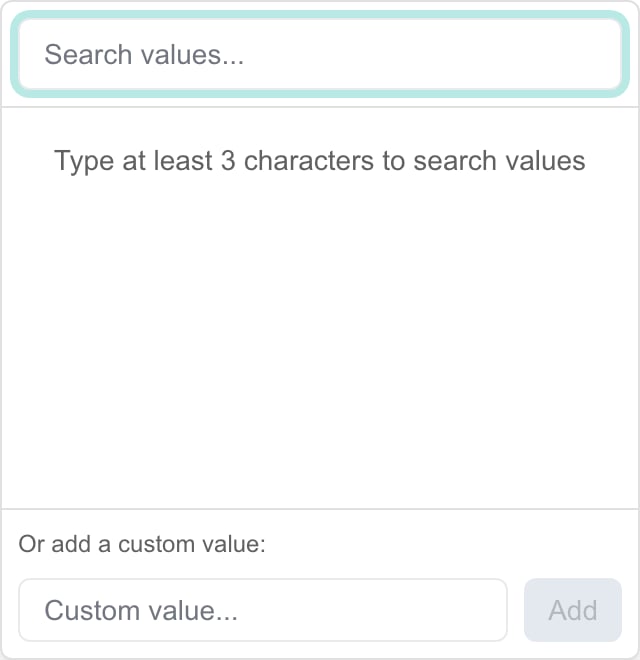 The image shows the MSP search and custom-value controls before a value is entered.
Adding a badge, removing one, or toggling recurring tickets changes the draft only. Select **Save Exclusions** to persist those changes. Switching dashboard-settings tabs can retain an unsaved draft; leaving the page is not a save operation.
## Change or remove an exclusion
Select the X on the unwanted badge. To correct a label, remove the old value and add the exact replacement. To include recognized recurring tickets again, turn off **Exclude Recurring Tickets**. Select **Save Exclusions** afterward.
Turning off this switch does not override a Company user’s separate ticket-visibility rules. A role that hides recurring tickets may still do so. Company access changes are managed separately by the MSP.
## Reset and saved values
**Reset** discards the current draft and restores the values originally loaded by that page. It does not save an undo to the database or clear all exclusions permanently.
After saving once, then making another edit, Reset can display the page’s older starting values while the newer saved values remain stored. Reopen the page to read the actual saved settings before making another change. To undo a saved exclusion, explicitly remove or correct it and select Save Exclusions.
A disabled **Save Exclusions** button means the page has no tracked draft changes, or a save is in progress. It is not proof that the displayed values match the latest database state after using Reset in the situation above.
## Matching and chart scope
Use the exact displayed submitter or type label. Exclusion values are exact, case-sensitive matches; a partial name or wildcard does not exclude every similar label. Search suggestions can match a partial query, but the selected exclusion remains a complete value. For example, excluding **Unknown** does not mean every label containing “unknown” is excluded.
Submitter exclusions affect submitter breakdowns, and type exclusions affect type breakdowns. Other ticket totals may still include those records. The recurring-ticket switch has broader support among ticket widgets and their drilldowns, but it does not promise recognition of all providers or every record described as recurring.
The page currently exposes submitters, ticket types and the recurring switch. It does not offer company, contact, technician or subtype exclusion editors. Use the relevant view filters and configuration when you need a different scope.
## Troubleshooting
| Symptom | What to check |
| -------------------------------------- | ------------------------------------------------------------------------------------------------------------------------------------------------ |
| Save Exclusions is disabled | Make an intended draft change and wait for any current save. If Reset was used after a save, reopen first. |
| No search suggestions | Enter at least three characters and narrow the query. A missing suggestion is not proof that the source record does not exist. |
| Custom exclusion has no visible effect | Check exact spelling/case, the applicable widget, company scope, dates and whether any records match. |
| Widget total differs from Tickets | Compare the metric’s date definition, role access, company scope and applicable exclusions. Not all widgets share the same exclusion categories. |
| Recurring tickets remain | Verify the provider’s recognized format and the widget’s support. This is not a universal recurring-work detector. |
| Controls are unavailable | Ask an MSP administrator to review Dashboard Settings write/manage permissions. |
## Related guides
* [Understand dashboard exclusions](/user-guides/dashboards/understand-dashboard-exclusions)
* [Read and filter a dashboard](/user-guides/dashboards/read-a-dashboard)
* [Inspect dashboard tickets](/user-guides/dashboards/inspect-dashboard-tickets)
* [Manage dashboard settings](/user-guides/dashboards/manage-dashboard-settings)
## Frequently asked questions
Use Settings > Dashboards > Exclusions with Dashboard Settings write or manage permission.
No. They are tenant-wide and apply to supported widgets for all users, including Company users. The company selector does not narrow the saved setting.
No. Add changes the draft badge list. Select Save Exclusions to persist the setting.
Enter at least three characters in Search values. Wait for suggestions and narrow the query when needed.
Yes. Enter the exact label as a custom value and select Add, then Save Exclusions. A custom value does not create a source record.
No. They are exact, case-sensitive value matches. Search can find partial text, but the saved exclusion is the selected complete label.
Select the badge’s X and then Save Exclusions. Removing the draft badge alone does not change the stored settings.
Turn off Exclude Recurring Tickets and save. Separate user-role visibility can still hide recurring records; the switch does not grant access.
No. It restores the page’s initially loaded draft values and does not save a database undo. Reopen the page to check stored values.
Reset can return to the page’s original values even after a successful save. The newer saved settings remain stored. Reopen the page before editing again.
No. It can indicate no tracked draft changes or a save in progress. After Reset following a save, reopen the page to confirm the stored values.
No. Tabs can retain an unsaved draft while the page remains open. Use Save Exclusions explicitly.
No. They apply to supported submitter and type breakdowns respectively. Other totals can still include those tickets.
Do not assume universal support. Current detection covers the supported Autotask recurring-ticket format; verify the provider, records and widget.
No. It filters supported dashboard data. Recurring-ticket creation schedules remain managed in the PSA.
No. This page manages tenant-wide widget exclusions. Use applicable dashboard view controls and user permissions for other needs.
They are not exposed by this page. The current controls are submitters, ticket types and Exclude Recurring Tickets.
No. These are presentation filters, not access-control rules. Configure user permissions separately.
Check the exact spelling and capitalization, whether data matches, and whether that widget uses the category. Also compare company and dates.
No. The external service has its own filtering and access behavior.
The image shows the MSP search and custom-value controls before a value is entered.
Adding a badge, removing one, or toggling recurring tickets changes the draft only. Select **Save Exclusions** to persist those changes. Switching dashboard-settings tabs can retain an unsaved draft; leaving the page is not a save operation.
## Change or remove an exclusion
Select the X on the unwanted badge. To correct a label, remove the old value and add the exact replacement. To include recognized recurring tickets again, turn off **Exclude Recurring Tickets**. Select **Save Exclusions** afterward.
Turning off this switch does not override a Company user’s separate ticket-visibility rules. A role that hides recurring tickets may still do so. Company access changes are managed separately by the MSP.
## Reset and saved values
**Reset** discards the current draft and restores the values originally loaded by that page. It does not save an undo to the database or clear all exclusions permanently.
After saving once, then making another edit, Reset can display the page’s older starting values while the newer saved values remain stored. Reopen the page to read the actual saved settings before making another change. To undo a saved exclusion, explicitly remove or correct it and select Save Exclusions.
A disabled **Save Exclusions** button means the page has no tracked draft changes, or a save is in progress. It is not proof that the displayed values match the latest database state after using Reset in the situation above.
## Matching and chart scope
Use the exact displayed submitter or type label. Exclusion values are exact, case-sensitive matches; a partial name or wildcard does not exclude every similar label. Search suggestions can match a partial query, but the selected exclusion remains a complete value. For example, excluding **Unknown** does not mean every label containing “unknown” is excluded.
Submitter exclusions affect submitter breakdowns, and type exclusions affect type breakdowns. Other ticket totals may still include those records. The recurring-ticket switch has broader support among ticket widgets and their drilldowns, but it does not promise recognition of all providers or every record described as recurring.
The page currently exposes submitters, ticket types and the recurring switch. It does not offer company, contact, technician or subtype exclusion editors. Use the relevant view filters and configuration when you need a different scope.
## Troubleshooting
| Symptom | What to check |
| -------------------------------------- | ------------------------------------------------------------------------------------------------------------------------------------------------ |
| Save Exclusions is disabled | Make an intended draft change and wait for any current save. If Reset was used after a save, reopen first. |
| No search suggestions | Enter at least three characters and narrow the query. A missing suggestion is not proof that the source record does not exist. |
| Custom exclusion has no visible effect | Check exact spelling/case, the applicable widget, company scope, dates and whether any records match. |
| Widget total differs from Tickets | Compare the metric’s date definition, role access, company scope and applicable exclusions. Not all widgets share the same exclusion categories. |
| Recurring tickets remain | Verify the provider’s recognized format and the widget’s support. This is not a universal recurring-work detector. |
| Controls are unavailable | Ask an MSP administrator to review Dashboard Settings write/manage permissions. |
## Related guides
* [Understand dashboard exclusions](/user-guides/dashboards/understand-dashboard-exclusions)
* [Read and filter a dashboard](/user-guides/dashboards/read-a-dashboard)
* [Inspect dashboard tickets](/user-guides/dashboards/inspect-dashboard-tickets)
* [Manage dashboard settings](/user-guides/dashboards/manage-dashboard-settings)
## Frequently asked questions
Use Settings > Dashboards > Exclusions with Dashboard Settings write or manage permission.
No. They are tenant-wide and apply to supported widgets for all users, including Company users. The company selector does not narrow the saved setting.
No. Add changes the draft badge list. Select Save Exclusions to persist the setting.
Enter at least three characters in Search values. Wait for suggestions and narrow the query when needed.
Yes. Enter the exact label as a custom value and select Add, then Save Exclusions. A custom value does not create a source record.
No. They are exact, case-sensitive value matches. Search can find partial text, but the saved exclusion is the selected complete label.
Select the badge’s X and then Save Exclusions. Removing the draft badge alone does not change the stored settings.
Turn off Exclude Recurring Tickets and save. Separate user-role visibility can still hide recurring records; the switch does not grant access.
No. It restores the page’s initially loaded draft values and does not save a database undo. Reopen the page to check stored values.
Reset can return to the page’s original values even after a successful save. The newer saved settings remain stored. Reopen the page before editing again.
No. It can indicate no tracked draft changes or a save in progress. After Reset following a save, reopen the page to confirm the stored values.
No. Tabs can retain an unsaved draft while the page remains open. Use Save Exclusions explicitly.
No. They apply to supported submitter and type breakdowns respectively. Other totals can still include those tickets.
Do not assume universal support. Current detection covers the supported Autotask recurring-ticket format; verify the provider, records and widget.
No. It filters supported dashboard data. Recurring-ticket creation schedules remain managed in the PSA.
No. This page manages tenant-wide widget exclusions. Use applicable dashboard view controls and user permissions for other needs.
They are not exposed by this page. The current controls are submitters, ticket types and Exclude Recurring Tickets.
No. These are presentation filters, not access-control rules. Configure user permissions separately.
Check the exact spelling and capitalization, whether data matches, and whether that widget uses the category. Also compare company and dates.
No. The external service has its own filtering and access behavior.