> ## Documentation Index
> Fetch the complete documentation index at: https://docs.msportal.ai/llms.txt
> Use this file to discover all available pages before exploring further.
# Configure external dashboards
> Add external dashboard links, set Company role access and manage embedding and availability.
**Audience:** MSP staff with permission to manage dashboard settings. Company users should use [Open an external dashboard](/user-guides/dashboards/open-external-dashboard).
Open **Settings > Dashboards > External Dashboards**. This is the shared external-dashboard catalog. Adding a link does not connect an API integration or grant an account in the external service.
## Create a dashboard link
Wait for the external-dashboard table to load, then select **Add External Item**. Enter a clear name and an **HTTPS** default URL. Add a description that helps users identify the dashboard.
Set **Display Order** if needed; lower values appear earlier. The optional icon accepts PNG or JPEG images. Choose the eligible **Company Roles**, or leave all unchecked for no additional Company-role restriction. This does not replace company assignment or module access.
Select **Create**. Reopen the item to verify the saved URL and role selections. New items start active. For Company access, use the row’s **Company URLs** action to assign a URL to each intended company.
Company-role selections restrict Company users, not MSP staff. They do not assign roles to users. User permissions remain managed by the MSP.
## Edit an existing item
Open its row **… > Edit**, change the fields, and select **Update**. The edit dialog also provides **Active**, **Pin to Sidebar** and an optional sidebar label. An inactive item is unavailable in the normal dashboard reader.
The default URL is for MSP global viewing. [Company URLs](/user-guides/dashboards/assign-external-dashboard-company-urls) are saved separately. After changing a URL, recheck its destination and embedding behavior; an old policy status is not proof that the new page works.
Icon uploads occur when a file is selected. Canceling the dialog does not undo that upload. Use an appropriate small icon and verify the saved result after updating it.
## Row actions
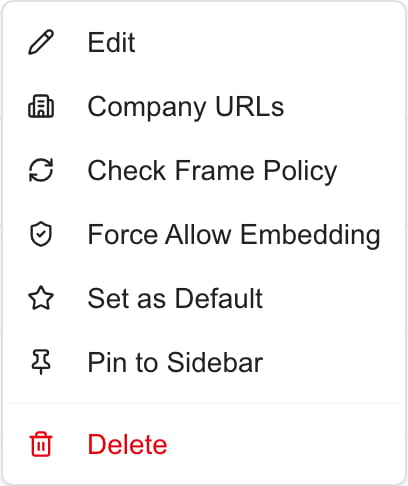 The image shows MSP administration controls.
| Action | Effect |
| --------------------------------------- | --------------------------------------------------------------------------------------------------------------------------------- |
| **Edit** | Change the item; select Update to save form changes. |
| **Company URLs** | Add, edit or remove company assignments, each saved immediately. |
| **Check Frame Policy** | Request a background embedding check for this item’s default URL. Reopen the table later to inspect the result. |
| **Force Allow Embedding** | Confirm an override of the portal’s embedding check. It cannot override restrictions enforced by the external website or browser. |
| **Remove Force Allow** | Remove the override and return to the stored automated policy result. |
| **Set as Default** | Replace the tenant’s current internal or external dashboard default. It does not grant access. |
| **Remove Default** | Clear this default without selecting another. |
| **Pin to Sidebar / Unpin from Sidebar** | Add or remove the shared sidebar shortcut. Access rules still apply. |
| **Delete** | Open a confirmation dialog. Confirm only when you intend to remove the portal item and its company assignments. |
The URL link in the table opens the external destination. It is different from opening the dashboard reader inside MSPortal.
## Embedding checks
**Check Frame Policy** checks the default URL, not every company-specific URL. **Check All Policies** queues checks for active items that have not been checked; it is not a guaranteed fresh recheck of every existing result. Use the individual action when reviewing a changed URL.
* **Not checked:** no saved embedding decision.
* **Allowed:** the stored automated check permits an embedding attempt. It does not prove that every company URL loads, authentication succeeds or the service’s data is correct.
* **Blocked:** use a separate tab, or investigate the external service’s supported embedding configuration.
* **Force Allow:** the portal attempts embedding despite its automatic result. The external website can still reject it.
Test the actual intended company URL as well as the default. A provider can apply different policies or authentication to different pages.
## Bulk changes
Select only the intended rows, then use the bulk controls. **Enable** and **Disable** change availability. **Edit Permissions** replaces the selected items’ Company-role assignments; it does not merge the new selection with their previous roles. Selecting no roles removes the explicit role restriction. Verify each affected item afterward.
Bulk **Delete** asks for browser confirmation. Single-row Delete uses an in-app confirmation dialog. Deletion removes the MSPortal configuration, not the external service or its account. Disabling is useful when you want to retain the configuration for later.
## Related guides
* [Assign company URLs](/user-guides/dashboards/assign-external-dashboard-company-urls)
* [Open an external dashboard](/user-guides/dashboards/open-external-dashboard)
* [Manage internal dashboard settings](/user-guides/dashboards/manage-dashboard-settings)
## Frequently asked questions
Use Settings > Dashboards > External Dashboards > Add External Item.
No. It creates a portal link or embedded view. Configure API integrations separately when needed.
Use a valid HTTPS URL for the default and company-specific destinations.
No additional Company-role restriction. The item still needs active status, applicable access and company URL assignments for Company use.
The external dashboard’s Company-role selections gate Company users; they do not assign or restrict MSP staff roles.
Verify the actual saved URL, role choices and availability before relying on the configuration or sharing it with users.
These are MSP administration tasks. Company users should ask their MSP to change dashboard configuration or user permissions.
It queues active items that have not been checked. Use the individual Check Frame Policy action when a saved result needs review.
No. The check uses the item’s default URL. Verify each intended company destination separately.
No. It permits an embedding attempt based on the saved check. Authentication, actual content and company-specific URLs still require verification.
It overrides the portal’s automated embedding decision after confirmation. It cannot bypass the external website’s browser policy or sign-in requirements.
No. Defaults, pinning and policy actions take effect through their own actions. Edit form changes require Update; company URL changes save individually.
Yes. Set as Default replaces the tenant’s existing internal or external dashboard default. It is not just a personal preference.
No. It replaces the selected items’ Company-role assignments. Review the selection and each saved result.
No. It removes the MSPortal item and its company assignments, not the external service’s account or dashboard.
No. Choosing an icon uploads it immediately, before Create or Update. Cancel is not an upload rollback.
Active controls availability. Pinning adds a navigation shortcut and does not grant access or make an inactive item usable.
The image shows MSP administration controls.
| Action | Effect |
| --------------------------------------- | --------------------------------------------------------------------------------------------------------------------------------- |
| **Edit** | Change the item; select Update to save form changes. |
| **Company URLs** | Add, edit or remove company assignments, each saved immediately. |
| **Check Frame Policy** | Request a background embedding check for this item’s default URL. Reopen the table later to inspect the result. |
| **Force Allow Embedding** | Confirm an override of the portal’s embedding check. It cannot override restrictions enforced by the external website or browser. |
| **Remove Force Allow** | Remove the override and return to the stored automated policy result. |
| **Set as Default** | Replace the tenant’s current internal or external dashboard default. It does not grant access. |
| **Remove Default** | Clear this default without selecting another. |
| **Pin to Sidebar / Unpin from Sidebar** | Add or remove the shared sidebar shortcut. Access rules still apply. |
| **Delete** | Open a confirmation dialog. Confirm only when you intend to remove the portal item and its company assignments. |
The URL link in the table opens the external destination. It is different from opening the dashboard reader inside MSPortal.
## Embedding checks
**Check Frame Policy** checks the default URL, not every company-specific URL. **Check All Policies** queues checks for active items that have not been checked; it is not a guaranteed fresh recheck of every existing result. Use the individual action when reviewing a changed URL.
* **Not checked:** no saved embedding decision.
* **Allowed:** the stored automated check permits an embedding attempt. It does not prove that every company URL loads, authentication succeeds or the service’s data is correct.
* **Blocked:** use a separate tab, or investigate the external service’s supported embedding configuration.
* **Force Allow:** the portal attempts embedding despite its automatic result. The external website can still reject it.
Test the actual intended company URL as well as the default. A provider can apply different policies or authentication to different pages.
## Bulk changes
Select only the intended rows, then use the bulk controls. **Enable** and **Disable** change availability. **Edit Permissions** replaces the selected items’ Company-role assignments; it does not merge the new selection with their previous roles. Selecting no roles removes the explicit role restriction. Verify each affected item afterward.
Bulk **Delete** asks for browser confirmation. Single-row Delete uses an in-app confirmation dialog. Deletion removes the MSPortal configuration, not the external service or its account. Disabling is useful when you want to retain the configuration for later.
## Related guides
* [Assign company URLs](/user-guides/dashboards/assign-external-dashboard-company-urls)
* [Open an external dashboard](/user-guides/dashboards/open-external-dashboard)
* [Manage internal dashboard settings](/user-guides/dashboards/manage-dashboard-settings)
## Frequently asked questions
Use Settings > Dashboards > External Dashboards > Add External Item.
No. It creates a portal link or embedded view. Configure API integrations separately when needed.
Use a valid HTTPS URL for the default and company-specific destinations.
No additional Company-role restriction. The item still needs active status, applicable access and company URL assignments for Company use.
The external dashboard’s Company-role selections gate Company users; they do not assign or restrict MSP staff roles.
Verify the actual saved URL, role choices and availability before relying on the configuration or sharing it with users.
These are MSP administration tasks. Company users should ask their MSP to change dashboard configuration or user permissions.
It queues active items that have not been checked. Use the individual Check Frame Policy action when a saved result needs review.
No. The check uses the item’s default URL. Verify each intended company destination separately.
No. It permits an embedding attempt based on the saved check. Authentication, actual content and company-specific URLs still require verification.
It overrides the portal’s automated embedding decision after confirmation. It cannot bypass the external website’s browser policy or sign-in requirements.
No. Defaults, pinning and policy actions take effect through their own actions. Edit form changes require Update; company URL changes save individually.
Yes. Set as Default replaces the tenant’s existing internal or external dashboard default. It is not just a personal preference.
No. It replaces the selected items’ Company-role assignments. Review the selection and each saved result.
No. It removes the MSPortal item and its company assignments, not the external service’s account or dashboard.
No. Choosing an icon uploads it immediately, before Create or Update. Cancel is not an upload rollback.
Active controls availability. Pinning adds a navigation shortcut and does not grant access or make an inactive item usable.