> ## Documentation Index
> Fetch the complete documentation index at: https://docs.msportal.ai/llms.txt
> Use this file to discover all available pages before exploring further.
# Add and edit device records
> Create a manual inventory record, update supported device fields, and verify what was saved.
Use the **Devices** inventory to record equipment and maintain supported inventory fields. Adding a manual record does not install an agent, discover hardware, or connect the device to an RMM service.
For users granted the relevant device permissions. **Add Device** requires creation access; the current detail panel's **Edit** tab requires device-management access. MSP staff manage Company permission assignments. Editing also depends on the device's source and your portal's available editing access.
## Add a manual device
Search the inventory by name or serial number first. A connected tool may already have imported the device.
In **Devices**, select **Add Device**. Enter the **Name**.
Review **Company** in the form, even when you opened it from a company-filtered list. Choose the intended company and, when appropriate, one of its **Location** options.
Choose the device type and manufacturer where available. Add the operating system, IP/MAC address, serial number, and warranty dates you know. Leave unknown values empty instead of guessing.
Select **Add Device** in the form footer. Check for a success or error message, then locate the record in the intended company's inventory and reopen it to verify the values.
The form also exposes **Status** and **Auto Apply Groups**. Confirm your provider's intended inventory conventions before changing those options. These fields do not configure the physical device by themselves.
To leave without submitting, select **Cancel** or close the panel. Review the values again if you reopen a form; do not assume every closed form resets its entries.
## Edit a manual device
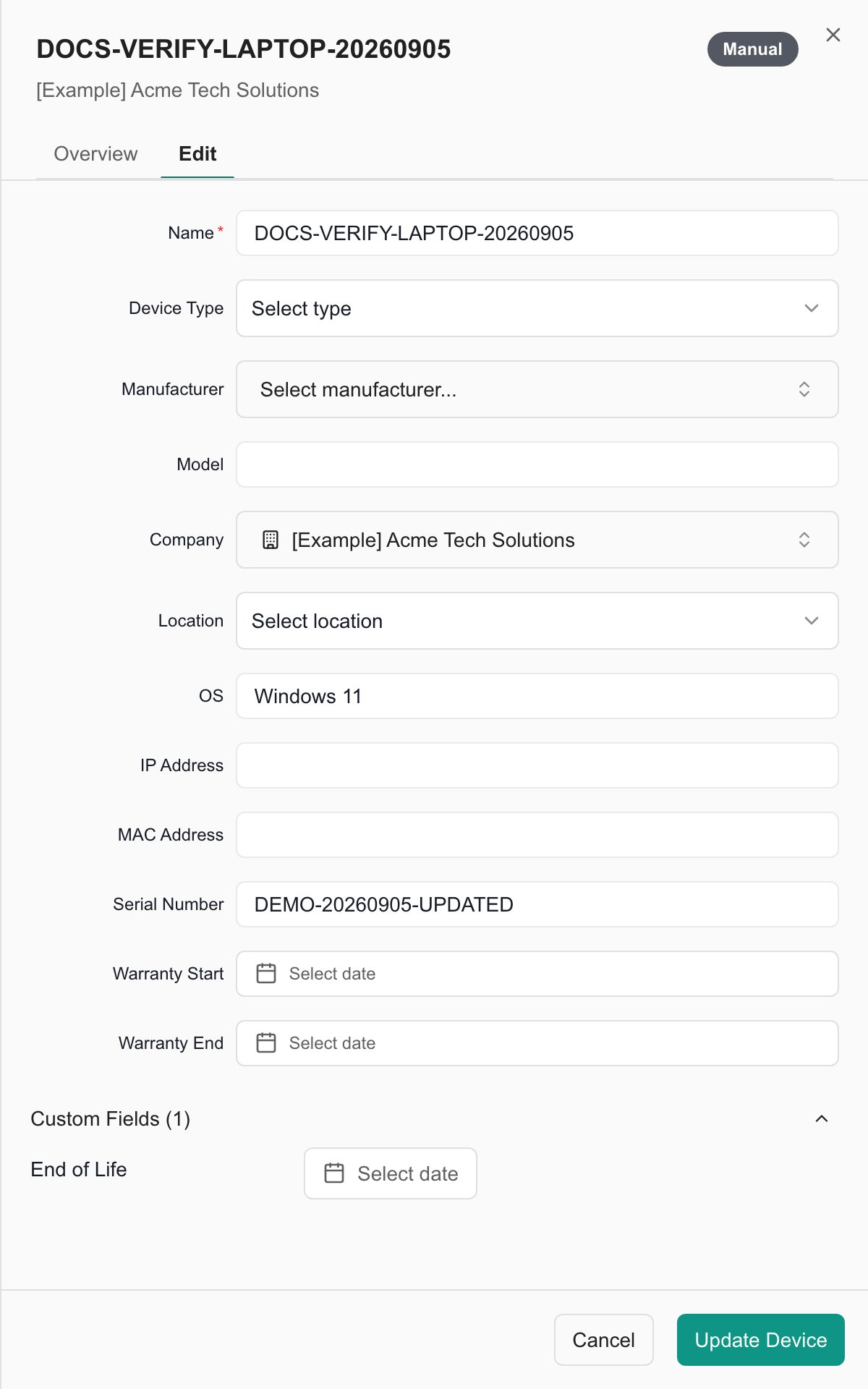
1. Select the device name to open its details.
2. Choose **Edit** and wait for the current values and custom fields to load.
3. Update the relevant fields. Confirm the company and location together when moving a record.
4. Enter any required custom-field values.
5. Select **Update Device**.
6. Review messages, reopen the device, and confirm the intended fields were saved.
Typing into the Edit tab does not autosave. Its **Cancel** button returns to **Overview**; it does not reliably clear the draft fields in the same open panel. Close and reopen the device to check its stored values.
A closed panel alone does not prove the update succeeded. Check error messages and the reopened record. Device fields and custom fields can save separately, so verify both after an error before retrying.
 ## Editing devices from integrations
An imported device can display fields that are controlled by its source. Available input fields do not guarantee that the source supports saving every change from this panel.
* Meraki records show several synchronized fields as locked.
* Some source types reject inventory editing from this workflow.
* A source may support only part of an update, such as a name change.
* A later synchronization can replace source-controlled values.
For a source-controlled correction, ask the MSP to review the connected tool and the supported import/update workflow. Do not assume **Update Device** changes the physical computer or writes every field back to the external RMM/PSA.
## Remove an inventory record
With device-management permission, open the record's row **… > Delete**, check the device named in the confirmation, and select **Delete** only when it is the intended record. Verify the resulting inventory afterward.
Deletion removes the portal inventory record; it does not wipe the computer or uninstall a remote-management agent. Integrated-device import handling can also change, so the MSP should review the relevant source if the device later reappears or needs importing again. The inventory does not offer an undo button for a completed deletion.
## Frequently asked questions
No. It creates an inventory record. The MSP configures agents and integrations through the appropriate tools.
The form has its own company selection. Confirm it explicitly so the record is created in the intended company.
Creation and the current panel's editing control have different permission requirements. Ask the MSP to review your intended access.
No. Use **Add Device** for a new record or **Update Device** for the Edit tab. Verify the stored values afterward.
It returns to Overview. Draft values can remain when you return to Edit in the same panel. Close and reopen the record to review stored values.
Review any error message and reopen the record. The source may not support the change, or part of the save may have failed. A closed panel is not sufficient proof of success.
No. Some fields are locked, and some providers reject or support only part of an update. The MSP should review the source-controlled record and verify the result after synchronization.
No. It removes the portal inventory record. Device wiping, agent removal, and external system administration are separate operations.
## Related guides
* [Find and export devices](/user-guides/devices/find-devices)
* [Understand device details](/user-guides/devices/understand-device-details)
* [Change a Company user's permissions — MSP](/user-guides/settings/change-company-user-permissions)
## Editing devices from integrations
An imported device can display fields that are controlled by its source. Available input fields do not guarantee that the source supports saving every change from this panel.
* Meraki records show several synchronized fields as locked.
* Some source types reject inventory editing from this workflow.
* A source may support only part of an update, such as a name change.
* A later synchronization can replace source-controlled values.
For a source-controlled correction, ask the MSP to review the connected tool and the supported import/update workflow. Do not assume **Update Device** changes the physical computer or writes every field back to the external RMM/PSA.
## Remove an inventory record
With device-management permission, open the record's row **… > Delete**, check the device named in the confirmation, and select **Delete** only when it is the intended record. Verify the resulting inventory afterward.
Deletion removes the portal inventory record; it does not wipe the computer or uninstall a remote-management agent. Integrated-device import handling can also change, so the MSP should review the relevant source if the device later reappears or needs importing again. The inventory does not offer an undo button for a completed deletion.
## Frequently asked questions
No. It creates an inventory record. The MSP configures agents and integrations through the appropriate tools.
The form has its own company selection. Confirm it explicitly so the record is created in the intended company.
Creation and the current panel's editing control have different permission requirements. Ask the MSP to review your intended access.
No. Use **Add Device** for a new record or **Update Device** for the Edit tab. Verify the stored values afterward.
It returns to Overview. Draft values can remain when you return to Edit in the same panel. Close and reopen the record to review stored values.
Review any error message and reopen the record. The source may not support the change, or part of the save may have failed. A closed panel is not sufficient proof of success.
No. Some fields are locked, and some providers reject or support only part of an update. The MSP should review the source-controlled record and verify the result after synchronization.
No. It removes the portal inventory record. Device wiping, agent removal, and external system administration are separate operations.
## Related guides
* [Find and export devices](/user-guides/devices/find-devices)
* [Understand device details](/user-guides/devices/understand-device-details)
* [Change a Company user's permissions — MSP](/user-guides/settings/change-company-user-permissions)