> ## Documentation Index
> Fetch the complete documentation index at: https://docs.msportal.ai/llms.txt
> Use this file to discover all available pages before exploring further.
# Create and maintain portal documents
> MSP guide to creating pages, uploading files, organizing folders, and reviewing document revisions.
**Audience:** MSP staff with permission to manage Documentation settings. Company users read the content you make available to them.
Use **Documentation > Documents** to create portal pages and upload files. A Hudu or IT Glue integration is not required for native portal documents.
## Create a page
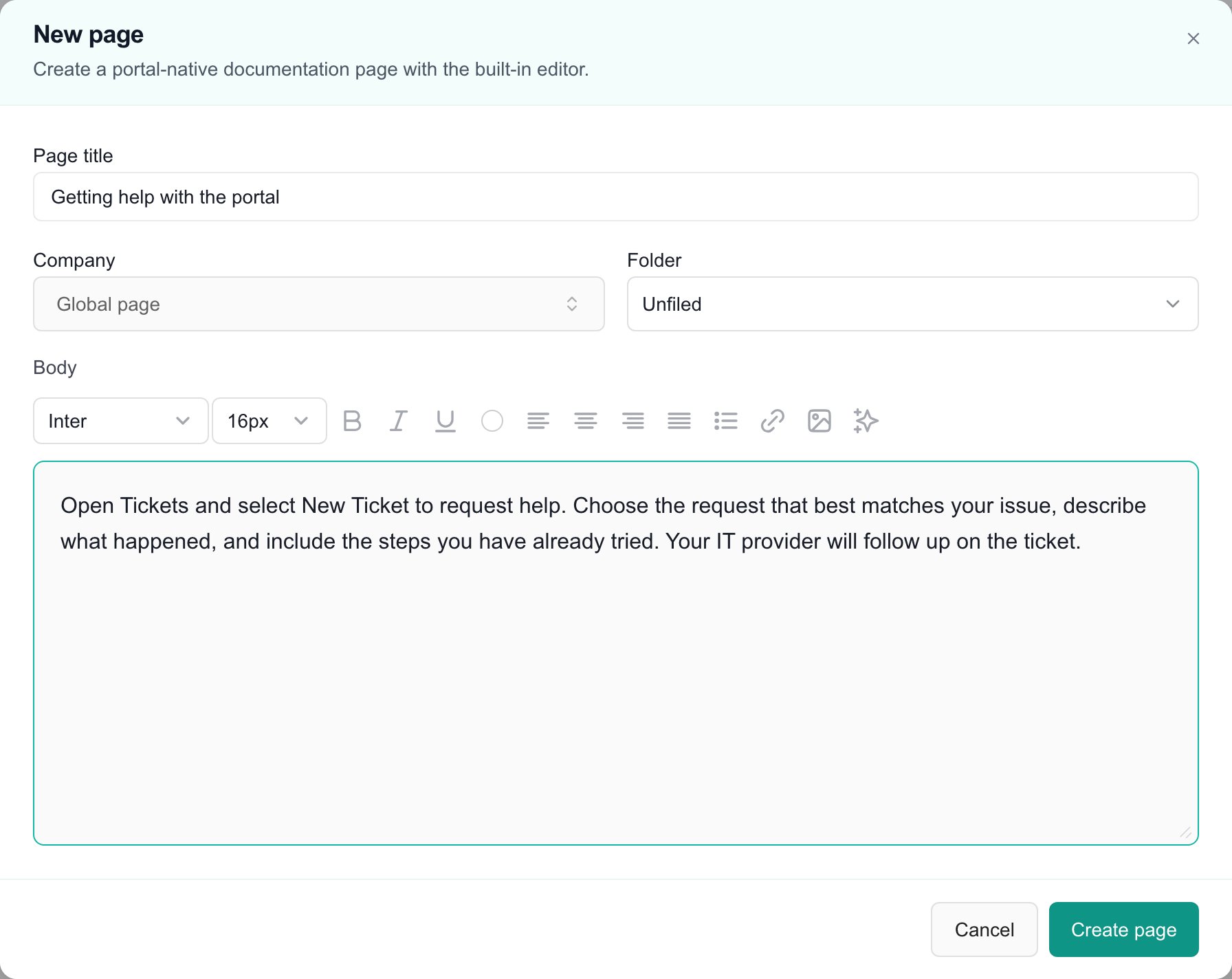
Select **New page** in the Documents header.
Enter a **Page title**. Select **Company** for company-specific content or leave **Global page** for a page without a company assignment. Choose a custom **Folder**, or leave **Unfiled**.
Scope and role visibility are separate. Review the document's audience in Documentation settings; a global page is not a private personal draft.
Enter the **Body** and use the formatting toolbar for text styles, lists, links, and supported images. Review the content and selected company before creating it.
Select **Create page** and wait for confirmation. Open the saved page from Documents to verify its content and access. **Cancel** closes the editor without creating the page.
 ## Upload a file
Select **Upload** in Documents. Choose a DOCX, XLS, XLSX, PDF, or CSV file, set the company and folder as appropriate, and complete the upload. Wait for confirmation before leaving.
The document list identifies it as a **File**. Open its **Preview** to check the result or download the original. A preview may simplify formatting or limit spreadsheet rows; it does not replace the original file.
## Organize folders and documents
Select **New folder**, enter its name, and choose the company and parent folder when needed. Select **Create** to save it.
For an editable portal document, use its row's **Document actions > Move to folder…** control to choose a destination. You can also drag an editable portal document into a custom folder. Moving a document saves the folder change; it is not a staged layout preference.
Provider folders and documents have different ownership. Manage their organization in the connected documentation provider when the portal does not offer an edit action.
When deleting a custom folder, read the confirmation: nested folders are included, and their documents move to **Unfiled**. Deleting a folder does not delete the documents it contained.
## Edit a page and review history
Open an editable native page and select **Edit**. Make the changes and select **Save**. Saved edits create document revisions.
Select **Revisions** to view history. **Restore** restores the selected content by creating another revision; it does not erase the revision history. If the page changed while you were editing, reload the current version and reconcile your changes before saving again.
## FAQs
These controls require MSP documentation-management access. Company users do not create or upload portal documents from this screen.
Company scope identifies which company's content it is. Visibility rules and the user's documentation permissions still determine access. Review the audience in Documentation settings.
No. Use **Create page** for a new page or **Save** for an edit. Closing or canceling the editor does not submit the form.
The native editor is for editable portal content. Provider articles are managed in their source system; do not assume a portal edit action is available for them.
Custom-folder deletion moves the contained documents to Unfiled and includes nested folders. Review the confirmation before applying it.
Open **Revisions** on an editable native document and select **Restore** on the version you need. The restore creates a new revision.
No. A normal portal URL retains access checks. Public provider sharing is a separate action and can change visibility in the provider itself.
## Related guides
* [Company guide: Find and read shared documents](/user-guides/documentation/find-shared-documents)
* [Company guide: Use the resource hub](/user-guides/documentation/resource-hub)
* [Hudu integration](/user-guides/integrations/enable-hudu-integration)
* [IT Glue integration](/user-guides/integrations/enable-itglue-integration)
## Upload a file
Select **Upload** in Documents. Choose a DOCX, XLS, XLSX, PDF, or CSV file, set the company and folder as appropriate, and complete the upload. Wait for confirmation before leaving.
The document list identifies it as a **File**. Open its **Preview** to check the result or download the original. A preview may simplify formatting or limit spreadsheet rows; it does not replace the original file.
## Organize folders and documents
Select **New folder**, enter its name, and choose the company and parent folder when needed. Select **Create** to save it.
For an editable portal document, use its row's **Document actions > Move to folder…** control to choose a destination. You can also drag an editable portal document into a custom folder. Moving a document saves the folder change; it is not a staged layout preference.
Provider folders and documents have different ownership. Manage their organization in the connected documentation provider when the portal does not offer an edit action.
When deleting a custom folder, read the confirmation: nested folders are included, and their documents move to **Unfiled**. Deleting a folder does not delete the documents it contained.
## Edit a page and review history
Open an editable native page and select **Edit**. Make the changes and select **Save**. Saved edits create document revisions.
Select **Revisions** to view history. **Restore** restores the selected content by creating another revision; it does not erase the revision history. If the page changed while you were editing, reload the current version and reconcile your changes before saving again.
## FAQs
These controls require MSP documentation-management access. Company users do not create or upload portal documents from this screen.
Company scope identifies which company's content it is. Visibility rules and the user's documentation permissions still determine access. Review the audience in Documentation settings.
No. Use **Create page** for a new page or **Save** for an edit. Closing or canceling the editor does not submit the form.
The native editor is for editable portal content. Provider articles are managed in their source system; do not assume a portal edit action is available for them.
Custom-folder deletion moves the contained documents to Unfiled and includes nested folders. Review the confirmation before applying it.
Open **Revisions** on an editable native document and select **Restore** on the version you need. The restore creates a new revision.
No. A normal portal URL retains access checks. Public provider sharing is a separate action and can change visibility in the provider itself.
## Related guides
* [Company guide: Find and read shared documents](/user-guides/documentation/find-shared-documents)
* [Company guide: Use the resource hub](/user-guides/documentation/resource-hub)
* [Hudu integration](/user-guides/integrations/enable-hudu-integration)
* [IT Glue integration](/user-guides/integrations/enable-itglue-integration)