> ## Documentation Index
> Fetch the complete documentation index at: https://docs.msportal.ai/llms.txt
> Use this file to discover all available pages before exploring further.
# Goals & Objectives
> Set, track, and achieve organizational objectives with strategic goal management in MSPortal.ai
The Goals & Objectives module helps organizations define, track, and achieve strategic objectives through structured goal setting and progress monitoring. Track company-wide goals, monitor progress with visual indicators, and integrate goals with your Planner and Meetings.
 ## Overview
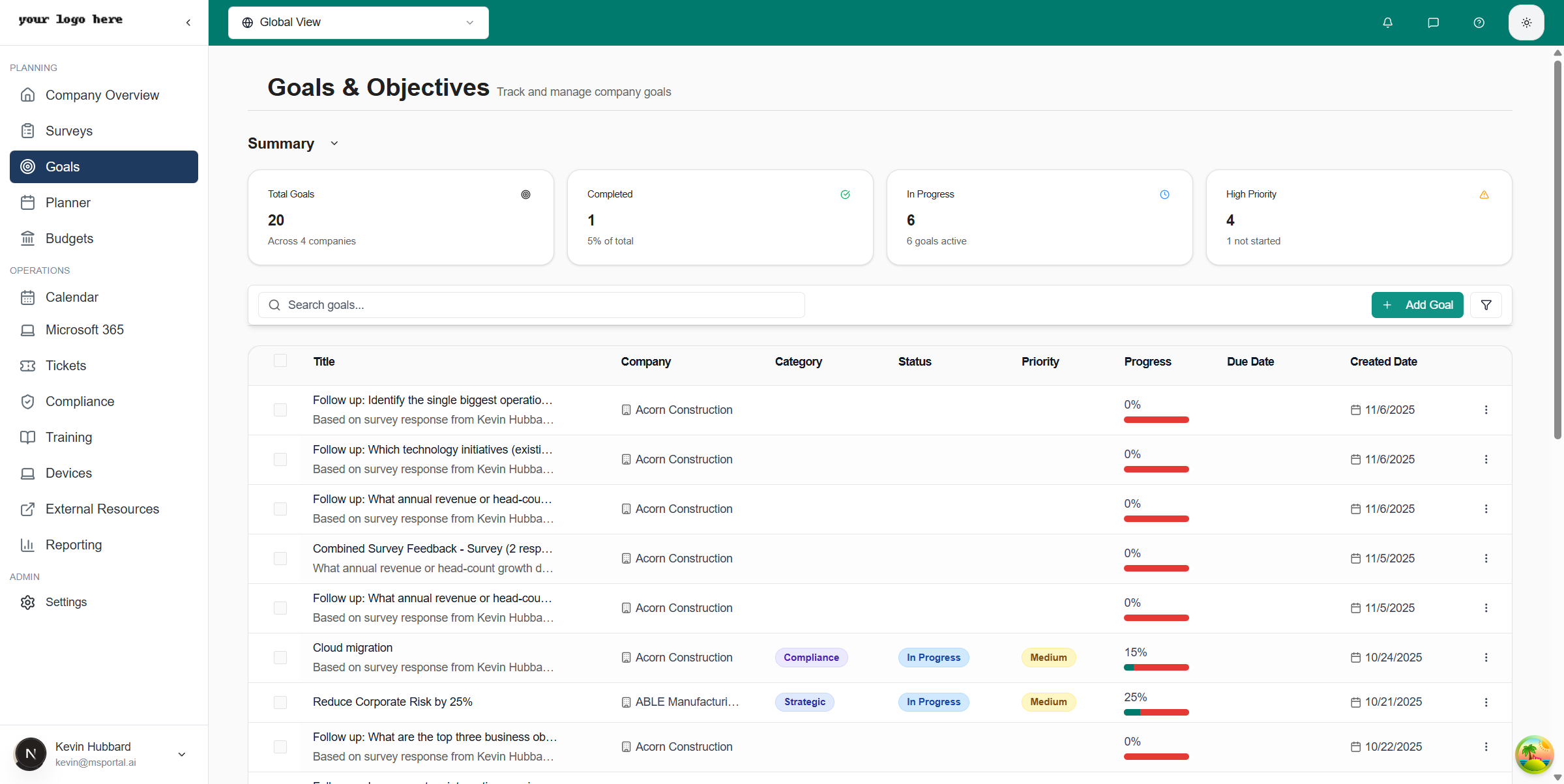
When you navigate to **Goals** from the sidebar, you'll see the main Goals & Objectives page which includes:
* **Summary Cards** - Quick metrics showing Total Goals, Completed, In Progress, and High Priority counts
* **Search Bar** - Filter goals by title or description
* **Filter Button** - Open the filter drawer for advanced filtering
* **Add Goal Button** - Create new goals
* **Goals Table** - View all goals with key information
## Summary Cards
At the top of the page, four summary cards provide at-a-glance metrics:
| Card | Description |
| ----------------- | -------------------------------------------------- |
| **Total Goals** | The total number of goals across all statuses |
| **Completed** | Goals that have been marked as completed |
| **In Progress** | Goals currently being worked on |
| **High Priority** | Goals flagged as high priority requiring attention |
## Creating a Goal
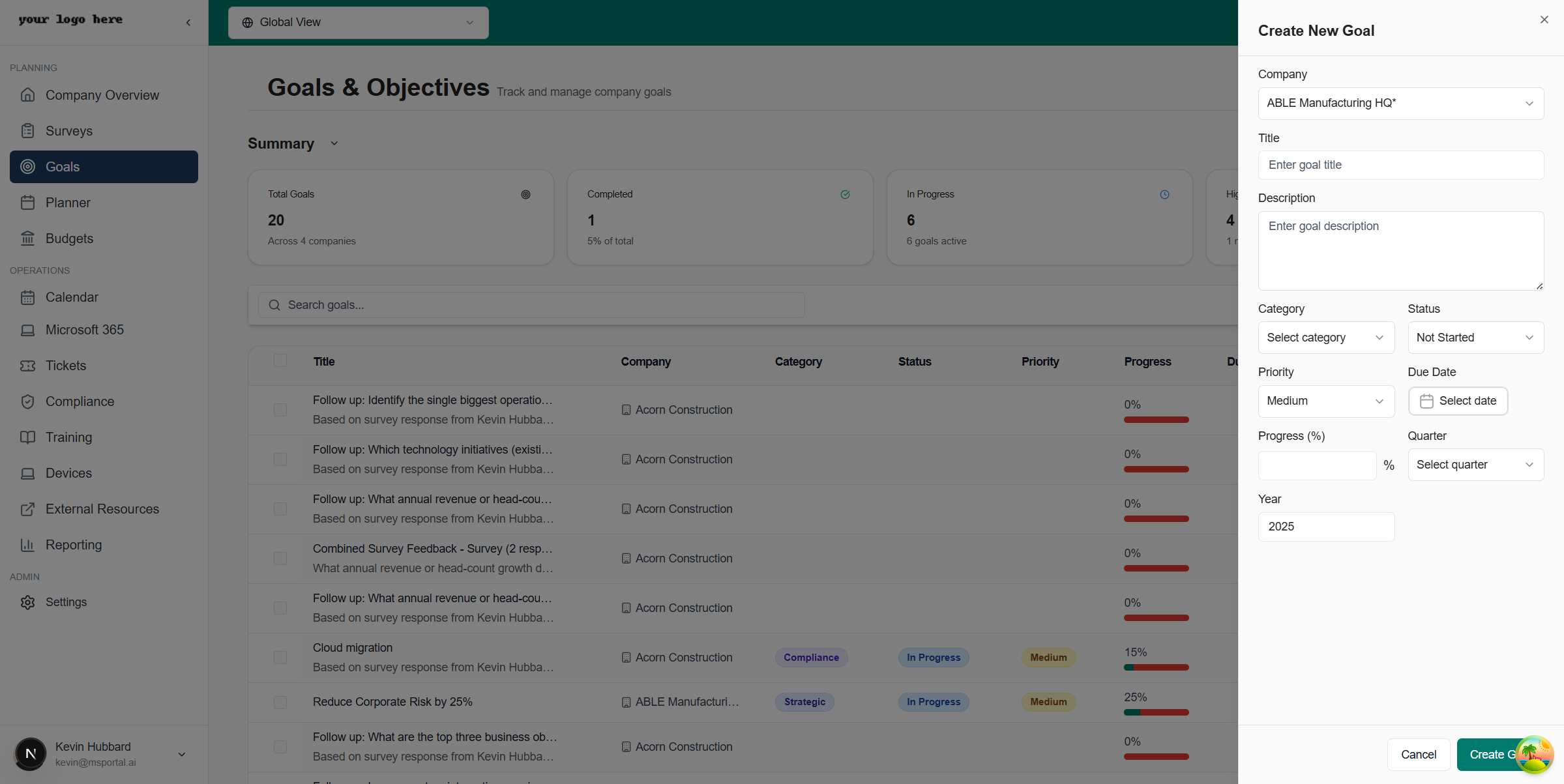
Click the **+ Add Goal** button in the top right corner of the page. This opens the Create New Goal panel.
Choose the company this goal belongs to from the dropdown menu.
Fill in the required fields:
* **Title** - A clear, concise name for the goal
* **Description** - Detailed explanation of what the goal aims to achieve
* **Category** - Select from Enterprise, Marketing, Technology, Financial, or Operational
* **Status** - Choose Not Started, In Progress, On Hold, At Risk, Completed, or Cancelled
* **Priority** - Set as High, Medium, Low, or Backlog
* **Due Date** - Select the target completion date
* **Quarter** - Choose the fiscal quarter (Q1-Q4)
* **Year** - Select the target year
Use the **Progress** field to indicate current completion percentage (0-100%).
Click **Create Goal** to save. The new goal will appear in your goals table.
## Overview
When you navigate to **Goals** from the sidebar, you'll see the main Goals & Objectives page which includes:
* **Summary Cards** - Quick metrics showing Total Goals, Completed, In Progress, and High Priority counts
* **Search Bar** - Filter goals by title or description
* **Filter Button** - Open the filter drawer for advanced filtering
* **Add Goal Button** - Create new goals
* **Goals Table** - View all goals with key information
## Summary Cards
At the top of the page, four summary cards provide at-a-glance metrics:
| Card | Description |
| ----------------- | -------------------------------------------------- |
| **Total Goals** | The total number of goals across all statuses |
| **Completed** | Goals that have been marked as completed |
| **In Progress** | Goals currently being worked on |
| **High Priority** | Goals flagged as high priority requiring attention |
## Creating a Goal
Click the **+ Add Goal** button in the top right corner of the page. This opens the Create New Goal panel.
Choose the company this goal belongs to from the dropdown menu.
Fill in the required fields:
* **Title** - A clear, concise name for the goal
* **Description** - Detailed explanation of what the goal aims to achieve
* **Category** - Select from Enterprise, Marketing, Technology, Financial, or Operational
* **Status** - Choose Not Started, In Progress, On Hold, At Risk, Completed, or Cancelled
* **Priority** - Set as High, Medium, Low, or Backlog
* **Due Date** - Select the target completion date
* **Quarter** - Choose the fiscal quarter (Q1-Q4)
* **Year** - Select the target year
Use the **Progress** field to indicate current completion percentage (0-100%).
Click **Create Goal** to save. The new goal will appear in your goals table.
 Use the SMART framework when creating goals: Specific, Measurable, Achievable, Relevant, and Time-bound.
## Filtering Goals
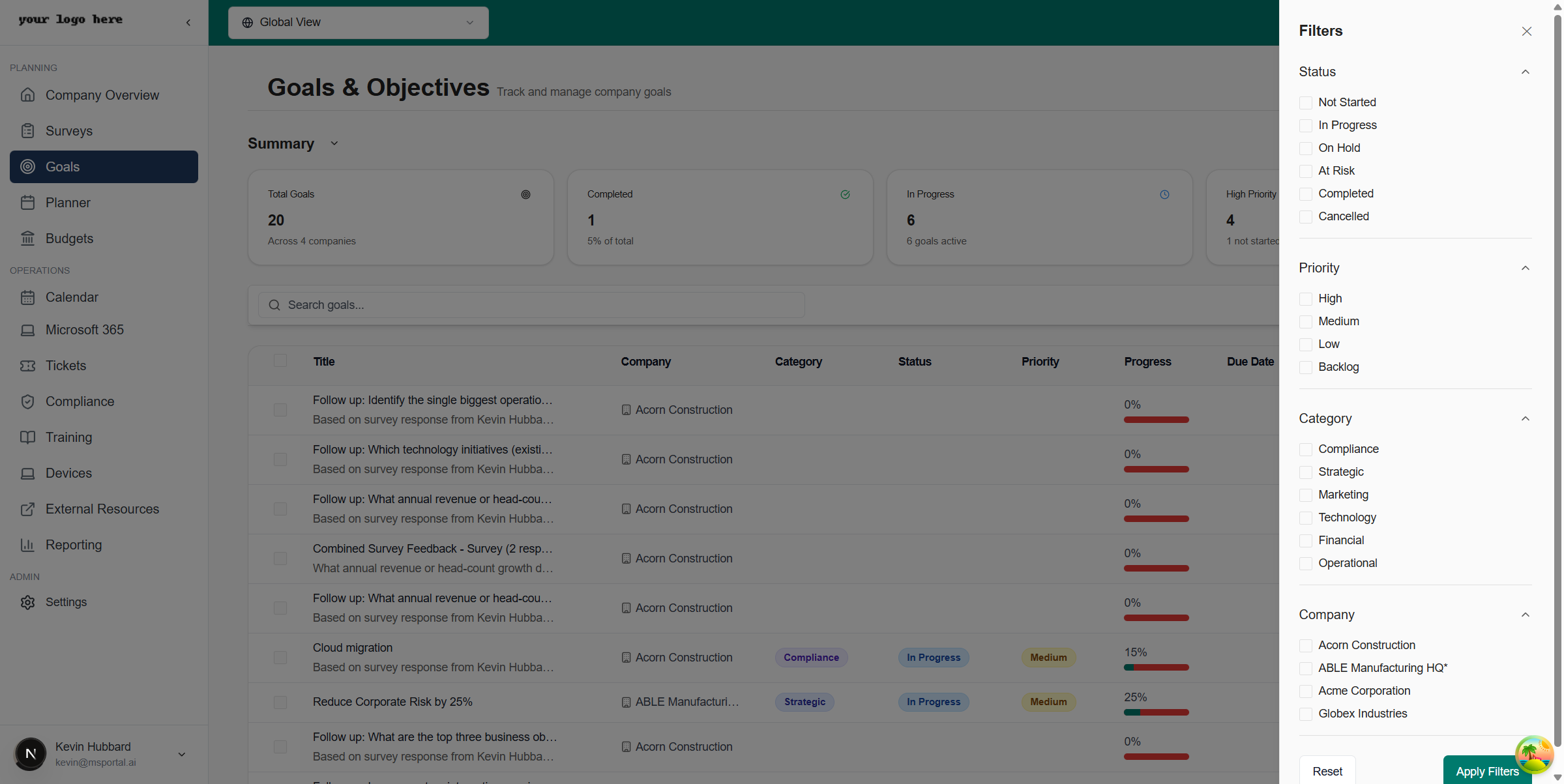
Click the **Filter** button to open the filter drawer and narrow down your goals list.
Use the SMART framework when creating goals: Specific, Measurable, Achievable, Relevant, and Time-bound.
## Filtering Goals
Click the **Filter** button to open the filter drawer and narrow down your goals list.
 ### Available Filters
Filter by goal status:
* Not Started
* In Progress
* On Hold
* At Risk
* Completed
* Cancelled
Filter by priority level:
* High
* Medium
* Low
* Backlog
Filter by goal category:
* Enterprise
* Marketing
* Technology
* Financial
* Operational
Filter by specific companies to view their goals.
Click **Apply Filters** to update the goals table with your selected criteria. Click **Reset** to clear all filters.
## Goals Table
The goals table displays all your goals with the following columns:
| Column | Description |
| ---------------- | ------------------------------------------------- |
| **Title** | Goal name and description excerpt |
| **Company** | The company the goal belongs to |
| **Category** | Goal category (Enterprise, Marketing, etc.) |
| **Status** | Current status with color-coded badge |
| **Priority** | Priority level indicator |
| **Progress** | Visual progress bar showing completion percentage |
| **Due Date** | Target completion date |
| **Created Date** | When the goal was created |
### Sorting and Selection
* Click column headers to sort by that field
* Use checkboxes to select multiple goals for bulk actions
* Click any row to view or edit goal details
## Managing Goals
### Editing a Goal
1. Click on any goal row in the table
2. The goal details panel opens on the right
3. Make your changes to any field
4. Click **Update Goal** to save changes
### Goal Actions Menu
Click the three-dot menu (⋮) on any goal row to access quick actions:
* **Edit** - Open the goal for editing
* **Add to Planner** - Create a planner task from this goal
* **Add to Meeting** - Add this goal as a meeting agenda item
* **Delete** - Remove the goal (requires confirmation)
### Bulk Actions
Select multiple goals using the checkboxes, then use the bulk action toolbar to:
* **Delete Selected** - Remove multiple goals at once
* **Add to Planner** - Create planner tasks for all selected goals
* **Add to Meeting** - Add all selected goals to a meeting agenda
Deleting goals is permanent and cannot be undone. Make sure you have selected the correct goals before confirming deletion.
## Integrations
### Planner Integration
Goals can be linked to your Planner for task management:
1. Select a goal or use the row action menu
2. Click **Add to Planner**
3. The goal will be converted to a planner task with its details
### Meetings Integration
Add goals to meeting agendas for discussion:
1. Select one or more goals
2. Click **Add to Meeting**
3. Choose the meeting to add the goal(s) to
4. Goals will appear as agenda items
## Best Practices
* Set clear, measurable objectives with specific success criteria
* Assign appropriate priority levels to focus on what matters most
* Update progress regularly to maintain accurate tracking
* Use categories to organize goals by business function
* Set realistic due dates based on available resources
* Review and adjust goals quarterly
Avoid these common pitfalls:
* Creating vague goals without measurable outcomes
* Setting too many high-priority goals (prioritize ruthlessly)
* Forgetting to update progress as work is completed
* Not linking goals to actionable planner tasks
## Related Resources
* [Planner](/user-guides/planner/index) - Connect goals to actionable tasks
* [Company Overview](/user-guides/company-overview/index) - View company-wide goal status
* [Reporting](/user-guides/reporting/index) - Generate goal performance reports
## Need Help?
For assistance with the Goals module, contact [support@msportal.ai](mailto:support@msportal.ai).
### Available Filters
Filter by goal status:
* Not Started
* In Progress
* On Hold
* At Risk
* Completed
* Cancelled
Filter by priority level:
* High
* Medium
* Low
* Backlog
Filter by goal category:
* Enterprise
* Marketing
* Technology
* Financial
* Operational
Filter by specific companies to view their goals.
Click **Apply Filters** to update the goals table with your selected criteria. Click **Reset** to clear all filters.
## Goals Table
The goals table displays all your goals with the following columns:
| Column | Description |
| ---------------- | ------------------------------------------------- |
| **Title** | Goal name and description excerpt |
| **Company** | The company the goal belongs to |
| **Category** | Goal category (Enterprise, Marketing, etc.) |
| **Status** | Current status with color-coded badge |
| **Priority** | Priority level indicator |
| **Progress** | Visual progress bar showing completion percentage |
| **Due Date** | Target completion date |
| **Created Date** | When the goal was created |
### Sorting and Selection
* Click column headers to sort by that field
* Use checkboxes to select multiple goals for bulk actions
* Click any row to view or edit goal details
## Managing Goals
### Editing a Goal
1. Click on any goal row in the table
2. The goal details panel opens on the right
3. Make your changes to any field
4. Click **Update Goal** to save changes
### Goal Actions Menu
Click the three-dot menu (⋮) on any goal row to access quick actions:
* **Edit** - Open the goal for editing
* **Add to Planner** - Create a planner task from this goal
* **Add to Meeting** - Add this goal as a meeting agenda item
* **Delete** - Remove the goal (requires confirmation)
### Bulk Actions
Select multiple goals using the checkboxes, then use the bulk action toolbar to:
* **Delete Selected** - Remove multiple goals at once
* **Add to Planner** - Create planner tasks for all selected goals
* **Add to Meeting** - Add all selected goals to a meeting agenda
Deleting goals is permanent and cannot be undone. Make sure you have selected the correct goals before confirming deletion.
## Integrations
### Planner Integration
Goals can be linked to your Planner for task management:
1. Select a goal or use the row action menu
2. Click **Add to Planner**
3. The goal will be converted to a planner task with its details
### Meetings Integration
Add goals to meeting agendas for discussion:
1. Select one or more goals
2. Click **Add to Meeting**
3. Choose the meeting to add the goal(s) to
4. Goals will appear as agenda items
## Best Practices
* Set clear, measurable objectives with specific success criteria
* Assign appropriate priority levels to focus on what matters most
* Update progress regularly to maintain accurate tracking
* Use categories to organize goals by business function
* Set realistic due dates based on available resources
* Review and adjust goals quarterly
Avoid these common pitfalls:
* Creating vague goals without measurable outcomes
* Setting too many high-priority goals (prioritize ruthlessly)
* Forgetting to update progress as work is completed
* Not linking goals to actionable planner tasks
## Related Resources
* [Planner](/user-guides/planner/index) - Connect goals to actionable tasks
* [Company Overview](/user-guides/company-overview/index) - View company-wide goal status
* [Reporting](/user-guides/reporting/index) - Generate goal performance reports
## Need Help?
For assistance with the Goals module, contact [support@msportal.ai](mailto:support@msportal.ai).