> ## Documentation Index
> Fetch the complete documentation index at: https://docs.msportal.ai/llms.txt
> Use this file to discover all available pages before exploring further.
# Configure Bitdefender GravityZone Integration
> Connect Bitdefender GravityZone with an API key, match GravityZone companies to your companies, and report antivirus protection and coverage.
Bitdefender GravityZone is in **Beta**. It is available to every tenant and shows a **Beta** badge in **Settings › Integrations › Directory**. If something does not match your GravityZone console, contact [support@msportal.ai](mailto:support@msportal.ai).
Bitdefender GravityZone brings antivirus agent health into MSPortal: which endpoints are protected, which have outdated signatures or an outdated agent, where malware was detected, license status, and how much of each client's RMM-managed fleet GravityZone covers. This setup is for **MSP staff with integration management access**.
MSPortal only reads from GravityZone. It never changes policies, endpoints or licenses, and it does not start scans or isolate endpoints.
## What the integration covers
* **Covered:** GravityZone Cloud consoles, the managed endpoints of each GravityZone company, their agent health, and license use.
* **Not covered:** on-premises GravityZone consoles, detection and incident details, quarantine, and EDR or XDR events. Bitdefender endpoints are not added to **Devices**; coverage is compared with the devices your RMM already reports.
## Before you connect
Create an API key in GravityZone Control Center:
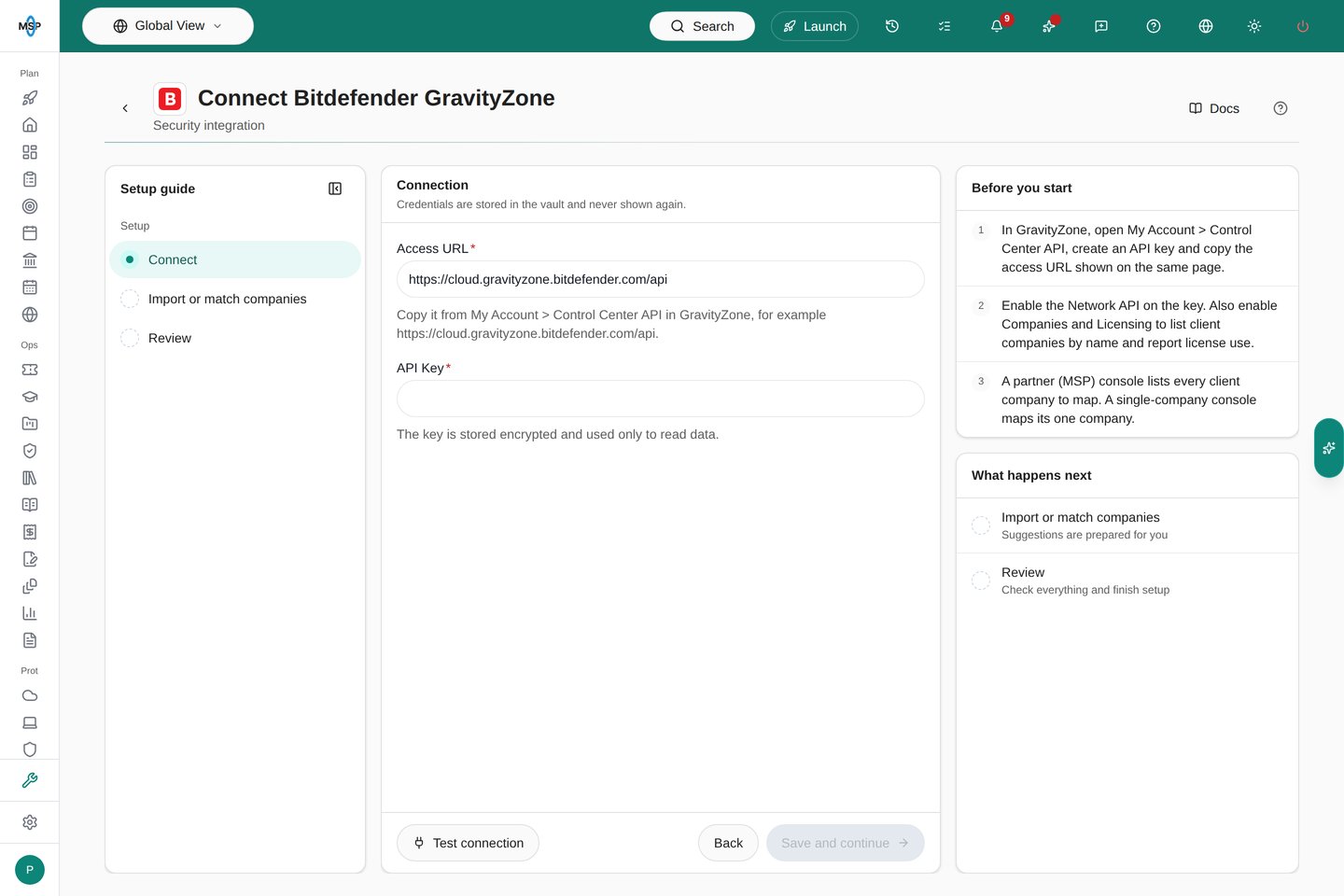
1. In GravityZone, open **My Account › Control Center API** and create an API key.
2. Enable the **Network API** on the key. Also enable **Companies** and **Licensing** to list client companies by name and report license use.
3. Copy the key, and copy the access URL shown on the same page, for example `https://cloud.gravityzone.bitdefender.com/api`.
A partner (MSP) console lists every client company to map. A single-company console maps its one company.
## Connect
1. Open **Settings › Integrations**, choose **Directory**, find **Bitdefender GravityZone**, and choose **Connect**.
2. Enter the **Access URL** and paste the key into **API Key**.
3. Choose **Test connection**. A rejected key, a key without the Network API, or an address that is not a GravityZone access URL each shows its own reason.
4. Choose **Save and continue**. MSPortal saves the key in the vault and starts the first sync.
 If you later change the access URL, enter the API key again. MSPortal only sends a saved key to the URL it was saved with.
## Match companies
Open **Import or match companies**. Link each GravityZone company to its MSPortal company: accept the suggestion, choose another company, or use **Import company** to create one. **Accept strong matches** accepts every suggestion at 90% confidence or more after you review them. **Ignore** hides a GravityZone company that is not a client's, and you can restore it later.
Reports, the dashboard and AI reports count endpoints only for matched companies.
## Where the data appears
* **Security › Endpoints:** Bitdefender endpoints appear with the source **Bitdefender**, an online status, and badges for **Infected**, **Malware detected**, **Signatures outdated** and **Agent outdated**. Open an endpoint to see the **Bitdefender agent** section: agent version, license, last update, antivirus signatures, agent updates, malware, policy, network isolation and protection modules. See [Find security endpoints](/user-guides/security/find-endpoints).
* **Reports:** add the **Bitdefender Protection Coverage** block. It compares protected endpoints with the devices your RMM manages, counts healthy endpoints and agent problems, and lists the companies with the largest coverage gaps. It compares device counts; endpoints are not matched to RMM devices one by one. It reflects the latest sync, not the report period.
* **AI reports:** security reports include a Bitdefender summary and the endpoints with problems.
* **Assistant and MCP:** ask which endpoints have outdated signatures, or use `list_bitdefender_endpoints`.
In reports, AI reports and MCP, malware detected means a detection in the 24 hours before the latest sync.
## Sync and troubleshooting
GravityZone syncs every 4 hours. To sync now, choose **Run sync** on the connection page or on the integration's row. Large consoles take longer because MSPortal stays within GravityZone's API rate limits.
* **GravityZone rejected this API key:** check that the key was copied in full and is still active.
* **This API key cannot read endpoints:** enable the Network API on the key, then test again.
* **GravityZone did not answer at this access URL:** copy the access URL again from **My Account › Control Center API**.
* **License counts are missing:** enable the Licensing API on the key, then run a sync.
* **An endpoint is missing:** only managed endpoints sync. Check that the endpoint has a GravityZone agent and that its company is matched.
To remove the connection, open **More actions** on the connection page and choose **Disconnect…**. This removes the stored key, the company matches and the data synced from GravityZone. It changes nothing in GravityZone; delete the key there when you no longer need it.
## Related guides
* [Integration setup guides](/user-guides/integrations/index)
* [Find security endpoints](/user-guides/security/find-endpoints)
* [Read security endpoint details](/user-guides/security/read-endpoint-details)
This documentation is built and hosted on [Mintlify](https://mintlify.com), a developer documentation platform.
If you later change the access URL, enter the API key again. MSPortal only sends a saved key to the URL it was saved with.
## Match companies
Open **Import or match companies**. Link each GravityZone company to its MSPortal company: accept the suggestion, choose another company, or use **Import company** to create one. **Accept strong matches** accepts every suggestion at 90% confidence or more after you review them. **Ignore** hides a GravityZone company that is not a client's, and you can restore it later.
Reports, the dashboard and AI reports count endpoints only for matched companies.
## Where the data appears
* **Security › Endpoints:** Bitdefender endpoints appear with the source **Bitdefender**, an online status, and badges for **Infected**, **Malware detected**, **Signatures outdated** and **Agent outdated**. Open an endpoint to see the **Bitdefender agent** section: agent version, license, last update, antivirus signatures, agent updates, malware, policy, network isolation and protection modules. See [Find security endpoints](/user-guides/security/find-endpoints).
* **Reports:** add the **Bitdefender Protection Coverage** block. It compares protected endpoints with the devices your RMM manages, counts healthy endpoints and agent problems, and lists the companies with the largest coverage gaps. It compares device counts; endpoints are not matched to RMM devices one by one. It reflects the latest sync, not the report period.
* **AI reports:** security reports include a Bitdefender summary and the endpoints with problems.
* **Assistant and MCP:** ask which endpoints have outdated signatures, or use `list_bitdefender_endpoints`.
In reports, AI reports and MCP, malware detected means a detection in the 24 hours before the latest sync.
## Sync and troubleshooting
GravityZone syncs every 4 hours. To sync now, choose **Run sync** on the connection page or on the integration's row. Large consoles take longer because MSPortal stays within GravityZone's API rate limits.
* **GravityZone rejected this API key:** check that the key was copied in full and is still active.
* **This API key cannot read endpoints:** enable the Network API on the key, then test again.
* **GravityZone did not answer at this access URL:** copy the access URL again from **My Account › Control Center API**.
* **License counts are missing:** enable the Licensing API on the key, then run a sync.
* **An endpoint is missing:** only managed endpoints sync. Check that the endpoint has a GravityZone agent and that its company is matched.
To remove the connection, open **More actions** on the connection page and choose **Disconnect…**. This removes the stored key, the company matches and the data synced from GravityZone. It changes nothing in GravityZone; delete the key there when you no longer need it.
## Related guides
* [Integration setup guides](/user-guides/integrations/index)
* [Find security endpoints](/user-guides/security/find-endpoints)
* [Read security endpoint details](/user-guides/security/read-endpoint-details)
This documentation is built and hosted on [Mintlify](https://mintlify.com), a developer documentation platform.