> ## Documentation Index
> Fetch the complete documentation index at: https://docs.msportal.ai/llms.txt
> Use this file to discover all available pages before exploring further.
# Configure Breach Secure Now Integration
> Connect Breach Secure Now to MSPortal.ai to sync security awareness training, phishing, and dark web breach metrics
This guide walks you through connecting Breach Secure Now (BSN) to MSPortal.ai using the guided setup wizard.
## Overview
Breach Secure Now is a security awareness training and dark web monitoring platform for MSPs. By integrating BSN with MSPortal.ai, you can:
* View security awareness training progress for every client in one place
* Track Employee Secure Score (ESS), phishing fail rates, and micro training completion
* Monitor dark web breach exposure per client and per user
* Include security awareness metrics in client reports and QBRs
## Prerequisites
* An active Breach Secure Now partner account
* The MSPortal integration enabled for your partner account in Breach Secure Now
* An MSPortal.ai account with integration management permissions
## Part 1: Enable the Integration in Breach Secure Now
Before connecting, you need your **Partner ID** and **Partner Integration Key** from Breach Secure Now.
Sign in to your Breach Secure Now (PII Protect) partner portal with a partner administrator account.
Navigate to the integrations area of your partner configuration and locate **MSPortal** in the list of available integrations.
Enable the MSPortal integration for your partner account.
If MSPortal does not appear in your integrations list, contact Breach Secure Now support and ask them to enable the MSPortal API integration for your partner account.
Copy the following values, you will enter them in MSPortal in the next part:
| Value | Description |
| --------------------------- | -------------------------------------------------------- |
| **Partner ID** | Identifies your partner account to the BSN API |
| **Partner Integration Key** | The secret key generated when the integration is enabled |
Treat the Partner Integration Key like a password. Anyone with the key can read your client and user training data.
***
## Part 2: MSPortal Setup Wizard
MSPortal.ai provides a guided 3-step wizard to connect and configure your Breach Secure Now integration.
### Starting the Wizard
In MSPortal.ai, go to **Settings > Integrations**.
Locate the **Breach Secure Now** card under **Add integration**. You can type "breach" in the search box or use the **Security** filter to find it quickly.
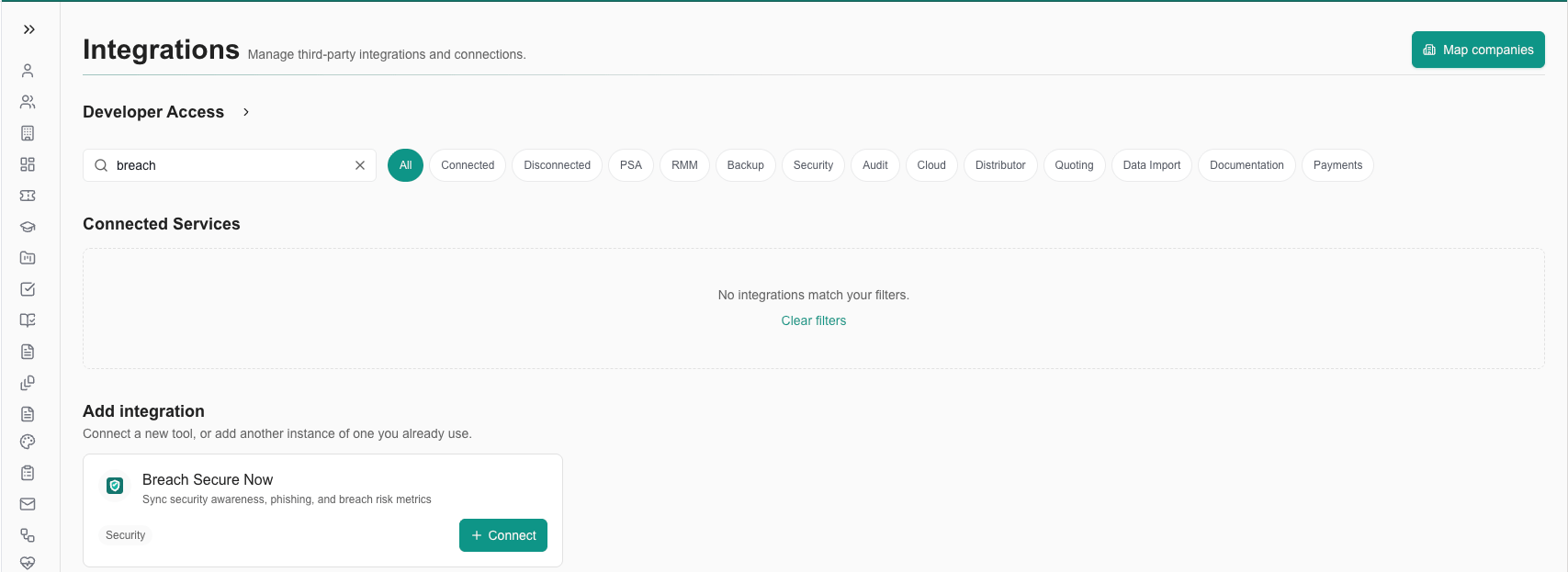 Click **+ Connect** on the card to launch the setup wizard.
***
### Step 1: Connect
Enter the credentials you copied from the Breach Secure Now portal.
Fill in the connection fields:
| Field | Value |
| --------------------------- | ---------------------------------------------------------------------------------------------------------------------------------------------- |
| **Partner ID** | Your BSN Partner ID |
| **Partner integration key** | The integration key from the BSN portal |
| **API base URL** | Pre-filled with `https://api.pii-protect.com/securedapiaccess`. Leave the default unless Breach Secure Now has given you a different endpoint. |
Click **+ Connect** on the card to launch the setup wizard.
***
### Step 1: Connect
Enter the credentials you copied from the Breach Secure Now portal.
Fill in the connection fields:
| Field | Value |
| --------------------------- | ---------------------------------------------------------------------------------------------------------------------------------------------- |
| **Partner ID** | Your BSN Partner ID |
| **Partner integration key** | The integration key from the BSN portal |
| **API base URL** | Pre-filled with `https://api.pii-protect.com/securedapiaccess`. Leave the default unless Breach Secure Now has given you a different endpoint. |
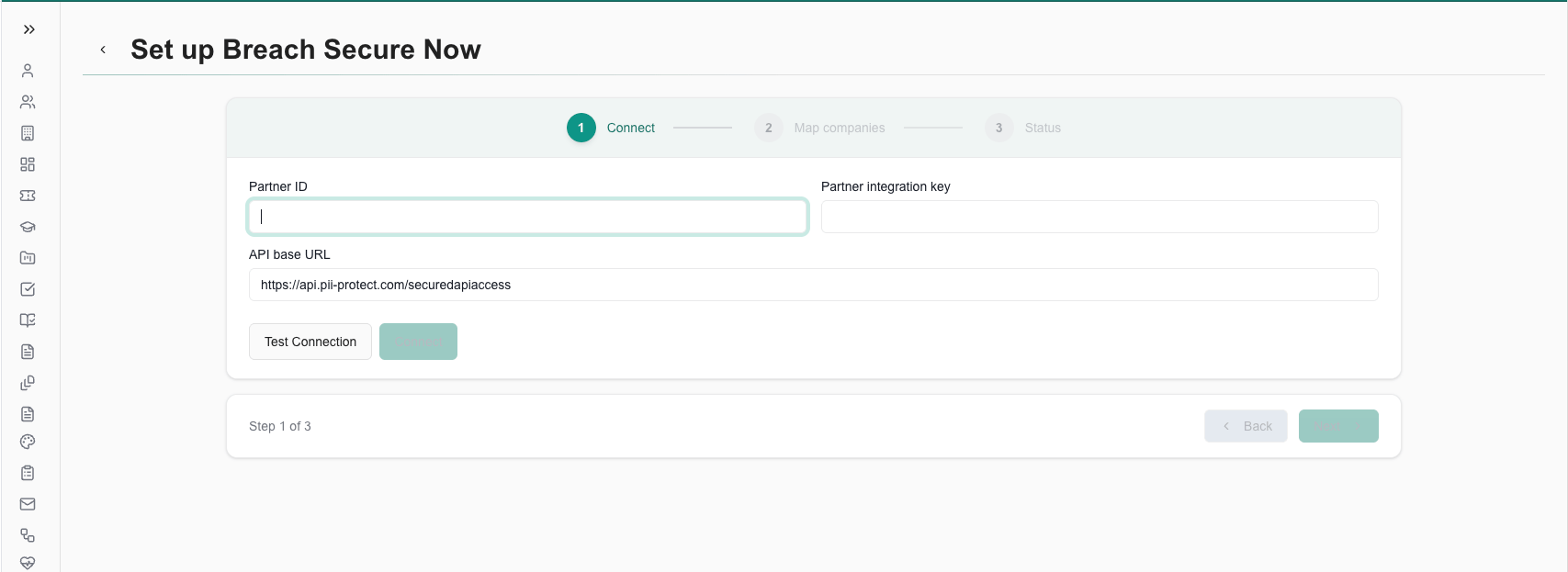 Click **Test Connection** to verify your credentials.
When the test passes, a green confirmation shows your partner name and how many clients were found on your BSN account.
Click **Test Connection** to verify your credentials.
When the test passes, a green confirmation shows your partner name and how many clients were found on your BSN account.
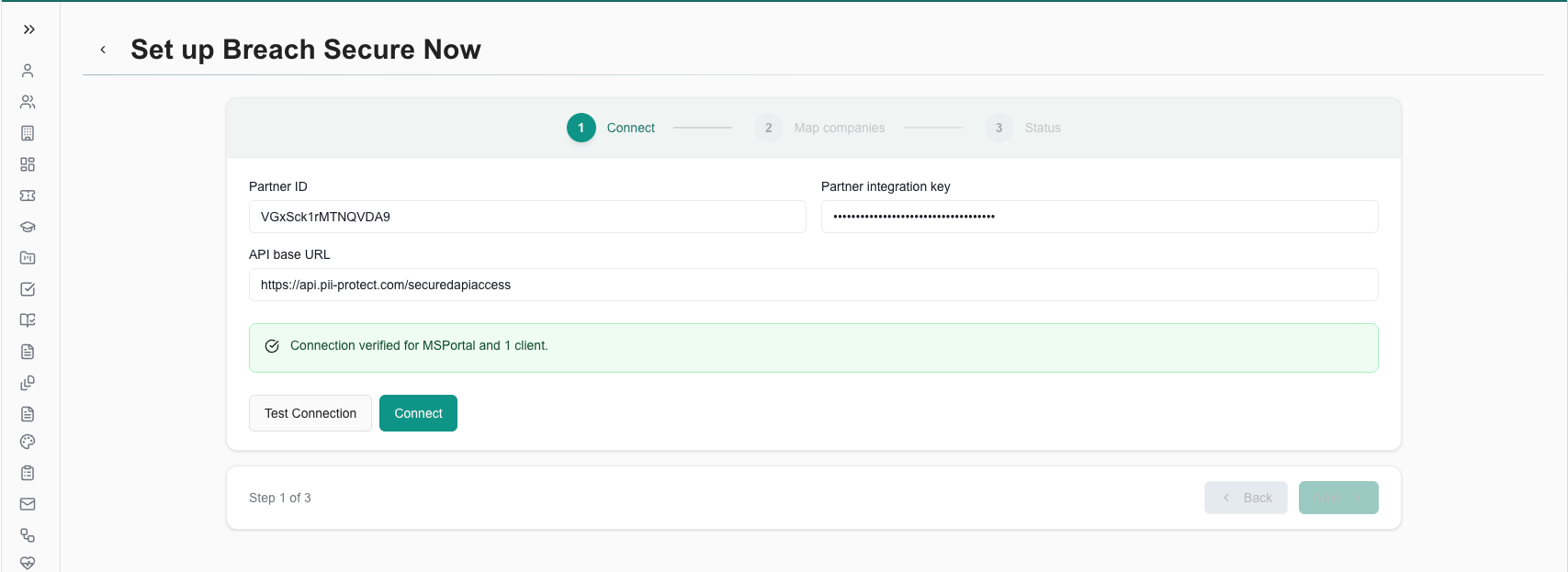 If the connection fails:
* Verify the Partner ID and Partner Integration Key were copied without extra spaces
* Confirm the MSPortal integration is enabled for your partner account in the BSN portal
* If you see "The Breach Secure Now Partner ID is not enabled for this integration," return to Part 1 and enable MSPortal for that partner account, then test again
Once the test passes, click **Connect** to save your credentials and proceed.
Your credentials are stored with encryption and are never exposed in logs or API responses.
***
### Step 2: Map Companies
Map your Breach Secure Now clients to MSPortal companies. This determines which data syncs to which company.
If this is your first time on this step, you'll see **No Clients Found**. Click **Sync Clients** to pull your client list from Breach Secure Now, then wait a moment and refresh the list.
If the connection fails:
* Verify the Partner ID and Partner Integration Key were copied without extra spaces
* Confirm the MSPortal integration is enabled for your partner account in the BSN portal
* If you see "The Breach Secure Now Partner ID is not enabled for this integration," return to Part 1 and enable MSPortal for that partner account, then test again
Once the test passes, click **Connect** to save your credentials and proceed.
Your credentials are stored with encryption and are never exposed in logs or API responses.
***
### Step 2: Map Companies
Map your Breach Secure Now clients to MSPortal companies. This determines which data syncs to which company.
If this is your first time on this step, you'll see **No Clients Found**. Click **Sync Clients** to pull your client list from Breach Secure Now, then wait a moment and refresh the list.
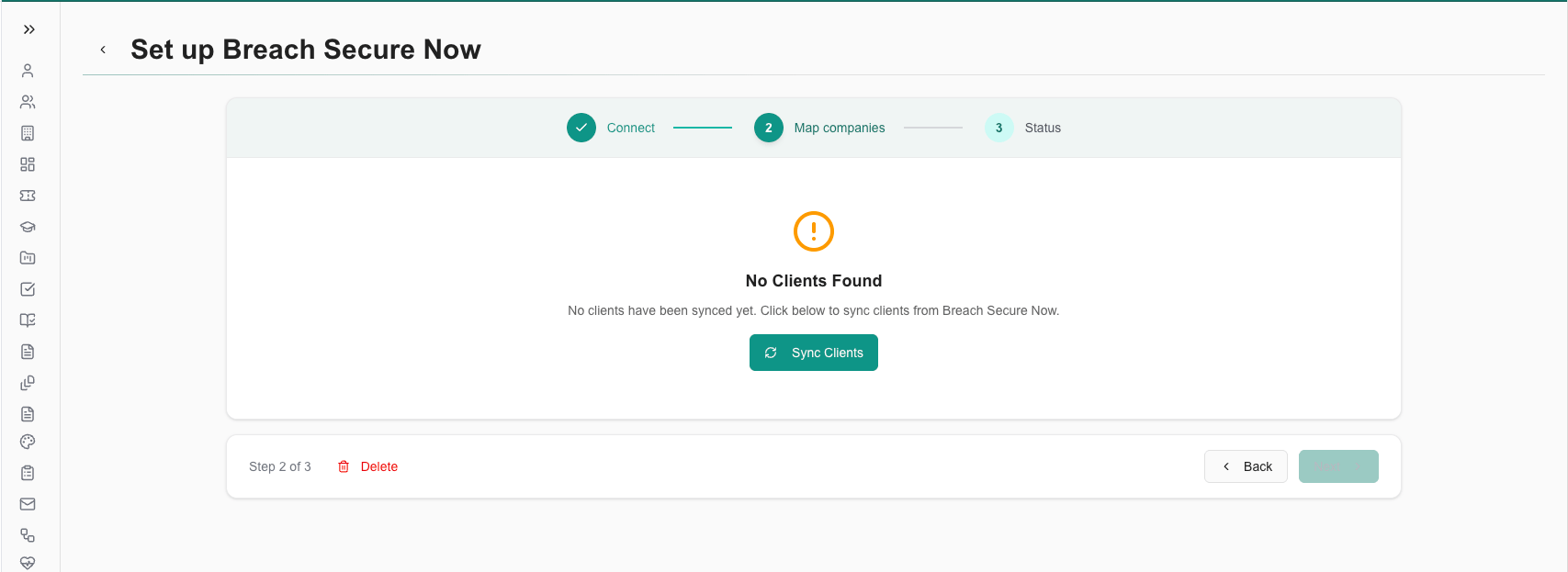 Once clients are synced, the page shows a summary of total, mapped, and unmapped clients, with each BSN client listed below.
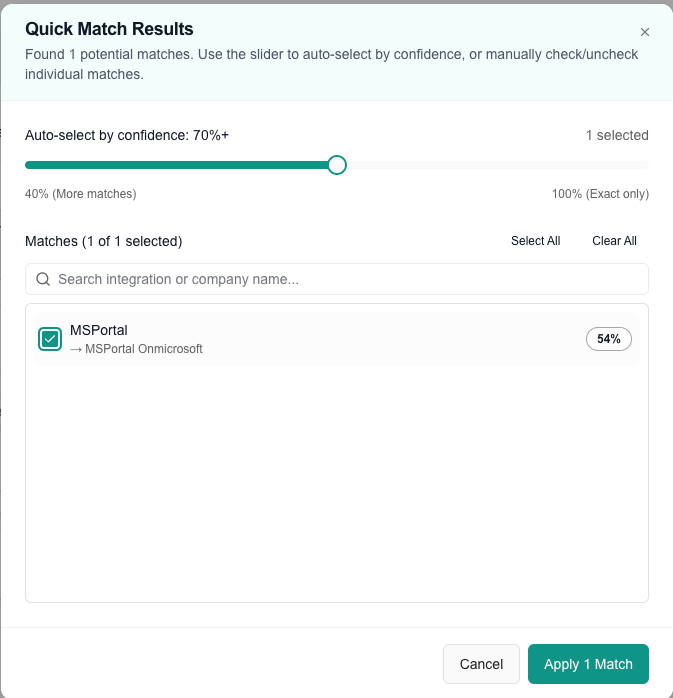
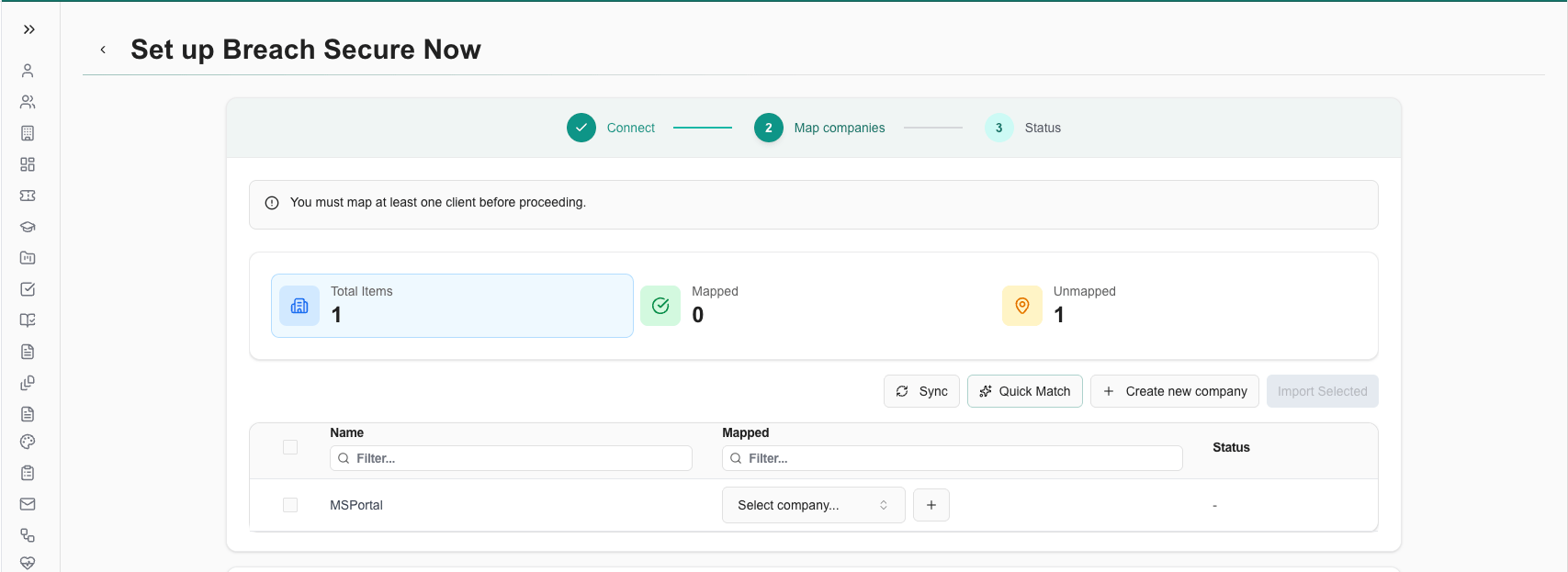 Click **Quick Match** to automatically match BSN clients to MSPortal companies based on name similarity.
Use the confidence slider to auto-select matches, review the suggestions, and check or uncheck individual matches. Then click **Apply** to save the selected mappings.
Click **Quick Match** to automatically match BSN clients to MSPortal companies based on name similarity.
Use the confidence slider to auto-select matches, review the suggestions, and check or uncheck individual matches. Then click **Apply** to save the selected mappings.
 For clients that were not automatically matched:
1. Find the client in the list
2. Click the **Select company** dropdown in the "Mapped" column
3. Search for and select the correct MSPortal company
If a BSN client does not have a corresponding MSPortal company yet, click the **+** button next to the client, or select clients and use **Create new company**. New companies are automatically mapped to their BSN clients.
Once your clients are mapped, click **Next** to continue.
You must map at least one client before proceeding. Only data from mapped clients syncs to MSPortal.
***
### Step 3: Status
Review the connection status and start the first sync.
Click **Sync all** to pull clients and user training data from Breach Secure Now.
The sync runs in the background. Depending on how many clients and users you have, the first sync can take several minutes.
The Status step shows a live summary of your synced data:
| Stat | Description |
| ------------------------------ | -------------------------------------------------- |
| **Linked clients** | Mapped clients out of total BSN clients |
| **Active users** | Active users out of total synced users |
| **Avg. employee secure score** | Average ESS across linked clients |
| **Training completion** | Overall training completion percentage |
| **Users with breaches** | Users with at least one dark web breach |
| **Total user breaches** | Total dark web breaches attributed to synced users |
For clients that were not automatically matched:
1. Find the client in the list
2. Click the **Select company** dropdown in the "Mapped" column
3. Search for and select the correct MSPortal company
If a BSN client does not have a corresponding MSPortal company yet, click the **+** button next to the client, or select clients and use **Create new company**. New companies are automatically mapped to their BSN clients.
Once your clients are mapped, click **Next** to continue.
You must map at least one client before proceeding. Only data from mapped clients syncs to MSPortal.
***
### Step 3: Status
Review the connection status and start the first sync.
Click **Sync all** to pull clients and user training data from Breach Secure Now.
The sync runs in the background. Depending on how many clients and users you have, the first sync can take several minutes.
The Status step shows a live summary of your synced data:
| Stat | Description |
| ------------------------------ | -------------------------------------------------- |
| **Linked clients** | Mapped clients out of total BSN clients |
| **Active users** | Active users out of total synced users |
| **Avg. employee secure score** | Average ESS across linked clients |
| **Training completion** | Overall training completion percentage |
| **Users with breaches** | Users with at least one dark web breach |
| **Total user breaches** | Total dark web breaches attributed to synced users |
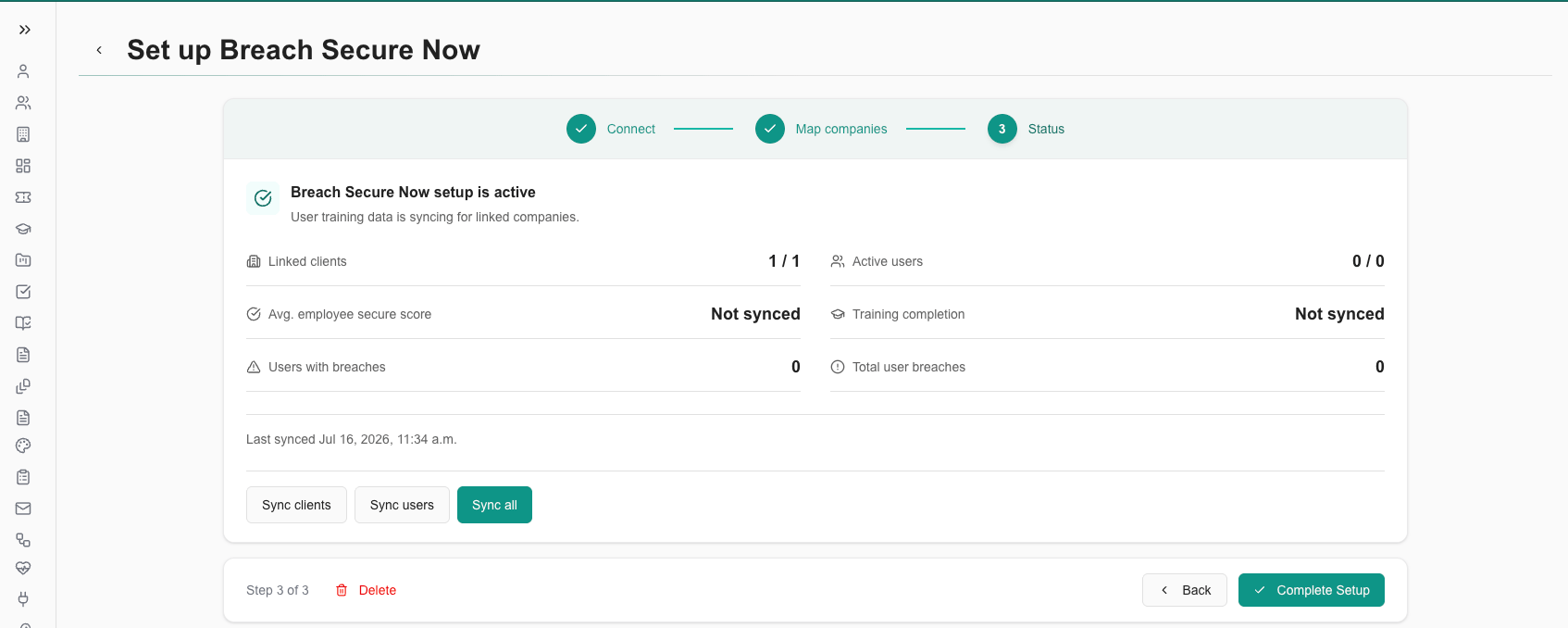 User-level stats show "Not synced" until the first user sync finishes. Check back after a few minutes and the scores will fill in.
Click **Complete Setup** to finish the wizard and return to the Integrations page.
***
## What Gets Synced
The Breach Secure Now integration syncs the following data for mapped clients:
### Client Metrics
* Average Employee Secure Score (ESS)
* Average phishing fail rate
* Dark web breach counts (breached employees and total breaches)
* Active user count and product type
### User Training Data
Per-user security awareness details, including:
* Security training courses available and completed
* Micro training completion percentage and average score
* Employee Secure Score (ESS)
* Phishing simulation results (emails sent, clicked, captured data, phish caught)
* Dark web breach count and last breach date
* Last login and enrollment status
***
## Synchronization Schedule
After the initial setup, data syncs automatically once per day. Clients sync first, followed by user training data.
You can trigger a manual sync at any time: go to **Settings > Integrations**, open the Breach Secure Now wizard, and use **Sync clients**, **Sync users**, or **Sync all** on the Status step.
***
## Managing Your Integration
After setup, manage your integration from **Settings > Integrations**:
| Action | Description |
| ------------------- | -------------------------------------------------------------------------------------------------------------------- |
| **Configure** | Re-open the wizard to update credentials or add more client mappings |
| **Test Connection** | Verify your credentials are still valid |
| **Sync** | Trigger a manual data refresh from the Status step |
| **Delete** | Remove the integration from the wizard footer. This deletes the connection, synced BSN data, and stored credentials. |
### Adding More Client Mappings
As you onboard new clients in Breach Secure Now:
Go to **Settings > Integrations** and click **Configure** on the Breach Secure Now card.
Click **Map companies** in the wizard stepper.
Use Quick Match or manual mapping to link new BSN clients to companies, then click **Next** and **Complete Setup**.
***
## Troubleshooting
| Issue | Solution |
| ------------------------------------------------ | --------------------------------------------------------------------------------------------------------- |
| Connection test fails | Re-copy the Partner ID and Partner Integration Key from the BSN portal, checking for extra spaces |
| "Partner ID is not enabled for this integration" | Enable the MSPortal integration for your partner account in the Breach Secure Now portal, then test again |
| No clients appear on the Map step | Click **Sync Clients**, wait a moment for the background sync, then refresh the list |
| Stats show "Not synced" | Run **Sync all** and allow a few minutes for the background sync to finish |
| A client's data is missing | Confirm the client is mapped to a company; only mapped clients sync |
***
## Next Steps
After setting up the Breach Secure Now integration:
Explore security awareness scores and breach exposure per client
Include training and phishing metrics in client reports
Explore additional integration options
Common questions about syncing and mapping
## Need Help?
For assistance with the Breach Secure Now integration, contact [support@msportal.ai](mailto:support@msportal.ai).
User-level stats show "Not synced" until the first user sync finishes. Check back after a few minutes and the scores will fill in.
Click **Complete Setup** to finish the wizard and return to the Integrations page.
***
## What Gets Synced
The Breach Secure Now integration syncs the following data for mapped clients:
### Client Metrics
* Average Employee Secure Score (ESS)
* Average phishing fail rate
* Dark web breach counts (breached employees and total breaches)
* Active user count and product type
### User Training Data
Per-user security awareness details, including:
* Security training courses available and completed
* Micro training completion percentage and average score
* Employee Secure Score (ESS)
* Phishing simulation results (emails sent, clicked, captured data, phish caught)
* Dark web breach count and last breach date
* Last login and enrollment status
***
## Synchronization Schedule
After the initial setup, data syncs automatically once per day. Clients sync first, followed by user training data.
You can trigger a manual sync at any time: go to **Settings > Integrations**, open the Breach Secure Now wizard, and use **Sync clients**, **Sync users**, or **Sync all** on the Status step.
***
## Managing Your Integration
After setup, manage your integration from **Settings > Integrations**:
| Action | Description |
| ------------------- | -------------------------------------------------------------------------------------------------------------------- |
| **Configure** | Re-open the wizard to update credentials or add more client mappings |
| **Test Connection** | Verify your credentials are still valid |
| **Sync** | Trigger a manual data refresh from the Status step |
| **Delete** | Remove the integration from the wizard footer. This deletes the connection, synced BSN data, and stored credentials. |
### Adding More Client Mappings
As you onboard new clients in Breach Secure Now:
Go to **Settings > Integrations** and click **Configure** on the Breach Secure Now card.
Click **Map companies** in the wizard stepper.
Use Quick Match or manual mapping to link new BSN clients to companies, then click **Next** and **Complete Setup**.
***
## Troubleshooting
| Issue | Solution |
| ------------------------------------------------ | --------------------------------------------------------------------------------------------------------- |
| Connection test fails | Re-copy the Partner ID and Partner Integration Key from the BSN portal, checking for extra spaces |
| "Partner ID is not enabled for this integration" | Enable the MSPortal integration for your partner account in the Breach Secure Now portal, then test again |
| No clients appear on the Map step | Click **Sync Clients**, wait a moment for the background sync, then refresh the list |
| Stats show "Not synced" | Run **Sync all** and allow a few minutes for the background sync to finish |
| A client's data is missing | Confirm the client is mapped to a company; only mapped clients sync |
***
## Next Steps
After setting up the Breach Secure Now integration:
Explore security awareness scores and breach exposure per client
Include training and phishing metrics in client reports
Explore additional integration options
Common questions about syncing and mapping
## Need Help?
For assistance with the Breach Secure Now integration, contact [support@msportal.ai](mailto:support@msportal.ai).