> ## Documentation Index
> Fetch the complete documentation index at: https://docs.msportal.ai/llms.txt
> Use this file to discover all available pages before exploring further.
# Configure Wirespeed Integration
> Connect a Wirespeed Team API key, map teams to companies and review cases, detections and endpoints.
Branch preview for the 2026-09-25 release. Wirespeed setup is not yet generally available. The screenshot shows the unreleased branch UI.
Connect Wirespeed to bring security cases, recent detections and endpoints into MSPortal. Setup has three steps: **Connect**, **Map teams** and **Review data**. Setup requires MSP integration management permission. Mapping changes also require company-mapping write access.
Wirespeed is labeled **Beta** on the Integrations page.
## Prepare the API key
Create a **Viewer Team API key** in Wirespeed. The key type decides which teams MSPortal can see:
| Key | What MSPortal discovers |
| -------------------- | -------------------------------------------------- |
| Service provider key | Every managed team the provider account can reach. |
| Customer key | Only that customer's own team. |
MSPortal only reads from Wirespeed. It does not create tickets, import devices into your PSA or run containment or remediation actions.
## Connect
Open **Settings > Integrations**, search for **Wirespeed** and select **Connect**.
On **Connect**, paste the key into **API Key**.
Select **Test Connection** and wait for **Connection verified**. **Create Integration** stays disabled until the test succeeds. Editing the key clears the verified state, so test again after any change.
Select **Create Integration**. The key is stored in the secure vault and the field shows a masked value from then on. Select **Next** to continue.
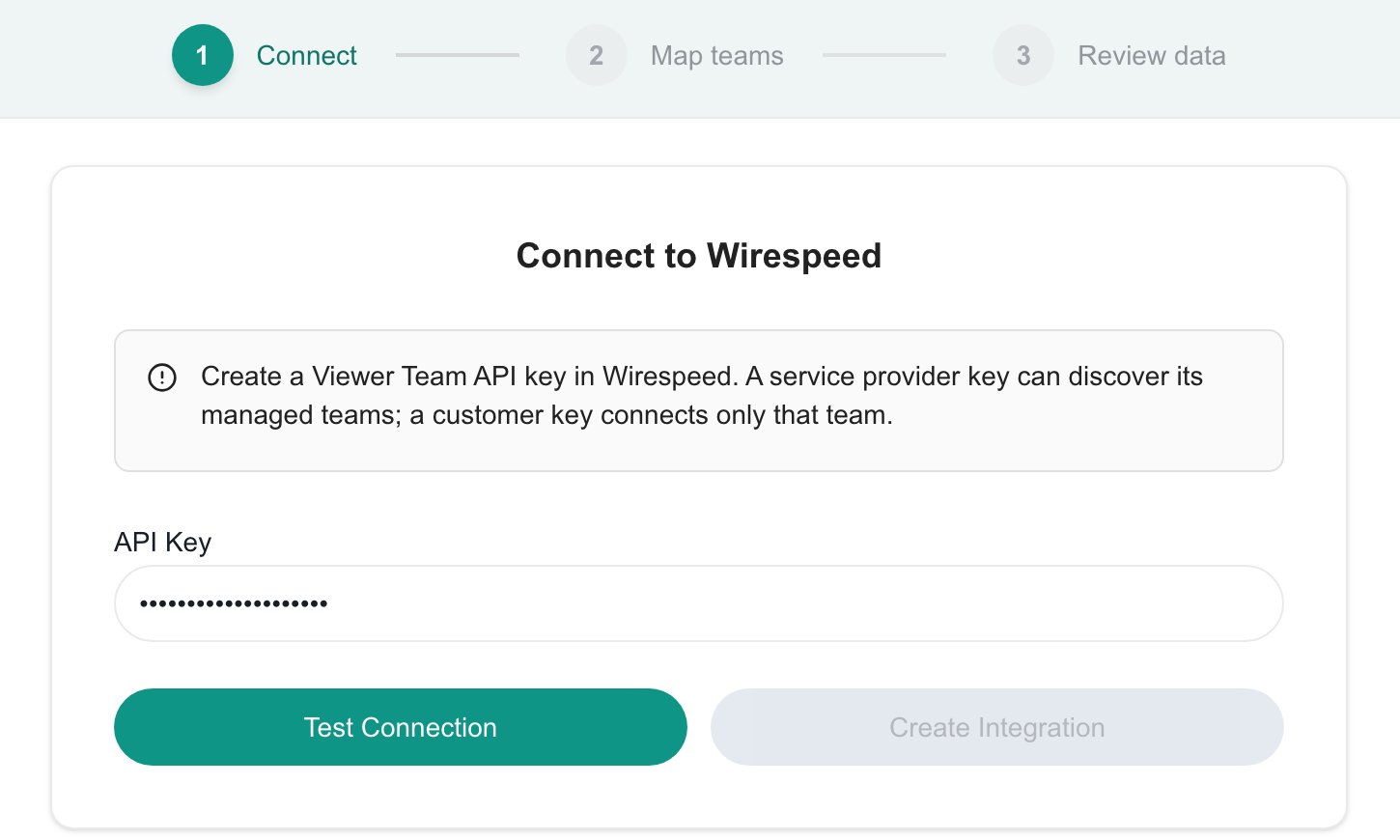 To replace the key on an existing connection, open it from **Settings > Integrations**, enter the new key on **Connect**, select **Test Connection**, then **Update API Key**.
## Map teams
**Map teams** lists the Wirespeed teams discovered by the key. Link each team to the MSPortal company it protects.
* Use **Quick Match** to propose matches by name. Proposals are saved only after you review them.
* Choose a company for any remaining team, or create a new company from the picker.
* Save pending links with **Import Selected**. Moving on with **Next** saves pending links and starts a sync when mappings changed.
## Review data
**Review data** shows **Synced Data** for three datasets:
| Dataset | Coverage |
| -------------- | --------------------------------- |
| **Cases** | All cases, refreshed hourly. |
| **Detections** | Detections from the last 30 days. |
| **Endpoints** | All endpoints, refreshed hourly. |
The totals at the top count each dataset. Use the dataset selector above the table to switch between them, and filter by **Record** to search names, teams and companies. **Last synced** shows the most recent successful sync. Select **Sync All Data** to request a sync now.
If a dataset fails to sync, the page reports that some data could not be synced. MSPortal keeps the previously saved records for that dataset, so check **Last synced** before relying on the numbers.
## Troubleshooting
| Symptom | What to check |
| ---------------------------------- | -------------------------------------------------------------------------------- |
| **Create Integration** is disabled | Run **Test Connection** again after the last edit to the key. |
| The test fails | Confirm the key is a Viewer Team API key and has not been revoked. |
| Only one team appears | The key is a customer key. Use a service provider key to discover managed teams. |
| Records show no company | Map the team on **Map teams**, then run **Sync All Data**. |
| Counts are zero right after setup | The first sync runs in the background. Check **Last synced** and refresh later. |
| Some data could not be synced | Earlier data is kept. Check the connection, then run **Sync All Data** again. |
## Related guides
* [Integrations overview](/user-guides/integrations/index)
* [Map integration companies](/user-guides/settings/integration-company-mapping)
* [Sync schedules](/user-guides/integrations/sync-schedules)
To replace the key on an existing connection, open it from **Settings > Integrations**, enter the new key on **Connect**, select **Test Connection**, then **Update API Key**.
## Map teams
**Map teams** lists the Wirespeed teams discovered by the key. Link each team to the MSPortal company it protects.
* Use **Quick Match** to propose matches by name. Proposals are saved only after you review them.
* Choose a company for any remaining team, or create a new company from the picker.
* Save pending links with **Import Selected**. Moving on with **Next** saves pending links and starts a sync when mappings changed.
## Review data
**Review data** shows **Synced Data** for three datasets:
| Dataset | Coverage |
| -------------- | --------------------------------- |
| **Cases** | All cases, refreshed hourly. |
| **Detections** | Detections from the last 30 days. |
| **Endpoints** | All endpoints, refreshed hourly. |
The totals at the top count each dataset. Use the dataset selector above the table to switch between them, and filter by **Record** to search names, teams and companies. **Last synced** shows the most recent successful sync. Select **Sync All Data** to request a sync now.
If a dataset fails to sync, the page reports that some data could not be synced. MSPortal keeps the previously saved records for that dataset, so check **Last synced** before relying on the numbers.
## Troubleshooting
| Symptom | What to check |
| ---------------------------------- | -------------------------------------------------------------------------------- |
| **Create Integration** is disabled | Run **Test Connection** again after the last edit to the key. |
| The test fails | Confirm the key is a Viewer Team API key and has not been revoked. |
| Only one team appears | The key is a customer key. Use a service provider key to discover managed teams. |
| Records show no company | Map the team on **Map teams**, then run **Sync All Data**. |
| Counts are zero right after setup | The first sync runs in the background. Check **Last synced** and refresh later. |
| Some data could not be synced | Earlier data is kept. Check the connection, then run **Sync All Data** again. |
## Related guides
* [Integrations overview](/user-guides/integrations/index)
* [Map integration companies](/user-guides/settings/integration-company-mapping)
* [Sync schedules](/user-guides/integrations/sync-schedules)