> ## Documentation Index
> Fetch the complete documentation index at: https://docs.msportal.ai/llms.txt
> Use this file to discover all available pages before exploring further.
# Warranty Writeback to IT Glue Configurations
> Write warranty expiration dates from MSPortal to the IT Glue configuration linked to each device.
MSPortal can write each device's warranty expiration date to IT Glue's built-in **Warranty Expires** field on the configuration linked to that device. This includes configurations synced into IT Glue from Autotask or another PSA. No field mapping is needed.
This is a **write to IT Glue**. Turn it on only when you want MSPortal's warranty dates to update your IT Glue configurations.
## Which dates are written
MSPortal writes the expiration date that its automatic warranty check found for the device's serial number. The check uses the latest end date across every coverage the manufacturer lists. For HP that includes the factory warranty, bundled warranty and Care Packs.
* Only devices with a successful automatic warranty check and a known expiration date are written.
* A manufacturer record whose start date equals its end date is a placeholder, not real coverage. Those devices show no warranty date and nothing is written until real dates are found.
* Dates you enter by hand in MSPortal, without an automatic check, are not written.
## Before you start
* **IT Glue connection.** Connect IT Glue and map its organizations to MSPortal companies. See [Enable IT Glue](/user-guides/integrations/enable-itglue-integration).
* **API key access.** The IT Glue API key needs permission to edit configurations.
* **Linked configurations.** IT Glue configuration sync links each configuration to an MSPortal device by serial number, MAC address or name within the mapped organization. Only linked configurations receive dates.
## Turn it on
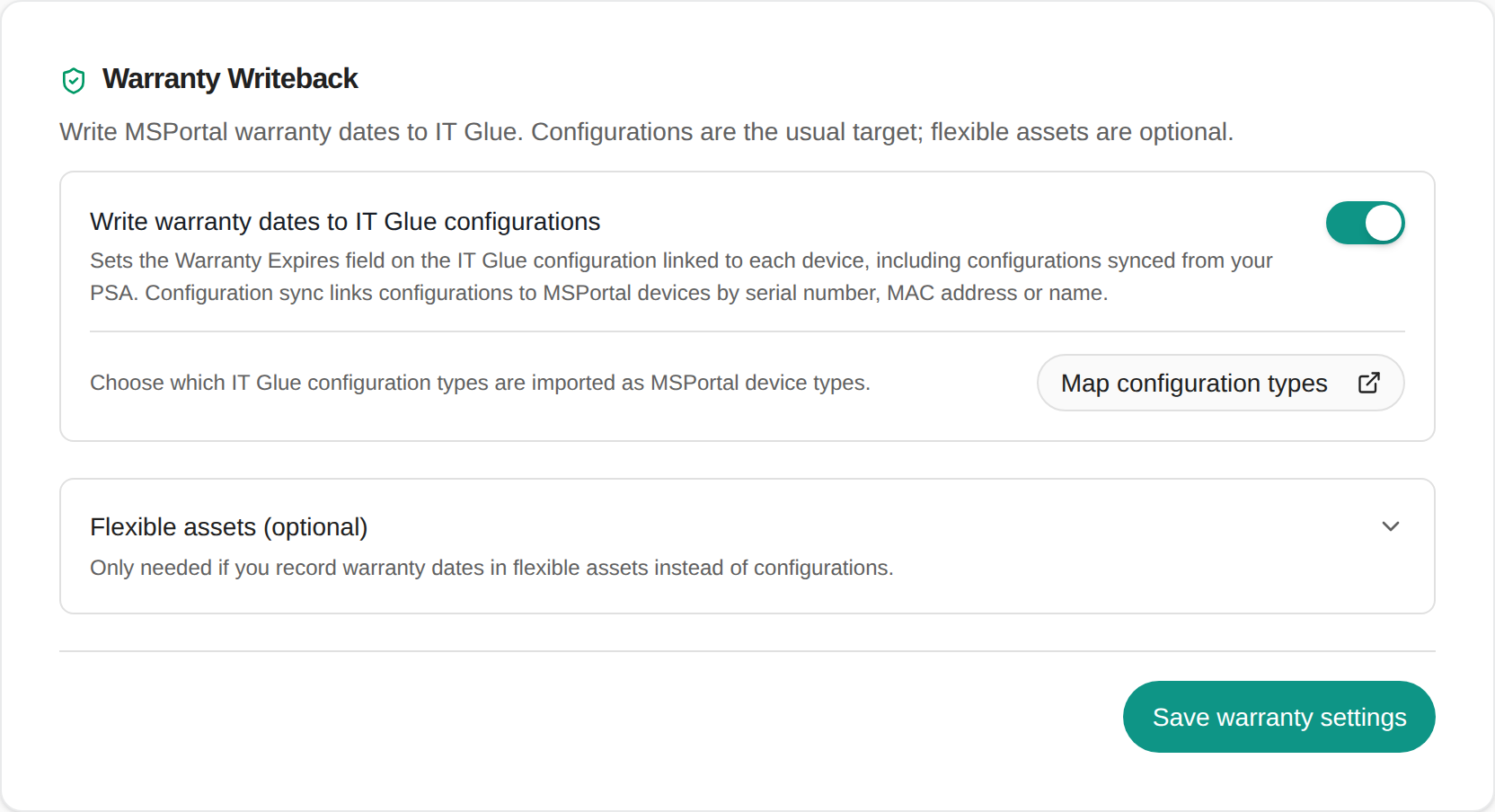
Open **Settings > Integrations > IT Glue > Configure > Sync & Sharing** and find **Warranty Writeback**.
Turn on **Write warranty dates to IT Glue configurations**.
Select **Save warranty settings**. The switch is a draft until this button succeeds. The first save starts an immediate background run.
 ## Map configuration types to device types
Select **Map configuration types** on the card to open **Configuration types**. There, map each IT Glue configuration type, such as a workstation, server or firewall type, to an MSPortal device type:
* **Mapped with Auto-sync on:** configurations of that type are imported as MSPortal devices on the next sync, and linked to them.
* **Ignore:** configurations of that type are never imported.
* **Not mapped:** configurations of that type stay documentation only. They still link to an existing MSPortal device with the same serial number, MAC address or name.
Any linked configuration receives warranty dates, whatever its type. Type mapping decides which configurations become MSPortal devices.
## When it runs
* **Daily**, at about 04:55 UTC, and once straight away the first time you turn it on.
* **First run:** covers every linked configuration whose device has warranty data.
* **Later runs:** send only devices whose warranty was checked again since the previous run.
* **Deleted or rejected configurations:** skipped. Other failures are retried on the next run.
## Check the result
After the run, open a configuration you know in IT Glue and check **Warranty Expires**. Compare it with the warranty end date on the linked device in MSPortal.
If your Autotask configuration items also sync into IT Glue, you can use [Warranty writeback to Autotask](/user-guides/integrations/autotask-warranty-writeback) instead. The Autotask sync then carries the date into IT Glue. Using both is fine, because both write the same date.
## Flexible assets (optional)
If you keep hardware warranty in IT Glue flexible assets rather than configurations, expand **Flexible assets (optional)** on the same card and map device types to flexible asset types and fields. See [Warranty writeback to Hudu and IT Glue flexible assets](/user-guides/integrations/documentation-warranty-writeback).
## Turn it off
Turn off **Write warranty dates to IT Glue configurations** and select **Save warranty settings**. Future runs stop. Dates already written to IT Glue stay as they are.
## Troubleshooting
| Symptom | What to check |
| ----------------------------------------- | ------------------------------------------------------------------------------------------------------------------------------------------------------------------------------------------------------- |
| A configuration never changes | It is linked to an MSPortal device; that device has a successful warranty check and an end date; the IT Glue API key can edit configurations. |
| Many configurations are not linked | Serial numbers, MAC addresses or names differ between IT Glue and MSPortal, or the organization is not mapped. Map configuration types with **Auto-sync** to import unlinked configurations as devices. |
| The date changes back later | Another system, such as a PSA sync into IT Glue, wrote a different date. Write the same date there too, for example with Autotask warranty writeback. |
| A device has no warranty date in MSPortal | The manufacturer returned no coverage or only a placeholder. Nothing is written for that device. |
## Frequently asked questions
No. Configurations have a built-in **Warranty Expires** field, and MSPortal writes to it.
Yes. IT Glue accepts the warranty date on PSA-synced configurations.
Only if you record warranty dates in flexible assets. Configurations and flexible assets are separate choices on the same card.
## Related guides
Connect IT Glue and choose what to synchronize.
Write warranty dates to Autotask configuration items.
## Map configuration types to device types
Select **Map configuration types** on the card to open **Configuration types**. There, map each IT Glue configuration type, such as a workstation, server or firewall type, to an MSPortal device type:
* **Mapped with Auto-sync on:** configurations of that type are imported as MSPortal devices on the next sync, and linked to them.
* **Ignore:** configurations of that type are never imported.
* **Not mapped:** configurations of that type stay documentation only. They still link to an existing MSPortal device with the same serial number, MAC address or name.
Any linked configuration receives warranty dates, whatever its type. Type mapping decides which configurations become MSPortal devices.
## When it runs
* **Daily**, at about 04:55 UTC, and once straight away the first time you turn it on.
* **First run:** covers every linked configuration whose device has warranty data.
* **Later runs:** send only devices whose warranty was checked again since the previous run.
* **Deleted or rejected configurations:** skipped. Other failures are retried on the next run.
## Check the result
After the run, open a configuration you know in IT Glue and check **Warranty Expires**. Compare it with the warranty end date on the linked device in MSPortal.
If your Autotask configuration items also sync into IT Glue, you can use [Warranty writeback to Autotask](/user-guides/integrations/autotask-warranty-writeback) instead. The Autotask sync then carries the date into IT Glue. Using both is fine, because both write the same date.
## Flexible assets (optional)
If you keep hardware warranty in IT Glue flexible assets rather than configurations, expand **Flexible assets (optional)** on the same card and map device types to flexible asset types and fields. See [Warranty writeback to Hudu and IT Glue flexible assets](/user-guides/integrations/documentation-warranty-writeback).
## Turn it off
Turn off **Write warranty dates to IT Glue configurations** and select **Save warranty settings**. Future runs stop. Dates already written to IT Glue stay as they are.
## Troubleshooting
| Symptom | What to check |
| ----------------------------------------- | ------------------------------------------------------------------------------------------------------------------------------------------------------------------------------------------------------- |
| A configuration never changes | It is linked to an MSPortal device; that device has a successful warranty check and an end date; the IT Glue API key can edit configurations. |
| Many configurations are not linked | Serial numbers, MAC addresses or names differ between IT Glue and MSPortal, or the organization is not mapped. Map configuration types with **Auto-sync** to import unlinked configurations as devices. |
| The date changes back later | Another system, such as a PSA sync into IT Glue, wrote a different date. Write the same date there too, for example with Autotask warranty writeback. |
| A device has no warranty date in MSPortal | The manufacturer returned no coverage or only a placeholder. Nothing is written for that device. |
## Frequently asked questions
No. Configurations have a built-in **Warranty Expires** field, and MSPortal writes to it.
Yes. IT Glue accepts the warranty date on PSA-synced configurations.
Only if you record warranty dates in flexible assets. Configurations and flexible assets are separate choices on the same card.
## Related guides
Connect IT Glue and choose what to synchronize.
Write warranty dates to Autotask configuration items.