> ## Documentation Index
> Fetch the complete documentation index at: https://docs.msportal.ai/llms.txt
> Use this file to discover all available pages before exploring further.
# Download and export invoices
> View a source invoice PDF, download up to 50 PDFs in a ZIP, and export the current invoice page to CSV.
Use **Invoices** to download documents for the records your role can access. PDF availability depends on the connected PSA and its document service. A visible invoice row does not guarantee that its PDF can be retrieved.
 ## View and download one PDF
1. Find the invoice and select its **Invoice #**, or open **... > View PDF**.
2. Wait for the document to load in the viewer.
3. Check the invoice number and document contents.
4. Select **Download** in the viewer header.
5. Check your browser's downloads for the PDF.
If the document fails to load, use **Try again** once the source connection is available. If it still fails, report the invoice number and error to the MSP. The source integration, credentials, or PDF endpoint may need attention.
## Download several PDFs
1. Select the invoice checkboxes. Keep a batch to **50 invoices or fewer**.
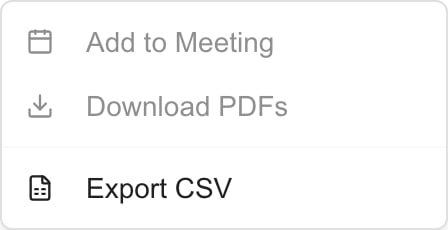
2. Open **Actions > Download PDFs**.
3. Wait while the PDFs are retrieved and the ZIP is prepared.
4. Open the downloaded ZIP and compare its PDFs with the selected invoices.
A batch can partially succeed: the portal can download the available PDFs and report failures for others. A downloaded ZIP is not proof that every requested invoice is inside it. The row selection clears after a successful batch download, including a batch with some reported failures.
## Export invoice data to CSV
1. Set the company, filters, sort, and page you want to export.
2. To export the whole loaded page, clear the row selection. To export a subset, select the intended invoices on that page.
3. Open **Actions > Export CSV**.
4. Open the downloaded CSV and compare its rows with the intended page and selection.
Invoice CSV export uses the **current loaded page**. It does not retrieve every matching page automatically. With selected rows, it exports the selected records present on that loaded page. Repeat for other pages if needed.
The CSV uses fixed fields, including invoice number, reference, Apply To, company, type, status, dates, total, subtotal, balance, payments, tax, terms, billing company, purchase order, and sent state. Hiding a table column does not remove it from the CSV. Currency symbols and a dedicated currency-code column are not included, and unavailable numeric values can be written as zero; consult the invoice PDF/source before interpreting those values.
CSV is a data export. It does not contain the original invoice PDF, change the invoice, or establish that it has been paid.
## Frequently asked questions
The list stores synchronized invoice data, while the PDF is retrieved through the source integration. The document service or integration may be unavailable. Retry or ask the MSP to check it.
Open the invoice number or View PDF. The viewer's Download button appears once the PDF is available.
Use batches of up to 50 selected invoices. Larger selections exceed the bulk-download limit.
A batch can contain successful documents while reporting failures for others. Compare the files against the intended selection and retry the missing invoices separately.
No. It exports the current loaded page, or selected invoices from that page. Repeat the export for other pages when needed.
No. The export has a fixed set of fields independent of table column visibility.
No. Unavailable numeric values can be serialized as zero. Check the original invoice document or source when the value matters.
No. Viewing, downloading, and exporting are separate from the [payment-link workflow](/user-guides/invoices/pay-an-invoice).
## View and download one PDF
1. Find the invoice and select its **Invoice #**, or open **... > View PDF**.
2. Wait for the document to load in the viewer.
3. Check the invoice number and document contents.
4. Select **Download** in the viewer header.
5. Check your browser's downloads for the PDF.
If the document fails to load, use **Try again** once the source connection is available. If it still fails, report the invoice number and error to the MSP. The source integration, credentials, or PDF endpoint may need attention.
## Download several PDFs
1. Select the invoice checkboxes. Keep a batch to **50 invoices or fewer**.
2. Open **Actions > Download PDFs**.
3. Wait while the PDFs are retrieved and the ZIP is prepared.
4. Open the downloaded ZIP and compare its PDFs with the selected invoices.
A batch can partially succeed: the portal can download the available PDFs and report failures for others. A downloaded ZIP is not proof that every requested invoice is inside it. The row selection clears after a successful batch download, including a batch with some reported failures.
## Export invoice data to CSV
1. Set the company, filters, sort, and page you want to export.
2. To export the whole loaded page, clear the row selection. To export a subset, select the intended invoices on that page.
3. Open **Actions > Export CSV**.
4. Open the downloaded CSV and compare its rows with the intended page and selection.
Invoice CSV export uses the **current loaded page**. It does not retrieve every matching page automatically. With selected rows, it exports the selected records present on that loaded page. Repeat for other pages if needed.
The CSV uses fixed fields, including invoice number, reference, Apply To, company, type, status, dates, total, subtotal, balance, payments, tax, terms, billing company, purchase order, and sent state. Hiding a table column does not remove it from the CSV. Currency symbols and a dedicated currency-code column are not included, and unavailable numeric values can be written as zero; consult the invoice PDF/source before interpreting those values.
CSV is a data export. It does not contain the original invoice PDF, change the invoice, or establish that it has been paid.
## Frequently asked questions
The list stores synchronized invoice data, while the PDF is retrieved through the source integration. The document service or integration may be unavailable. Retry or ask the MSP to check it.
Open the invoice number or View PDF. The viewer's Download button appears once the PDF is available.
Use batches of up to 50 selected invoices. Larger selections exceed the bulk-download limit.
A batch can contain successful documents while reporting failures for others. Compare the files against the intended selection and retry the missing invoices separately.
No. It exports the current loaded page, or selected invoices from that page. Repeat the export for other pages when needed.
No. The export has a fixed set of fields independent of table column visibility.
No. Unavailable numeric values can be serialized as zero. Check the original invoice document or source when the value matters.
No. Viewing, downloading, and exporting are separate from the [payment-link workflow](/user-guides/invoices/pay-an-invoice).