> ## Documentation Index
> Fetch the complete documentation index at: https://docs.msportal.ai/llms.txt
> Use this file to discover all available pages before exploring further.
# Manage manual Client Health risk flags
> Add, edit or remove a risk override while preserving the calculated score.
**Audience:** MSP staff with Client Health read access and **Client Health Write** permission. Company users do not manage these flags.
A manual flag records your team's relationship assessment when it differs from the calculated risk. It changes the effective risk label, not the numerical health score, dimension scores or deployed standards.
## Add or edit a flag
1. Open the company from **MSP Tools > Client Health**.
2. Select **Flag Risk** on the Risk Level card, or **Edit Flag** for an existing override.
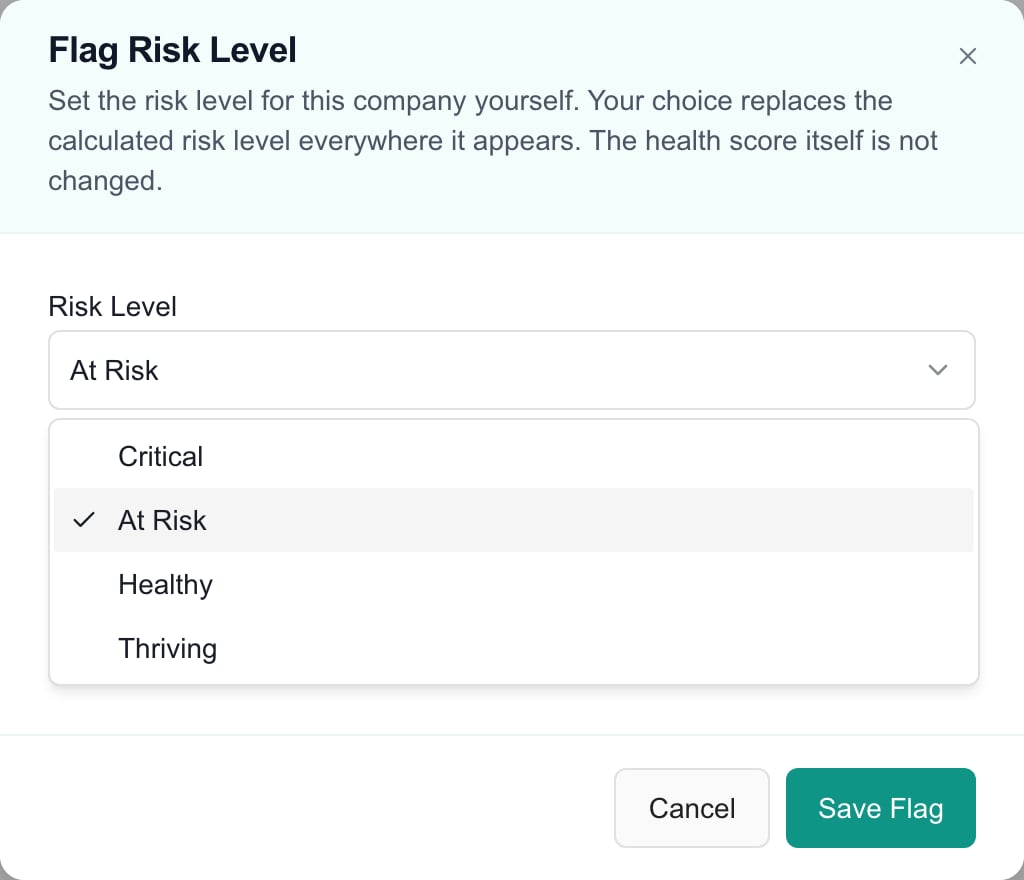
3. Choose **Critical**, **At Risk**, **Healthy** or **Thriving**. The dialog shows the calculated comparison when one is available.
4. Enter a **Reason** explaining the decision. This field is optional, limited to 1,000 characters, and trimmed when saved. Recording a useful reason helps later reviewers.
5. Choose **Save Flag** and wait for the result. Use **Cancel** before saving to discard dialog edits.
6. Check the **Manual** label and effective risk after the page refreshes. Review the portfolio table as well.
Opening the dialog or selecting a different option does not save the flag. A company with limited evidence can receive a manual risk label while its calculated score stays unavailable.
 ## Review the reason
Use **Edit Flag**, the dashboard's optional **Flag Reason** column, or the risk tooltip where a numeric score is available. The override changes the risk used in the dashboard, so it can move the company into a different risk-filtered list.
The detail interface does not expose a complete flag-event audit history. Removing a flag does not erase its stored audit trail.
## Remove the override
1. Open **Edit Flag** for the company.
2. Select **Remove Flag**. This acts immediately; there is no second confirmation.
3. Wait for success and verify the Manual indicator disappears. The calculated risk takes over; if no calculated risk exists, the result can be N/A.
Cancel dismisses edits before saving. It is not an undo after Save Flag or Remove Flag has completed. If an action fails, reopen the company and check its current state before retrying.
If Flag Risk or Edit Flag is absent, ask the MSP administrator to check Client Health Write permission. Changing a flag does not refresh source data or repair a low dimension score; follow [Refresh Client Health](/user-guides/msp-tools/refresh-client-health) when a new scorecard is needed.
## FAQs
Open its Client Health detail, select Flag Risk, choose a level and optional reason, then Save Flag.
No. Select Save Flag to persist dialog changes; Cancel discards unsaved edits.
No. It changes the effective risk label, while calculated scores and dimensions remain unchanged.
No. It is optional, limited to 1,000 characters and trimmed when saved. A useful explanation is recommended.
Yes. The company can have a manual risk label while its calculated score remains unavailable.
Open Edit Flag, enable Flag Reason in the dashboard, or inspect the risk tooltip where available.
Open Edit Flag and choose Remove Flag. It acts immediately, without another confirmation.
The calculated risk takes over and Manual disappears. With no calculated risk, the result can be N/A.
No. The stored flag history is retained; the detail page is not a full event-audit viewer.
The control requires Client Health Write permission in addition to access to the page.
## Review the reason
Use **Edit Flag**, the dashboard's optional **Flag Reason** column, or the risk tooltip where a numeric score is available. The override changes the risk used in the dashboard, so it can move the company into a different risk-filtered list.
The detail interface does not expose a complete flag-event audit history. Removing a flag does not erase its stored audit trail.
## Remove the override
1. Open **Edit Flag** for the company.
2. Select **Remove Flag**. This acts immediately; there is no second confirmation.
3. Wait for success and verify the Manual indicator disappears. The calculated risk takes over; if no calculated risk exists, the result can be N/A.
Cancel dismisses edits before saving. It is not an undo after Save Flag or Remove Flag has completed. If an action fails, reopen the company and check its current state before retrying.
If Flag Risk or Edit Flag is absent, ask the MSP administrator to check Client Health Write permission. Changing a flag does not refresh source data or repair a low dimension score; follow [Refresh Client Health](/user-guides/msp-tools/refresh-client-health) when a new scorecard is needed.
## FAQs
Open its Client Health detail, select Flag Risk, choose a level and optional reason, then Save Flag.
No. Select Save Flag to persist dialog changes; Cancel discards unsaved edits.
No. It changes the effective risk label, while calculated scores and dimensions remain unchanged.
No. It is optional, limited to 1,000 characters and trimmed when saved. A useful explanation is recommended.
Yes. The company can have a manual risk label while its calculated score remains unavailable.
Open Edit Flag, enable Flag Reason in the dashboard, or inspect the risk tooltip where available.
Open Edit Flag and choose Remove Flag. It acts immediately, without another confirmation.
The calculated risk takes over and Manual disappears. With no calculated risk, the result can be N/A.
No. The stored flag history is retained; the detail page is not a full event-audit viewer.
The control requires Client Health Write permission in addition to access to the page.