> ## Documentation Index
> Fetch the complete documentation index at: https://docs.msportal.ai/llms.txt
> Use this file to discover all available pages before exploring further.
# Read and manage notifications
> Company and MSP guide to finding recent alerts, opening related records, and marking notifications read.
**Audience:** Company users and MSP staff with portal access.
## Find an alert
Select **Notifications** in the sidebar. The header bell provides a shorter list of recent unread alerts; use **View all notifications** to open the full page.
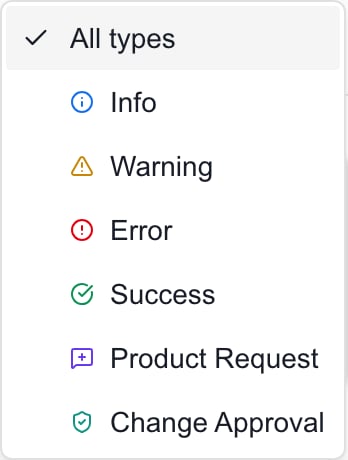
On the **Notifications** tab, choose **All** or **Unread**. Use **All types** to narrow the list to Info, Warning, Error, Success, Product Request, or Change Approval.
The table also offers column filters for notification text, source, and time. Clear filters when an expected item is missing. Use the table's page controls to move through the loaded results.
Review the notification text, source, and time. Hover over truncated text to read the longer message. Select a row to open its related record when one is available.
Selecting an unread row on the full Notifications page also marks it read. A notification without a related record can remain on the same page.
 ## Mark items read
Select the checkmark labeled **Mark as read** to update one item without opening its related record. Choose **Mark all read** to mark the available unread notification set read; this is not limited to the rows currently visible after filtering.
Read-status changes save immediately. There is no separate Save button. Read items can remain visible under **All**, but disappear from an **Unread** view. Marking an item read does not delete the related ticket, complete a task, resolve an error, or approve an action.
## Troubleshooting
* **Nothing appears:** switch to All and All types, clear column filters, and check whether the portal reported a loading error.
* **A link will not open:** the related record may have changed or your access may have changed. Contact your IT provider with the notification title and time.
* **An older alert is missing:** this screen displays recent loaded notifications, not an unlimited historical archive. Check the original module for its record or ask the MSP to investigate.
* **An approval still needs attention:** go to Pending Approvals. Reading its alert does not submit a decision.
## FAQs
This screen offers Mark as read and Mark all read. It does not provide a Mark unread action.
No. It is a bulk read-status action and is not restricted to the current table filters or visible rows. Use the individual checkmark when you only want to clear one alert.
Opening an unread row on the full page marks it read. Switch from Unread to All to look for it in the loaded list.
Only notifications with a supported related-record link navigate to another page. Access checks still apply to that destination.
There is no compose action here. Alerts are created by the portal and configured workflows. Ask the MSP about the appropriate communication workflow.
No. Read status only records that the alert was acknowledged. Investigate the related workflow separately.
## Related guides
* [Review automation approvals](/user-guides/notifications/review-approvals)
* [Understand your access](/user-guides/account/understand-your-access)
## Mark items read
Select the checkmark labeled **Mark as read** to update one item without opening its related record. Choose **Mark all read** to mark the available unread notification set read; this is not limited to the rows currently visible after filtering.
Read-status changes save immediately. There is no separate Save button. Read items can remain visible under **All**, but disappear from an **Unread** view. Marking an item read does not delete the related ticket, complete a task, resolve an error, or approve an action.
## Troubleshooting
* **Nothing appears:** switch to All and All types, clear column filters, and check whether the portal reported a loading error.
* **A link will not open:** the related record may have changed or your access may have changed. Contact your IT provider with the notification title and time.
* **An older alert is missing:** this screen displays recent loaded notifications, not an unlimited historical archive. Check the original module for its record or ask the MSP to investigate.
* **An approval still needs attention:** go to Pending Approvals. Reading its alert does not submit a decision.
## FAQs
This screen offers Mark as read and Mark all read. It does not provide a Mark unread action.
No. It is a bulk read-status action and is not restricted to the current table filters or visible rows. Use the individual checkmark when you only want to clear one alert.
Opening an unread row on the full page marks it read. Switch from Unread to All to look for it in the loaded list.
Only notifications with a supported related-record link navigate to another page. Access checks still apply to that destination.
There is no compose action here. Alerts are created by the portal and configured workflows. Ask the MSP about the appropriate communication workflow.
No. Read status only records that the alert was acknowledged. Investigate the related workflow separately.
## Related guides
* [Review automation approvals](/user-guides/notifications/review-approvals)
* [Understand your access](/user-guides/account/understand-your-access)