> ## Documentation Index
> Fetch the complete documentation index at: https://docs.msportal.ai/llms.txt
> Use this file to discover all available pages before exploring further.
# Review automation approvals
> Assigned reviewers: inspect pending automation content, approve or reject it, and understand the recorded outcome.
**Audience:** Authorized reviewers, usually MSP staff. Your MSP assigns reviewers through the automation configuration. A Company user should review an action only when explicitly assigned and permitted; a visible button alone does not establish that access.
Approving an action releases it for execution and can send an email or perform the configured workflow. Review the recipients and content before approving. The row and bell quick-action buttons submit the decision directly.
## Review a pending request
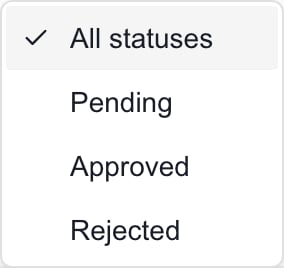
Go to **Notifications > Pending Approvals**. Choose **Pending** in the status filter to focus on requests awaiting a decision. **All statuses** includes recent review history.
Select the request row. Check the rule, action type, requested time, and expiry when shown. For an email, review **Recipients** and **Email Preview**.
For editable email content, select **Edit**, update **Subject** or **Body**, then select **Preview** to review the result. Recipients are displayed for review; this editor does not offer a recipient-change control.
Add **Review Notes (optional)** to explain the decision. Content edits remain in the dialog until you approve; Preview is not a save action.
Choose **Approve** or **Approve with Changes** to release the action, or **Reject** to stop that pending request. Wait for confirmation. **Cancel** closes the dialog without submitting the decision or saving the draft edits.
If you already reviewed the full context, the table's **Approve** and **Reject** quick actions can submit the decision without opening the editor. They do not provide a second confirmation or an opportunity to add review notes first.
## Check history and delivery status
Use **All statuses**, **Approved**, or **Rejected** to find recent decisions. The Approved filter also includes items displayed as Sent. Table column filters can narrow the status or rule further; clear them if an item seems missing.
 | Status | Meaning |
| -------- | ------------------------------------------------------------------------------------------------------------- |
| Pending | Awaiting a decision within its approval window. |
| Approved | The decision was recorded; execution follows separately. |
| Sent | The approved action's execution has been recorded. For email, this does not prove that the recipient read it. |
| Rejected | The pending request was rejected and is not released by that decision. |
| Expired | The approval window has ended. It cannot be reviewed as a current pending request. |
Open a history row or use **View** to inspect its content. Modified-content indicators and saved notes help explain the earlier decision. History is for reference; a processed request cannot be approved again.
## Troubleshooting
* **Not authorized:** ask the MSP to confirm the assigned reviewer or role. General portal access does not grant every approval.
* **Expired or already processed:** check the current status before trying again. Another reviewer may already have acted.
* **Approved but not Sent:** approval and execution are separate. Ask the MSP to check the automation execution before creating another request, which could duplicate the intended action.
* **Approve is disabled:** check the edited content for missing or invalid required fields and wait for any current action to finish.
## FAQs
No. Opening a row is a review action. Approve, Approve with Changes, and the quick Approve button submit the decision.
The dialog shows recipients but edits only the supported content fields. Ask the MSP to correct the originating workflow when recipients are wrong.
No. Preview changes the display mode. Content changes are submitted with approval; Cancel discards the draft edits and notes.
There is no undo decision action. Approval can release external work immediately. Contact the MSP promptly if the decision was wrong.
Sent items were approved before execution. The Approved filter groups both stages; the row status distinguishes them.
No. It rejects this pending request. The MSP manages the rule separately in Automation settings.
No. Review authorization depends on the configured assignment and applicable access. Ask the MSP when you are not an authorized reviewer.
## Related guides
* [Read and manage notifications](/user-guides/notifications/read-notifications)
* [MSP automation settings](/user-guides/settings/automation/index)
| Status | Meaning |
| -------- | ------------------------------------------------------------------------------------------------------------- |
| Pending | Awaiting a decision within its approval window. |
| Approved | The decision was recorded; execution follows separately. |
| Sent | The approved action's execution has been recorded. For email, this does not prove that the recipient read it. |
| Rejected | The pending request was rejected and is not released by that decision. |
| Expired | The approval window has ended. It cannot be reviewed as a current pending request. |
Open a history row or use **View** to inspect its content. Modified-content indicators and saved notes help explain the earlier decision. History is for reference; a processed request cannot be approved again.
## Troubleshooting
* **Not authorized:** ask the MSP to confirm the assigned reviewer or role. General portal access does not grant every approval.
* **Expired or already processed:** check the current status before trying again. Another reviewer may already have acted.
* **Approved but not Sent:** approval and execution are separate. Ask the MSP to check the automation execution before creating another request, which could duplicate the intended action.
* **Approve is disabled:** check the edited content for missing or invalid required fields and wait for any current action to finish.
## FAQs
No. Opening a row is a review action. Approve, Approve with Changes, and the quick Approve button submit the decision.
The dialog shows recipients but edits only the supported content fields. Ask the MSP to correct the originating workflow when recipients are wrong.
No. Preview changes the display mode. Content changes are submitted with approval; Cancel discards the draft edits and notes.
There is no undo decision action. Approval can release external work immediately. Contact the MSP promptly if the decision was wrong.
Sent items were approved before execution. The Approved filter groups both stages; the row status distinguishes them.
No. It rejects this pending request. The MSP manages the rule separately in Automation settings.
No. Review authorization depends on the configured assignment and applicable access. Ask the MSP when you are not an authorized reviewer.
## Related guides
* [Read and manage notifications](/user-guides/notifications/read-notifications)
* [MSP automation settings](/user-guides/settings/automation/index)