> ## Documentation Index
> Fetch the complete documentation index at: https://docs.msportal.ai/llms.txt
> Use this file to discover all available pages before exploring further.
# Apply a template to a Planner item
> Choose which reusable fields replace an item’s values, review the result and save deliberately.
**Audience:** MSP staff with Planner editing access and access to available templates. Creating or managing the template catalog requires **Manage Planner**. Company users do not browse the staff template catalog.
Use this workflow to populate a new item or update selected fields on an existing item. To create the reusable defaults first, see [Create and manage Planner templates](/user-guides/planner/manage-templates).
## Choose the template and fields
1. Open a Planner item from **List View** or the timeline. For a new item, choose **Add Item**, then set its company and title.
2. Beside **Description**, choose **Apply Template**. Some new-item entry points label this **Use Template**.
3. Search the template list by its displayed name and select the required template.
4. Review **Fields to Apply**. All fields start selected. Choose **None** to start with an empty selection, then check only what you intend to copy; **All** selects every listed field.
5. Choose **Apply Template** in the selection dialog.
6. Review the resulting item, including its title, notes, costs, relationships and visibility.
7. Choose the item's **Save** button and wait for success. Reopen it to confirm the saved values.
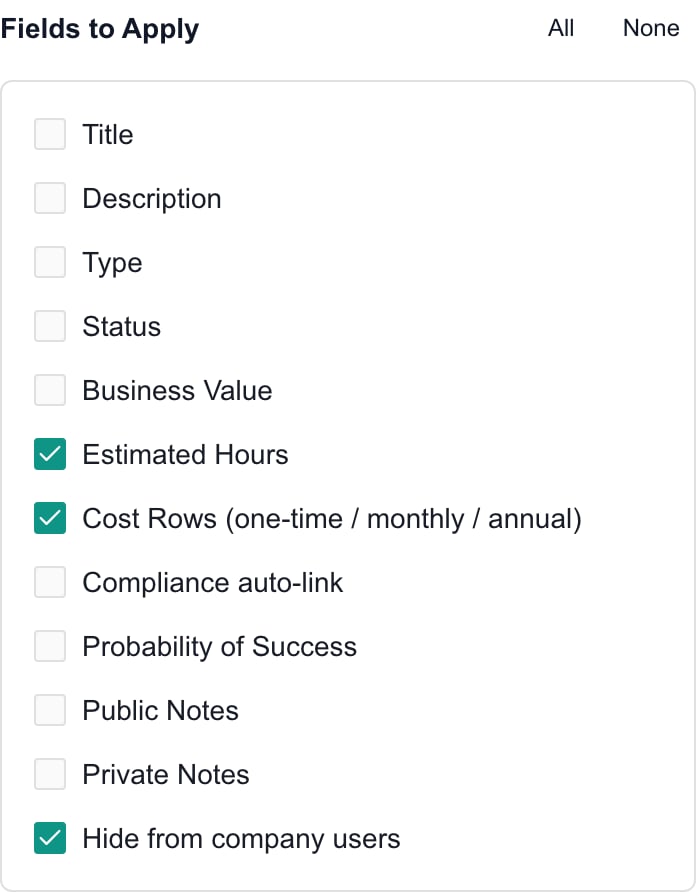 Selecting a template alone does not apply it. The selection dialog's **Apply Template** changes the item form; the item's **Save** persists those changes. Close the item and choose **Discard Changes** if you do not want to save the resulting form.
The Apply button is unavailable until a template and at least one field are selected. If no templates appear, clear the search and ask the MSP to check the catalog and your access.
## Know what you are replacing
| Selected field | Effect on the item form |
| -------------------------------------------------------------------- | --------------------------------------------------------------------------------------------------------------------- |
| **Title**, **Description**, **Type**, **Status**, **Business Value** | Copies the corresponding template value. Leave unchecked to retain the item's own value. |
| **Estimated Hours**, **Probability of Success** | Replaces that planning estimate. It does not add to the existing estimate. |
| **Cost Rows (one-time / monthly / annual)** | Replaces the cost-row list rather than appending another set. Review each cadence afterward. |
| **Public Notes**, **Private Notes** | Replaces the corresponding notes content when the template provides it. It is not an append operation. |
| **Hide from company users** | Copies the template's saved visibility setting. The target may become visible or hidden depending on that setting. |
| **Compliance auto-link** | Resolves matching assignments for the item's company and replaces its compliance relationships with the resolved set. |
Unchecked fields keep their current form values. A selected field with a null or missing template value can leave the existing value unchanged; an explicitly empty text value can clear it. Review the result instead of assuming every selected blank field behaves identically.
Company, due date and assignee are not in this field selection. Set them on the item itself. Custom-field values and uploaded files are not copied by this operation. A Tool Stack-managed title remains subject to its standard's title lock.
## Review costs, notes and visibility
Templates retain cost amounts and cadences but currently normalize the original quantity/unit breakdown. For example, a template entered as 3 × 200 Monthly applies as a 600 Monthly row. Check quantities on the actual item before saving. A template without cost rows uses its legacy estimate as a One-time row, so inspect the cadence.
Public Notes are visible to users who can read the item. Private Notes remain internal to authorized MSP staff. Selecting the visibility field does not reveal Private Notes or grant access to another module.
To copy only an estimate while retaining the title and description, choose **None**, select **Estimated Hours** and **Cost Rows**, then Apply Template. Check the unchanged text and new estimates before Save.
## Compliance relationships
Set the item's company before applying **Compliance auto-link**. It looks for the newest matching assignment for each configured check in that company. It does not create missing assignments, remediate findings or copy another company's assignment.
The resolved set replaces the item's compliance links, so leave this field unchecked when you want to preserve those links. If no matching assignments exist, a message can report missing links. Inspect Relationships before Save; do not treat a missing-link message as proof that no other selected field was applied.
If assignment lookup fails, the selection dialog retains your template and field choices. Resolve the displayed error before trying again. Permission to read the relevant compliance data is required for that lookup.
## FAQs
Open the item and choose Apply Template beside Description. Select the template and fields, apply them, review the item and choose Save.
No. Select fields and use Apply Template in the selection dialog. The separate item Save persists the resulting form.
Choose None, then select Estimated Hours and Cost Rows only. Apply Template and review the unchanged title before Save.
Yes. Review the selection each time. None clears it and All selects every listed field.
No. Selecting Cost Rows replaces the list. Review the resulting quantities, amounts and cadences before saving.
No. It replaces that notes field when the template provides a value. Leave it unchecked to preserve existing notes.
No. It copies the template's saved visibility setting, which can make the item visible or hidden. Review the item checkbox afterward.
These are not selectable template fields here. Set them directly on the item. Uploaded files and custom-field values are not copied either.
It replaces them with the resolved matching company assignments. Leave it unchecked when you want to keep the current links.
Auto-link cannot create the missing assignment. Review the missing-link message and Relationships; other selected template fields can still be applied.
Close the item and choose Discard Changes to abandon its unsaved form. This does not undo separate operations that already completed, such as attachment changes.
No. This updates selected fields in one item form. Apply to Companies creates new items for selected template/company combinations.
For the bulk creation workflow, see [Create Planner items for multiple companies](/user-guides/planner/apply-templates-to-companies).
Selecting a template alone does not apply it. The selection dialog's **Apply Template** changes the item form; the item's **Save** persists those changes. Close the item and choose **Discard Changes** if you do not want to save the resulting form.
The Apply button is unavailable until a template and at least one field are selected. If no templates appear, clear the search and ask the MSP to check the catalog and your access.
## Know what you are replacing
| Selected field | Effect on the item form |
| -------------------------------------------------------------------- | --------------------------------------------------------------------------------------------------------------------- |
| **Title**, **Description**, **Type**, **Status**, **Business Value** | Copies the corresponding template value. Leave unchecked to retain the item's own value. |
| **Estimated Hours**, **Probability of Success** | Replaces that planning estimate. It does not add to the existing estimate. |
| **Cost Rows (one-time / monthly / annual)** | Replaces the cost-row list rather than appending another set. Review each cadence afterward. |
| **Public Notes**, **Private Notes** | Replaces the corresponding notes content when the template provides it. It is not an append operation. |
| **Hide from company users** | Copies the template's saved visibility setting. The target may become visible or hidden depending on that setting. |
| **Compliance auto-link** | Resolves matching assignments for the item's company and replaces its compliance relationships with the resolved set. |
Unchecked fields keep their current form values. A selected field with a null or missing template value can leave the existing value unchanged; an explicitly empty text value can clear it. Review the result instead of assuming every selected blank field behaves identically.
Company, due date and assignee are not in this field selection. Set them on the item itself. Custom-field values and uploaded files are not copied by this operation. A Tool Stack-managed title remains subject to its standard's title lock.
## Review costs, notes and visibility
Templates retain cost amounts and cadences but currently normalize the original quantity/unit breakdown. For example, a template entered as 3 × 200 Monthly applies as a 600 Monthly row. Check quantities on the actual item before saving. A template without cost rows uses its legacy estimate as a One-time row, so inspect the cadence.
Public Notes are visible to users who can read the item. Private Notes remain internal to authorized MSP staff. Selecting the visibility field does not reveal Private Notes or grant access to another module.
To copy only an estimate while retaining the title and description, choose **None**, select **Estimated Hours** and **Cost Rows**, then Apply Template. Check the unchanged text and new estimates before Save.
## Compliance relationships
Set the item's company before applying **Compliance auto-link**. It looks for the newest matching assignment for each configured check in that company. It does not create missing assignments, remediate findings or copy another company's assignment.
The resolved set replaces the item's compliance links, so leave this field unchecked when you want to preserve those links. If no matching assignments exist, a message can report missing links. Inspect Relationships before Save; do not treat a missing-link message as proof that no other selected field was applied.
If assignment lookup fails, the selection dialog retains your template and field choices. Resolve the displayed error before trying again. Permission to read the relevant compliance data is required for that lookup.
## FAQs
Open the item and choose Apply Template beside Description. Select the template and fields, apply them, review the item and choose Save.
No. Select fields and use Apply Template in the selection dialog. The separate item Save persists the resulting form.
Choose None, then select Estimated Hours and Cost Rows only. Apply Template and review the unchanged title before Save.
Yes. Review the selection each time. None clears it and All selects every listed field.
No. Selecting Cost Rows replaces the list. Review the resulting quantities, amounts and cadences before saving.
No. It replaces that notes field when the template provides a value. Leave it unchecked to preserve existing notes.
No. It copies the template's saved visibility setting, which can make the item visible or hidden. Review the item checkbox afterward.
These are not selectable template fields here. Set them directly on the item. Uploaded files and custom-field values are not copied either.
It replaces them with the resolved matching company assignments. Leave it unchecked when you want to keep the current links.
Auto-link cannot create the missing assignment. Review the missing-link message and Relationships; other selected template fields can still be applied.
Close the item and choose Discard Changes to abandon its unsaved form. This does not undo separate operations that already completed, such as attachment changes.
No. This updates selected fields in one item form. Apply to Companies creates new items for selected template/company combinations.
For the bulk creation workflow, see [Create Planner items for multiple companies](/user-guides/planner/apply-templates-to-companies).