> ## Documentation Index
> Fetch the complete documentation index at: https://docs.msportal.ai/llms.txt
> Use this file to discover all available pages before exploring further.
# Create Planner items for multiple companies
> Apply reusable templates across companies with a shared due date, selected fields and company-specific compliance links.
**Audience:** MSP staff with **Manage Planner** permission for the target companies. Company users do not access the template catalog or this bulk action. They can see resulting items only when their MSP makes them visible and grants Planner access.
Open **Planner Menu > Templates** to create new items from reusable defaults. Each selected template creates one item in each selected company: **2 templates × 3 companies = 6 new items**. Existing items are not updated. For that task, use [Apply a template to a Planner item](/user-guides/planner/apply-template-to-item).
## Choose templates, companies and a date
1. Find the required templates using the **Name** filter. Review their saved defaults first, especially costs, notes and visibility.
2. Check the template rows, then choose **Actions > Apply to Companies**. Confirm the names under **Selected Templates**.
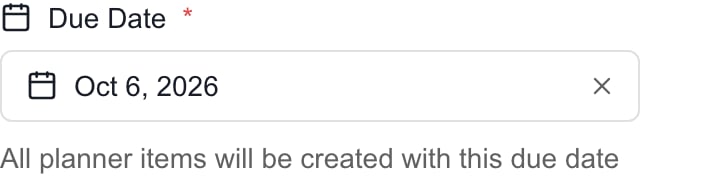
3. Set **Due Date**. The initial date is 30 days ahead, and every new item in this operation receives the same date.
4. Under **Select Companies**, search for a company and check its row. Repeat for the other companies. The picker lists active companies available to it.
5. Clear the search and review the checked companies and selected count.
6. Review **Fields to Apply**, as explained below. At least one field must remain selected.
7. Check the expected item count: selected templates multiplied by selected companies. Keep each application to **500 combinations or fewer**.
8. Choose **Apply to N Companies**, then wait for the result. This action creates and saves the items; there is no separate item Save step for the batch.
9. Open **Planner Menu > List View**, find the new titles and check each company's items, dates, costs, visibility and Relationships.
 The Apply button's number is the **company count**, not the number of items. With two templates and two companies, **Apply to 2 Companies** creates four items.
### Select companies deliberately
Changing the search text alone keeps individually selected companies. However, checking **Select All** replaces your selection with the currently filtered companies, including dropping earlier selections outside that search. Unchecking Select All clears the selection. To build a selection across several searches, use the individual company checkboxes, then clear the search and check the final count.
The number beside **Select All** describes the filtered list; the separate selected count describes your current selection. If a company is missing, clear the search and ask the MSP to check that the company is active and that your access permits the operation.
## Choose the fields to copy
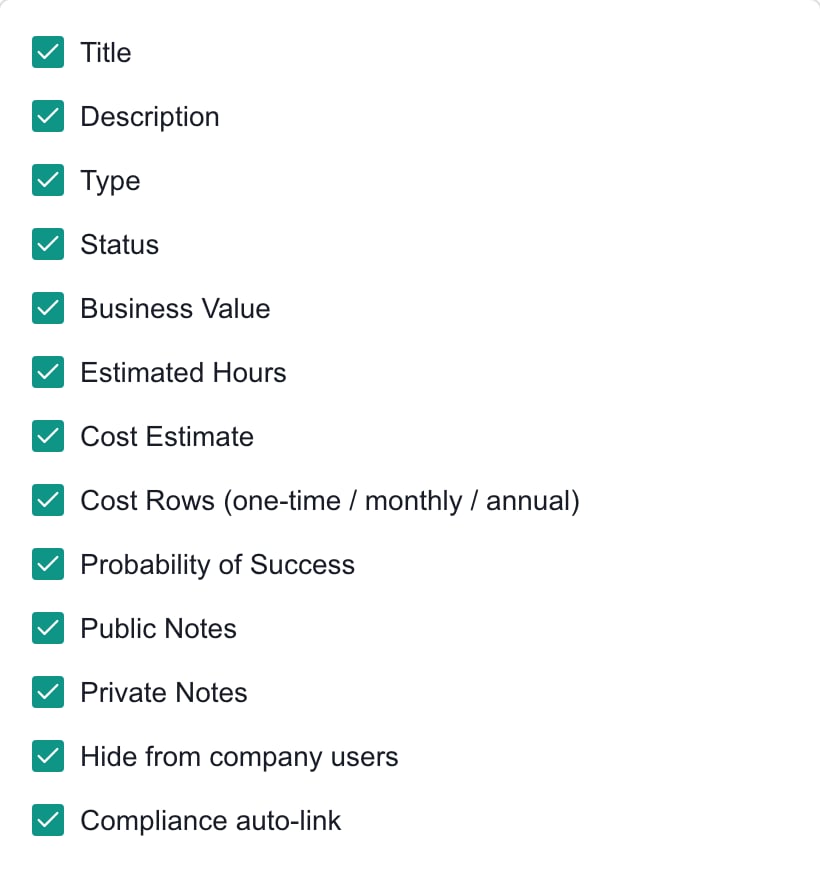
All 13 fields start selected. **None** clears them; **All** selects them again. These choices apply to every template/company combination in the batch.
The Apply button's number is the **company count**, not the number of items. With two templates and two companies, **Apply to 2 Companies** creates four items.
### Select companies deliberately
Changing the search text alone keeps individually selected companies. However, checking **Select All** replaces your selection with the currently filtered companies, including dropping earlier selections outside that search. Unchecking Select All clears the selection. To build a selection across several searches, use the individual company checkboxes, then clear the search and check the final count.
The number beside **Select All** describes the filtered list; the separate selected count describes your current selection. If a company is missing, clear the search and ask the MSP to check that the company is active and that your access permits the operation.
## Choose the fields to copy
All 13 fields start selected. **None** clears them; **All** selects them again. These choices apply to every template/company combination in the batch.
 | Field | What to expect |
| -------------------------------------------------------------- | -------------------------------------------------------------------------------------------------------------------------------------------------------------------------------------------- |
| **Title** | New items use the template title, including when this checkbox is unchecked. Rename individual items afterward if needed. |
| **Description**, **Type**, **Status**, **Business Value** | Copies the selected template values. Unselected fields use new-item defaults rather than values from existing work. |
| **Estimated Hours**, **Probability of Success** | Copies each template's estimate to each new item. It is not divided among the selected companies. |
| **Cost Estimate**, **Cost Rows (one-time / monthly / annual)** | Either selected cost option copies the template's cost rows when available. Selecting both does not duplicate those rows. Without template rows, the legacy estimate becomes a One-time row. |
| **Public Notes**, **Private Notes** | Copies the selected notes. Public Notes follow item access; Private Notes remain internal to authorized MSP staff. |
| **Hide from company users** | Copies the template's saved visibility setting. It can make the item visible or hidden; the checkbox in this selection is not itself a command to hide every item. |
| **Compliance auto-link** | Links matching existing compliance assignments separately for each target company. |
Templates currently preserve cost amounts and cadences but normalize the original quantity/unit breakdown. For example, a 3 × 200 Monthly template row creates a 600 Monthly item row. Review quantities on each item. See [Plan costs and hours](/user-guides/planner/plan-costs-and-hours).
Company and Due Date come from this dialog. Assignees, uploaded files and custom-field values are not copied by this action. Other relationships are not selected here. Review the resulting items before sharing them with Company users.
## Understand compliance results
Select **Compliance auto-link** only when you want the template's configured checks resolved for each company and you have access to read the relevant compliance data. The newest matching assignment for each check is linked. The operation does not create missing compliance assignments or remediate a finding.
A missing assignment does **not** stop that company's Planner item from being created. You can receive a creation success message and a separate warning that some items were created without a matching link. The warning counts affected items, not necessarily companies or individual missing checks.
For example, applying a template to two companies creates two items. If only one company has the configured assignment, that item receives its link and the other item is created without it. Review **Relationships** on the affected item and arrange any needed compliance assignment separately.
## Cancel, errors and repeated application
**Cancel** before applying creates no items and resets the dialog's company and field selections and default date. After a successful application, the dialog closes and template row selections clear. Deleting a template later does not remove the items it created.
If an error or lost connection leaves the outcome uncertain, check List View for the target companies and titles before starting another application. An intentional new application can create another set with the same titles; it does not find and update earlier matching items. A missing-link warning after success is not a reason to apply the whole batch again.
| Symptom | What to check |
| -------------------------------------- | ----------------------------------------------------------------------------------------------------------------- |
| Apply is unavailable | Select templates, at least one company and field, and a Due Date; wait for companies to finish loading. |
| Permission error | Ask the MSP to check Manage Planner for the target companies and Compliance read access if auto-link is selected. |
| Fewer companies selected than expected | Clear the search and inspect individual checkboxes; Select All after a search replaces the previous selection. |
| New items absent from the timeline | Check selected companies, date range, item visibility and filters. Use List View to find the created titles. |
| Company user cannot see the item | MSP staff should check the item's Hide from company users setting and the user's Planner access. |
## FAQs
Open Planner Menu > Templates, select the template rows and choose Actions > Apply to Companies. Select companies, a due date and fields, then Apply.
Six: one item for every selected template/company combination. The Apply button displays the company count, not the item count.
No. It creates new items. Use Apply Template inside an existing item to replace selected fields there, then Save that item.
No. Apply to N Companies creates and saves the batch. Open the resulting items afterward to review them; later edits require their own Save.
This dialog uses one Due Date for all created items. Use separate applications or edit individual items afterward for different dates.
Select All replaces the selection with companies in the current search results. Select individual rows across searches, then clear the search and review the final count.
Use 500 combinations or fewer per application. Multiply the selected template count by the selected company count before applying.
No. Either option copies the template's cost rows when available; selecting both does not duplicate them. Without rows, the legacy estimate becomes a One-time row.
No. New items still receive the template title. Rename individual items after creation if needed.
No. It copies each template's saved visibility setting, which can be visible or hidden. Check the resulting items before sharing them.
Their Planner items are still created. The missing assignments cannot be linked, and a warning reports affected items. Review Relationships afterward.
No. It links the newest existing matching assignment for each configured check in each company. Missing assignments and remediation require separate work.
No. Check the creation result and affected items first. A new application can create duplicates; review Relationships and address the missing assignments separately.
No. This is an MSP staff workflow requiring Manage Planner. Company users work with the resulting visible items within the access their MSP grants.
No. The created Planner items remain separate records. Cancel before Apply creates nothing; deleting templates afterward is not an undo operation.
See [Create and manage Planner templates](/user-guides/planner/manage-templates) for reusable defaults and [Read Planner item details](/user-guides/planner/read-item-details) for the Company-facing view.
| Field | What to expect |
| -------------------------------------------------------------- | -------------------------------------------------------------------------------------------------------------------------------------------------------------------------------------------- |
| **Title** | New items use the template title, including when this checkbox is unchecked. Rename individual items afterward if needed. |
| **Description**, **Type**, **Status**, **Business Value** | Copies the selected template values. Unselected fields use new-item defaults rather than values from existing work. |
| **Estimated Hours**, **Probability of Success** | Copies each template's estimate to each new item. It is not divided among the selected companies. |
| **Cost Estimate**, **Cost Rows (one-time / monthly / annual)** | Either selected cost option copies the template's cost rows when available. Selecting both does not duplicate those rows. Without template rows, the legacy estimate becomes a One-time row. |
| **Public Notes**, **Private Notes** | Copies the selected notes. Public Notes follow item access; Private Notes remain internal to authorized MSP staff. |
| **Hide from company users** | Copies the template's saved visibility setting. It can make the item visible or hidden; the checkbox in this selection is not itself a command to hide every item. |
| **Compliance auto-link** | Links matching existing compliance assignments separately for each target company. |
Templates currently preserve cost amounts and cadences but normalize the original quantity/unit breakdown. For example, a 3 × 200 Monthly template row creates a 600 Monthly item row. Review quantities on each item. See [Plan costs and hours](/user-guides/planner/plan-costs-and-hours).
Company and Due Date come from this dialog. Assignees, uploaded files and custom-field values are not copied by this action. Other relationships are not selected here. Review the resulting items before sharing them with Company users.
## Understand compliance results
Select **Compliance auto-link** only when you want the template's configured checks resolved for each company and you have access to read the relevant compliance data. The newest matching assignment for each check is linked. The operation does not create missing compliance assignments or remediate a finding.
A missing assignment does **not** stop that company's Planner item from being created. You can receive a creation success message and a separate warning that some items were created without a matching link. The warning counts affected items, not necessarily companies or individual missing checks.
For example, applying a template to two companies creates two items. If only one company has the configured assignment, that item receives its link and the other item is created without it. Review **Relationships** on the affected item and arrange any needed compliance assignment separately.
## Cancel, errors and repeated application
**Cancel** before applying creates no items and resets the dialog's company and field selections and default date. After a successful application, the dialog closes and template row selections clear. Deleting a template later does not remove the items it created.
If an error or lost connection leaves the outcome uncertain, check List View for the target companies and titles before starting another application. An intentional new application can create another set with the same titles; it does not find and update earlier matching items. A missing-link warning after success is not a reason to apply the whole batch again.
| Symptom | What to check |
| -------------------------------------- | ----------------------------------------------------------------------------------------------------------------- |
| Apply is unavailable | Select templates, at least one company and field, and a Due Date; wait for companies to finish loading. |
| Permission error | Ask the MSP to check Manage Planner for the target companies and Compliance read access if auto-link is selected. |
| Fewer companies selected than expected | Clear the search and inspect individual checkboxes; Select All after a search replaces the previous selection. |
| New items absent from the timeline | Check selected companies, date range, item visibility and filters. Use List View to find the created titles. |
| Company user cannot see the item | MSP staff should check the item's Hide from company users setting and the user's Planner access. |
## FAQs
Open Planner Menu > Templates, select the template rows and choose Actions > Apply to Companies. Select companies, a due date and fields, then Apply.
Six: one item for every selected template/company combination. The Apply button displays the company count, not the item count.
No. It creates new items. Use Apply Template inside an existing item to replace selected fields there, then Save that item.
No. Apply to N Companies creates and saves the batch. Open the resulting items afterward to review them; later edits require their own Save.
This dialog uses one Due Date for all created items. Use separate applications or edit individual items afterward for different dates.
Select All replaces the selection with companies in the current search results. Select individual rows across searches, then clear the search and review the final count.
Use 500 combinations or fewer per application. Multiply the selected template count by the selected company count before applying.
No. Either option copies the template's cost rows when available; selecting both does not duplicate them. Without rows, the legacy estimate becomes a One-time row.
No. New items still receive the template title. Rename individual items after creation if needed.
No. It copies each template's saved visibility setting, which can be visible or hidden. Check the resulting items before sharing them.
Their Planner items are still created. The missing assignments cannot be linked, and a warning reports affected items. Review Relationships afterward.
No. It links the newest existing matching assignment for each configured check in each company. Missing assignments and remediation require separate work.
No. Check the creation result and affected items first. A new application can create duplicates; review Relationships and address the missing assignments separately.
No. This is an MSP staff workflow requiring Manage Planner. Company users work with the resulting visible items within the access their MSP grants.
No. The created Planner items remain separate records. Cancel before Apply creates nothing; deleting templates afterward is not an undo operation.
See [Create and manage Planner templates](/user-guides/planner/manage-templates) for reusable defaults and [Read Planner item details](/user-guides/planner/read-item-details) for the Company-facing view.