> ## Documentation Index
> Fetch the complete documentation index at: https://docs.msportal.ai/llms.txt
> Use this file to discover all available pages before exploring further.
# Archive, restore or delete Planner items
> Manage the lifecycle of planning work without confusing archive, status and deletion.
**Audience:** MSP staff managing Planner work. **Write Planner** or **Manage Planner** permits archive and restore. Deletion requires **Manage Planner**. Company users can [read accessible archived work](/user-guides/planner/find-archived-items); their MSP manages permissions.
## Archive an item
1. Open **Planner > List View** and check the company, filters and exact item title.
2. Keep **Archived** off to view active items.
3. Open the item's **…** menu and select **Archive**.
4. Wait for the item to leave the active list. Select **Archived** and find it there to confirm the result.
Archive runs immediately. It does not open a confirmation dialog or wait for the item's Save button. The item keeps its status, costs and other saved details.
## Restore an item
1. Select **Archived** in List View.
2. Find the item and open its **…** menu.
3. Select **Restore**.
4. Wait for it to leave the archived list, then turn **Archived** off and find it in the active list.
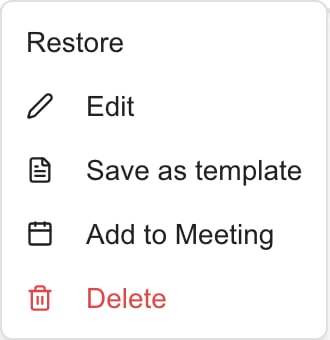 Restore is immediate and preserves the saved status. Restoring a Completed item does not restart it or change it to In Progress. Archive and restore do not change whether the item is visible to Company users.
## Delete one item
1. Check the exact item in either the active or archived list.
2. Open its **…** menu and select **Delete**.
3. Read the **Delete Planner Item** confirmation. Choose **Cancel** to keep the item or **Delete** to remove it.
4. Wait for the result and confirm the row is gone.
Deletion cannot be undone with Restore or Discard Changes. Use Archive when you want to keep the item for later reference. Deleting a Planner item is not an instruction to delete its linked ticket, project, goal or provider record.
For multiple items, select their checkboxes, review **Actions (N) > Delete Selected**, then confirm the displayed item count. See [bulk actions](/user-guides/planner/update-multiple-items). Selection applies to the current loaded page.
## Standards-linked items
Items linked to Standards do not offer Archive or Restore in this row menu, and their Delete control is disabled. Delete Selected is absent when the selection contains a Standards-linked item. Review the item's origin and the relevant Standards configuration with an authorized administrator rather than treating it as an ordinary manual item.
## Check the result
Archive/Restore changes which list contains the item; it does not change its work status. An active title, status or type filter can hide a successfully changed row. If an action fails, check the message and reopen the relevant list before retrying. The disappearance of a confirmation dialog alone does not prove deletion succeeded.
Related: [Find archived work](/user-guides/planner/find-archived-items), [create and edit items](/user-guides/planner/create-and-edit-items), [read linked records](/user-guides/planner/read-linked-records).
## FAQs
In Planner > List View, open the active item’s … menu and select Archive. It takes effect immediately.
No. Verify the item before selecting Archive. You can restore an accessible archived item later.
No. Archiving and status are separate. Saved status and planning details remain.
Select Archived in List View, open the item’s … menu and choose Restore. Turn Archived off to find it in the active list.
No. Restoring changes the archived state. Existing Company access and client visibility still apply.
Manage Planner. Archive and Restore require Planner editing access, which is separate from deletion permission.
Standards-linked items are protected in this menu. Review their source in Standards with an authorized administrator.
No. Restore is for archived items. Delete is confirmed separately and cannot be undone from this menu.
The Planner deletion action does not delete those original provider records. Manage the ticket or project in its own workflow.
The List View bulk menu currently has field updates and Delete Selected. Archive and Restore are individual row actions.
Restore is immediate and preserves the saved status. Restoring a Completed item does not restart it or change it to In Progress. Archive and restore do not change whether the item is visible to Company users.
## Delete one item
1. Check the exact item in either the active or archived list.
2. Open its **…** menu and select **Delete**.
3. Read the **Delete Planner Item** confirmation. Choose **Cancel** to keep the item or **Delete** to remove it.
4. Wait for the result and confirm the row is gone.
Deletion cannot be undone with Restore or Discard Changes. Use Archive when you want to keep the item for later reference. Deleting a Planner item is not an instruction to delete its linked ticket, project, goal or provider record.
For multiple items, select their checkboxes, review **Actions (N) > Delete Selected**, then confirm the displayed item count. See [bulk actions](/user-guides/planner/update-multiple-items). Selection applies to the current loaded page.
## Standards-linked items
Items linked to Standards do not offer Archive or Restore in this row menu, and their Delete control is disabled. Delete Selected is absent when the selection contains a Standards-linked item. Review the item's origin and the relevant Standards configuration with an authorized administrator rather than treating it as an ordinary manual item.
## Check the result
Archive/Restore changes which list contains the item; it does not change its work status. An active title, status or type filter can hide a successfully changed row. If an action fails, check the message and reopen the relevant list before retrying. The disappearance of a confirmation dialog alone does not prove deletion succeeded.
Related: [Find archived work](/user-guides/planner/find-archived-items), [create and edit items](/user-guides/planner/create-and-edit-items), [read linked records](/user-guides/planner/read-linked-records).
## FAQs
In Planner > List View, open the active item’s … menu and select Archive. It takes effect immediately.
No. Verify the item before selecting Archive. You can restore an accessible archived item later.
No. Archiving and status are separate. Saved status and planning details remain.
Select Archived in List View, open the item’s … menu and choose Restore. Turn Archived off to find it in the active list.
No. Restoring changes the archived state. Existing Company access and client visibility still apply.
Manage Planner. Archive and Restore require Planner editing access, which is separate from deletion permission.
Standards-linked items are protected in this menu. Review their source in Standards with an authorized administrator.
No. Restore is for archived items. Delete is confirmed separately and cannot be undone from this menu.
The Planner deletion action does not delete those original provider records. Manage the ticket or project in its own workflow.
The List View bulk menu currently has field updates and Delete Selected. Archive and Restore are individual row actions.