> ## Documentation Index
> Fetch the complete documentation index at: https://docs.msportal.ai/llms.txt
> Use this file to discover all available pages before exploring further.
# Import PSA opportunities into Planner
> Select synchronized opportunities, map their statuses and verify the created planning items.
**Audience:** MSP staff with **Manage Planner**. The Import button is available when a supported **Halo**, **ConnectWise** or **Autotask** integration is connected. Company users do not configure PSA connections or import mappings.
## Before importing
The dialog reads opportunities already synchronized into MSPortal. Check that the source opportunity is mapped to the correct company and that opportunity synchronization is enabled for your PSA connection.
**Newly imported items are client-visible by default.** The import dialog does not offer a visibility switch. Import only work that is ready to be available to authorized Company users, then review **Visible to clients** in the created item. A visible item still requires the user's company scope and Planner permissions.
This Import action creates Planner items from PSA opportunities. It is separate from creating reusable templates, applying templates to companies or creating a new opportunity in the PSA.
## Find and select opportunities
1. Open **Planner > List View**, check the company selector, then choose **Import** in the header.
2. In **Import opportunities**, search by the opportunity's **summary or ID**.
3. Review the **Due date range**. It starts with the past year through today. Widen it or use its **Clear** cross for older or future-dated opportunities.
4. Review **Hide already imported**, which is selected by default. Turn it off to inspect existing imported entries; they show **Imported** and cannot be selected again here.
5. Check each row's company, provider, value and due date. Select the intended checkboxes and review the selected count.
The date filter uses the opportunity's target date, falling back to its deadline. Opportunities with neither date remain eligible even when a date range is selected. This is not a creation-date filter.
**Select all** selects eligible rows on the current import page, up to 200 opportunities. **Next** and **Previous** change the page; they do not accumulate selections. Changing search, dates, company scope or Hide already imported also clears selection. Wait for loading and search to settle before importing.
## Map the initial Planner statuses
Choose the Planner status to use for each source category:
| Opportunity category | Default Planner status |
| -------------------- | ---------------------- |
| Open | Not Started |
| Won | Completed |
| Lost | Cancelled |
Each mapping offers **Not Started**, **In Progress**, **Completed**, **On Hold**, **Cancelled** and **Pending Approval**. The row may display a provider-specific status label; the mapping operates on its Open/Won/Lost category.
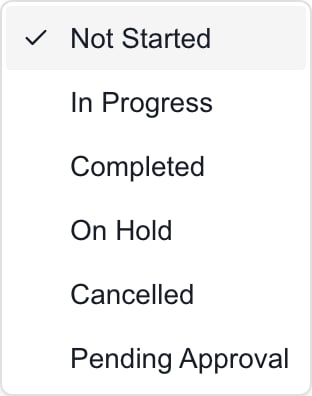 These choices apply to this import. Closing the dialog resets them to the defaults. They do not save the integration's ongoing status synchronization rules.
## Import and verify
1. Check the selected count and all three status mappings.
2. Choose **Import N opportunities**. Selecting rows or changing mappings alone does not create items.
3. Wait for the result. Read created and skipped messages separately; some records may already have been imported or lack a company mapping.
4. Find the created items in List View. Check company, title, description, status, due date, cost and client visibility.
5. Open **Relationships** to review the linked opportunity.
The initial title comes from the opportunity summary, with a fallback opportunity title if absent. Description comes from its details; due date comes from target date or deadline. Its adjusted opportunity value becomes a one-time cost estimate, using zero when no value is present. A created item does not prove the commercial information is complete or approved.
**Cancel** before Import abandons the dialog choices. After Import starts, closing the dialog is not a reliable way to cancel a request already running. Verify the outcome before retrying.
## Understand later PSA updates
Imported items stay linked for PSA-managed refresh. Later synchronization can overwrite configured Planner fields from the opportunity. The default refresh fields are title, description, due date and cost estimate; integration settings can select additional fields and status/type mappings.
Turning off automatic creation of new Planner items does not by itself stop refresh of existing linked items. The mappings in this import dialog are separate from those ongoing integration settings. Ask the integration administrator to check the connection's Opportunity Settings when a Planner value changes again after manual editing.
The import does not edit, accept or close the source opportunity. To attach an existing Planner item without creating a new one, use [Link supporting records](/user-guides/planner/link-supporting-records). A manual link and a PSA-managed import are different; do not assume a manual link will make an opportunity appear as Imported here.
## Troubleshooting
| Problem | What to check |
| ----------------------------------------------- | ----------------------------------------------------------------------------------------------------------------- |
| Import button is absent | Manage Planner permission and a connected Halo, ConnectWise or Autotask integration. |
| Expected opportunity is missing | Company mapping/scope, opportunity sync, summary/ID search, due-date range and Hide already imported. |
| Undated opportunity appears inside a date range | Undated records intentionally remain eligible. |
| Imported row is disabled | It already has a PSA-managed Planner link. Find that item rather than importing again. |
| Selection disappeared | Search/filter/page/scope changes reset it. Reselect after the new results load. |
| Some items were skipped | Review each result and company mapping; verify existing Planner items before retrying. |
| Next opens an empty page | Return with Previous or narrow the search; a full prior page can offer Next without proving another match exists. |
| A field changes back later | Review ongoing PSA field-sync configuration with the integration administrator. |
Related: [Understand PSA-linked Planner work](/user-guides/planner/understand-psa-linked-items), [read item details](/user-guides/planner/read-item-details), [archive or delete items](/user-guides/planner/archive-restore-delete).
## FAQs
Halo, ConnectWise and Autotask. You need Manage Planner and a supported connected integration; the opportunities must already be synchronized into MSPortal.
This Planner Import dialog selects synchronized PSA opportunities. It does not upload a spreadsheet.
The default due-date range is the past year through today. Widen or clear it, then check company scope, search and Hide already imported.
No. Opportunities without both target date and deadline stay eligible. The range filters due dates, not creation dates.
No. It selects eligible opportunities on the current import page, up to 200. Changing page clears selection.
No. They choose the initial Planner status. Ongoing synchronization mappings are configured separately in the integration.
No. Cancel before Import abandons dialog choices. After submission, verify the result; remove the created Planner item through its own workflow if appropriate.
No. They are client-visible by default, subject to company access and Planner permissions. The import dialog has no visibility switch; review the created item.
It already has a PSA-managed Planner link. Show it by turning off Hide already imported; it cannot be selected again here.
Not necessarily. The Imported marker tracks PSA-managed import links. Check for existing related work before creating another Planner item.
No. That setting controls creation of new items. Existing linked items can still refresh according to the configured field-sync policy.
Yes. Read created and skipped counts separately and check the actual Planner items. Do not rerun the whole selection on the assumption that nothing saved.
These choices apply to this import. Closing the dialog resets them to the defaults. They do not save the integration's ongoing status synchronization rules.
## Import and verify
1. Check the selected count and all three status mappings.
2. Choose **Import N opportunities**. Selecting rows or changing mappings alone does not create items.
3. Wait for the result. Read created and skipped messages separately; some records may already have been imported or lack a company mapping.
4. Find the created items in List View. Check company, title, description, status, due date, cost and client visibility.
5. Open **Relationships** to review the linked opportunity.
The initial title comes from the opportunity summary, with a fallback opportunity title if absent. Description comes from its details; due date comes from target date or deadline. Its adjusted opportunity value becomes a one-time cost estimate, using zero when no value is present. A created item does not prove the commercial information is complete or approved.
**Cancel** before Import abandons the dialog choices. After Import starts, closing the dialog is not a reliable way to cancel a request already running. Verify the outcome before retrying.
## Understand later PSA updates
Imported items stay linked for PSA-managed refresh. Later synchronization can overwrite configured Planner fields from the opportunity. The default refresh fields are title, description, due date and cost estimate; integration settings can select additional fields and status/type mappings.
Turning off automatic creation of new Planner items does not by itself stop refresh of existing linked items. The mappings in this import dialog are separate from those ongoing integration settings. Ask the integration administrator to check the connection's Opportunity Settings when a Planner value changes again after manual editing.
The import does not edit, accept or close the source opportunity. To attach an existing Planner item without creating a new one, use [Link supporting records](/user-guides/planner/link-supporting-records). A manual link and a PSA-managed import are different; do not assume a manual link will make an opportunity appear as Imported here.
## Troubleshooting
| Problem | What to check |
| ----------------------------------------------- | ----------------------------------------------------------------------------------------------------------------- |
| Import button is absent | Manage Planner permission and a connected Halo, ConnectWise or Autotask integration. |
| Expected opportunity is missing | Company mapping/scope, opportunity sync, summary/ID search, due-date range and Hide already imported. |
| Undated opportunity appears inside a date range | Undated records intentionally remain eligible. |
| Imported row is disabled | It already has a PSA-managed Planner link. Find that item rather than importing again. |
| Selection disappeared | Search/filter/page/scope changes reset it. Reselect after the new results load. |
| Some items were skipped | Review each result and company mapping; verify existing Planner items before retrying. |
| Next opens an empty page | Return with Previous or narrow the search; a full prior page can offer Next without proving another match exists. |
| A field changes back later | Review ongoing PSA field-sync configuration with the integration administrator. |
Related: [Understand PSA-linked Planner work](/user-guides/planner/understand-psa-linked-items), [read item details](/user-guides/planner/read-item-details), [archive or delete items](/user-guides/planner/archive-restore-delete).
## FAQs
Halo, ConnectWise and Autotask. You need Manage Planner and a supported connected integration; the opportunities must already be synchronized into MSPortal.
This Planner Import dialog selects synchronized PSA opportunities. It does not upload a spreadsheet.
The default due-date range is the past year through today. Widen or clear it, then check company scope, search and Hide already imported.
No. Opportunities without both target date and deadline stay eligible. The range filters due dates, not creation dates.
No. It selects eligible opportunities on the current import page, up to 200. Changing page clears selection.
No. They choose the initial Planner status. Ongoing synchronization mappings are configured separately in the integration.
No. Cancel before Import abandons dialog choices. After submission, verify the result; remove the created Planner item through its own workflow if appropriate.
No. They are client-visible by default, subject to company access and Planner permissions. The import dialog has no visibility switch; review the created item.
It already has a PSA-managed Planner link. Show it by turning off Hide already imported; it cannot be selected again here.
Not necessarily. The Imported marker tracks PSA-managed import links. Check for existing related work before creating another Planner item.
No. That setting controls creation of new items. Existing linked items can still refresh according to the configured field-sync policy.
Yes. Read created and skipped counts separately and check the actual Planner items. Do not rerun the whole selection on the assumption that nothing saved.