> ## Documentation Index
> Fetch the complete documentation index at: https://docs.msportal.ai/llms.txt
> Use this file to discover all available pages before exploring further.
# Link supporting records to Planner items
> Add existing goals, findings, devices, projects, opportunities and tickets, then save the relationships.
**Audience:** MSP staff with Planner write or manage access and access to the supporting records. Company users should start with [Open records linked to Planner work](/user-guides/planner/read-linked-records). Any Company editing access is granted by the MSP.
## Add existing records
1. Open the Planner item and confirm its **Company** before choosing related records.
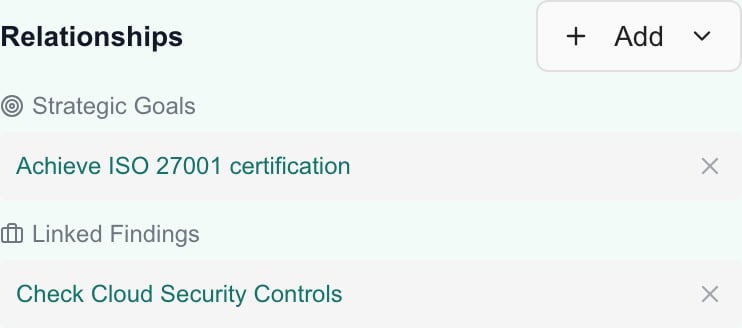
2. Scroll to **Relationships** and choose **Add**.
3. Choose **Link to Goal**, **Link to Compliance Check**, **Link to Secure Score Finding**, **Link to Device**, **Link to Project**, **Link to Opportunity** or **Link to Ticket**.
4. Search the picker, review the matching records and select those that belong to the initiative. You can select more than one; the footer reports the selected count.
5. Choose **Done** to return to the item. Selecting an already selected row does not toggle it off or add a duplicate.
6. Review Relationships. If you changed device links, also review **Costs**: linked device standard prices can add or remove managed cost rows.
7. Choose the item's **Save**, then reopen it to confirm the saved links.
 **Done** closes the picker; it does not save the Planner item. The selected records are already in the form. Closing a picker with its close control also does not undo selections. To abandon all unsaved item changes, close the item and choose **Discard Changes**.
A picker can show a limited initial result set. For devices, projects, opportunities and tickets, use a more specific search when prompted to find more matches. These pickers do not offer a next-page button. Wait for loading to finish before treating the displayed rows as results.
## Choose a compliance assignment
**Link to Compliance Check** opens **Select Compliance Assignment**. This selects an existing assignment for the item's company, rather than creating a new compliance check.
* **Search** matches the title, company, device, location or answer text.
* **Filter by answer** narrows the displayed assignment answers.
* **Filter by Planner association > Unassociated** shows assignments with no saved Planner links.
* **Linked to another Planner item** shows assignments linked to a different item. It does not mean those assignments cannot also support the current item.
* **All** removes the corresponding filter.
Review **Assigned To**, **Due Date**, answer/status and flag details before selecting. The same check can have several assignments, so the title alone may not identify the right one. Select the needed assignments, choose Done and Save the Planner item.
Association information reflects saved links. An unsaved selection does not yet create a saved association. Clear filters or close and reopen the picker if you need to check a different context; a loading error is not proof that no assignments exist.
For automatic matching from templates, see [Apply templates to companies](/user-guides/planner/apply-templates-to-companies). Manual selection lets you choose a specific existing assignment.
## Remove a relationship
Use the **cross** beside the relationship in the item dialog, review the remaining links and choose **Save**. This removes the relationship from this Planner item. It does not delete the original goal, finding, device, project, opportunity or ticket.
Before Save, close the item and choose **Discard Changes** to abandon the removal. **Cancel** on the unsaved-changes prompt returns to the form. Removing device links can also change managed device-price rows; review Costs before saving.
The Cork relationship rows display supporting information without these removal controls. Do not assume every relationship group can be edited from this section.
## Distinguish Add from Create
**Add** selects an existing record. **Create**, when available, offers an opportunity action for the company's connected PSA: Halo PSA, ConnectWise or Autotask. Availability depends on company mapping and integration capability, and the control is not offered when the item already has an opportunity selected.
Choosing a provider creation action creates an external opportunity immediately using the current planning information. It then adds the resulting opportunity to the item form. Review the link and Save the Planner item. Discarding the form does not undo an opportunity that was already created in the PSA.
Before creating, check the title, description, public Notes, due date and planning estimates. If an error leaves the outcome uncertain, check the provider before retrying to avoid creating another opportunity. Ordinary linking and planning do not require this external creation action.
## Troubleshooting
| Symptom | What to check |
| --------------------------------------------- | ------------------------------------------------------------------------------------------------------------------------------------------------------------- |
| Picker is empty | Confirm Company, clear search/filters, wait for loading and check source-module access and integration data. |
| Selected row will not deselect | Choose Done and use the relationship's cross in the item form. |
| Link disappeared after closing the item | Check whether you saved or discarded the item form. Done alone does not save. |
| New relationship has no clickable destination | Some provider records lack a usable link here; reopen after Save and check the provider's own module. |
| Company cannot be changed | Existing record and meeting relationships can restrict moving the item. Review the plan rather than removing meaningful links only to bypass the restriction. |
## FAQs
Open the Planner item, confirm Company and choose Relationships > Add. Pick the record type, select the records, choose Done and then Save the item.
No. Done closes the picker. The selected relationships are in the item form and require the item's Save button.
Yes. Select the required records and review the selected count before Done. Save the item afterward.
Selection adds a record once; it does not toggle off. Choose Done and use the relationship's cross in the item form to remove it.
No. They remain in the form. To discard all unsaved changes, close the Planner item and choose Discard Changes.
The assignment has no saved Planner links. Unsaved choices in the current form do not yet create a saved association.
Yes. Linked to another Planner item identifies an existing relationship; it does not itself prevent selecting that assignment for this item.
No. The picker selects an existing company assignment. Review Assigned To, Due Date and answer details to choose the correct one.
No. After Save, it removes only this item's relationship. The original record remains in its own module.
Yes. Linked device standard prices can add or remove managed cost rows. Review Costs before Save and avoid duplicating them with manual rows.
The picker shows a limited result set and asks you to refine the search for more matches. Use a specific name or identifier rather than looking for page navigation.
Add links an existing record. An available Create provider action immediately creates an external PSA opportunity and adds it to the form; Save persists the Planner relationship.
No. External creation completes separately. Check the provider before retrying after an uncertain result.
To create a new Planner item from an existing PSA opportunity, use [Import opportunities](/user-guides/planner/import-opportunities). Manual linking and PSA-managed import have different duplicate markers and refresh behavior.
**Done** closes the picker; it does not save the Planner item. The selected records are already in the form. Closing a picker with its close control also does not undo selections. To abandon all unsaved item changes, close the item and choose **Discard Changes**.
A picker can show a limited initial result set. For devices, projects, opportunities and tickets, use a more specific search when prompted to find more matches. These pickers do not offer a next-page button. Wait for loading to finish before treating the displayed rows as results.
## Choose a compliance assignment
**Link to Compliance Check** opens **Select Compliance Assignment**. This selects an existing assignment for the item's company, rather than creating a new compliance check.
* **Search** matches the title, company, device, location or answer text.
* **Filter by answer** narrows the displayed assignment answers.
* **Filter by Planner association > Unassociated** shows assignments with no saved Planner links.
* **Linked to another Planner item** shows assignments linked to a different item. It does not mean those assignments cannot also support the current item.
* **All** removes the corresponding filter.
Review **Assigned To**, **Due Date**, answer/status and flag details before selecting. The same check can have several assignments, so the title alone may not identify the right one. Select the needed assignments, choose Done and Save the Planner item.
Association information reflects saved links. An unsaved selection does not yet create a saved association. Clear filters or close and reopen the picker if you need to check a different context; a loading error is not proof that no assignments exist.
For automatic matching from templates, see [Apply templates to companies](/user-guides/planner/apply-templates-to-companies). Manual selection lets you choose a specific existing assignment.
## Remove a relationship
Use the **cross** beside the relationship in the item dialog, review the remaining links and choose **Save**. This removes the relationship from this Planner item. It does not delete the original goal, finding, device, project, opportunity or ticket.
Before Save, close the item and choose **Discard Changes** to abandon the removal. **Cancel** on the unsaved-changes prompt returns to the form. Removing device links can also change managed device-price rows; review Costs before saving.
The Cork relationship rows display supporting information without these removal controls. Do not assume every relationship group can be edited from this section.
## Distinguish Add from Create
**Add** selects an existing record. **Create**, when available, offers an opportunity action for the company's connected PSA: Halo PSA, ConnectWise or Autotask. Availability depends on company mapping and integration capability, and the control is not offered when the item already has an opportunity selected.
Choosing a provider creation action creates an external opportunity immediately using the current planning information. It then adds the resulting opportunity to the item form. Review the link and Save the Planner item. Discarding the form does not undo an opportunity that was already created in the PSA.
Before creating, check the title, description, public Notes, due date and planning estimates. If an error leaves the outcome uncertain, check the provider before retrying to avoid creating another opportunity. Ordinary linking and planning do not require this external creation action.
## Troubleshooting
| Symptom | What to check |
| --------------------------------------------- | ------------------------------------------------------------------------------------------------------------------------------------------------------------- |
| Picker is empty | Confirm Company, clear search/filters, wait for loading and check source-module access and integration data. |
| Selected row will not deselect | Choose Done and use the relationship's cross in the item form. |
| Link disappeared after closing the item | Check whether you saved or discarded the item form. Done alone does not save. |
| New relationship has no clickable destination | Some provider records lack a usable link here; reopen after Save and check the provider's own module. |
| Company cannot be changed | Existing record and meeting relationships can restrict moving the item. Review the plan rather than removing meaningful links only to bypass the restriction. |
## FAQs
Open the Planner item, confirm Company and choose Relationships > Add. Pick the record type, select the records, choose Done and then Save the item.
No. Done closes the picker. The selected relationships are in the item form and require the item's Save button.
Yes. Select the required records and review the selected count before Done. Save the item afterward.
Selection adds a record once; it does not toggle off. Choose Done and use the relationship's cross in the item form to remove it.
No. They remain in the form. To discard all unsaved changes, close the Planner item and choose Discard Changes.
The assignment has no saved Planner links. Unsaved choices in the current form do not yet create a saved association.
Yes. Linked to another Planner item identifies an existing relationship; it does not itself prevent selecting that assignment for this item.
No. The picker selects an existing company assignment. Review Assigned To, Due Date and answer details to choose the correct one.
No. After Save, it removes only this item's relationship. The original record remains in its own module.
Yes. Linked device standard prices can add or remove managed cost rows. Review Costs before Save and avoid duplicating them with manual rows.
The picker shows a limited result set and asks you to refine the search for more matches. Use a specific name or identifier rather than looking for page navigation.
Add links an existing record. An available Create provider action immediately creates an external PSA opportunity and adds it to the form; Save persists the Planner relationship.
No. External creation completes separately. Check the provider before retrying after an uncertain result.
To create a new Planner item from an existing PSA opportunity, use [Import opportunities](/user-guides/planner/import-opportunities). Manual linking and PSA-managed import have different duplicate markers and refresh behavior.