> ## Documentation Index
> Fetch the complete documentation index at: https://docs.msportal.ai/llms.txt
> Use this file to discover all available pages before exploring further.
# Read and manage Planner files
> Find attachments, download a file and understand immediate upload and deletion behavior.
**Audience:** Company users who can read the Planner item and MSP staff. Uploading requires Planner editing access. Deleting an uploaded file requires **Manage Planner** permission; a visible trash control alone does not prove you have that permission. Your MSP manages Company access.
## Find and download a file
1. Open a saved Planner item from List View or the timeline.
2. Expand **Uploads** in the item dialog. The number beside it shows the files currently listed.
3. Read the filename and choose its **Download** control.
4. Check your browser's downloads and open the downloaded file with an appropriate application.
When files are present, the header paperclip labeled **Uploads (N)** opens and scrolls to the section. File downloads are separate from Planner Analytics exports, provider documents and files attached to other linked records.
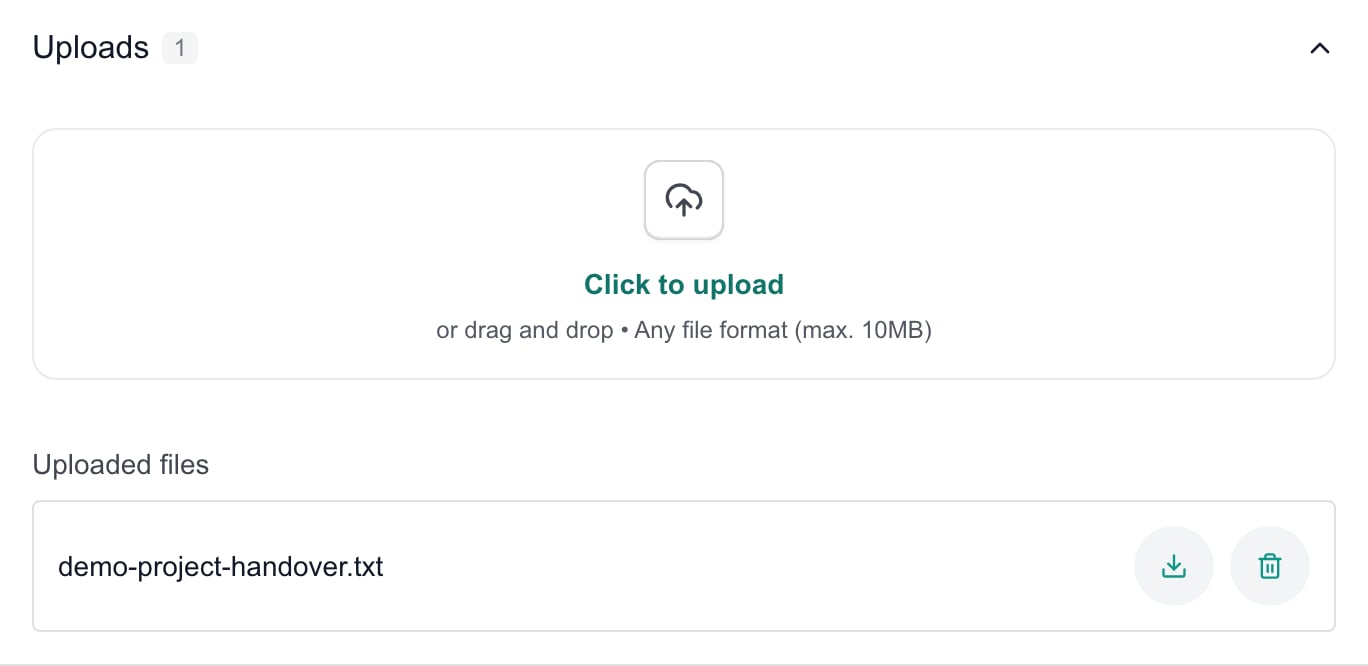 A file name appears only in the list; this section does not provide an inline document preview. If no files appear, check the selected item and wait for loading. An empty list does not prove a previous upload completed or that a loading request succeeded.
## Upload supporting files
With editing access:
1. **Save** a new Planner item first, then reopen it. Uploads is not available on an unsaved new item or a reusable Planner template.
2. Expand **Uploads** and use **Click to upload**, or drop files into the upload area.
3. Choose the intended files. The upload area accepts multiple files and displays guidance of **Any file format (max. 10MB)**; keep files within that stated size guidance.
4. Wait for each file to appear under **Uploaded files**. Review any failed-file message separately.
5. Close and reopen the item to confirm the file is still listed. Download it when you need to verify its contents.
Uploading starts as soon as files are selected or dropped. It does not wait for the item's **Save** button. Closing the item and choosing **Discard Changes** for unrelated form edits does not remove a completed upload.
The progress percentage is an upload indicator, not proof that the file is safely attached. Confirm the filename under Uploaded files. **Try again** retries a failed upload; check the current list first when the outcome is uncertain.
Removing a row from the in-progress upload list does not reliably cancel a transfer already underway. Wait for it to settle, then check Uploaded files and remove an unwanted saved attachment through its own Delete control if permitted.
## Delete an uploaded file
With Manage Planner permission:
1. Open the saved item and expand Uploads.
2. Check the exact filename.
3. Choose that saved file's **Delete** control.
4. Wait for the row to disappear, then reopen the item to confirm the result.
Deletion runs immediately and has no separate confirmation dialog or item Save step. **Discard Changes** does not restore a deleted file. If you still have the original, upload it again when appropriate.
Deleting this attachment does not delete the Planner item or the supporting records in Relationships. Removing a relationship also does not delete an attachment from Uploads.
## Troubleshooting
| Symptom | What to check |
| ----------------------------------- | ------------------------------------------------------------------------------------------------------------------------------------------------------- |
| Uploads is missing | Save the new item first. Templates do not have item uploads. |
| Only Download is available | Your access may be read-only. Ask your MSP for the required editing access. |
| Upload failed | Check the error, file size guidance and connection. Check Uploaded files before Try again. |
| Delete failed or file remains | Ask the MSP to check Manage Planner permission. Reopen the item and check the filename before another attempt. |
| Filename appears but download fails | The attachment may not have completed correctly. Tell your MSP the item and filename; do not treat the visible row as proof that the file is available. |
| Several files were selected | Check each result separately; one successful upload does not prove the rest succeeded. |
## FAQs
Open the saved item, expand Uploads and choose Download beside the filename. The header Uploads paperclip, when present, takes you to that section.
This section lists filenames and download controls; it does not provide an inline document preview. Download the file and open it with an appropriate application.
Save the item first, then reopen it and expand Uploads. Reusable Planner templates do not have this uploads section.
No. Uploading begins immediately when files are selected or dropped. Wait for each filename under Uploaded files.
No. It discards unsaved item-form edits. Completed attachment operations happen separately and remain in effect.
Yes. The upload area accepts multiple files. Review each result separately and confirm every intended file appears in Uploaded files.
It displays Any file format (max. 10MB). Keep files within that stated size guidance and check any upload errors; the progress display alone does not confirm attachment success.
It does not reliably cancel a transfer already underway. Check Uploaded files after the transfer settles, then delete an unwanted saved attachment if permitted.
Manage Planner is required. Some editors can see a trash control without having the permission needed to complete deletion; ask the MSP to check access.
No. Check the filename first: deletion runs immediately without another confirmation or the item's Save button.
No. Attachment deletion is separate from item-form edits. Upload the original again if it is still available and should be restored.
No. It removes the attachment. The Planner item and its supporting-record relationships are separate.
A file name appears only in the list; this section does not provide an inline document preview. If no files appear, check the selected item and wait for loading. An empty list does not prove a previous upload completed or that a loading request succeeded.
## Upload supporting files
With editing access:
1. **Save** a new Planner item first, then reopen it. Uploads is not available on an unsaved new item or a reusable Planner template.
2. Expand **Uploads** and use **Click to upload**, or drop files into the upload area.
3. Choose the intended files. The upload area accepts multiple files and displays guidance of **Any file format (max. 10MB)**; keep files within that stated size guidance.
4. Wait for each file to appear under **Uploaded files**. Review any failed-file message separately.
5. Close and reopen the item to confirm the file is still listed. Download it when you need to verify its contents.
Uploading starts as soon as files are selected or dropped. It does not wait for the item's **Save** button. Closing the item and choosing **Discard Changes** for unrelated form edits does not remove a completed upload.
The progress percentage is an upload indicator, not proof that the file is safely attached. Confirm the filename under Uploaded files. **Try again** retries a failed upload; check the current list first when the outcome is uncertain.
Removing a row from the in-progress upload list does not reliably cancel a transfer already underway. Wait for it to settle, then check Uploaded files and remove an unwanted saved attachment through its own Delete control if permitted.
## Delete an uploaded file
With Manage Planner permission:
1. Open the saved item and expand Uploads.
2. Check the exact filename.
3. Choose that saved file's **Delete** control.
4. Wait for the row to disappear, then reopen the item to confirm the result.
Deletion runs immediately and has no separate confirmation dialog or item Save step. **Discard Changes** does not restore a deleted file. If you still have the original, upload it again when appropriate.
Deleting this attachment does not delete the Planner item or the supporting records in Relationships. Removing a relationship also does not delete an attachment from Uploads.
## Troubleshooting
| Symptom | What to check |
| ----------------------------------- | ------------------------------------------------------------------------------------------------------------------------------------------------------- |
| Uploads is missing | Save the new item first. Templates do not have item uploads. |
| Only Download is available | Your access may be read-only. Ask your MSP for the required editing access. |
| Upload failed | Check the error, file size guidance and connection. Check Uploaded files before Try again. |
| Delete failed or file remains | Ask the MSP to check Manage Planner permission. Reopen the item and check the filename before another attempt. |
| Filename appears but download fails | The attachment may not have completed correctly. Tell your MSP the item and filename; do not treat the visible row as proof that the file is available. |
| Several files were selected | Check each result separately; one successful upload does not prove the rest succeeded. |
## FAQs
Open the saved item, expand Uploads and choose Download beside the filename. The header Uploads paperclip, when present, takes you to that section.
This section lists filenames and download controls; it does not provide an inline document preview. Download the file and open it with an appropriate application.
Save the item first, then reopen it and expand Uploads. Reusable Planner templates do not have this uploads section.
No. Uploading begins immediately when files are selected or dropped. Wait for each filename under Uploaded files.
No. It discards unsaved item-form edits. Completed attachment operations happen separately and remain in effect.
Yes. The upload area accepts multiple files. Review each result separately and confirm every intended file appears in Uploaded files.
It displays Any file format (max. 10MB). Keep files within that stated size guidance and check any upload errors; the progress display alone does not confirm attachment success.
It does not reliably cancel a transfer already underway. Check Uploaded files after the transfer settles, then delete an unwanted saved attachment if permitted.
Manage Planner is required. Some editors can see a trash control without having the permission needed to complete deletion; ask the MSP to check access.
No. Check the filename first: deletion runs immediately without another confirmation or the item's Save button.
No. Attachment deletion is separate from item-form edits. Upload the original again if it is still available and should be restored.
No. It removes the attachment. The Planner item and its supporting-record relationships are separate.