> ## Documentation Index
> Fetch the complete documentation index at: https://docs.msportal.ai/llms.txt
> Use this file to discover all available pages before exploring further.
# Create and manage Planner templates
> Maintain reusable planning defaults, save an item as a template and understand Company access.
**Audience:** MSP staff with **Manage Planner** permission. Planner templates are an MSP catalog; Company users work with the resulting visible Planner items, not this catalog. Your MSP manages access.
Open **Planner Menu > Templates**. A Planner template provides reusable fields for an initiative. It is different from a ticket request template and from the text snippets inserted through **+ Add Template** in a notes editor.
## Find a template
Use the **Name** filter to find a title. Other columns show Description, Type, Default Status, Default Value, Hours, Cost and Created. Sort a supported heading or use its available filter, then select the name to open the template.
The table filters the loaded catalog and has no page navigation or CSV export control. Check the selected rows and count before any bulk action. Its single Cost column summarizes amounts and does not explain separate recurring cadences; open the template to inspect the cost rows.
## Create reusable defaults
1. Choose **New Template**.
2. Enter a clear title describing the reusable plan.
3. Choose **Status**, **Type** and **Business Value**. New templates start with Not Started and Medium Business Value; available types come from your MSP's configuration.
4. Enter **Est. Hours**, cost rows and **Probability of Success** as appropriate.
5. Add a reusable **Description**, public **Notes**, and internal **Private Notes (Internal Only)**.
6. Configure **Compliance auto-link** if needed, and review **Hide from company users** at the bottom.
7. Choose **Save**, then reopen the template to check the stored defaults.
Templates are shared across your MSP's companies. They have no Company, Due Date, Assignee, item relationships, custom-field values or Uploads section in this editor. Set company-specific details when preparing the actual item.
Private Notes are internal MSP notes, not author-only notes. Keep company-specific confidential information out of broadly reusable public content.
## Costs and visibility
Use separate One-time, Monthly and Annual rows. A template can have up to 20 cost rows. Do not treat its combined Cost column as an annual budget when rows have different cadences.
Templates preserve each cost row's amount and cadence, but currently do not retain the original quantity/unit breakdown. For example, 3 × 200 Monthly reopens as 1 × 600 Monthly. The amount is preserved. Check the applied item before relying on quantities for a plan.
**Hide from company users** stores a visibility default for items created or updated from this template. It does not make the template catalog accessible to Company users. A newly opened template starts with this checkbox unchecked; review it before Save.
When applying the template, the **Hide from company users** field-selection checkbox means “copy the template's visibility setting.” It does not always mean “hide the target.” See [Apply a template to an item](/user-guides/planner/apply-template-to-item).
## Compliance auto-link
Select the compliance checks whose company assignments should be linked when applying the template. This setting identifies checks, not a particular company's existing findings.
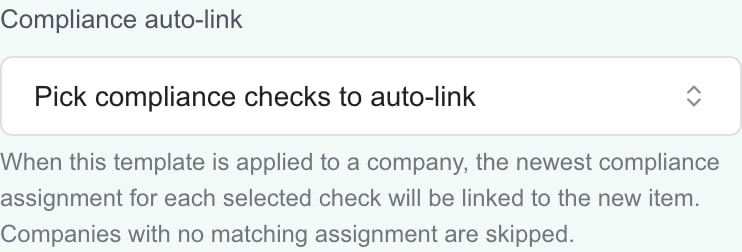 Application looks for the newest matching assignment of each selected check in the target company. A company without a matching assignment cannot receive that link. Auto-linking does not create a compliance assignment or mark a check compliant. Review any missing-link message and the resulting item's Relationships.
## Edit or reuse existing work
Select a template's name, change its defaults and choose **Save**. Closing with **Discard Changes** abandons unsaved form edits. Editing a template does not update items previously created from it; apply the template to an item again only when you intend to replace selected fields.
To create a template from an existing saved item, open **Planner Menu > List View**, find the item and choose its row **... > Save as Template**. This creates the template immediately; it does not first open an editable draft. Then open Templates to review it.
**Save as Template** copies reusable values from saved work, resets the template's status to **Not Started** and sets it to hide resulting items from Company users. Review notes, costs, compliance auto-link and visibility before reusing it. It does not turn the original item into a template or remove it from the plan.
## Delete or apply to companies
Use a template's **... > Delete**, review **Delete Template**, and confirm **Delete**. **Cancel** leaves it in place. For several templates, select their rows and use **Actions > Delete Selected**, checking the selected count before confirming.
Deleting a reusable template does not delete previously created Planner items. It removes that template as a choice for future use.
**Actions > Apply to Companies** is a separate creation workflow: it creates new items for selected template/company combinations. It is not the same as opening an existing item and applying selected fields. See [Create Planner items for multiple companies](/user-guides/planner/apply-templates-to-companies) for selection rules, shared dates, costs and missing compliance links.
## Troubleshooting and FAQs
If Templates is missing, ask the MSP to check **Manage Planner**. Some controls can appear to a staff member with only Write access, but template-saving and deletion actions require Manage permission. A visible button does not prove the action is permitted.
With Manage Planner permission, open Planner Menu > Templates > New Template. Complete the defaults and choose Save.
No. This catalog is for MSP staff. Company users read or edit resulting items only within the access and visibility granted by their MSP.
No. Planner templates supply planning fields. Ticket templates configure support requests; + Add Template in notes inserts a text snippet.
Those are not template editor fields. Set them on the actual item, or choose companies and a due date in the separate Apply to Companies workflow.
Templates currently retain the row amount and cadence, but not the original quantity/unit breakdown. Review quantities on the resulting item.
Not necessarily. It can combine different cadences. Open the template and inspect its separate One-time, Monthly and Annual rows.
No. It sets a visibility default for resulting items. Templates remain an MSP staff catalog.
No. Existing items keep their saved values. Applying a template again is an explicit operation that can replace selected fields.
No. The List View row action creates a template immediately from the saved item. Open Templates afterward to review it.
It resets status to Not Started and sets Hide from company users. Review these defaults before applying the template elsewhere.
No. It finds existing matching company assignments. Missing assignments cannot be linked, and linking does not remediate the check.
No. Delete removes the reusable template. Previously created Planner items remain separate records.
Application looks for the newest matching assignment of each selected check in the target company. A company without a matching assignment cannot receive that link. Auto-linking does not create a compliance assignment or mark a check compliant. Review any missing-link message and the resulting item's Relationships.
## Edit or reuse existing work
Select a template's name, change its defaults and choose **Save**. Closing with **Discard Changes** abandons unsaved form edits. Editing a template does not update items previously created from it; apply the template to an item again only when you intend to replace selected fields.
To create a template from an existing saved item, open **Planner Menu > List View**, find the item and choose its row **... > Save as Template**. This creates the template immediately; it does not first open an editable draft. Then open Templates to review it.
**Save as Template** copies reusable values from saved work, resets the template's status to **Not Started** and sets it to hide resulting items from Company users. Review notes, costs, compliance auto-link and visibility before reusing it. It does not turn the original item into a template or remove it from the plan.
## Delete or apply to companies
Use a template's **... > Delete**, review **Delete Template**, and confirm **Delete**. **Cancel** leaves it in place. For several templates, select their rows and use **Actions > Delete Selected**, checking the selected count before confirming.
Deleting a reusable template does not delete previously created Planner items. It removes that template as a choice for future use.
**Actions > Apply to Companies** is a separate creation workflow: it creates new items for selected template/company combinations. It is not the same as opening an existing item and applying selected fields. See [Create Planner items for multiple companies](/user-guides/planner/apply-templates-to-companies) for selection rules, shared dates, costs and missing compliance links.
## Troubleshooting and FAQs
If Templates is missing, ask the MSP to check **Manage Planner**. Some controls can appear to a staff member with only Write access, but template-saving and deletion actions require Manage permission. A visible button does not prove the action is permitted.
With Manage Planner permission, open Planner Menu > Templates > New Template. Complete the defaults and choose Save.
No. This catalog is for MSP staff. Company users read or edit resulting items only within the access and visibility granted by their MSP.
No. Planner templates supply planning fields. Ticket templates configure support requests; + Add Template in notes inserts a text snippet.
Those are not template editor fields. Set them on the actual item, or choose companies and a due date in the separate Apply to Companies workflow.
Templates currently retain the row amount and cadence, but not the original quantity/unit breakdown. Review quantities on the resulting item.
Not necessarily. It can combine different cadences. Open the template and inspect its separate One-time, Monthly and Annual rows.
No. It sets a visibility default for resulting items. Templates remain an MSP staff catalog.
No. Existing items keep their saved values. Applying a template again is an explicit operation that can replace selected fields.
No. The List View row action creates a template immediately from the saved item. Open Templates afterward to review it.
It resets status to Not Started and sets Hide from company users. Review these defaults before applying the template elsewhere.
No. It finds existing matching company assignments. Missing assignments cannot be linked, and linking does not remediate the check.
No. Delete removes the reusable template. Previously created Planner items remain separate records.