> ## Documentation Index
> Fetch the complete documentation index at: https://docs.msportal.ai/llms.txt
> Use this file to discover all available pages before exploring further.
# Manage Planner types and defaults
> Add, rename and describe shared Planner types, create several names, and choose the default.
**Audience:** MSP staff. These are shared settings across the MSP's companies, not Company administrator settings.
## Open the catalog
Open **Settings > Customization > Types**, then select **Planner Types**. The other tab manages Device Types. Check the selected tab before using **Add**.
The older **Planner Types** settings page also shows the catalog, but its header does not offer Add. Use the Types screen above when creating entries.
| Access | Available task |
| -------------------------------------- | ----------------------------------------------- |
| Planner Types settings Read | View the catalog. |
| Planner Types settings Write or Manage | Add or edit types and change the default. |
| Planner Types settings Manage | Delete a type, with reassignment when required. |
Writes also require active billing and the underlying Planner access. If a control is available but saving is rejected, ask the MSP administrator to check both Planner and Planner Types settings permissions.
## Add one type
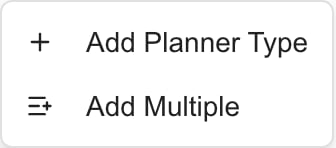
1. Choose **Add > Add Planner Type**.
2. Enter the **Name** and an optional **Description** in the new row.
3. Select the row's green **check** to save, or its red **cross** to cancel.
4. Wait for the result and confirm the new row appears.
Opening the new row does not save a type. Names are required, trimmed when saved and limited to 255 characters. Choose a distinct, clear name; an existing exact name cannot be added again.
 ## Add several types
1. Choose **Add > Add Multiple**.
2. In **Add Multiple Planner Types**, enter one name per line. Blank lines are ignored; the count reflects nonblank lines.
3. Review the names, then select **Create All**. Use **Cancel** before submission to abandon the list.
4. Read both success and failure messages. Check the resulting catalog before retrying missing names.
Each name is created separately. If one fails, other names can still save. The dialog closes and clears its text after processing; keep your intended list until you verify the result. Add Multiple does not set descriptions—edit those afterward.
## Rename or describe a type
1. Find the row and select its **pencil** icon.
2. Edit Name and Description.
3. Use the green **check** to save or red **cross** to cancel.
4. Reopen the page if you need to confirm the saved spelling and spacing.
This is a shared definition. Renaming it changes the live label wherever that type is used, including Planner and budget forecasting. It does not create a second type or move an item to a different type. Existing approved budget snapshots can preserve their earlier recorded name.
## Set or remove the default
Select a row's **star**, labeled **Set as default**, to save that choice immediately. The row gains **Default** and its star is filled. Selecting another type replaces the previous default.
Select the current default's star, labeled **Remove as default**, to clear the choice. There can be no selected default; clearing it does not automatically select another row. These actions do not require a separate Save button.
The item editor uses the default as a starting choice for a new item without an existing type. Review Type before saving—templates, existing values and other creation workflows can supply a different choice. Changing the default does not reclassify existing items.
To retire a definition, follow [Delete or reassign Planner types](/user-guides/planner/retire-types). Deleting a used type is different from renaming it.
## Troubleshooting
| Problem | What to check |
| ------------------------------------------------------------- | ------------------------------------------------------------------------------ |
| Add is missing | Use Customization > Types > Planner Types, not the older standalone page. |
| Add or edit is disabled | Planner Types settings Write or Manage permission. |
| Save is rejected despite an enabled control | Required fields, duplicate name, active billing and underlying Planner access. |
| Some pasted names are absent | Read failed counts and inspect existing rows. Retry only missing names. |
| The name looks different after reopening | Saved names and descriptions are trimmed. |
| Existing items kept their old type after changing the default | Defaults do not reclassify existing work. |
| A budget still shows an older category label | Check whether it is an approved snapshot. |
## FAQs
Open Settings > Customization > Types, choose Planner Types, then Add > Add Planner Type.
No. The catalog is shared across the MSP's companies. Company users see relevant items within their access.
No. Add Planner Type opens an unsaved row. Use its green check to save or red cross to cancel.
Yes. Use Add Multiple, one name per line, then Create All. Blank lines are ignored.
No. Names save independently. Check success and failure messages and retry only missing entries.
Add Multiple accepts names, one per line. Add descriptions later through each row's pencil editor.
An existing exact name is rejected. Use clear, distinct names and check the catalog before retrying.
It changes the shared live label used by Planner and budget forecasting. Approved snapshots can retain their earlier label.
No. Set as default and Remove as default save immediately. Wait for the result.
Setting a new default clears the prior default for the MSP. Clearing the current default can leave none selected.
No. It supplies a starting choice for new items without a type. Review the actual Type in the editor.
Editing and defaults require Write or Manage for Planner Types settings; deletion requires Manage and can require reassignment.
Related: [Understand types and budget categories](/user-guides/planner/understand-types), [create and edit Planner items](/user-guides/planner/create-and-edit-items), [manage Planner templates](/user-guides/planner/manage-templates).
## Add several types
1. Choose **Add > Add Multiple**.
2. In **Add Multiple Planner Types**, enter one name per line. Blank lines are ignored; the count reflects nonblank lines.
3. Review the names, then select **Create All**. Use **Cancel** before submission to abandon the list.
4. Read both success and failure messages. Check the resulting catalog before retrying missing names.
Each name is created separately. If one fails, other names can still save. The dialog closes and clears its text after processing; keep your intended list until you verify the result. Add Multiple does not set descriptions—edit those afterward.
## Rename or describe a type
1. Find the row and select its **pencil** icon.
2. Edit Name and Description.
3. Use the green **check** to save or red **cross** to cancel.
4. Reopen the page if you need to confirm the saved spelling and spacing.
This is a shared definition. Renaming it changes the live label wherever that type is used, including Planner and budget forecasting. It does not create a second type or move an item to a different type. Existing approved budget snapshots can preserve their earlier recorded name.
## Set or remove the default
Select a row's **star**, labeled **Set as default**, to save that choice immediately. The row gains **Default** and its star is filled. Selecting another type replaces the previous default.
Select the current default's star, labeled **Remove as default**, to clear the choice. There can be no selected default; clearing it does not automatically select another row. These actions do not require a separate Save button.
The item editor uses the default as a starting choice for a new item without an existing type. Review Type before saving—templates, existing values and other creation workflows can supply a different choice. Changing the default does not reclassify existing items.
To retire a definition, follow [Delete or reassign Planner types](/user-guides/planner/retire-types). Deleting a used type is different from renaming it.
## Troubleshooting
| Problem | What to check |
| ------------------------------------------------------------- | ------------------------------------------------------------------------------ |
| Add is missing | Use Customization > Types > Planner Types, not the older standalone page. |
| Add or edit is disabled | Planner Types settings Write or Manage permission. |
| Save is rejected despite an enabled control | Required fields, duplicate name, active billing and underlying Planner access. |
| Some pasted names are absent | Read failed counts and inspect existing rows. Retry only missing names. |
| The name looks different after reopening | Saved names and descriptions are trimmed. |
| Existing items kept their old type after changing the default | Defaults do not reclassify existing work. |
| A budget still shows an older category label | Check whether it is an approved snapshot. |
## FAQs
Open Settings > Customization > Types, choose Planner Types, then Add > Add Planner Type.
No. The catalog is shared across the MSP's companies. Company users see relevant items within their access.
No. Add Planner Type opens an unsaved row. Use its green check to save or red cross to cancel.
Yes. Use Add Multiple, one name per line, then Create All. Blank lines are ignored.
No. Names save independently. Check success and failure messages and retry only missing entries.
Add Multiple accepts names, one per line. Add descriptions later through each row's pencil editor.
An existing exact name is rejected. Use clear, distinct names and check the catalog before retrying.
It changes the shared live label used by Planner and budget forecasting. Approved snapshots can retain their earlier label.
No. Set as default and Remove as default save immediately. Wait for the result.
Setting a new default clears the prior default for the MSP. Clearing the current default can leave none selected.
No. It supplies a starting choice for new items without a type. Review the actual Type in the editor.
Editing and defaults require Write or Manage for Planner Types settings; deletion requires Manage and can require reassignment.
Related: [Understand types and budget categories](/user-guides/planner/understand-types), [create and edit Planner items](/user-guides/planner/create-and-edit-items), [manage Planner templates](/user-guides/planner/manage-templates).