> ## Documentation Index
> Fetch the complete documentation index at: https://docs.msportal.ai/llms.txt
> Use this file to discover all available pages before exploring further.
# Open records linked to Planner work
> Inspect the goals, findings, devices, projects and tickets that explain a planned initiative.
**Audience:** Company users with access to the Planner item and MSP staff. Linked modules and external provider accounts can require additional access. Your MSP manages Company permissions.
## Find the supporting records
1. Open **Planner Menu > List View** and select an item's title, or open its card on the timeline.
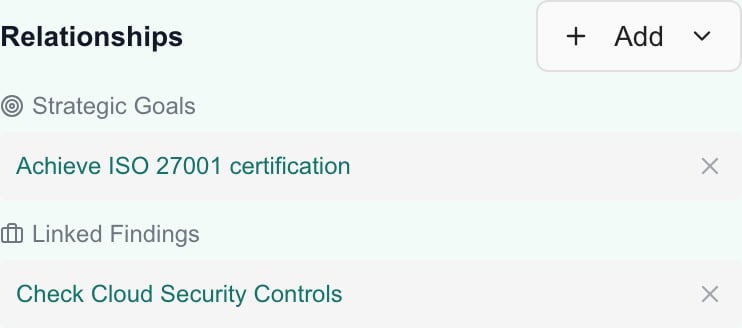
2. Scroll within the item dialog to **Relationships**.
3. Read the relationship groups and select an available record-name link. Links open a separate tab.
4. Check the linked record's own details and status, then return to the Planner item.
 | Group | Where its available links lead |
| ------------------------------------------------------------------------ | ------------------------------------------------------------------------------------------------------------------------- |
| **Strategic Goals** | The goal in MSPortal. |
| **Linked Findings** — compliance | The selected compliance assignment in MSPortal. |
| **Linked Findings** — Secure Score | The finding in MSPortal's Secure Score view. A separate external-link icon can open its Microsoft action page. |
| **Linked Devices** | The device in MSPortal. |
| **Linked Projects**, **Linked Opportunities** | The connected provider when a usable provider link is available. A plain-text name has no available link in this section. |
| **Linked Tickets** | The ticket in MSPortal. A separate external-link icon can open the PSA when an external URL is available. |
| **Cork Vulnerabilities**, **Cork Endpoints**, **Cork Compliance Events** | Supporting labels and available risk details. These rows do not provide record-opening controls in this section. |
Not every item has every group. **No relationships defined.** means no relationships are currently displayed. It does not mean that related work does not exist elsewhere.
## Understand what a relationship means
A relationship explains why the work matters or connects it to supporting evidence. Linking a compliance assignment does not make it compliant. Linking a ticket does not close it. A Planner item marked **Completed** does not prove that every linked record is finished.
A relationship name can be a saved label. Use the destination record to check current details. Ticket status text, when shown beside a link, is separate from the Planner item's status.
The cross or remove control beside a relationship is an editing action, not a way to close the destination. Leave changes to an authorized editor unless your MSP has granted the appropriate editing access.
## If a link is missing or will not open
* A plain-text project or opportunity name can mean the provider connection does not supply a usable link here. Find the record in its own module or ask your MSP.
* Check whether a separate tab opened, including your browser's blocked-popup indication.
* Sign in to the provider if required. Planner access does not grant a provider account or license.
* Ask the MSP to check your company scope and access to the destination module. Do not change another company's scope to bypass a restriction.
* If the destination opens without the expected record, tell the MSP which Planner item and relationship you used.
For attachments, see [Read and manage Planner files](/user-guides/planner/manage-files). MSP editors can use [Link supporting records](/user-guides/planner/link-supporting-records) to add or remove relationships.
## FAQs
Open the item and scroll to Relationships. Select an available record-name link to inspect its supporting details in a separate tab.
No. The destination module or provider can require separate access. Ask your MSP to check your permissions.
A usable provider link is not available for that row. Find the record through its own module or ask the MSP to check the integration details.
The ticket name opens the MSPortal ticket view. A separate external-link icon can open the PSA when an external URL is available.
Use the separate external-link icon when present. The finding-name link opens the MSPortal Secure Score view. Microsoft sign-in and permissions may be required.
These rows display supporting labels and available risk details; they do not provide record-opening controls in this section.
No. The relationship connects planned work to the finding. Remediation and compliance answers are separate workflows.
No. Completed is the Planner item's status. Open the linked records and check their own statuses.
It means no relationships are currently displayed on this item. Related work may still exist elsewhere without a link.
Expand Uploads in the saved item's dialog. Files are separate from the Relationships section.
For opportunity-backed work, see [Understand PSA-linked Planner items](/user-guides/planner/understand-psa-linked-items). The relationship alone does not prove a quote is approved or every field is synchronized.
| Group | Where its available links lead |
| ------------------------------------------------------------------------ | ------------------------------------------------------------------------------------------------------------------------- |
| **Strategic Goals** | The goal in MSPortal. |
| **Linked Findings** — compliance | The selected compliance assignment in MSPortal. |
| **Linked Findings** — Secure Score | The finding in MSPortal's Secure Score view. A separate external-link icon can open its Microsoft action page. |
| **Linked Devices** | The device in MSPortal. |
| **Linked Projects**, **Linked Opportunities** | The connected provider when a usable provider link is available. A plain-text name has no available link in this section. |
| **Linked Tickets** | The ticket in MSPortal. A separate external-link icon can open the PSA when an external URL is available. |
| **Cork Vulnerabilities**, **Cork Endpoints**, **Cork Compliance Events** | Supporting labels and available risk details. These rows do not provide record-opening controls in this section. |
Not every item has every group. **No relationships defined.** means no relationships are currently displayed. It does not mean that related work does not exist elsewhere.
## Understand what a relationship means
A relationship explains why the work matters or connects it to supporting evidence. Linking a compliance assignment does not make it compliant. Linking a ticket does not close it. A Planner item marked **Completed** does not prove that every linked record is finished.
A relationship name can be a saved label. Use the destination record to check current details. Ticket status text, when shown beside a link, is separate from the Planner item's status.
The cross or remove control beside a relationship is an editing action, not a way to close the destination. Leave changes to an authorized editor unless your MSP has granted the appropriate editing access.
## If a link is missing or will not open
* A plain-text project or opportunity name can mean the provider connection does not supply a usable link here. Find the record in its own module or ask your MSP.
* Check whether a separate tab opened, including your browser's blocked-popup indication.
* Sign in to the provider if required. Planner access does not grant a provider account or license.
* Ask the MSP to check your company scope and access to the destination module. Do not change another company's scope to bypass a restriction.
* If the destination opens without the expected record, tell the MSP which Planner item and relationship you used.
For attachments, see [Read and manage Planner files](/user-guides/planner/manage-files). MSP editors can use [Link supporting records](/user-guides/planner/link-supporting-records) to add or remove relationships.
## FAQs
Open the item and scroll to Relationships. Select an available record-name link to inspect its supporting details in a separate tab.
No. The destination module or provider can require separate access. Ask your MSP to check your permissions.
A usable provider link is not available for that row. Find the record through its own module or ask the MSP to check the integration details.
The ticket name opens the MSPortal ticket view. A separate external-link icon can open the PSA when an external URL is available.
Use the separate external-link icon when present. The finding-name link opens the MSPortal Secure Score view. Microsoft sign-in and permissions may be required.
These rows display supporting labels and available risk details; they do not provide record-opening controls in this section.
No. The relationship connects planned work to the finding. Remediation and compliance answers are separate workflows.
No. Completed is the Planner item's status. Open the linked records and check their own statuses.
It means no relationships are currently displayed on this item. Related work may still exist elsewhere without a link.
Expand Uploads in the saved item's dialog. Files are separate from the Relationships section.
For opportunity-backed work, see [Understand PSA-linked Planner items](/user-guides/planner/understand-psa-linked-items). The relationship alone does not prove a quote is approved or every field is synchronized.